The apps portal#
When your organization puts web apps behind CrushMFT (a wiki, a dashboard, a timesheet site), you open them with your CrushMFT sign-in. You do not need another password for each app.
Opening an app#
- From its address, such as
https://wiki.example.com. If you are not signed in, you go to the CrushMFT sign-in page, which says "Sign in to continue to Team Wiki". Sign in as usual, and you land in the app, on the page you asked for. - From the portal:
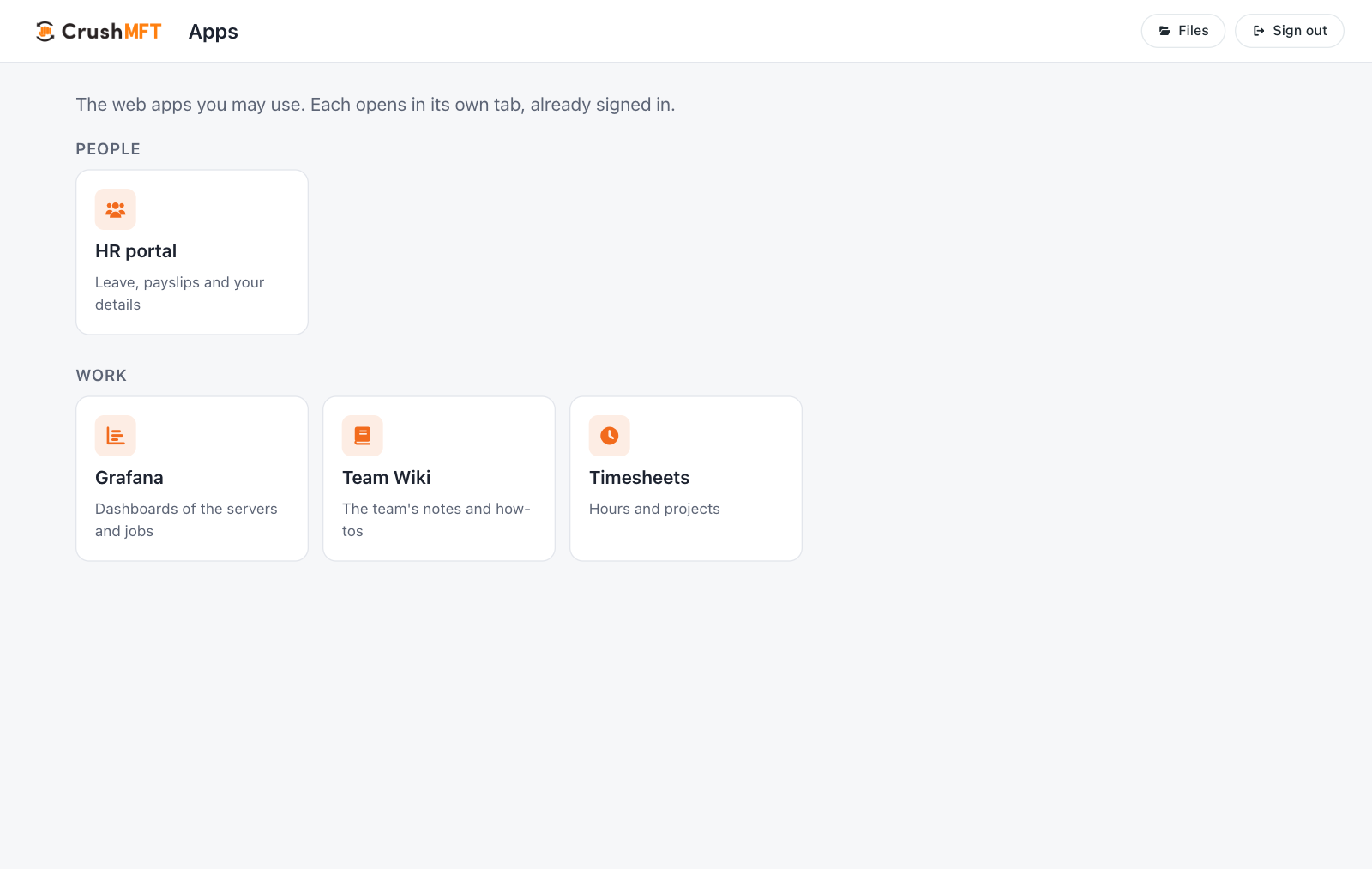
/WebInterface/Apps/index.htmlon your CrushMFT address shows a tile for every app you may open, grouped by category. A tile opens the app; you are not asked to sign in again. With many apps, a search box finds one by name. A Files tile opens the file manager, and Sign out signs you out.
Your administrator may have set the portal, or one app, as the page you see right after signing in.
What you may be asked#
| You see | What to do |
|---|---|
| Team Wiki needs a second factor | Type the code your authenticator app shows for your CrushMFT account. You are asked once per sign-in. If your account has no authenticator app yet, set one up first, or ask your administrator. |
| The sign-in page again, while using an app | Some apps want a recent sign-in (an admin console, say). Sign in again and you go back to the app. |
| You may not use Team Wiki | Your account is not given this app, or not from where you are, or not at this time. Ask your administrator. |
| This app is not available | The app is turned off or cannot be reached right now. Try again in a minute. |
| This sign-in link cannot be used | The link was used already or is too old. Open the app again. |
Signing out#
Signing out of CrushMFT signs you out of the apps too: their next page asks you to sign in. You may briefly see a Signed out page, which tells the apps you used that you have left. An app's own sign-out may also end your CrushMFT session, as your administrator set it up.