Preferences#
Preferences is the admin app for everything that belongs to the server as a whole: the ports it listens on, mail, certificates, logging, banning, plugins, and so on. Settings of a single user are in the User Manager.
Finding your way#
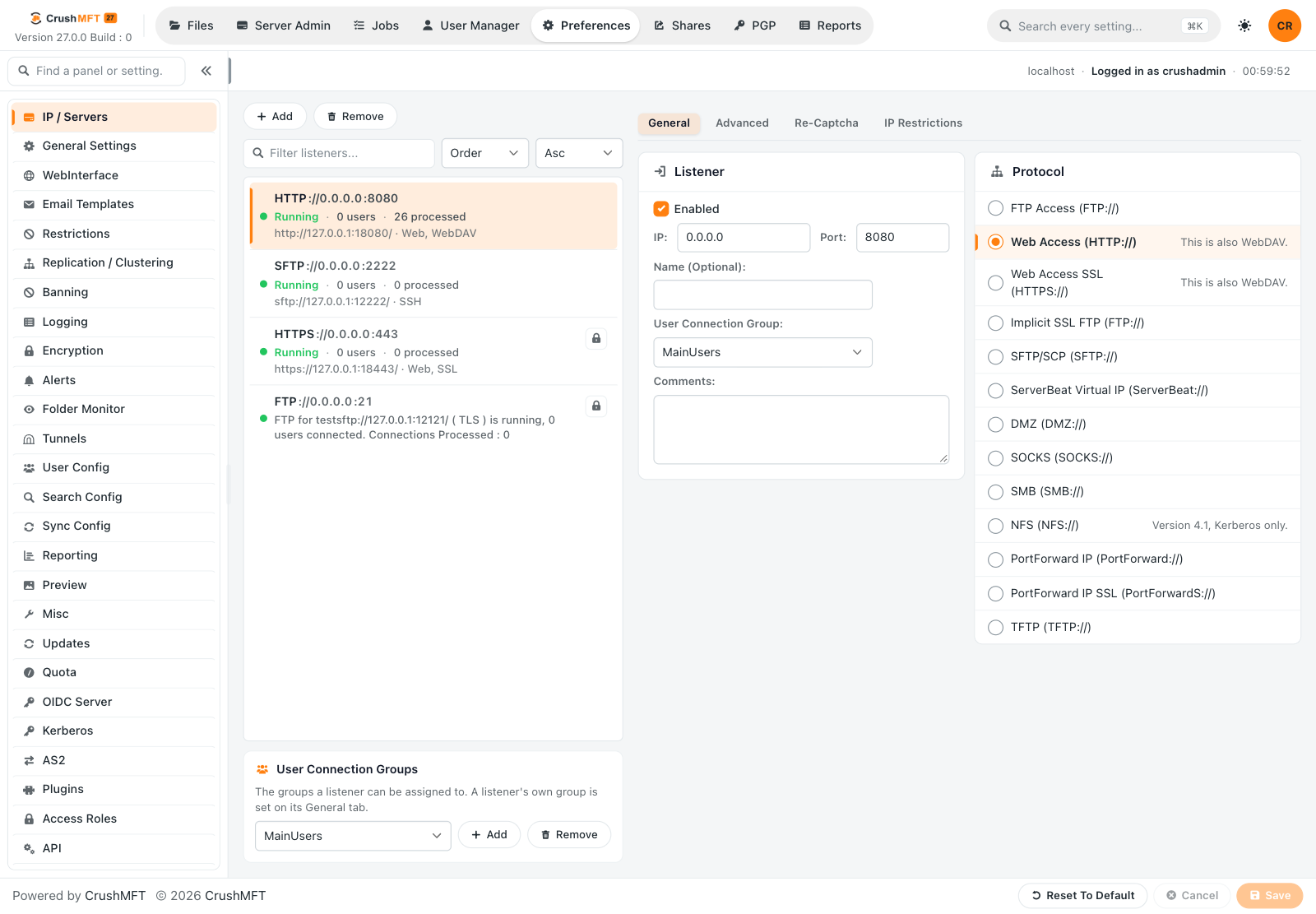
| Part | What it is |
|---|---|
| The app bar (top) | switches between the admin apps: Files, Server Admin, Jobs, User Manager, Preferences, Shares, PGP, Reports. The version of the server is under the logo. |
| Search every setting… (top right, ⌘K or Ctrl+K) | finds a setting anywhere in Preferences, see below |
| The sun or moon button | switches between the light and the dark theme |
| Your initials | shows who is signed in, with Logout |
| The sections (left) | one entry per section. Click one to open its panel. The arrows above the list fold the list away. |
| The status line (above the panel) | the server's host name, who is signed in, and the time left before the session ends by itself |
| The bottom bar | Reset To Default, Cancel and Save for the open panel |
The sections#
| Section | Holds |
|---|---|
| IP / Servers | the ports the server listens on, one listener per port and protocol |
| General Settings | the connection limit, the mail server, the bandwidth schedule, one-time codes, the password reset mail |
| WebInterface | the logo, web sessions, the login page, its themes and languages, MiniURLs, the Proxy tab, security headers, custom forms |
| Email Templates | the texts of the mails the server sends, and the designer for mails with a layout |
| Restrictions | limits for the whole server: connection days, FTP rules, file name filters, blocked paths |
| Replication / Clustering | keeping several servers the same |
| Banning | addresses and countries that may not connect, and when the server bans by itself |
| Logging | the log file and how it is rolled, where else the log goes, what is logged, metrics |
| Encryption | certificates, ciphers, keystores, PGP keys, certificate pins, and how passwords are stored |
| Alerts | what the server tells you about, and how: by mail, by a job, by SNMP trap |
| Folder Monitor | folders the server watches, and what it does with what it finds |
| Tunnels | the tunnels users can be given |
| User Config | where users are kept: files or a database |
| Search Config | what a search looks at, and the index behind it |
| Sync Config | settings for synchronized folders |
| Reporting | what the reports record and where it is stored |
| Preview | thumbnails and previews of files, made by a conversion tool |
| Misc | settings that fit nowhere else, the key for country lookups, the levels of the low memory alerts, the pattern tester |
| Updates | how the server updates itself |
| Quota | how much users may store |
| OIDC Server | the server as an OIDC issuer, so that cloud storage trusts it without a stored key |
| Kerberos | the keytabs for single sign-on with Kerberos |
| Plugins | the plugins and their settings |
| Access Roles | the roles that say what an administrator may do |
| API | the API's switches and who may call it; the API itself is under the API |
| AI Assistant | the chat about your server, the AI service it uses, and its rules |
Find a panel or setting#
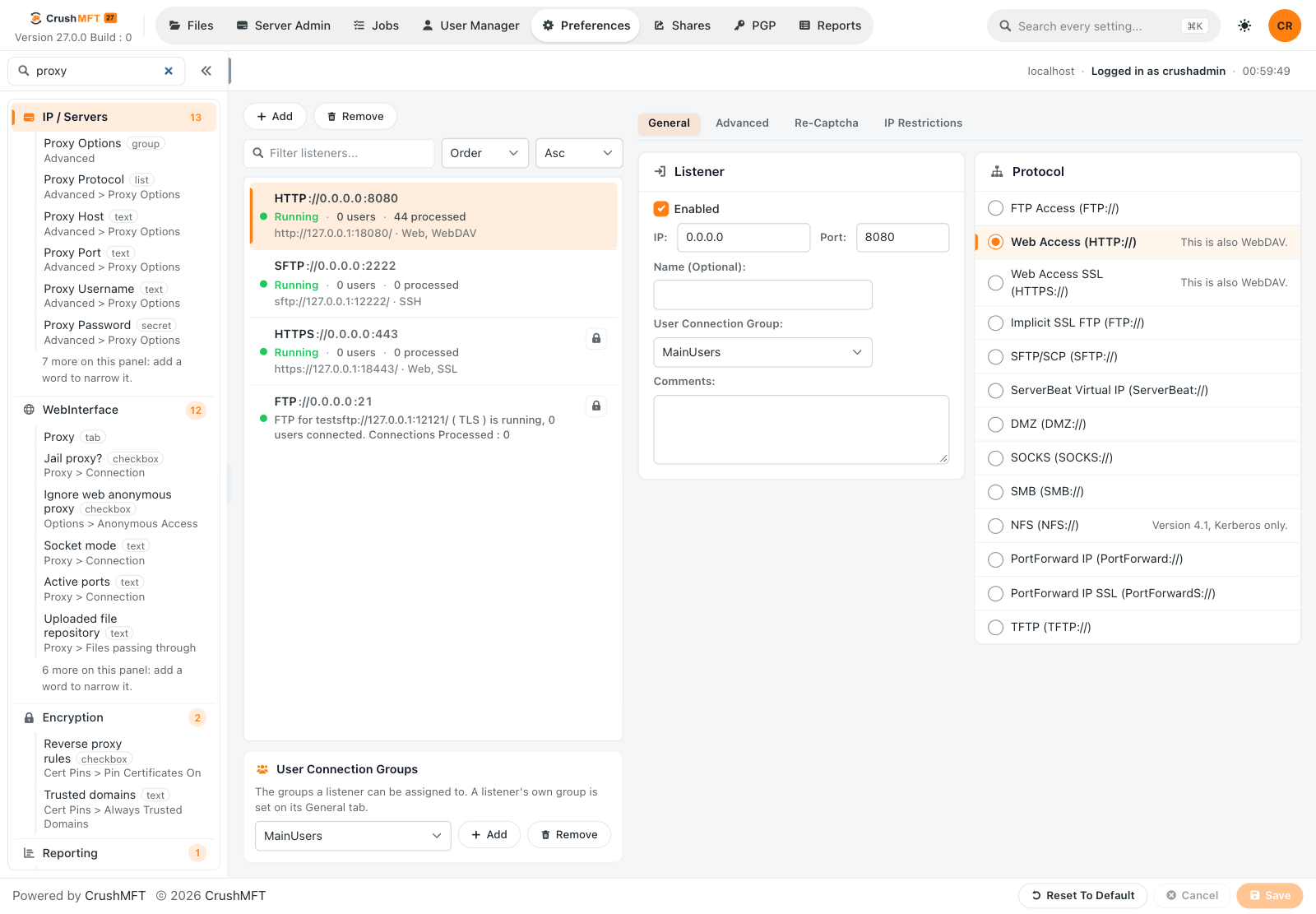
The box above the section list searches the names of all settings while you type. The list then shows only the sections with a match, each with the number of matches and the first few of them: the setting's name, its kind (checkbox, text, list, group, tab) and where on the panel it is. "… more on this panel" means there are more than fit; add a word to narrow the search. Click a match to open that panel at that setting.
Search every setting#
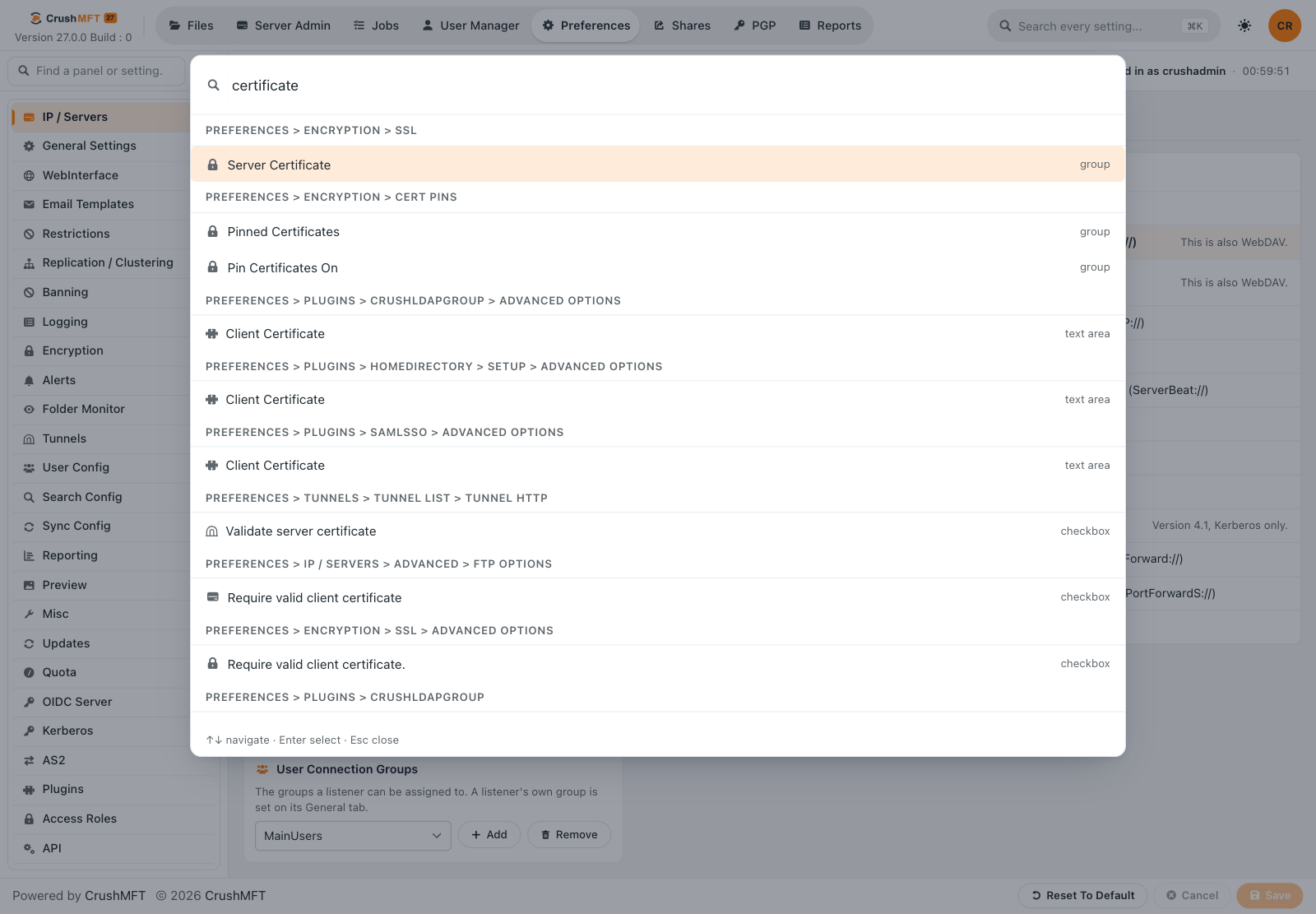
Search every setting… in the top bar (⌘K on a Mac, Ctrl+K elsewhere) opens a search over everything. Each result shows its full path, such as Preferences › Encryption › SSL, and its kind. Use ↑ and ↓ to move, Enter to go there, Esc to close.
Saving#
Nothing changes on the server until you press Save. The bar at the bottom belongs to the panel that is open:
| Button | What it does |
|---|---|
| Save | writes the panel's settings to the server. They apply at once unless the panel says a restart is needed. |
| Cancel | throws away what you changed since the last save, after asking "Are you sure you want to reject changes made so far?" |
| Reset To Default | fills the panel with the settings of a new server, after asking "Are you sure you want to restore default settings for …?". Nothing is written yet: look the panel over, then press Save, or Cancel to keep what you had. The Plugins panel cannot be reset. |
If you open another section, another app or close the page while a panel has unsaved changes, Preferences asks first: "If you navigate away, you will lose your unsaved changes."
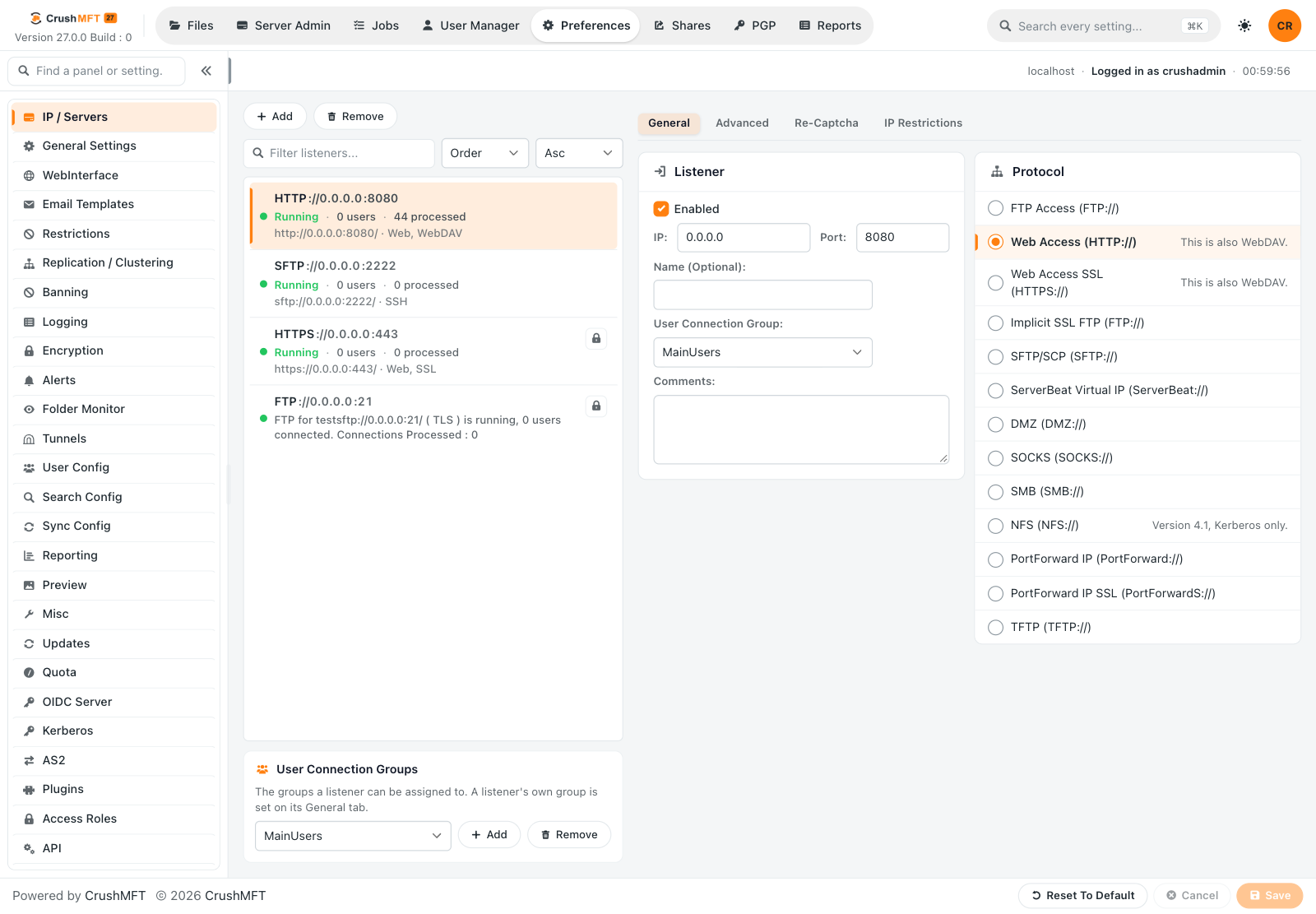
Light and dark#
Who may open Preferences#
An administrator whose roles include the Preferences sections. Sections a role does not allow are not shown, and a role can allow reading a section without changing it.