Quick view, thumbnails and the slideshow#
Three ways to look at files in the WebInterface without downloading them: small pictures in the list, a large view of one file, and a slideshow of a folder.
Which of them you have depends on the buttons your administrator gave you, and on whether the server makes previews.
Thumbnails#
Switch the view, at the right end of the bar above the list, to Small Grid, Medium Grid or Large Grid. Each item becomes a picture with its name under it.
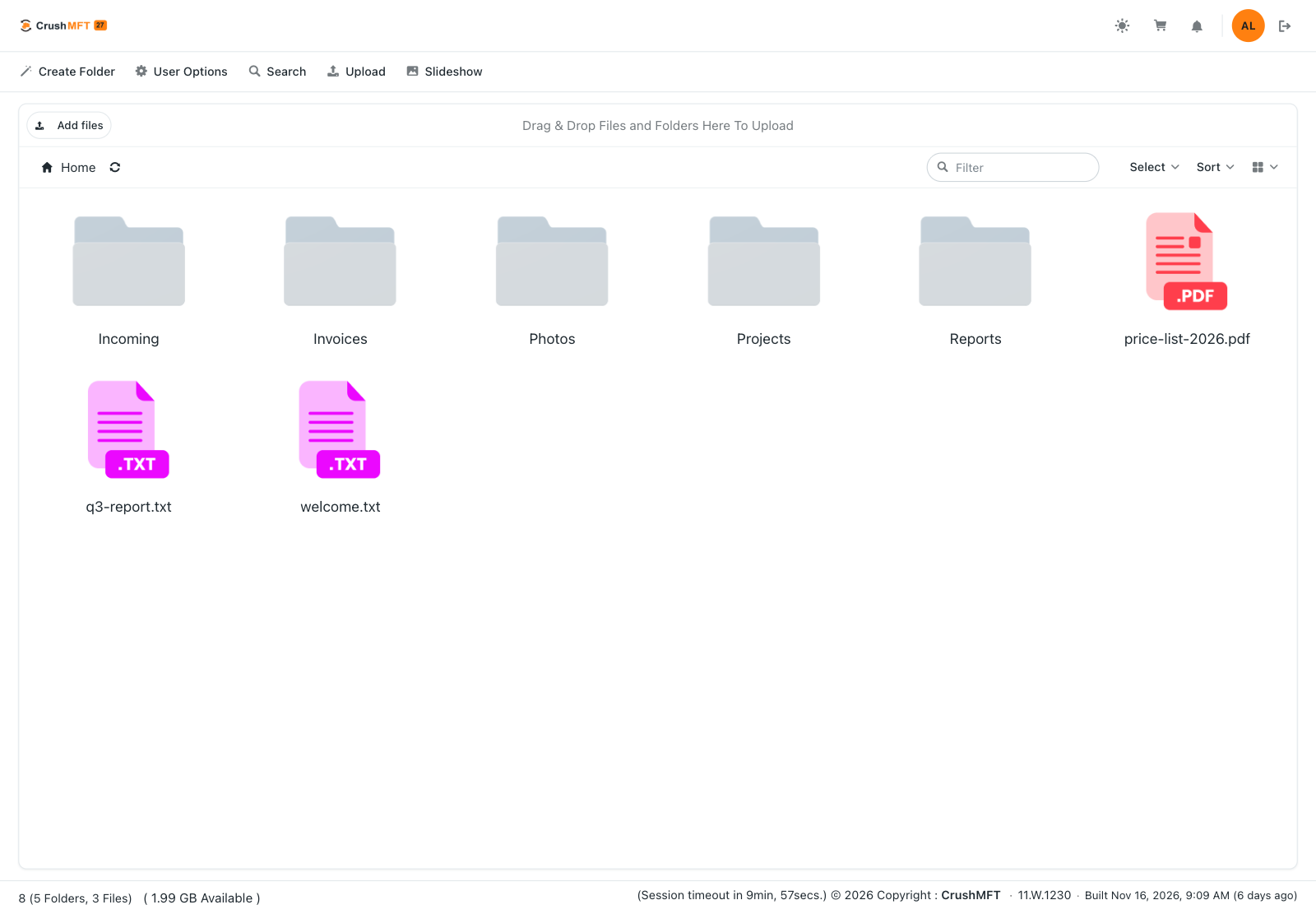
- A photo shows as a small version of itself.
- A document shows its first page, where the server makes previews of that kind; otherwise a picture for its kind of file.
- A folder shows as a folder.
Sort, in the grid, chooses the order. List switches back to lines.
In the list view, holding the mouse over a file shows a small card with its picture and facts.
Quick View#
Quick View opens one file large, on top of the page, with arrows to the next and the previous file of the folder. It is the fast way through a folder of pictures or scans.
| The file is | Quick View shows |
|---|---|
| a picture | the picture. PNG, JPEG, GIF, WebP, BMP, SVG and the like are shown from the file itself. Other kinds, such as TIFF or camera raw files, show the preview the server made. |
| a video or a sound file | a player. Subtitles where the file has them. |
| a document | the document itself, to read and scroll: see Viewing documents |
| anything else | "Preview is not available" |
In a picture:
| Button | Does |
|---|---|
| Zoom In, Zoom Out | |
| Rotate Image Left, Rotate Image Right | turns the view. The file is not changed. |
| Previous Slide, Next Slide | the neighbours in the folder; the arrow keys do the same |
| Toggle Fullscreen | |
| Download | fetches the file you are looking at |
Esc closes it.
Slideshow#
Slideshow shows the pictures of the folder one after the other, full size.
| Button | Does |
|---|---|
| Play Slideshow, Pause Slideshow | |
| Previous Slide, Next Slide | |
| Toggle Fullscreen | |
| Refresh Slideshow | reads the folder again, for pictures that arrived meanwhile |
| Delete Slide | deletes the picture you are looking at from the server, if you may delete there |
It is made for going through a delivery of photos: look, delete the bad ones, share the rest.
Things to know#
- Looking is downloading. To show a file, the page fetches it, with your rights. A file you may not download, you cannot preview either, and a preview is recorded as a download.
- Large files are not opened in the page. Over 20 MB, unless your administrator changed it, a document is offered for download in place of a view.
- Previews are made by the server, at upload or the first time somebody looks. A folder of new photos may show plain file pictures for a moment until its thumbnails exist.
- No preview at all? Then the server is not set up to make them, or not for this kind of file.
For administrators#
| What | Where |
|---|---|
| making previews: for which kinds of file, in which sizes, with which program | Preferences, Preview, ImageMagick |
| making them ahead of time for files that arrive by job | the Preview task |
| the Quick View and Slideshow buttons | Buttons |
| switching document previews off, their size limit, the starting view | Customizations: Preview & Media |