Sharing#
Sharing gives somebody a link to files of yours. They need no account: the link is the key. It can end on a date, work a limited number of times, and be sent by the server for you.
Tick the files or folders and choose Share, in the menu bar or in an item's menu. Sharing is only there if your administrator gave it to you.
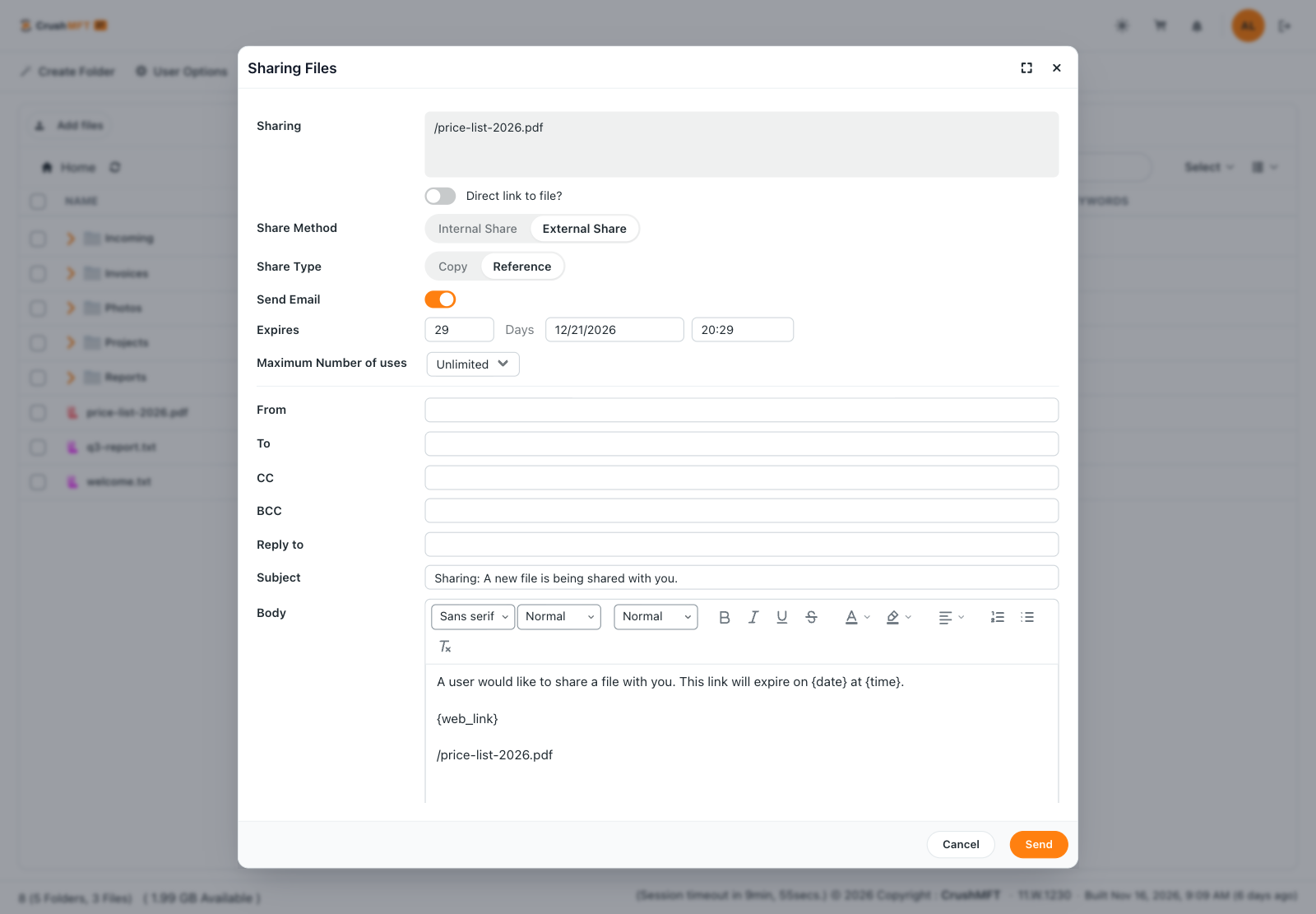
The choices#
| Field | What it decides |
|---|---|
| Sharing | what is shared: the items you ticked |
| Direct link to file? | for one file: the link starts the download at once, with no page in between |
| Share Method | External Share: a link for somebody without an account. Internal Share: the items appear in the folders of other users of this server. |
| Share Type | see below |
| Send Email | the server mails the link for you. Off: you get the link to send yourself. |
| Expires | after so many Days, or on a date and time. After that the link is dead. Every share has one: the server refuses a share without an end date, also from a script or the API. |
| Maximum Number of uses | Unlimited, or 1 to 20: how often the link may be used |
Copy, reference or move#
| Share Type | The recipient gets | Use it |
|---|---|---|
| Copy | a copy made now. What you change or delete afterwards does not touch it. | to send a document as it is today |
| Reference | the item itself, where it is. They see your later changes; if you delete it, it is gone for them too. | for a folder that you keep working in |
| Move | the item, moved out of your folder into the share | to hand something over for good. Under Advanced. |
A copy takes room on the server until the share ends.
An external share#
The recipient gets a link. Opening it shows a small page with the shared files, where they can download them. With Full Access under Advanced, they can also upload into a shared folder: a way to collect files from somebody who has no account.
Behind the link the server makes a temporary account that can see the shared items and nothing else. Under Advanced, Username/Password decides how it is named: Auto, or a name and password of your choice with Generate for a random password. With a name and password, the recipient has to type them to get in: send the password another way than the link.
An internal share#
For colleagues who have accounts here: User names, "(Separate multiple usernames with commas.)". The items then show in their folders when they sign in. No link and no mail are needed.
The mail#
With Send Email on:
| Field | |
|---|---|
| From, Reply to | who it comes from, and where answers go |
| To, CC, BCC | the recipients, several with commas |
| Subject | "Sharing: A new file is being shared with you." unless you change it |
| Body | the text. {web_link} becomes the link, {date} and {time} when it ends. Keep {web_link} in it: a mail without the link shares nothing. |
| Comments | a note for yourself. It is kept with the share and shown in Manage Shares. |
Under Advanced: Attach Files puts the files into the mail as well, for small ones. Attach Thumbnail adds a small picture.
"Email From and To are required fields or you can uncheck send email".
Send makes the share.
After Send#
The share is made, and the page shows its Link, with Copy link to clipboard and Open in Email Client. If you did not let the server mail it, this is the moment to copy it.
The share is now listed in Manage Shares, where you can look at it, change it and end it.
Sharing right after an upload#
In the upload window, Share Uploaded opens this dialog for the files that just went up. Upload, share and mail in one go.
Good practice#
- Give every share an end. A link that works for ever is a door you will forget about.
- Limit the uses for a single download: 1 or 2.
- Do not put the password in the same mail as the link.
- Share a copy when the recipient shall have exactly this version, and a reference when they shall follow your changes.
- Look into Manage Shares now and then, and end what is no longer needed.
What can go wrong#
| Message | Means |
|---|---|
| "Nothing selected to share" | tick something first |
| "Please select users to share selected items" | an internal share needs names |
| "Invalid User Name" | a name you typed is no user of this server |
| "Selected user/pass for the share was denied, please choose other user/pass" | the name you chose for the share's account is taken |
| "SMTP failed to send the email. Check server log" / "Sending email failed" | the share exists, the mail did not go. Copy the link from Manage Shares and send it yourself, and tell your administrator. |
For administrators#
| What | Where |
|---|---|
| who may share, and which folders | the share right of a folder: VFS: permissions; the Share button: Buttons |
| limits on shares: longest life, forced password, allowed recipients, the texts the dialog starts with | the user's WebInterface customizations |
| the temporary accounts behind shares | Temporary accounts |
| short links | MiniURLs |
| all shares of all users | the Shares app of the admin pages, and the report Open shares: Running a report |