Mail through Google#
How to send the server's mail through Gmail or Google Workspace. There are two ways:
| Way | When |
|---|---|
| An app password | quick, for one mailbox. The Google account must have 2-Step Verification, and your Google Workspace administrator must allow app passwords. |
| OAuth | what Google recommends. No password is stored, only a token Google can take back. |
Both are set in the SMTP Settings panel, described in Sending mail (SMTP).
With an app password#
- In the Google account that will send the mail, turn on 2-Step Verification and make an app password (Google account › Security › App passwords).
- In Preferences › General Settings › SMTP Settings set:
| Setting | Value |
|---|---|
| SMTP Server Used for Emailing | smtp.gmail.com:587 |
| SMTP Server Username | the full address of the mailbox |
| SSL/TLS | ticked |
| SMTP Server Password | the app password |
| From email address | the same address |
- Test SMTP Settings, then Save.
With OAuth#
What you need#
- The server must be reachable under a web address, and you must open the admin pages under exactly that address when you ask for the token. Google sends the answer back there.
- The server must be able to reach
smtp.gmail.comandoauth2.googleapis.com. If it goes out through a proxy, allow both.
1. Make an OAuth client at Google#
In the Google Cloud console, in a project of your organization:
- APIs & Services › Enabled APIs & services: enable the Gmail API.
- APIs & Services › OAuth consent screen: fill it in. Under Audience, publish the app. An app left in Testing only works for the test users you list, and Google ends its tokens after seven days.
- APIs & Services › Credentials › Create Credentials › OAuth client ID:
| Field | Value |
|---|---|
| Application type | Web application |
| Name | anything, such as CrushMFT mail |
| Authorized JavaScript origins | the address of the server, such as https://files.example.com |
| Authorized redirect URIs | the same address followed by /?command=register_google_mail_api, such as https://files.example.com/?command=register_google_mail_api |
- Create, and copy the Client ID and the Client secret.
2. Get the token#
Open the admin pages under the address you gave Google, and go to Preferences › General Settings › SMTP Settings.
-
Set SMTP Server Used for Emailing to
smtp.gmail.com:587. A button Get GMail oauth token appears.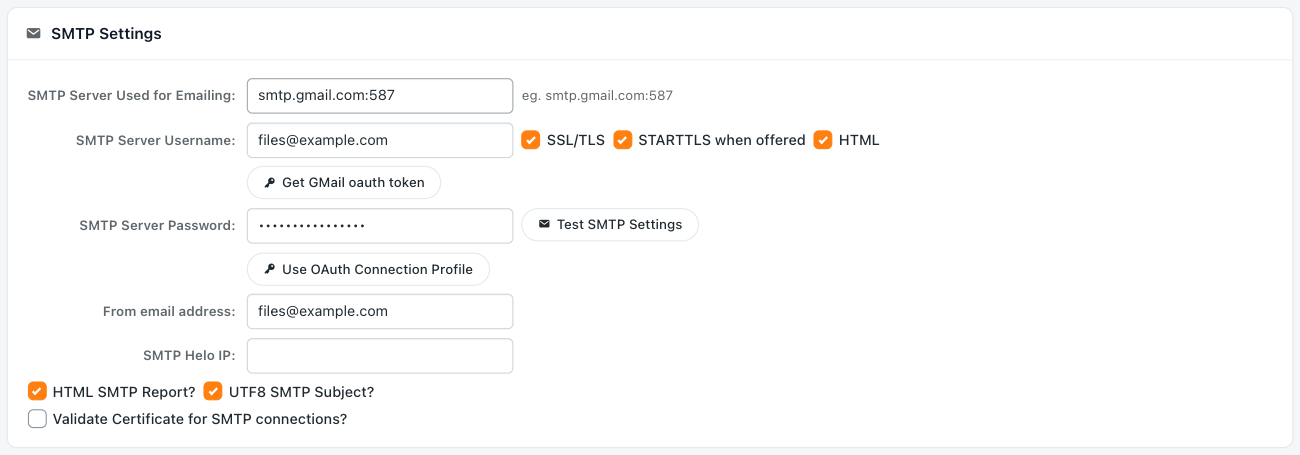
-
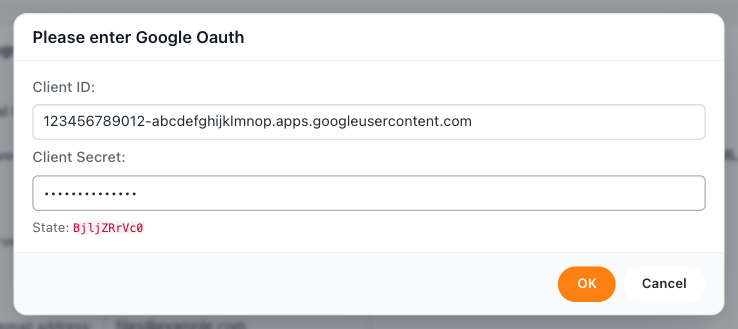
Click Get GMail oauth token, and enter the Client ID and the Client Secret. The line State is a value of this one request; there is nothing to do with it.
-
OK opens Google's sign-in in a new window. Sign in as the mailbox that will send the mail, and allow the access. If Google warns that the app is not verified, choose Advanced and continue.
-
The window closes, the panel says "Token Refreshed.", and SMTP Server Username and SMTP Server Password are filled in: the user name holds the Client ID and the encrypted secret, the password holds the token.
-
Set From email address to the address of the mailbox you signed in as, and tick SSL/TLS.
-
Test SMTP Settings, then Save.
Warning
The From email address must be the Google account that allowed the access. The server logs in to Gmail under that address; with another one, Google refuses the login.
When it does not work#
| What you see | Why |
|---|---|
| "The authorization window could not be opened. Allow popups for this site and try again." | the browser blocked the new window |
| "The authorization window was closed before a code arrived." | the window was closed before Google answered |
| "Timed out waiting for the authorization code." | no answer within ten minutes |
Google shows redirect_uri_mismatch |
the address in the browser is not the one in Authorized redirect URIs: the scheme, the host and the port must all be the same |
| the test fails with a refused login | the From address is not the account that allowed the access, or the app is still in Testing and its token has ended |
To use another mailbox, or after Google ended the token, click Get GMail oauth token again.