General Settings#
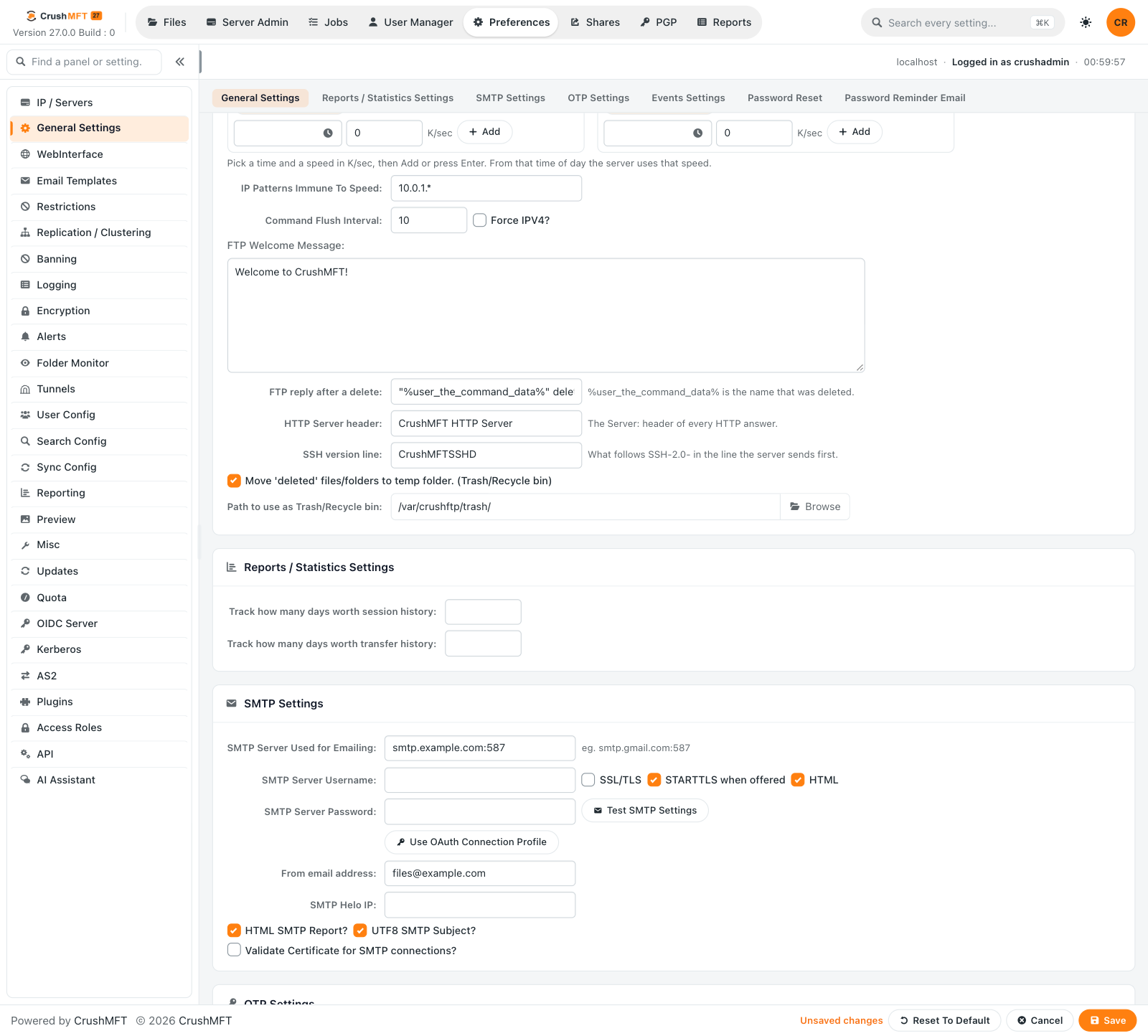
General Settings, the second section of Preferences, holds seven panels of server-wide basics. The row of names above the panels jumps to each one.
| Panel | Holds |
|---|---|
| General Settings | the connection limit, the speed limits, the FTP welcome message, the trash folder |
| Reports / Statistics Settings | two settings of the earlier statistics database |
| SMTP Settings | the mail server the server sends through, see Sending mail (SMTP) |
| OTP Settings | one-time codes for two-factor sign-in, by SMS or by mail |
| Events Settings | how events run |
| Password Reset | the mail with the link to set a new password |
| Password Reminder Email | the mail sent for "I forgot my password, email it to me" |
The seven panels are one page: Save at the bottom saves them all (saving).
The General Settings panel#
| Setting | What it does | Default |
|---|---|---|
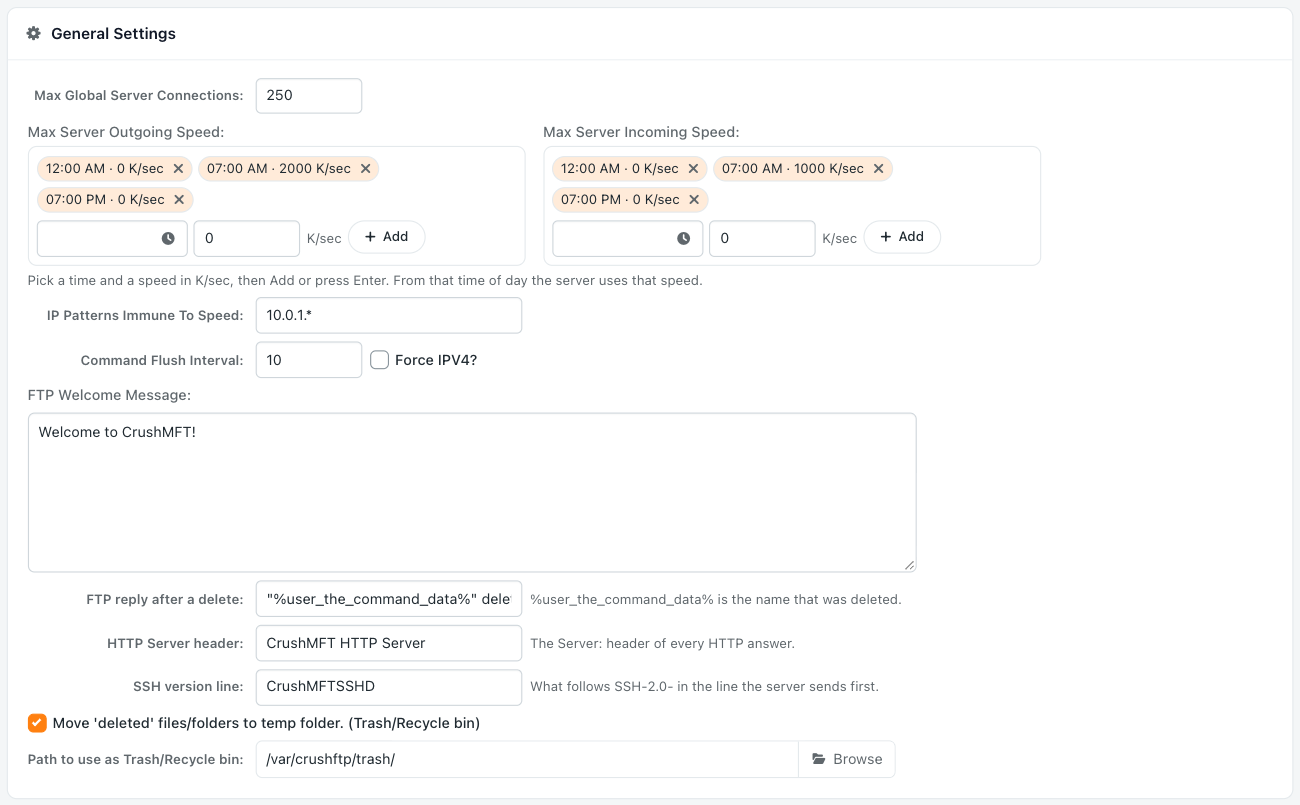
| Max Global Server Connections | how many users may be connected at the same time, all protocols together. When the number is reached, the next login is refused with a message that the server is full. A user with Ignore Server's Max Connections and Always Allow Login (User Manager › Restrictions) can still log in. | 5. Registering the server sets it to what the licence allows. |
| Max Server Outgoing Speed, Max Server Incoming Speed | speed limits for the whole server, which can change with the time of day. See The bandwidth schedule. | no limit |
| IP Patterns Immune To Speed | addresses the server-wide speed limits do not apply to, see The bandwidth schedule | empty |
| Command Flush Interval | the server collects the operating system commands it has to run for files, such as setting the owner or the permissions of an uploaded file, and runs them together. This is the number of seconds between two runs. 0 runs them ten times a second. | 10 |
| Force IPV4? | makes Java use IPv4 only. Turn it on when the machine has a broken or half-configured IPv6 and connections fail or are slow because of it. Restart the server after changing it. | off |
| FTP Welcome Message | the text an FTP client gets when it connects, before it logs in. A listener can have a message of its own. | Welcome to CrushMFT! |
| Move 'deleted' files/folders to temp folder. (Trash/Recycle bin) | deleted items are moved to the trash folder instead of being removed, see below | off |
| Path to use as Trash/Recycle bin | the trash folder, a folder on the server machine. Browse picks one. With the trash turned on and no path, Save refuses: "Please provide path to move deleted items to". | empty |
The trash folder#
With the trash turned on, nothing a user deletes is gone at once:
- A deleted file or folder is moved into the trash folder, under the same path the user saw it at. A file
/reports/2026/q3.pdfdeleted by a user ends up asreports/2026/q3.pdfinside the trash folder. - A file that an upload replaces goes there too, before the new one is written.
- If the name is already taken in the trash, a number is added to the new one.
- An item on storage that is not a folder of the server machine (S3, SFTP, and so on) is first downloaded into the trash folder and then deleted where it was.
- The date of an item in the trash is the moment it was deleted, not the date the file had.
- The path may hold variables such as
{username}, to give each user a trash folder.
The server does not empty the trash. Remove old items yourself, or with a job that deletes what is older than some days. The server makes the trash folder when it is missing; if it cannot, deleting fails with "Recycle bin not found".
Reports / Statistics Settings#
| Setting | What it is |
|---|---|
| Track how many days worth session history | from the statistics database of earlier versions |
| Track how many days worth transfer history | from the statistics database of earlier versions |
CrushMFT 27 keeps its history in the activity store, and how long it is kept is set in Preferences › Reporting. The two settings here are stored but the server no longer reads them.
OTP Settings#
One-time codes for two-factor sign-in: after the password, the user must type a code the server sends by SMS or by mail. This panel says how codes are sent. Whether a user needs one is set on the user: Two factor OTP/SMS authentication. in the User Manager.
Note
An Enterprise licence is needed. Without one the panel says so and its settings cannot be changed.
| Setting | What it does | Default |
|---|---|---|
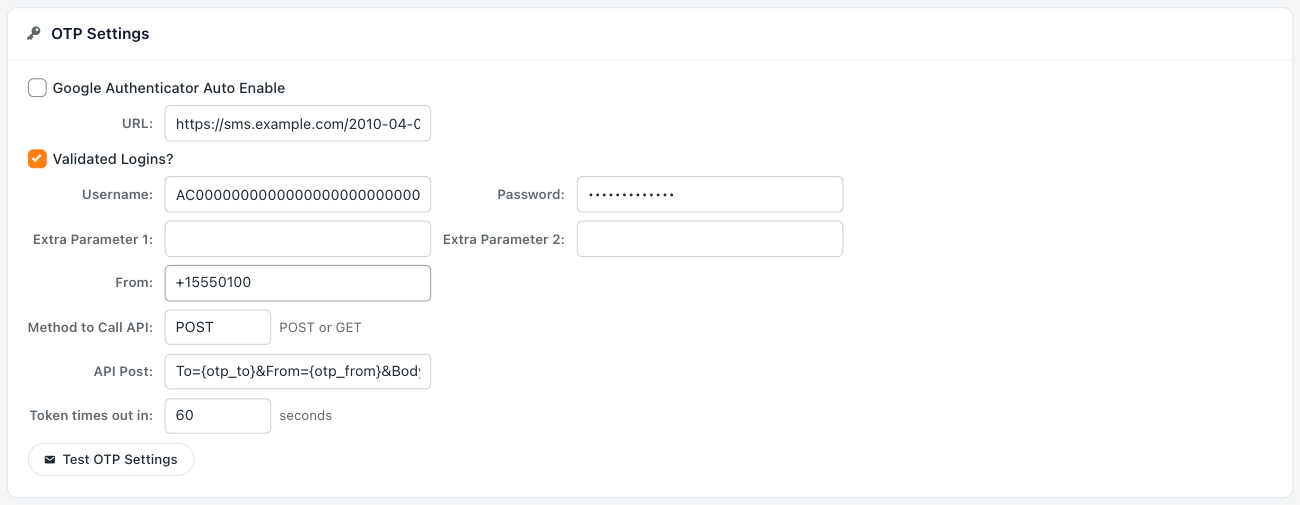
| Google Authenticator Auto Enable | when a user sets up an authenticator app in the WebInterface, two-factor sign-in is turned on for that user at once. Off: the user's secret is stored, and an administrator turns two-factor sign-in on for the user. | off |
| URL | the address of the SMS service the server calls to send a code. The word SMTP alone, in capitals, sends codes by mail through the mail server instead. A user without a phone number also gets the code by mail. |
the address of Twilio's message service |
| Validated Logins? | the main switch. Off: no user is asked for a code, whatever their account says. | off |
| Username, Password | your account with the SMS service. With Twilio: the Account SID and the Auth Token. | empty |
| Extra Parameter 1, Extra Parameter 2 | two values of your own for services that need more than a name and a password | empty |
| From | the sender: the phone number the SMS service gave you | empty |
| Method to Call API | POST or GET |
POST |
| API Post | what is sent to the service with POST |
To={otp_to}&From={otp_from}&Body={otp_token} |
| Token times out in | how many seconds a code stays valid. A user can have a time of their own. | 60 |
| Test OTP Settings | sends a test SMS, see Testing settings |
The URL and the API Post text can hold these variables. Each is replaced, URL-encoded, when a code is sent:
| Variable | Replaced by |
|---|---|
{otp_to} |
the phone number of the user |
{otp_token} |
the code |
{otp_from} |
From |
{otp_username}, {otp_password} |
Username and Password |
{otp_extra1}, {otp_extra2} |
the two extra parameters |
A name and a password in front of the host, as in https://{otp_username}:{otp_password}@host/..., are sent to the service as its login (HTTP basic authentication). The service must answer with a status below 300; anything else counts as a failure and is written to the log.
A code sent by mail uses the email template named Two Factor Auth when there is one; {auth_token} in it is the code. Without the template the mail says "OTP password :" and the code.
Events Settings#

| Setting | What it does | Default |
|---|---|---|
| Batch Events? | files uploaded together in one upload from the browser are handed to an event together, one run per upload. Off: everything waiting is handed over in one run. | on |
| Event Empty Files? | a file of 0 bytes triggers events like any other. Off: empty files are skipped. | on |
| Event Thread Timeout | how many seconds the server waits for an event to finish before it carries on with the user's session. The event is not stopped: it keeps running, and the log says "Event didn't complete in … seconds". Events set to run in the background are not waited for at all. | 60 |
| User Manager Reverse Event Notifications | turns on reverse events: an event that tells the other users of a folder what someone did there, and lets users subscribe to a folder. | off |
Password Reset#
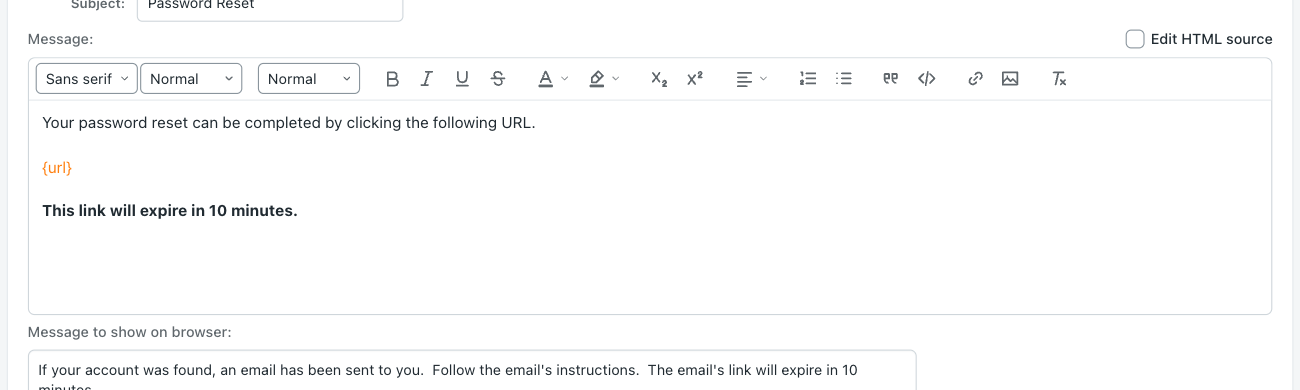
The mail a user gets after asking for a new password on the login page, and what the browser shows meanwhile. It needs a working mail server and an email address on the user's account.
| Setting | What it is | Default |
|---|---|---|
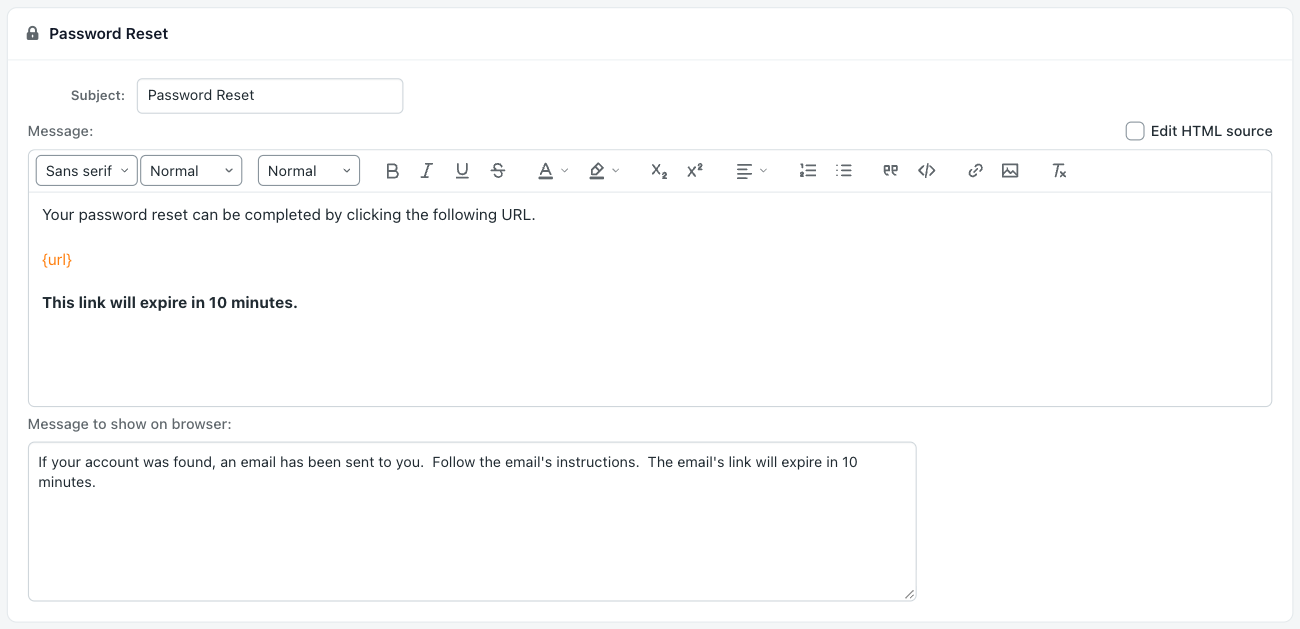
| Subject | the subject of the mail | Password Reset |
| Message | the text of the mail. {url} is replaced by the link the user clicks to set a new password; a message without it is of no use. User variables such as {username} work too. |
a short text with the link, and "This link will expire in 10 minutes." |
| Edit HTML source | switches the message between the formatted editor and its HTML. A message with a layout of its own, such as tables or inline styles, opens as HTML only, because the formatted editor would rewrite it. | off |
| Message to show on browser | what the login page shows after the user asked. Plain text only: with a < or > in it the panel warns "This is not a HTML response, it expects just plain text." |
"If your account was found, an email has been sent to you. …" |
The browser message is the same whether the account exists or not, so that nobody can find out which user names exist. Keep it that way when you change the text.
The address the link points to is Reset URL on the Login Page tab of the WebInterface section.
The message is cleaned when you save: scripts and other active content are removed from the HTML.
A text per language#
A file in the server's WebInterface/localizations/ folder replaces a text for users who use the WebInterface in that language. xx is the two-letter language code, such as de:
| File | Replaces |
|---|---|
password_reset_subject_xx.html |
Subject |
password_reset_message_xx.html |
Message |
password_reset_message_browser_xx.html |
Message to show on browser |
Password Reminder Email#
The older way: the server mails the user their password. It is sent when a user clicks "I forgot my password, email it to me" and their account has Allow password to be emailed if they forget it. (User Manager).
| Setting | What it is | Default |
|---|---|---|
| Subject | the subject of the mail | Password Reminder |
| Body | the text of the mail. %user_pass% or {user_pass} is the password, %user_ip% the address the request came from. |
"Your password is : %user_pass%" and "Requested from IP:%user_ip%" |
Warning
CrushMFT 27 stores passwords as hashes, which cannot be turned back into the password. A reminder can only contain the password of an account whose password is still stored the old, reversible way. Use the password reset instead: it never mails a password.