Restrictions#
Restrictions, a section of Preferences, holds limits that apply to every user of the server: the days on which anyone may connect, a few rules for FTP, names that are blocked, and paths that are blocked.
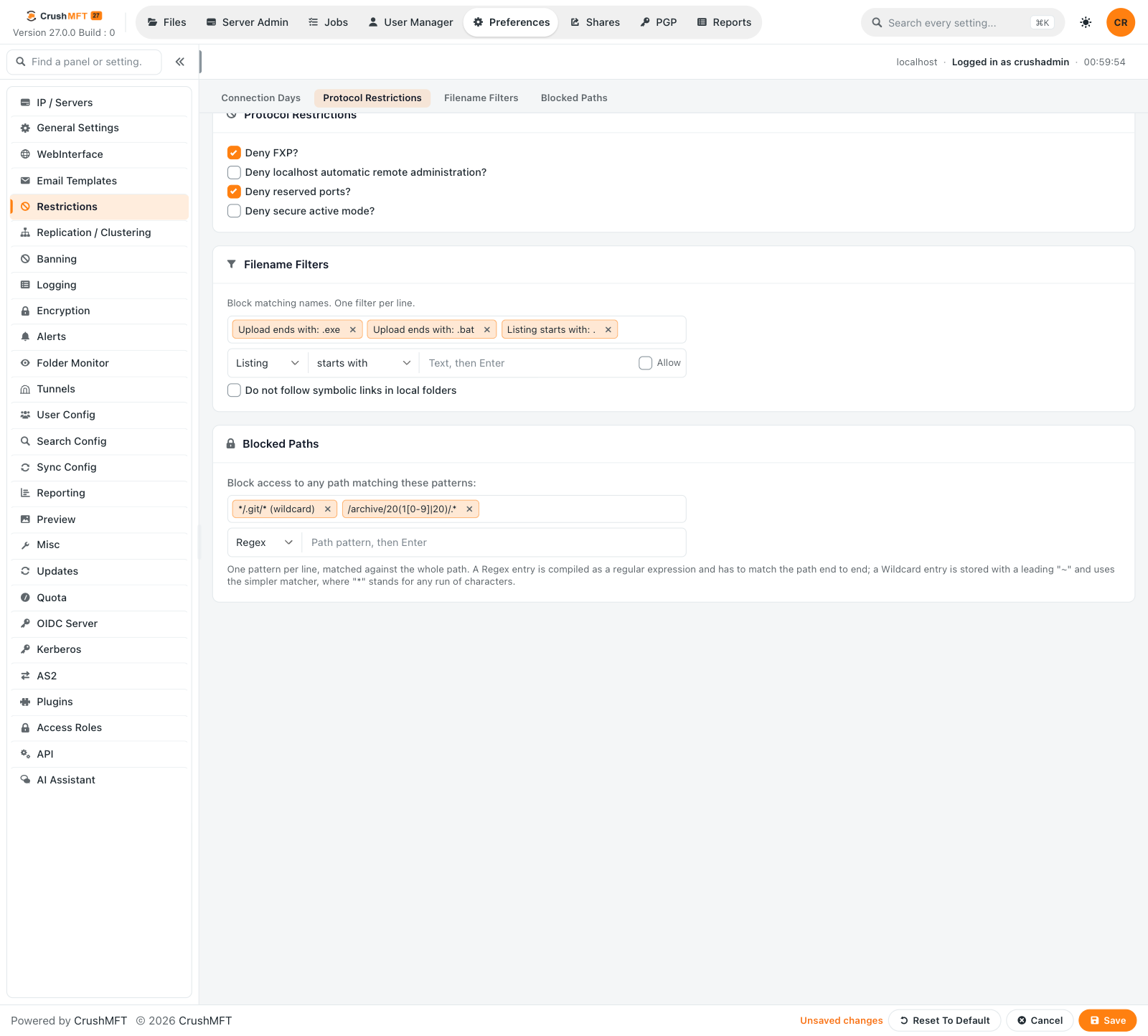
| Panel | Holds |
|---|---|
| Connection Days | the days of the week on which users may log in |
| Protocol Restrictions | four rules, three of them for FTP data connections |
| Filename Filters | names that may not be listed, uploaded, downloaded, renamed or deleted, see File name filters |
| Blocked Paths | paths nobody may reach |
What is set here cannot be lifted for a single user. A user or a group can have filters, blocked paths and days of their own in the User Manager; those come on top.
Connection Days#

The days of the week on which users are allowed to connect. All seven are ticked on a new server. On a day without a tick every login is refused, on every protocol, with the message that connecting is not allowed on this day.
Warning
This is for everyone, administrators too. On a day you untick, nobody can log in to change it back until the next ticked day. To keep only some users out on some days, set the days on those users in the User Manager.
The day is the day on the server's clock.
Protocol Restrictions#

| Setting | What it does | Default |
|---|---|---|
| Deny FXP? | an FTP data connection must be with the same address the client is logged in from. FXP, where a client tells two servers to send a file to each other, is refused. Leave it on: without it, your server can be told to connect to machines of someone else's choosing. | on |
| Deny localhost automatic remote administration? | kept from earlier versions. The server stores it and does nothing with it. | off |
| Deny reserved ports? | in FTP active mode the client names a port for the server to connect back to. With this on, a port below 1024 is refused. | on |
| Deny secure active mode? | active mode is refused on an encrypted FTP session; the client must use passive mode. Firewalls cannot read the port out of an encrypted session, so active mode often fails there anyway. | off |
A data connection the server refuses for one of these reasons is in the log as "Active data connection to … refused".
Blocked Paths#
Paths that match one of these patterns cannot be reached by anyone, whatever their permissions: not listed, not read, not written. A folder that is blocked looks empty.
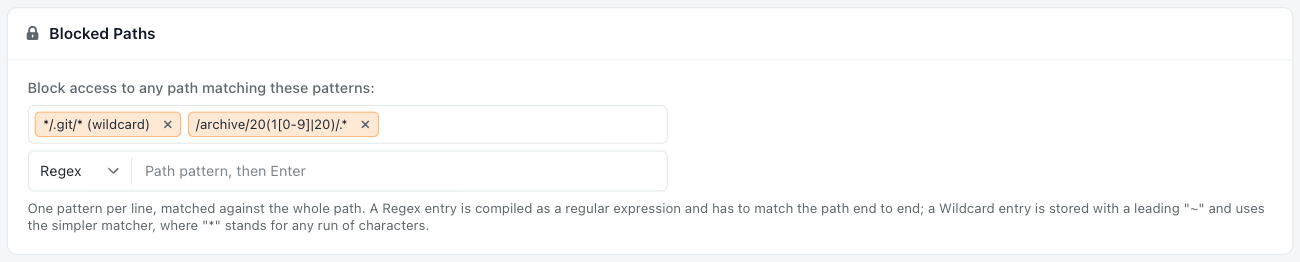
To add a pattern, choose its kind, type it, and press Enter. The × on a pattern removes it.
| Kind | How it matches |
|---|---|
| Regex | a regular expression that must match the whole path, from the first character to the last. Try it out in the pattern tester. |
| Wildcard | a simple pattern in which * stands for any text. It too is matched against the whole path. |
The path is the one the user sees, starting with /, such as /archive/2019/report.pdf. So a pattern for one folder name anywhere needs something in front and behind:
| Pattern | Kind | Blocks |
|---|---|---|
*/.git/* |
Wildcard | everything inside any folder named .git |
/archive/20(1[0-9]|20)/.* |
Regex | everything inside /archive/2010 to /archive/2020 |
.*\.key |
Regex | every path that ends in .key |
The patterns are stored one per line; a Wildcard pattern is stored with ~ in front of it.
Saving#
Save at the bottom saves all four panels (saving).