Server Admin#
Server Admin is the app that shows what the server is doing right now: whether it is healthy, who is connected, what is being transferred, which jobs run, and what the log says. It is where an administrator looks first.
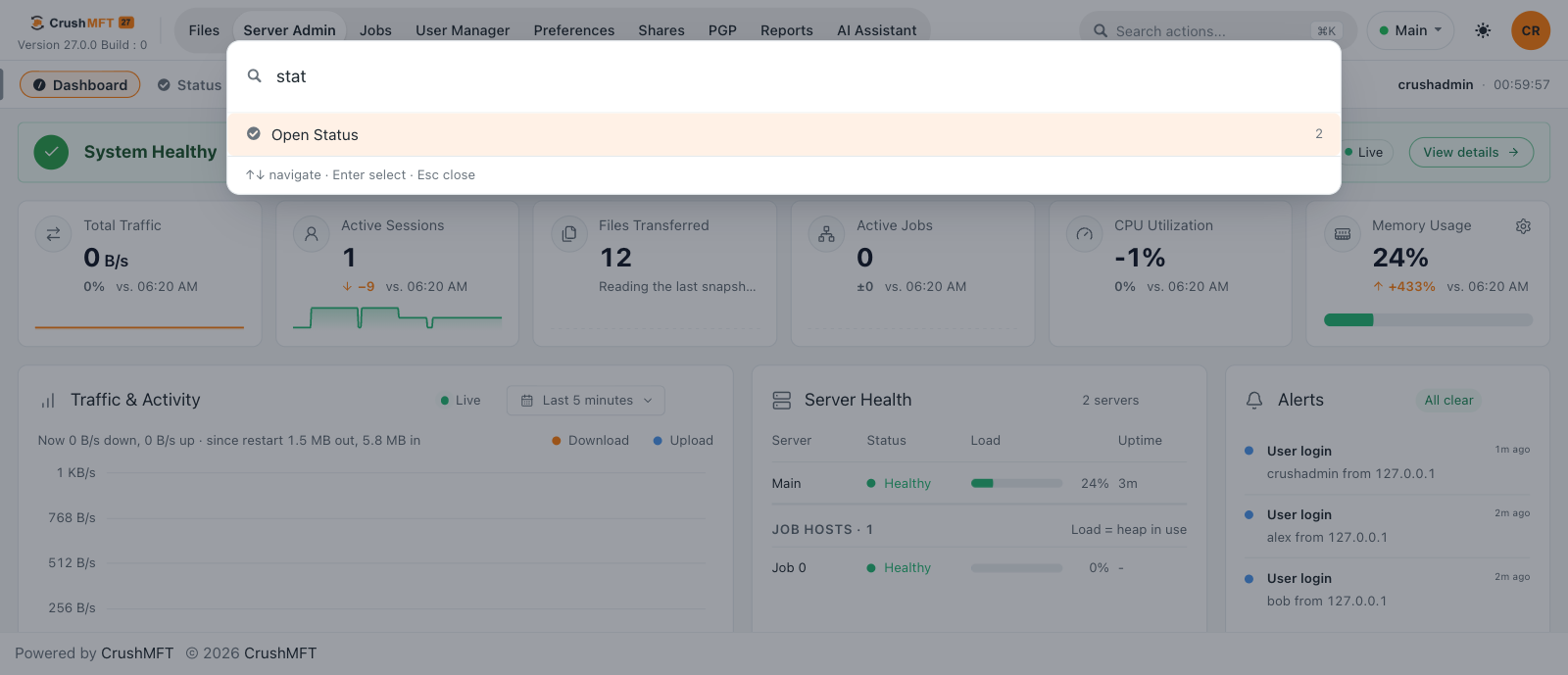
The menu bar#
The bar at the top is the same in every admin app.
| Part | What it is |
|---|---|
| The logo and Version | the server's version and build |
| Files, Server Admin, Jobs, User Manager, Preferences, Shares, PGP, Reports | the apps. The one you are in is marked. An account sees the apps its roles allow. |
| The search field | finds an action or a setting by a word, and takes you there. Cmd+K, or Ctrl+K, puts the cursor into it. |
| Main, with a green dot | the server you are looking at. With several servers in a cluster, the others are in this list. |
| The sun | switches between the light and the dark theme |
| The round button with your initials | your account |
The sections#
Under the menu bar, Server Admin has four sections:
| Section | Shows |
|---|---|
| Dashboard | the health of the server at a glance: traffic, sessions, jobs, load, alerts |
| Status | the listeners, with a start and a stop for each; the sessions; the live log |
| Cluster | the servers of a cluster and how they are doing |
| About | the version, and the maintenance tools |
On the same line, to the right:
| Part | What it is |
|---|---|
| Up to date | whether a newer version of the server is waiting |
| Your user name and a time that counts down | the time left before your session ends by itself |
Everything is live#
The numbers and charts of Server Admin refresh by themselves, about once a second for the meters. Nothing has to be reloaded. The Dashboard can also go back in time and show the server as it was.