Signing in#
Open the server's address in a browser and you are at the login page.
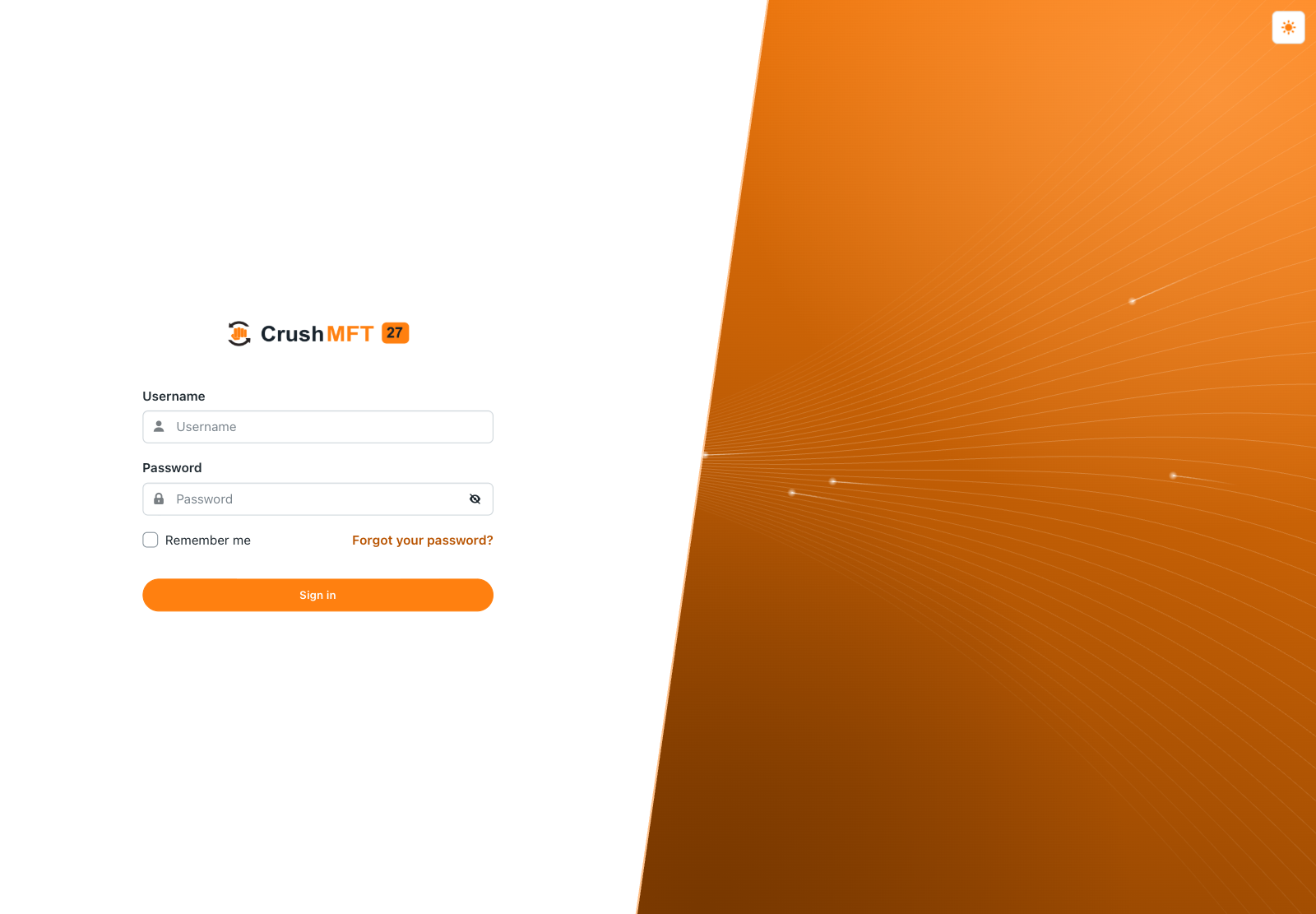
With a name and a password#
| Field | |
|---|---|
| Username | your login name. On some servers that is your mail address. |
| Password | the eye in the field shows what you typed |
| Remember me | keeps you signed in on this browser for longer. Leave it off on a computer that is not yours. |
| Sign in |
The first time, the page may ask you to accept its cookie: "We use cookies on this site to facilitate your ability to login for technical reasons." The cookie is how the server knows it is still you on the next click. Accept to go on.
A second step#
Your administrator may ask for more than a password:
| You are asked for | Do |
|---|---|
| a code: "Enter your OTP here" | type the six digits your authenticator app shows for this server, or the code that was sent to your phone or mail |
| "Please setup 2 factor auth to continue" | the server wants you to set it up now: see below |
| a security key or passkey | touch the key, or confirm with your fingerprint or face, when the browser asks |
| "Please validate captcha to login" | solve the puzzle that shows you are a person |
Setting up an authenticator app#
The page walks you through it:
- "Download & install the Authenticator App on smartphone"
- "Click on Setup button below, it will generate a QR"
- "Start the Authenticator App and use 'Scan a QR code' function to register"
"Are you ready to scan the QR code using the Authenticator App?" The code on the screen is replaced every few seconds, as a guard against somebody photographing it: "The QR Code will be refreshed in (sec):". Scan it, type the six digits the app then shows, and confirm.
"Two factor authentication setup is successful. Please login again". From then on every login asks for the app's code.
Keep the app. If you lose the phone, only your administrator can let you set it up again.
With your organisation's login#
Under the fields the page may show "Or continue with" and buttons for Google, Microsoft or your organisation's own sign-in. Press one, sign in there as you always do, and you are back, signed in. You need no password of this server for that.
You must change your password#
"You must change your password to continue." The administrator set that, or your password reached its age. Type the old one and a new one twice. If the new one is refused, the message says what is missing: a length, a digit, a special character.
Generate Random Password makes one for you. "Use This" takes it.
When it does not work#
| Message | Means |
|---|---|
| "Your username, or password may be incorrect, or the account may have expired." | one of the three. The server does not say which, on purpose. Check Caps Lock; then ask. |
| "This user account is not permitted to access this server. Please contact your administrator for assistance." | the account may not log in this way, from this place, or at this time |
| "Too many failed attempts and your IP will be banned." | stop trying. After more wrong tries the server refuses your address for a while. |
| "The server is unavailable or your IP has been banned" | wait some minutes, or ask the administrator to lift the ban |
| "Access Denied" | you are signed in, and may not do this |
Signing out#
The arrow at the top right, Logout: "Are you sure you want to log out?" On a shared computer, always sign out, and close the browser.
You are also signed out by yourself after a time without use: "You are logged out due to inactivity. Please login to continue."
The look of the page#
The picture above is how a new server looks. Yours may show your organisation's logo, colours and a text of welcome, and may offer a choice of language. The sun at the top right switches between a light and a dark page.
For administrators#
| What | Where |
|---|---|
| every way to sign in, and which is right when | Every way to sign in |
| passwords and their rules | Passwords and password rules |
| second factors | Two-factor sign-in |
| what the login page looks like | The login page studio, Login themes |
| bans after failed logins | Bans |