The login page#
The login page is the first thing people see of your server. The Login Page tab of the WebInterface section of Preferences decides what is on it, how it behaves, and which page each of your domains gets. A live preview beside the settings shows the page as you change it.
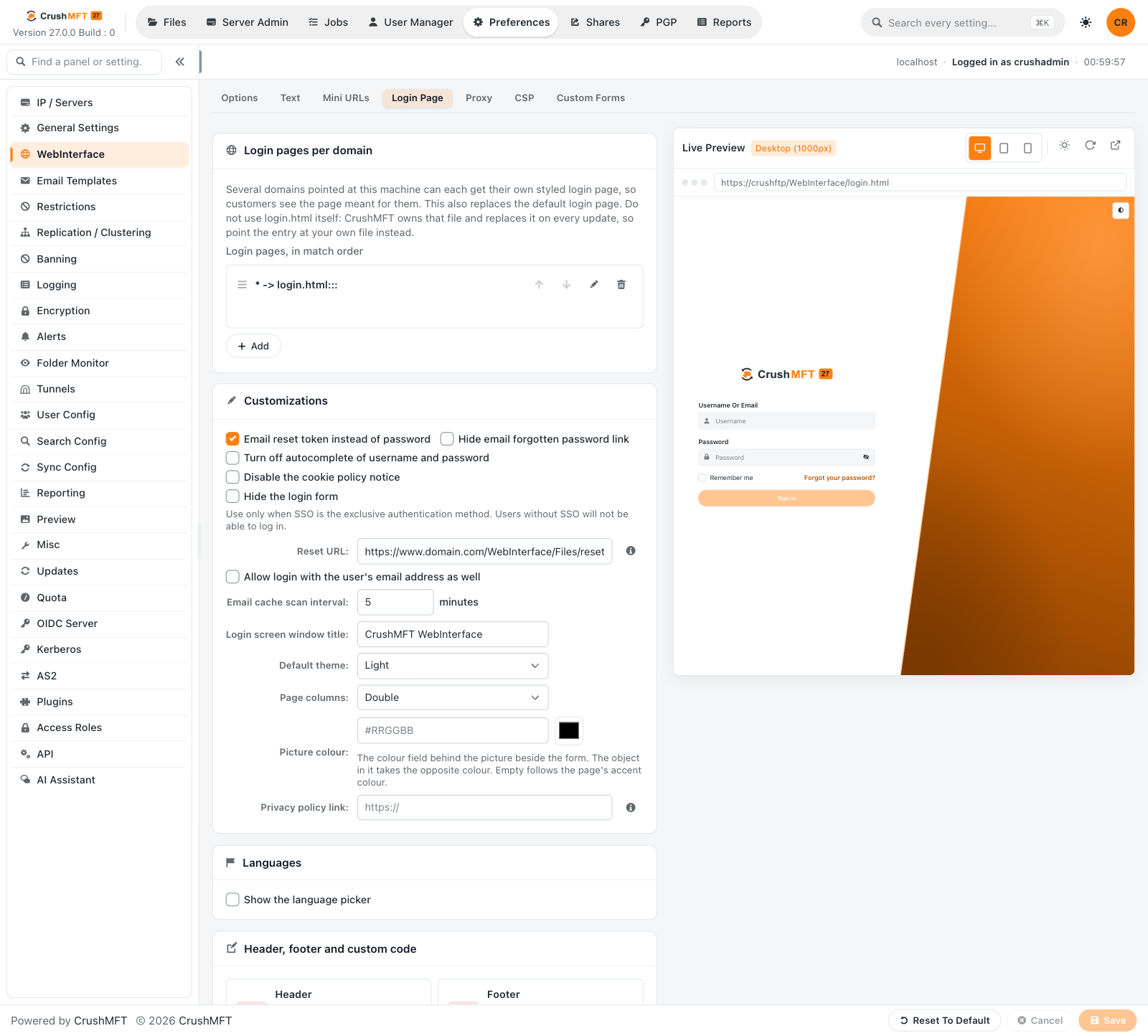
| Card | Holds |
|---|---|
| Login pages per domain | a login page, logo and pictures of its own for each domain |
| Customizations | what the page offers and how it looks |
| Languages | the language picker, see Languages |
| Header, footer and custom code | your own text and code on the page, written in the login page editor |
| Live Preview | the page as visitors will see it |
Colours, the logo and the styling of single parts of the page are on Login themes and the logo.
Login pages per domain#
When several domains point at the server, each can have a login page of its own, so that customers of each see the page meant for them.
The list is read from the top. The first entry whose domain fits the host name the browser asked for is used. A new server has one entry, * -> login.html, which fits every name: put your own entries above it. The arrows and the handle move an entry, the pencil opens it, the bin removes it, Add makes a new one.
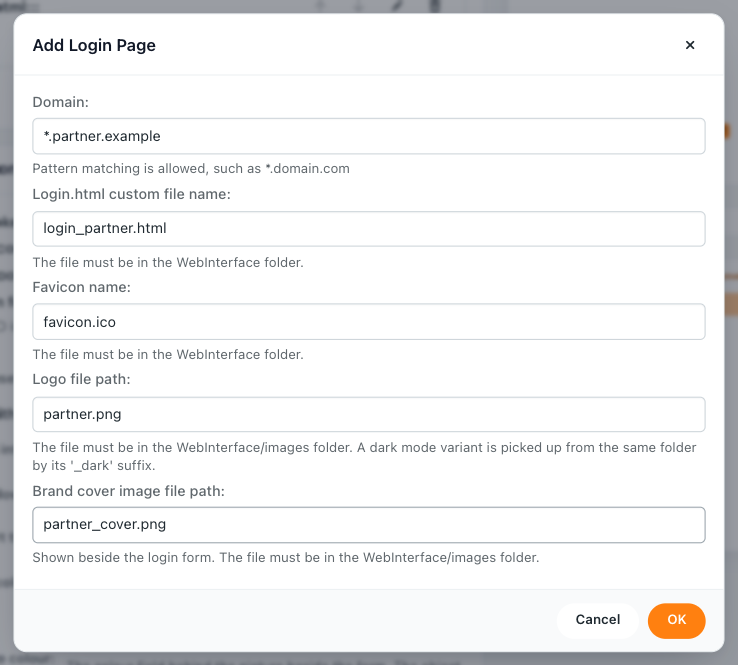
| Field | What it is | Where the file must be |
|---|---|---|
| Domain | the host name this entry is for. * stands for any text: *.partner.example fits every name under that domain. |
|
| Login.html custom file name | the page to show in place of login.html |
the WebInterface folder of the server, beside login.html |
| Favicon name | the small picture browsers show in the tab | the WebInterface folder |
| Logo file path | the logo for this domain. In dark mode the file of the same name with _dark added is used. |
WebInterface/images |
| Brand cover image file path | the picture beside the login form. Empty: the server's own. | WebInterface/images |
A page of your own starts as a copy of login.html under another name. Never change login.html itself: it belongs to the server and is replaced by every update. For most needs you do not need a page of your own at all: a logo, a cover picture, the settings below and the themes go a long way, and they survive updates.
A login page can also decide which set of users may log in. On a web listener whose User Connection Group is @AutoHostHttp (IP / Servers), the group is named after the page file of the entry that fits, without its ending: with login_partner.html, the users of the group login_partner.
Customizations#
| Setting | What it does | Default |
|---|---|---|
| Email reset token instead of password | "Forgot your password?" mails a link to set a new password. Off: it mails the password, which only works for accounts whose password the server can still read. See Password Reset. | on |
| Hide email forgotten password link | takes "Forgot your password?" off the page | off |
| Turn off autocomplete of username and password | asks browsers not to fill in or offer to remember the name and the password | off |
| Disable the cookie policy notice | does not show the notice about cookies to new visitors | off |
| Hide the login form | shows no name and password boxes. Only for servers where everyone signs in through single sign-on: nobody else can log in from the page then. | off |
| Reset URL | where the link in the password reset mail points. Put your server's name in the place of www.domain.com. |
https://www.domain.com/WebInterface/Files/reset.html |
| Allow login with the user's email address as well | a user can type their email address in place of their user name | off |
| Email cache scan interval | how often, in minutes, the server reads the email addresses of all users again for this | 5 |
| Login screen window title | the title of the browser tab | CrushMFT WebInterface |
| Default theme | Light or Dark for a visitor who has not chosen, or Light, hide theme picker and Dark, hide theme picker to give everyone the same and take the switch off the page | Light |
| Page columns | Double: the form at the left and a picture at the right. Double, reversed columns: the other way round. Single: the form alone. | Double |
| Picture colour | the colour of the field behind the picture, as #RRGGBB or picked with the colour box. Empty: the accent colour of the page. |
empty |
| Privacy policy link | the address of your privacy policy. The page then links to it; empty, there is no link. | empty |
Header, footer and custom code#
Four pieces of your own can be put on the page:
| Piece | Where it shows |
|---|---|
| Header | above the sign-in form |
| Footer | across the bottom of the page |
| Custom CSS | styles, loaded after the page's own |
| Custom JavaScript | a script that runs on the page after it has loaded |
Clicking one of the four, or Open the login page editor, opens the editor.
The login page editor#
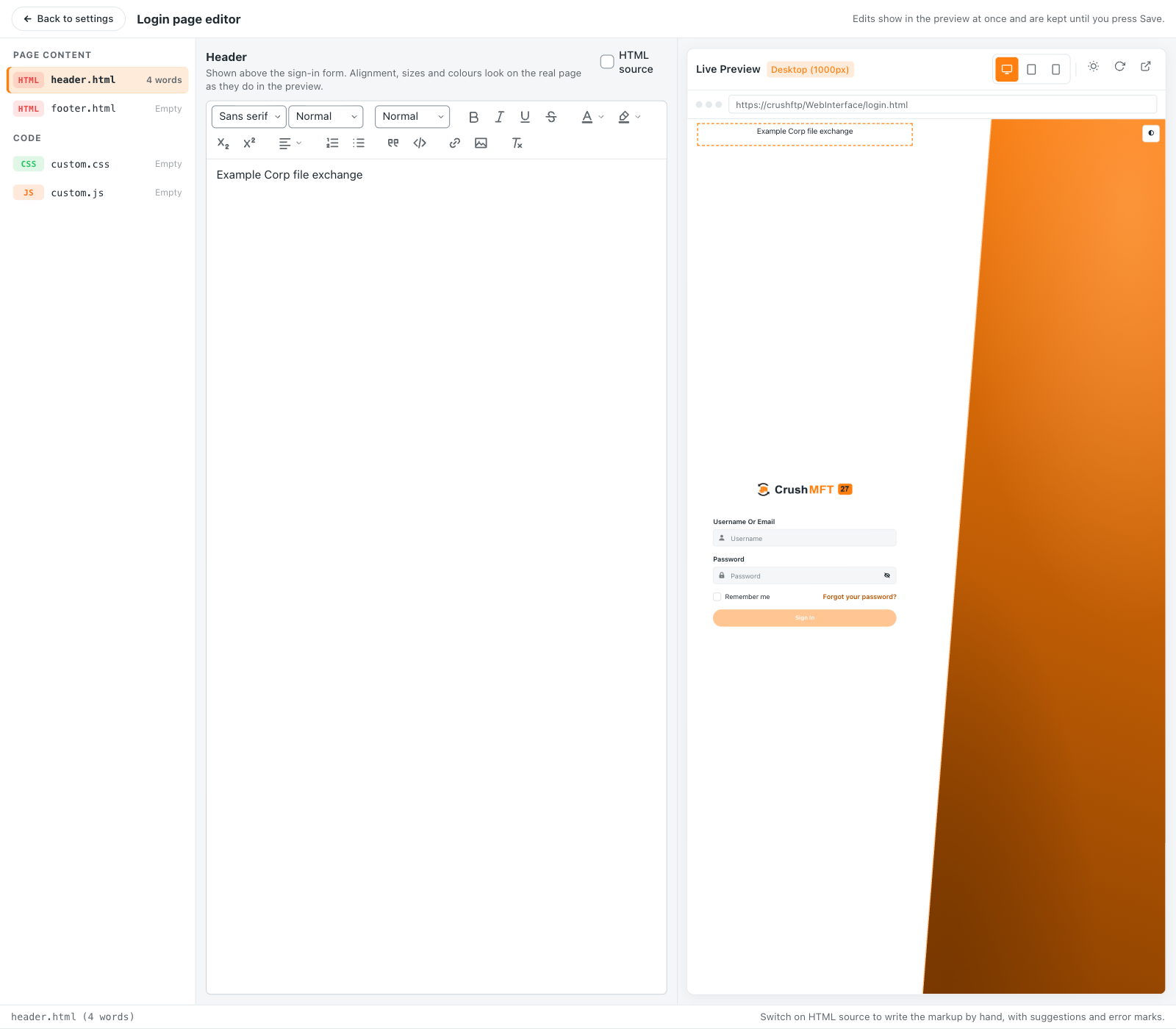
The editor takes over the page: the four pieces at the left, the one you work on in the middle, the live preview at the right. Back to settings returns to the tab. What you type shows in the preview at once and is kept on the screen until you press Save.
| Piece | How it is edited |
|---|---|
header.html, footer.html |
as formatted text, with a toolbar for fonts, sizes, bold, colours, lists, links and pictures. Tick HTML source to write the HTML yourself, with suggestions and marks on mistakes. |
custom.css |
as code, with suggestions as you type (Ctrl+Space). Pick and Add theme are described on Login themes and the logo. |
custom.js |
as code. The preview does not run it: open the real page to try it. |
The line at the bottom names the piece and its size, and gives a hint for it. When the code has mistakes, a button there counts the problems and jumps to the first.
Inline styles#
The server's Content Security Policy does not let a page carry styles written into its tags (style="…"). A header or footer with such styles would lose them in the visitor's browser. The editor warns when it finds any, and Move inline styles to CSS rewrites them: each style becomes a class in Custom CSS and the tag gets that class. It shows the rules first and asks; nothing is saved until you press Save.
The live preview#
| Control | What it does |
|---|---|
| the three device buttons | show the page as on a desktop (1000 pixels wide), a tablet (768) or a phone (375 by 812) |
| the sun button | switches the preview between the light and the dark theme |
| the round arrow | builds the preview anew |
| the arrow out of a box | opens the real login page in a new window |
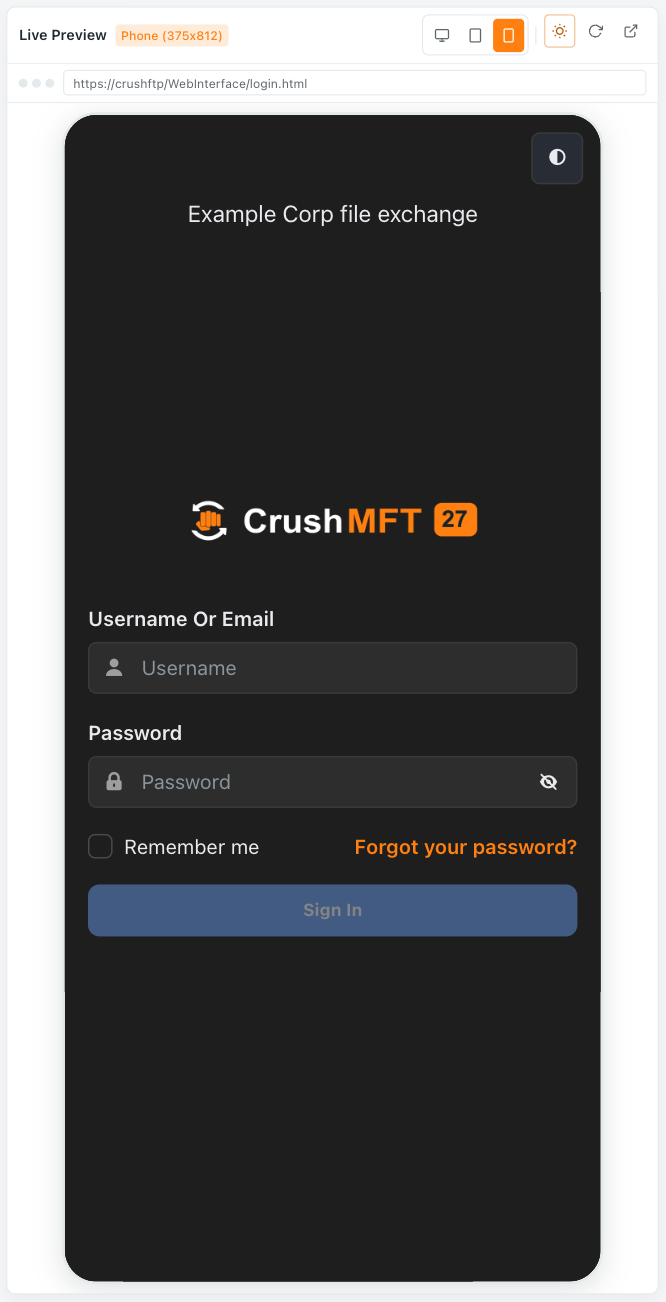
The preview is a model of the page built from your settings. It shows the header, the footer, the styles and the options, but it cannot log anyone in and does not run Custom JavaScript.
Saving#
Everything on this tab is saved with Save at the bottom of the page (saving). Until then visitors see the page as it was.