Custom forms#
A custom form asks a user for more than a file: a project number with an upload, a reason with a download, a note with a copy. You build the forms once, on the Custom Forms tab of the WebInterface section of Preferences, and then give them to users in the User Manager.
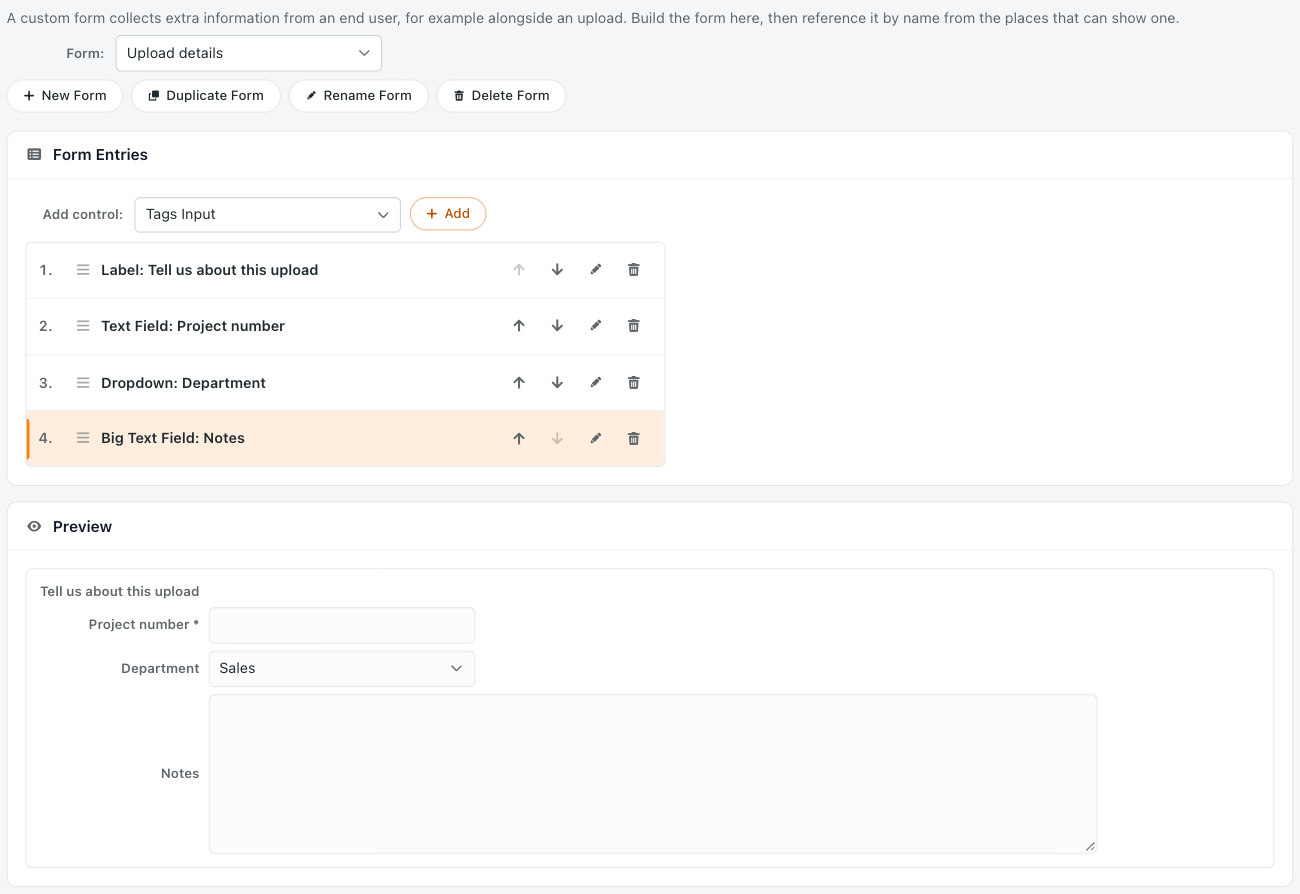
The forms#
| Control | What it does |
|---|---|
| Form | the forms that exist. Choose one to work on it. A new server has none: "No forms defined". |
| New Form | asks for a name and makes an empty form |
| Duplicate Form | makes a copy under a new name |
| Rename Form | gives the form another name |
| Delete Form | removes the form, after asking |
The entries of a form#
A form is a list of entries, shown from top to bottom. To add one, choose its kind beside Add control and click Add.
| Kind | What the user sees |
|---|---|
| Label | a line of text. It asks nothing. |
| Text Field | a box for one line |
| Big Text Field | a box for several lines |
| Dropdown | a list to choose one from |
| Checkbox | boxes to tick, any number |
| Radio | choices of which one can be picked |
| Tags Input | a box in which several of the choices can be gathered |
Each entry in the list has four buttons: move up, move down, edit, delete. You can also drag an entry by its handle. The Preview under the list shows the form as the user will see it.
What an entry is made of#
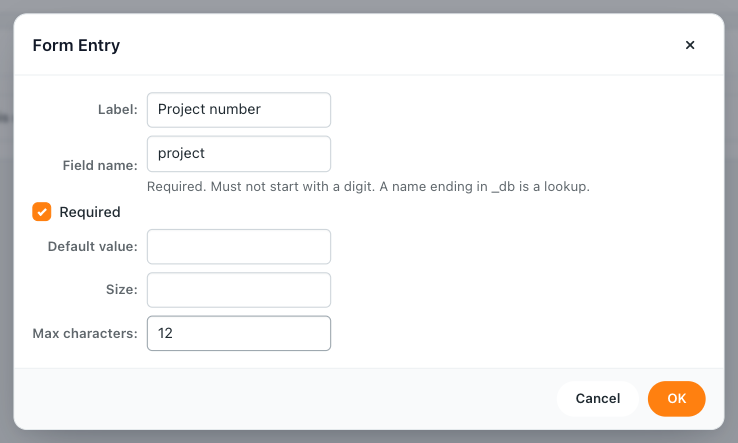
| Field | For | What it is |
|---|---|---|
| Label | all | the text beside the control |
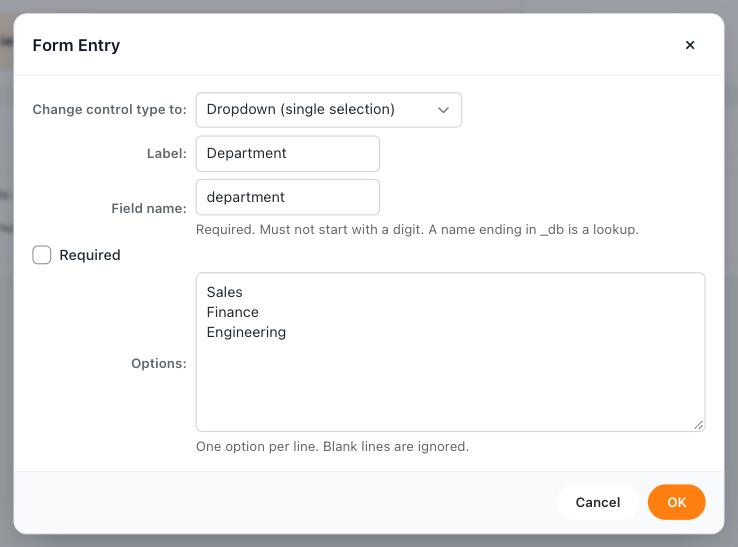
| Field name | all | the name the answer is kept under. It is needed, and must not start with a digit: "Field name can not be empty or start with a digit." Use a short name without spaces, such as project. |
| Required | all but Label | the form cannot be sent with this entry empty. The preview marks it with a *. |
| Right hand text | Label | a second text, shown at the right of the label |
| Default value | Text Field, Big Text Field | what the box holds when the form opens |
| Size, Max characters | Text Field | how wide the box is, and how much can be typed |
| Rows, Columns | Big Text Field | the size of the box |
| Options | Dropdown, Checkbox, Radio, Tags Input | the choices, one per line |
| Change control type to | Dropdown, Checkbox, Radio, Tags Input | turns the entry into another of these four kinds and keeps its choices |
Choices that are looked up#
An entry whose Field name ends in _db does not have fixed choices: it looks them up while the user types. Two more fields say how:
| Lookup type | Where the choices come from |
|---|---|
| Text | a text file on the server, in the folder forms beside the server's settings, named after the field and the user: fieldname_username.txt. Each line is a choice, or a value and the text to show for it, as value:text. A file named for a user that this user inherits from counts too, so one file can serve a whole group. |
| Task | a job, chosen under Task. It runs each time with what the user typed, which it gets as {meta_q}, and what it finds becomes the choices. |
Giving a form to users#
A form does nothing until a user is given it. That is done on the user, or on a group or the default user for many at once: User Manager › WebInterface › Forms.
| Setting there | The form is shown |
|---|---|
| WebInterface Common Upload Form | once for an upload, for all its files together |
| WebInterface Per File Upload Form | for every file of an upload |
| WebInterface Message Form | to the user after they log in, for example terms to accept. Once, or with Show after every login each time. |
| WebInterface Cut/Copy/Paste Form | when the user pastes files that were cut or copied |
| Custom Event Form | when the user starts a custom event |
What happens with the answers#
The answers of an upload form travel with the uploaded files. Events and jobs that handle those files get each answer as a variable named meta_ and the field name: the answer to project is {meta_project}. So a job can sort uploads by department, or a mail can say which project a file belongs to.
Saving#
Forms are changed on the screen only, until you press Save at the bottom of the page (saving).