Searching and filtering#
Two ways to find a file in the WebInterface: the filter narrows the folder you are looking at, and Search looks through all your folders.
The filter#
The field Filter above the list shortens the list as you type, to the items whose name holds what you typed. Nothing is asked of the server: it works on what is on the page.
- It looks at the folder you are in, not below it.
- Clear, or emptying the field, brings the whole list back.
- While it is on, the foot of the page counts only what is shown.
Use it in a long folder when you know roughly what the file is called.
Select next to it is a filter of another kind: it ticks items by a rule, such as Modified this week. See Choosing items.
Search#
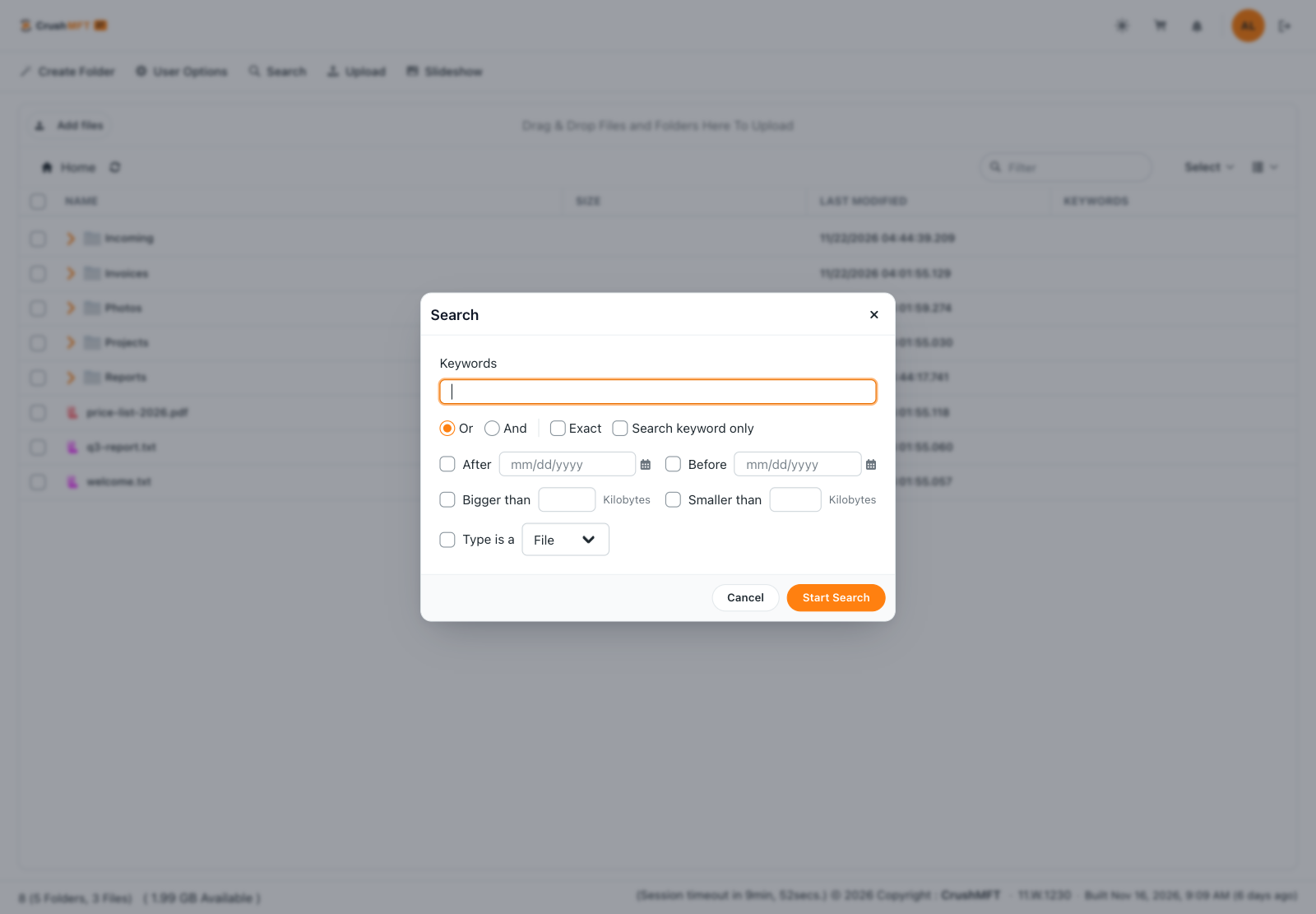
Search in the menu bar looks through the folder you are in and everything below it.
| Field | Finds |
|---|---|
| Keywords | words in the name of a file or folder, and in the keywords that were given to it |
| Or | items that have any of the words |
| And | items that have all of them |
| Exact | items that have exactly what you typed, as one text |
| Search keyword only | looks only at the keywords given to files, not at their names |
| After, Before | only items last changed after, or before, a date |
| Bigger than, Smaller than | only files over, or under, a size in Kilobytes |
| Type is a | File or Folder |
Fill in what you know and leave the rest. Start Search.
The result replaces the list: "Showing Search Result". Each item shows the folder it is in. Everything you can do with a file in a folder, you can do here: download, share, add to the basket. A click on Home or on a folder of the path leaves the result.
Examples#
| To find | Fill in |
|---|---|
| the invoice for ACME | Keywords invoice acme, And |
| anything about either project | Keywords harbor northgate, Or |
| what arrived this month | After the first of the month, nothing else |
| the large videos that fill your space | Bigger than 500000 |
| files tagged "approved" | Keywords approved, Search keyword only |
Where to start#
Search looks from the folder you are in, downwards. Start at Home to look through everything; go into a project's folder first to look only there. The second is faster.
Why a search may find too little#
- You are too deep. Go up and search again.
- The words are inside the file, not in its name. Search looks at names and keywords, not at the text of documents, unless your administrator has set up an index that includes it.
- The file is new. On servers that search with an index, a file that arrived a moment ago may not be in it yet.
- You may not see the folder. Search finds only what you could also browse to.
A search through very many files can take a while: "Searching". You can go on working; the result appears when it is ready.
Keywords make files findable#
A name says little: scan_0412.pdf. Give files keywords as they arrive: the customer, the project, the kind of document. See Keywords. Then a search for acme contract finds the scan.
Some servers ask for such words in a form at upload and store them by themselves: Forms.
For administrators#
| What | Where |
|---|---|
| how search works on the server, with and without an index, and what the index covers | Search and the file index |
| the settings for search | Preferences, Search |
| the Search button, and what the filter and search may do for a user | Buttons, Customizations: Search & Filter |