Manage Shares#
Manage Shares lists the shares you made: what is shared, with whom, until when, and how often it was used. It is where a share is looked at, changed and ended.
It opens from its button in the menu bar, if you were given it.
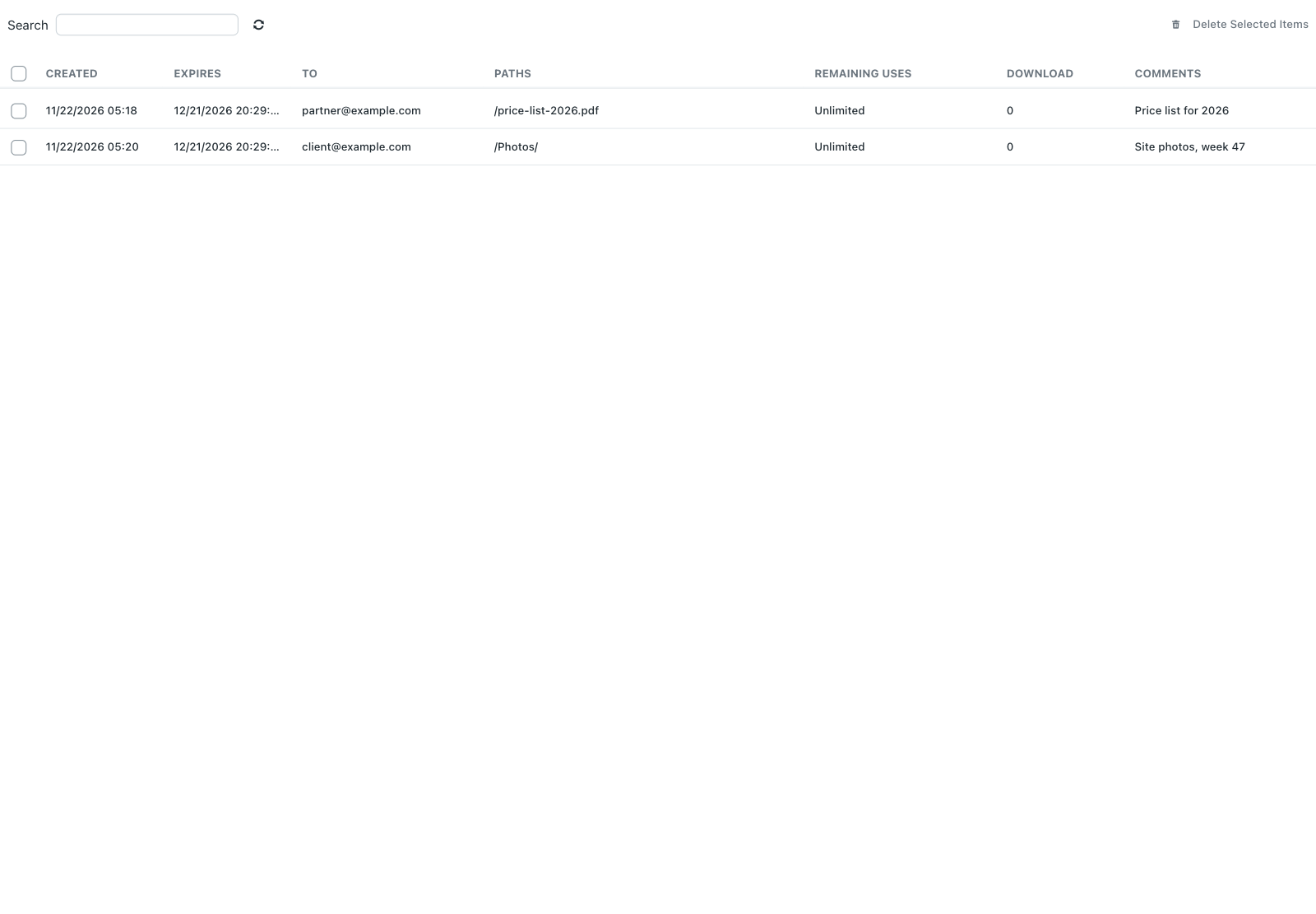
The list#
One line per share:
| Column | Is |
|---|---|
| Created | when you made it |
| Expires | when it ends by itself |
| To | who it was mailed to, if the server sent it |
| Paths | the files and folders in it |
| Remaining Uses | how often it can still be used, or Unlimited |
| Download | how often it was downloaded |
| Comments | the note you gave it |
In the picture: a folder shared without a limit of uses until mid December, and one file that can still be fetched ten times.
Search finds shares by any of these. The columns sort by a click on their heading.
Looking at a share#
A click on a line opens Share Details: everything above, and also
| the Link | with Copy link to clipboard: for sending it again |
| Attached in Email? | whether the files went into the mail |
| Upload Allowed? | whether the recipient may upload into it |
| the account behind it | the name of the temporary account, and its password if you set one |
Prev and Next step through your shares.
Changing a share#
Edit Share, or Edit in the details:
- move the end date, to give somebody more time or to cut a share short;
- change the number of uses that are left;
- change the note.
To share other files, make a new share.
Ending a share#
Tick it and press Delete Selected Items: "Are you sure you wish to delete selected 1 account(s)?"
The link is dead from that moment. For a share of the Copy kind, the copy is removed with it; your own files are never touched by ending a share.
End a share when the recipient has what they needed, when a link went to the wrong address, or when somebody leaves a project.
Many at once#
| To | Do |
|---|---|
| tick all | Select All |
| tick all that are alike | Select Similar, or Select Matching Accounts: "Select share accounts with … like", with Exact Match for a precise comparison. For example all shares to one address. |
| end them | Delete Selected Items |
"No matching account found." when nothing fits.
Open in a separate window puts the list into a window of its own, beside your files.
What ends by itself#
- A share past its Expires date.
- A share whose Remaining Uses reached 0.
Both stop working at once and are cleared away by the server.
Things to know#
- You see your own shares. An administrator sees everybody's, in the admin pages.
- A share is an account. Each external share is a small temporary account on the server that can see the shared items and nothing else. Ending the share removes the account.
- What recipients did with a share, when they opened it and what they fetched, is in the server's record. Your administrator can report on it; see also My Activity.
- A reference share follows your files. If you rename or move the shared folder, the share may point at nothing. Check the share after reorganising.
For administrators#
| What | Where |
|---|---|
| the Manage Shares button | Buttons |
| the temporary accounts, where they are kept and how they are cleaned up | Temporary accounts |
| shares in a cluster | replicated with Shares: Replication |
| open shares without a password or an end | the report Open shares |
| shares by program | Shares in the API |