The WebInterface#
The WebInterface is what a user sees when they open the server's address in a browser: their folders and files, with everything needed to upload, download, share and find them. Nothing has to be installed. It works in any current browser, on a phone as well as on a desk.
These pages describe it from the user's side. What a user finds there, which buttons, which folders, which colours, is decided by the administrator for each user or group: see the user's WebInterface tab and Preferences, WebInterface.
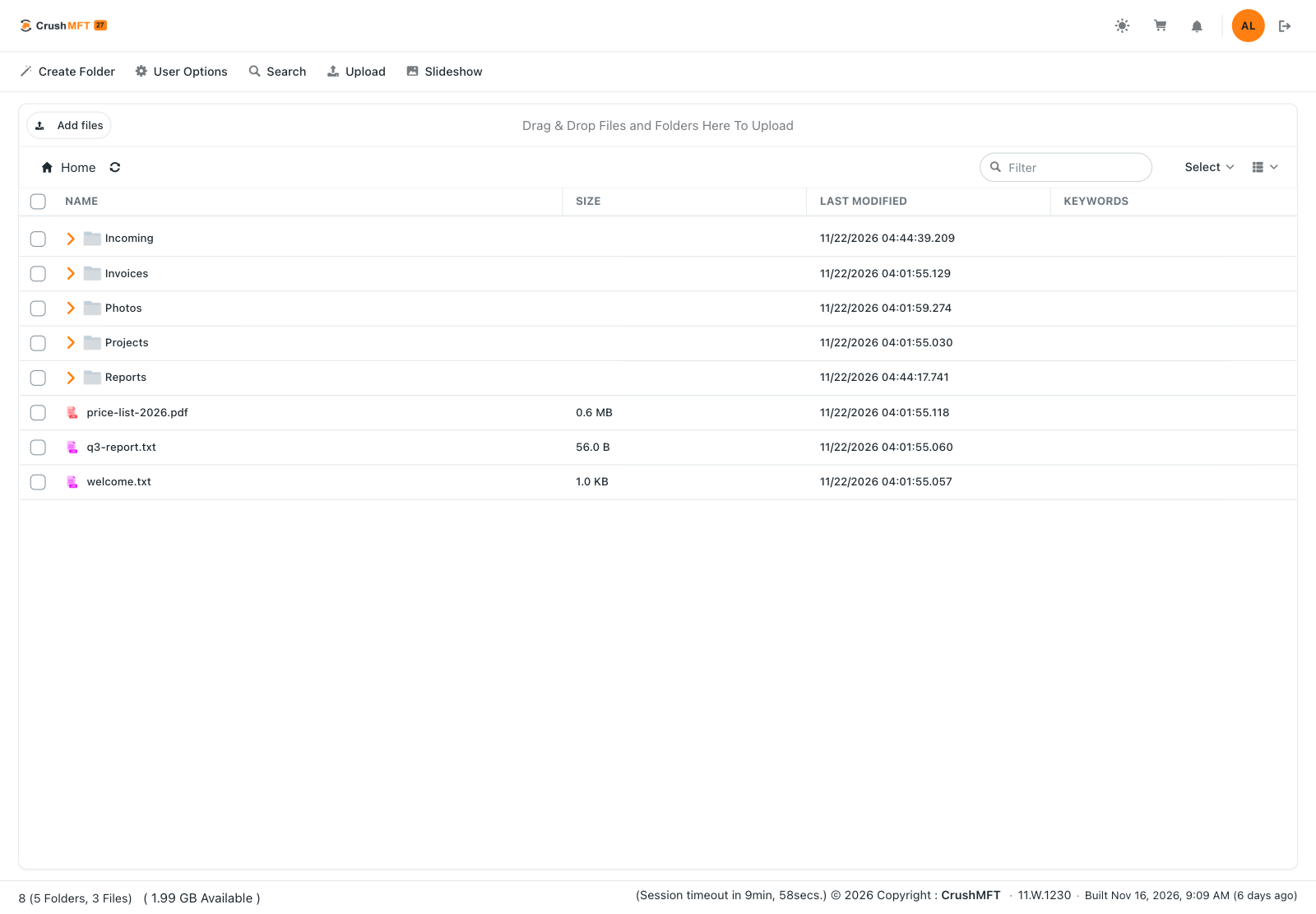
The page#
| Part | Is |
|---|---|
| the logo, top left | leads back to the top folder |
| the icons, top right | the theme (light or dark), the basket, Activity (transfers under way and done), your name with facts about your session, and Logout |
| the menu bar | the buttons the administrator gave you. Here: Create Folder, User Options, Search, Upload. |
| Add files, and "Drag & Drop Files and Folders Here To Upload" | the upload bar |
| Home and the path | where you are. Each part of the path is a link. The arrows beside it read the folder again. |
| Filter, Select, the view switch | narrow the list, tick many items at once, and switch between a list and pictures |
| the list | folders first, then files, with Name, Size, Last Modified and Keywords |
| the foot | "8 (5 Folders, 3 Files)", how much room you have left, and when the session ends if you do nothing |
What you can do#
| To | See |
|---|---|
| sign in, with a password, a code, or your organisation's login | Signing in |
| get in when you forgot your password | Resetting a password |
| move about, make folders, rename, move and delete | Browsing files |
| put files on the server | Uploading |
| take files from it | Downloading |
| send somebody a link to a file | Sharing, Manage Shares |
| find a file | Searching and filtering |
| look at pictures and documents without downloading them | Quick view, thumbnails and the slideshow, Viewing documents |
| get an older version of a file back | Earlier versions of a file |
| see what you did, and what happened to a file | My Activity |
| use it in your language | Languages |
Not everybody sees the same#
Two users of the same server can have quite different pages. An administrator decides, per user, group or domain name:
- which buttons are in the menu bar and in the menu of a file: a partner who only delivers may have Upload and nothing else. See Buttons.
- what the user may do in each folder: look, download, upload, delete, share. A folder you cannot write to says "This folder is read-only".
- forms to fill in at an upload, a share or at login: Forms.
- the look: logo, colours, texts. See Changing how the WebInterface looks.
So when these pages name a button you do not have, it was not given to you. Ask your administrator.
Things to know#
- Your session ends by itself after a time without use. The foot of the page counts down: "(Session timeout in 9min, 54secs.)". Before it ends you are asked: "You are about to log out due to inactivity", with Stay Logged In.
- A transfer keeps the session alive. A long upload does not log you out.
- The connection is encrypted when the address begins with
https://. Use nothing else for anything that matters. - Other ways in. The same folders can be reached with a file transfer program by SFTP or FTPS, as a network drive by WebDAV, and with CrushMFT's own apps: see Connecting to the server.
- For administrators: the same address leads to the admin pages when you sign in with an admin account. See Server Admin.