WebInterface#
WebInterface is the sixth tab of a user in the User Manager. It decides what the web interface looks like for this user and what it offers them: the look, the buttons, the forms, and a few switches for the server's web side.
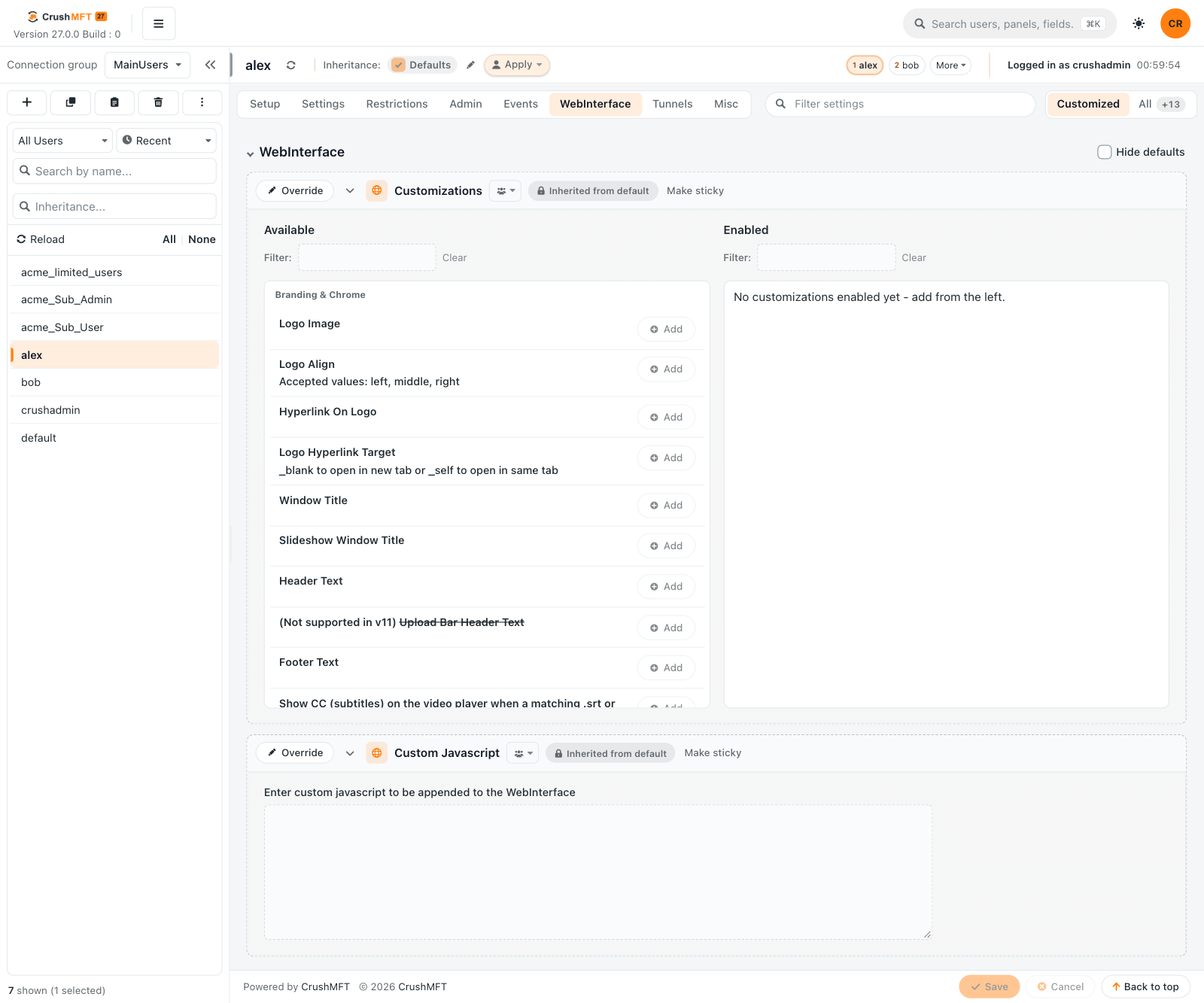
What is set on default holds for everybody. A group of users with a look of their own gets a template: see The default user and templates.
The cards#
| Card | What it is | Page |
|---|---|---|
| Customizations | the 344 settings of the web interface: logo, texts, columns, upload and share options | Customizations |
| Custom Javascript | script that is added to the web interface for this user | below |
| Custom CSS | style rules that are added, and Add Webinterface Theme to start from a theme | below |
| Custom Meta tags | HTML for the HEAD of the page, "only to be used for meta tags" | below |
| Buttons | the buttons of the menu bar and of the context menu | Buttons |
| Forms | the forms the user is shown when uploading, at login, on paste and for custom events | Forms and share options |
| Virtual Domains, Alternate HTTP Domains | a start folder by the name the user came in with | Domains |
Custom code#
| Card | Use it for |
|---|---|
| Custom CSS | colours, fonts, hiding a part of the page. Add Webinterface Theme puts the rules of a ready theme into the box, to change from there. |
| Custom Javascript | behaviour the customizations do not offer. The script runs in the user's browser on every page of the web interface. |
| Custom Meta tags | meta tags, such as one that tells search engines to stay away |
Warning
Script in Custom Javascript runs with everything the user may do. Put in only script you wrote or read. Test it with a test user before it goes on default: a mistake in it can leave the web interface empty for everybody.
Try the customizations first. They survive updates of the web interface; script that reaches into the page may not.
Switches#
| Switch | What it does |
|---|---|
| Disallow directory listings | the user is not shown what a folder holds over the web. "Enable this if you only want index.html files served." |
| Serve HTML 'index.html' file instead of directory listing | a folder that has an index.html is shown as that page, not as a file list. The user's folders so become a small web site. |
| Enable ServerSideInclude (SSI) | in pages served that way, <!--#include file="header.html"--> is replaced by that file |
| Recaptcha required for WebInterface logins | this user must pass the reCAPTCHA check at login. The keys are set in WebInterface of the Preferences. |
| My activity | the user sees their own sign-ins and where they came from, uploads, downloads and shares |
| Folder and file history | the user sees who uploaded, downloaded, renamed or deleted what in the folders they can list: everyone's activity there, not only their own |
Note
Folder and file history shows a user the names of other users. Give it where the people of a folder know of each other, and not to outside partners who share a drop folder.
Things to know#
- The web interface reads these settings at login. A user who is logged in sees a change after logging in again.
- A card that is not overridden shows what the user inherits, greyed. Override on the card makes the user's own copy, Revert gives it up: see Inheritance.
- The login page is not part of a user: nobody is logged in yet. It is set in Login page themes.