Testing settings#
Two panels of General Settings have a button that tries the settings out: Test SMTP Settings sends a mail, Test OTP Settings sends an SMS. The two do not work the same way:
| Button | Tests |
|---|---|
| Test SMTP Settings | what is on the screen now, saved or not |
| Test OTP Settings | what was last saved. Press Save first. |
Test SMTP Settings#
The button is in the SMTP Settings panel (Sending mail). It sends one mail through the mail server as the panel shows it: the server, the user name, the password, SSL/TLS, HTML and the OAuth profile. You can so try a mail server before you save it.
-
Click Test SMTP Settings.
-
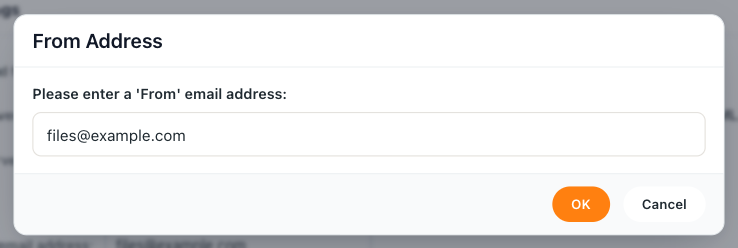
Enter the address the mail comes from, and OK.
-
Enter the address the mail goes to, and OK. Cancel or an empty address at either question stops the test.
-
The button is greyed out while the server talks to the mail server. Then the answer appears.
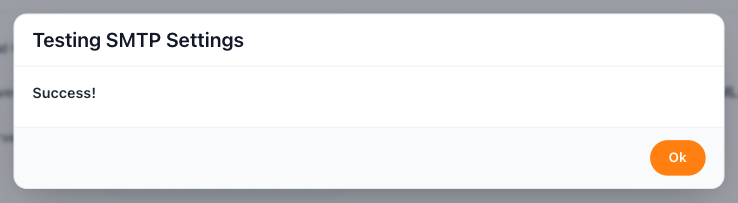
"Success!" means the mail server took the mail. The mail has the subject "Email Test" and the text "This is the body of the test message." Look for it in the mailbox too: a mail server can take a mail and still not deliver it.
The test uses the From address you type, not From email address of the panel. With a mail server that only accepts its own mailbox as sender, and always with Google or Microsoft 365 over OAuth, type the address of that mailbox.
When the test fails#
The answer starts with SMTP_ERROR:, names the server, the port and the user, and ends with what went wrong. A failing mail is tried five times, so the answer can take a while.
| The answer holds | Why |
|---|---|
| "Couldn't connect to host, port: …" with "Connection refused" | nothing answers on that host and port: a wrong name or port, or the mail server is down |
| "Couldn't connect to host, port: …" with a timeout | a firewall between the server and the mail server drops the connection |
| "STARTTLS is required but host does not support STARTTLS" | SSL/TLS is ticked and the mail server offers no encryption on that port. Use the port on which it does, usually 587. |
| an authentication error, such as a line starting with 535 | a wrong user name or password, or the mail service wants an app password or OAuth |
| a certificate error | the mail server's certificate was refused, see The mail server's certificate |
The error is also written to the server log, on lines marked SMTP.
Test OTP Settings#
The button is in the OTP Settings panel (General Settings). It sends an SMS with the text "Test sms!" through the SMS service.
Note
This test uses the settings as they were last saved, not what is on the screen. After changing the URL, the account or the sender, press Save and then test.
-
Click Test OTP Settings.
-
Enter the phone number to send to, with the country code, such as
+15550123, and OK.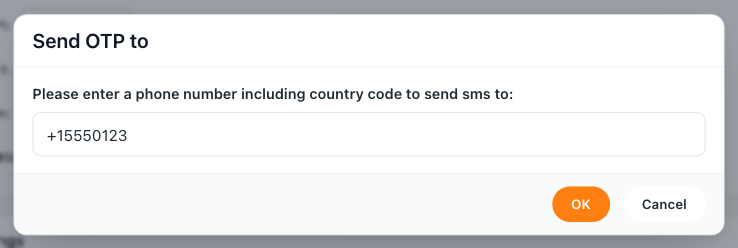
-
The answer appears.
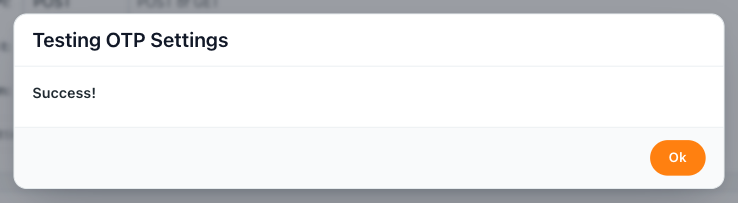
"Success!" means the SMS service answered that it took the message. An answer starting with ERROR: holds the status and the text the service sent back, such as a wrong account or a sender number it does not know.
The test is for sending by SMS. When URL is SMTP, codes go out by mail, and this button cannot test that: use Test SMTP Settings.