The keystore utility#
A keystore is a file that holds certificates and private keys. The keystore utility lets you look into any keystore on the server machine and change what is in it: add a key, add a certificate, rename, export, remove. It is the Keystore Utility tab of the Encryption section of Preferences.
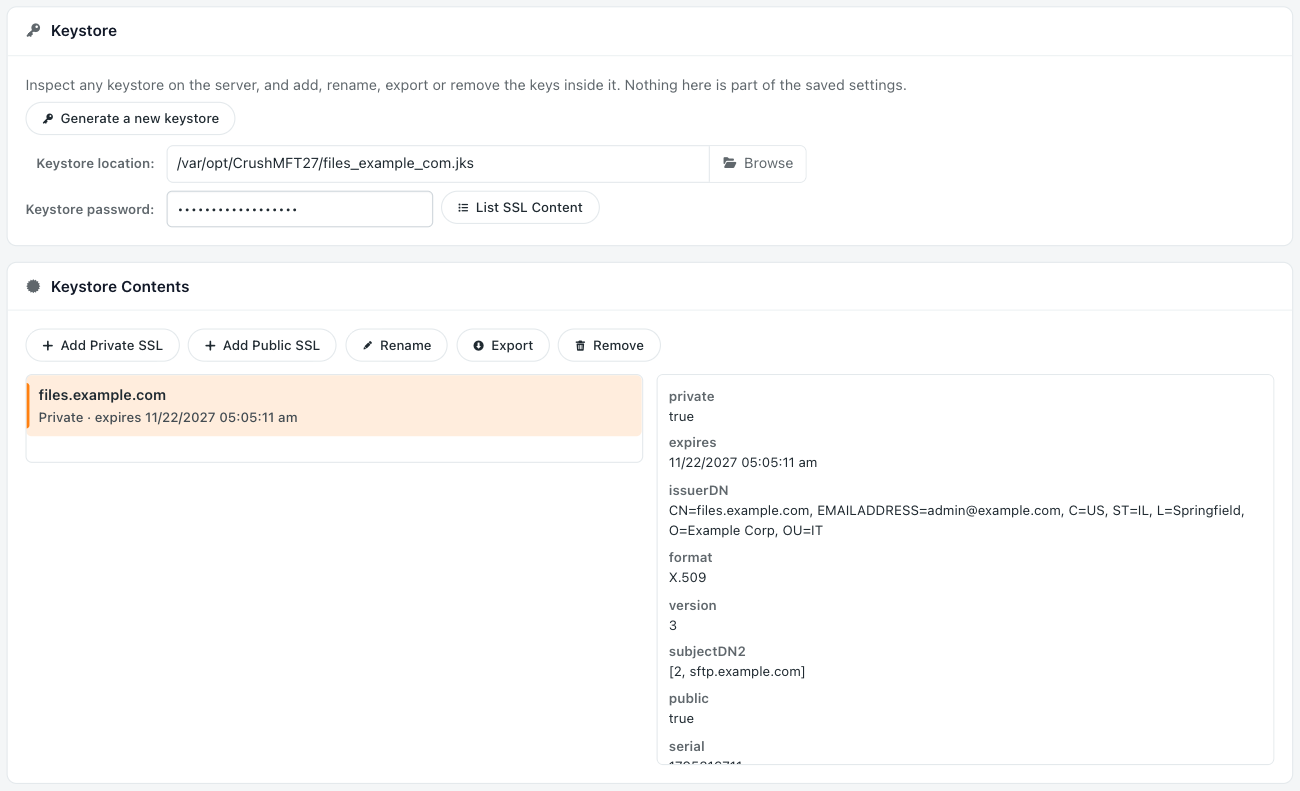
Nothing on this tab is a setting. Each button acts on the keystore file at once, and Save at the bottom of the page has nothing to do with it. To make the server use a keystore, choose it on the SSL tab (SSL certificates and the guide).
Use it to:
- see what a keystore holds and when its certificates expire;
- build a keystore from a private key and a certificate that you have as separate files, for example from an Apache server;
- add the intermediate certificates of your certificate authority;
- take a certificate out to give to someone else.
Opening a keystore#
| Control | What it does |
|---|---|
| Generate a new keystore | makes a new keystore with a new private key. The same dialog as Generate Key on the SSL tab; when it is done, the location and the password of the new keystore are filled in here. |
| Keystore location | the keystore file, a JKS or PFX file on the server machine. Browse picks it. |
| Keystore password | its password |
| List SSL Content | opens the keystore and lists what is in it |
Without a location the tab says "Please select keystore first." A wrong password or a file that is not a keystore is answered with the error.
What is in it#
Each entry of a keystore has a name, its alias. The list shows the alias, whether the entry has a private key (Private) or is a certificate alone, and when it expires.
Click an entry to see everything about it at the right:
| Line | What it is |
|---|---|
alias |
the name of the entry |
private |
true when the entry has a private key. Only such an entry can be a server certificate. |
expires |
the last day the certificate is valid |
subjectDN |
who the certificate is for |
subjectDN1, subjectDN2, … |
the further names it is for, its SANs |
issuerDN |
who signed it. The same as subjectDN when nobody has: a self-signed certificate. |
algorithm, sigAlg |
the kind of key, and how it was signed |
serial, version, format |
its serial number and form |
Changing it#
| Button | What it does |
|---|---|
| Add Private SSL | adds a private key with its certificate, from a file on the server machine |
| Add Public SSL | adds a certificate without a key, such as an intermediate or a root certificate of your certificate authority |
| Rename | gives the selected entry another alias |
| Export | saves the selected entry as a file: "The SSL certificate is exported." |
| Remove | removes the selected entry, after asking "Delete … from the keystore?" |
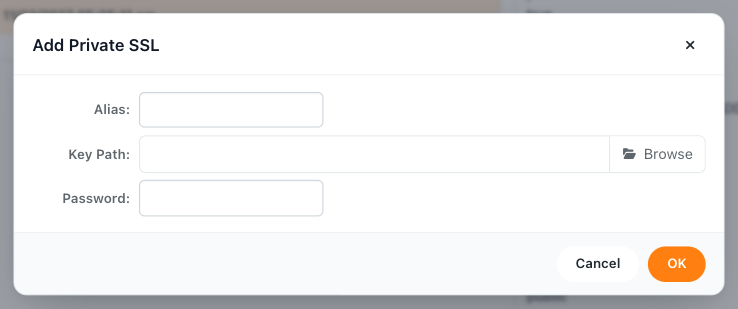
| Field | For | What it is |
|---|---|---|
| Alias | both | the name the new entry gets. Needed: "Please enter alias." |
| Key Path | both | the file to add, on the server machine. Browse picks it. Needed: "Please select key to add." |
| Password | Add Private SSL | the password of the key file, when it has one |
Warning
Remove cannot be undone, and a private key that is removed is gone. Copy the keystore file before you change it. If the server is using that keystore, removing or replacing its private entry breaks HTTPS and FTP over TLS at the next start of the listeners.
From two files to a keystore#
When you have a private key and a certificate as separate files, as Apache and many certificate authorities give them:
- Generate a new keystore, or open one you have.
- Add Private SSL: an alias, the key file, its password.
- Add Public SSL for each intermediate certificate, each under an alias of its own.
- List SSL Content and check: one entry marked Private, with the right names and expiry.
- On the SSL tab, choose the keystore, enter its passwords, Test Certificate, Save.