Restrictions#
Restrictions is the third tab of a user in the User Manager: when and from where the user may connect, over which protocols, how many times at once, and what happens after too many wrong passwords.
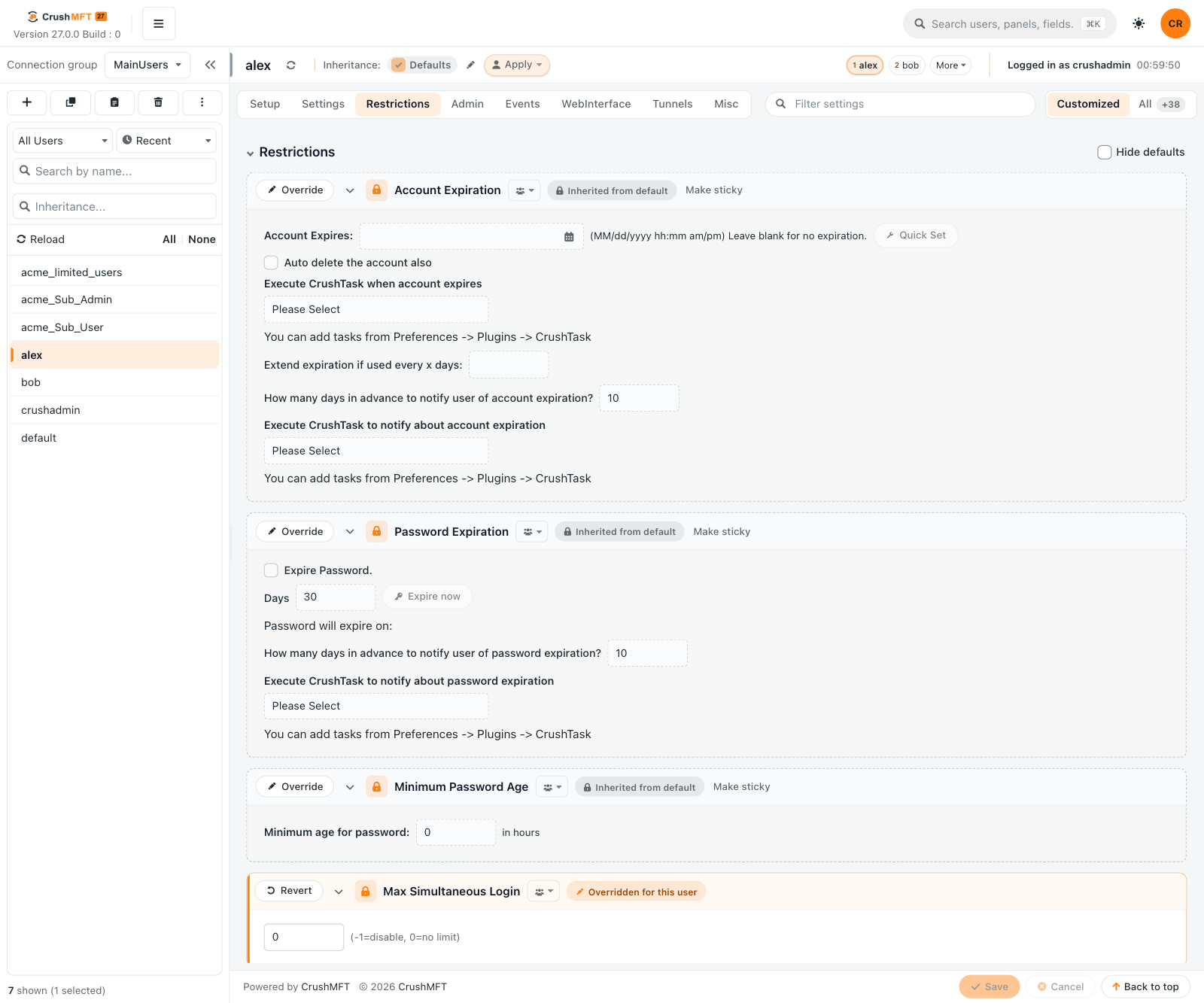
Its larger parts have pages of their own:
| Part | Page |
|---|---|
| Account Expiration, Password Expiration, Minimum Password Age | Password and account expiry |
| Allow User to Connect to These Days, Hours of the day | Days and hours |
| IP Restrictions | IP restrictions of a user |
| Max connections per protocol | Protocols a user may use |
| List of paths to trusted public SSH key files, and the two "Require public key" switches | SSH public keys of a user |
| Content Restriction | Content restrictions |
How many at once#
| Setting | What it does | New server |
|---|---|---|
| Max Simultaneous Login | how many sessions this user may have at the same time. 0: no limit. -1 disables the account, which is what Account Enabled on the Setup tab sets. | 0 |
| Max Logins Per IP | how many sessions this user may have from one address. 0: no limit. | 0 |
| Auto kick oldest session if exceeded | when the limit per address is reached, the oldest session is ended to let the new one in, instead of the new one being refused | off |
| Ignore Server's Max Connections and Always Allow Login | this user gets in even when the server as a whole is full. For your own administrator account. | off |
Wrong passwords#
| Setting | What it does |
|---|---|
| Disable account after too many login attempts | after this many failed logins in a row the account is disabled. The card shows the count so far ("Failure counts: 0"). Empty: never. |
| Execute CrushTask | a job to run when that happens, for instance one that tells you |
| Hammering Successful Logins Setting | "Maximum of ... attempts in ... seconds, then banned for ... minutes." A limit on logins that succeed: a script that logs in again and again is slowed. The card notes that 0 minutes does not mean for ever. |
Failed logins from one address are also counted for the server as a whole, whoever the user is: see Banning.
Other restrictions#
| Setting | What it does | New server |
|---|---|---|
| Require encryption ? | the user must switch an FTP connection to encryption before logging in. It only matters for FTP with explicit encryption, where a connection starts in clear text: you can let an anonymous account stay in clear text and make the others encrypt. | off |
| Allow receiving of shared items from other users | other users of the server may share files and folders with this user directly, into their account. Needs an Enterprise licence. | off |
| Allowed destination SOCKS proxy hosts / IPs, Blocked ... | for a user who uses the server as a SOCKS proxy: the hosts they may reach and may not reach, one per line, with * for any text |
*, empty |
| Block Folder Movement Via Rename | a rename may change a name and may not move a folder to another place | off |
| PGP Key Setup | encrypts this user's files with PGP as they are stored, see below |
PGP Key Setup#
Files this user uploads are stored encrypted with a PGP key, and decrypted again when they are downloaded through the server.
| Field | What it is |
|---|---|
| Public PGP Key | the key files are encrypted with |
| Private PGP Key, Private PGP Key Pass | the key they are decrypted with, and its passphrase |
| Encryption cypher | the cipher. Use AES_256 unless the other side needs another. |
| ASCII Armor | writes the encrypted files as text instead of binary |
| Add hinted decrypted size | keeps the size of the plain file with the encrypted one, so that listings can show it |
| Sign | signs the files as well |
| Test Key | checks that the keys can be read |
Warning
Files stored this way are useless without the key. If the key file is lost or changed, the files cannot be recovered. To change the key, first move all files out through the server, so that they are plain again, then change the key and move them back. Keep a copy of the key somewhere else. If any of this is unclear, do not use it.
The keys themselves are made in PGP keys. The same can be set for one folder only, in the Advanced settings of an item in the VFS editor.