IP / Servers#
IP / Servers, the first section of Preferences, holds the listeners: each one is an address and a port on which the server answers one protocol. A new server has a few; add one for every protocol and port you want to offer.
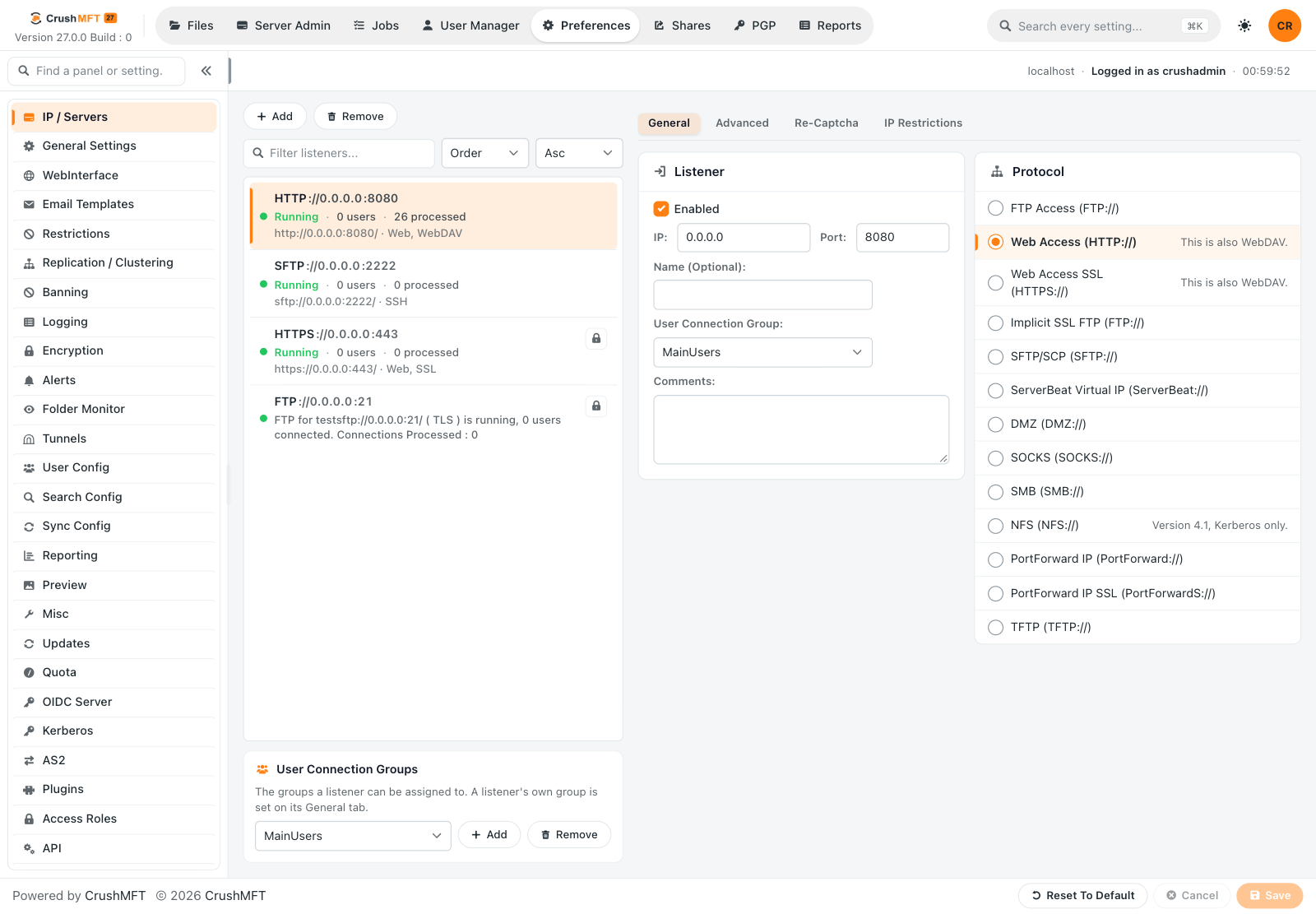
The list of listeners#
Each listener shows its protocol, address and port, whether it is Running, how many users are connected through it now, how many connections it has handled since the server started, and the address clients use.
| Control | What it does |
|---|---|
| Add | asks "Port for the new server item:" and adds a listener on that port. Choose its protocol and set its address on the right, then Save. |
| Remove | removes the selected listener, when you save |
| Filter listeners… | shows only the listeners whose protocol, address, port or name contain what you type |
| Order, Asc / Desc | sorts the list: by its own order, by protocol, by host or by port |
Click a listener to see and change it on the right. Its settings are on four tabs.
General#
| Setting | What it is |
|---|---|
| Enabled | untick to stop the listener without removing it |
| IP | the address to listen on. 0.0.0.0 answers on every address of the machine; a single address answers only there. |
| Port | the port number |
| Name (Optional) | a name of your own for the listener, shown in the list |
| User Connection Group | which set of users may log in on this listener, see below |
| Comments | notes for yourself |
| Protocol | what the listener speaks, see the next table |
Protocols#
| Protocol | For |
|---|---|
| FTP Access (FTP://) | FTP, and FTP that switches to TLS (explicit FTPS) |
| Web Access (HTTP://) | the WebInterface and WebDAV without encryption; also the port a load balancer or reverse proxy connects to |
| Web Access SSL (HTTPS://) | the WebInterface and WebDAV over HTTPS |
| Implicit SSL FTP (FTP://) | FTP inside TLS from the first byte (implicit FTPS) |
| SFTP/SCP (SFTP://) | file transfer over SSH |
| ServerBeat Virtual IP (ServerBeat://) | an address shared by two or more servers, held by the one that is up |
| DMZ (DMZ://) | the link to a DMZ server |
| SOCKS (SOCKS://) | a SOCKS proxy |
| SMB (SMB://) | a Windows file share |
| NFS (NFS://) | an NFS export; version 4.1, with Kerberos only |
| PortForward IP (PortForward://), PortForward IP SSL (PortForwardS://) | passes a port on to another machine, plain or with TLS added |
| TFTP (TFTP://) | TFTP |
What you see on the Advanced tab depends on the protocol.
Advanced#
The Advanced tab holds the options of the listener's protocol. For a web listener (HTTP or HTTPS):
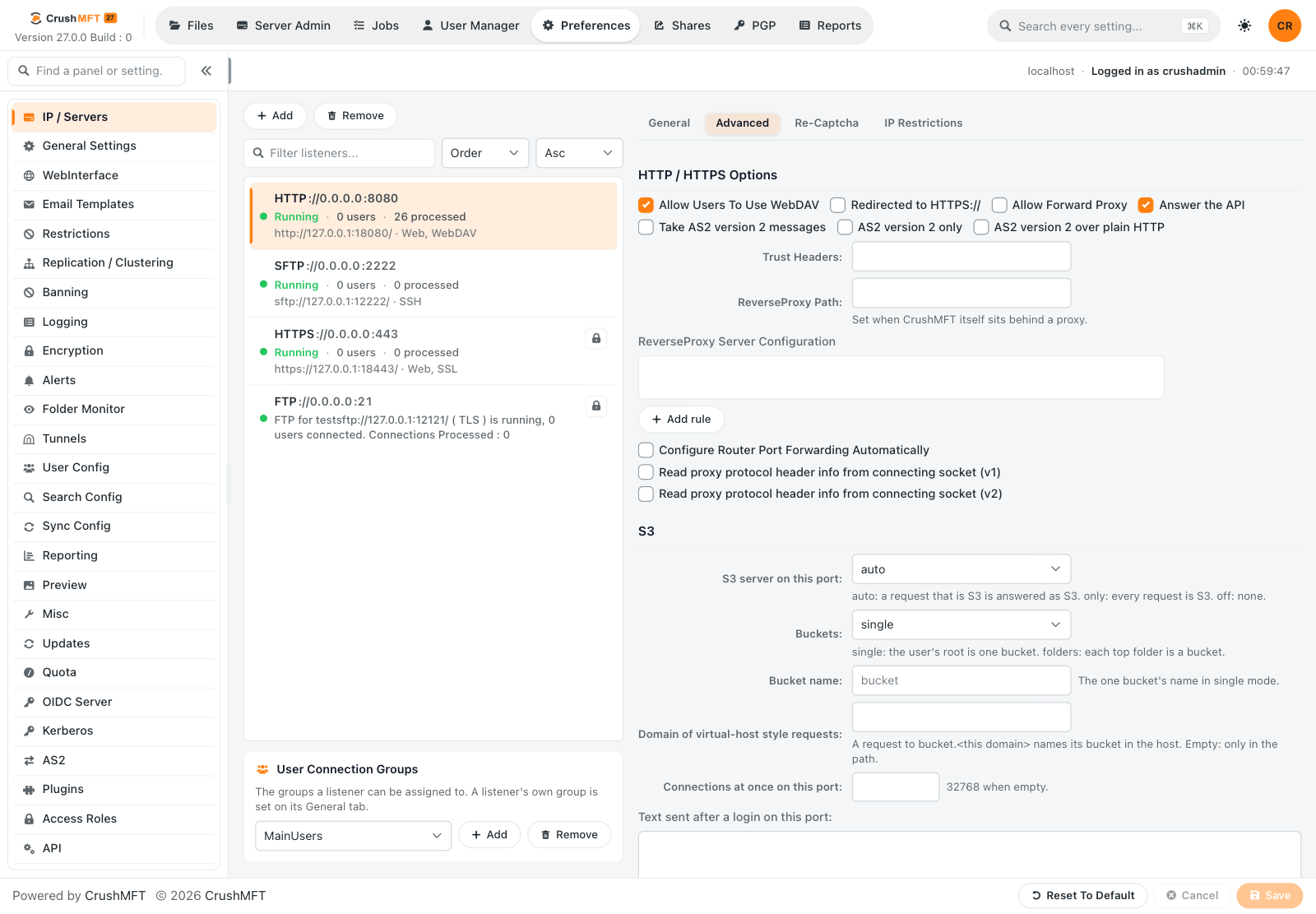
| Setting | What it does |
|---|---|
| Allow Users To Use WebDAV | lets WebDAV clients mount the server through this port |
| Redirected to HTTPS:// | answers every request on this port with a redirect to the HTTPS address. Leave it off on a port that a load balancer or proxy connects to. |
| Allow Forward Proxy | lets users whose account allows it use this port as a proxy to other web servers |
| Answer the API | the API at /WebInterface/api answers on this port, while the API is turned on in Preferences › API. Off: this port answers it with 404. |
| Trust Headers | single sign-on by a system in front of CrushMFT, such as SiteMinder. A list of Header-Name=field pairs separated by commas, for example SM_USER=user_name: when a request carries the header, its value is taken as that field, and the user named in user_name is logged in without a password. Use it only on a port that nothing but that system can reach: whoever can send the header is logged in as anyone. |
| ReverseProxy Path | set when CrushMFT itself sits behind a proxy: the path the proxy serves it under |
| ReverseProxy Server Configuration, Add rule | rules that pass requests on this port to other web servers |
| Configure Router Port Forwarding Automatically | asks your router to forward this port to the server |
| Read proxy protocol header info from connecting socket (v1) / (v2) | the connecting load balancer sends the client's real address in a PROXY header, version 1 or 2. Turn on the one the balancer sends, never both, and let only the balancer reach this port: the server believes the header from anyone who can connect. |
| Delay between protocol commands | a pause in milliseconds after each command, to slow down clients that hammer the server |
The options of the other protocols are described on the page of each protocol.
Re-Captcha#
Puts a Google reCAPTCHA on the login page served by this listener.
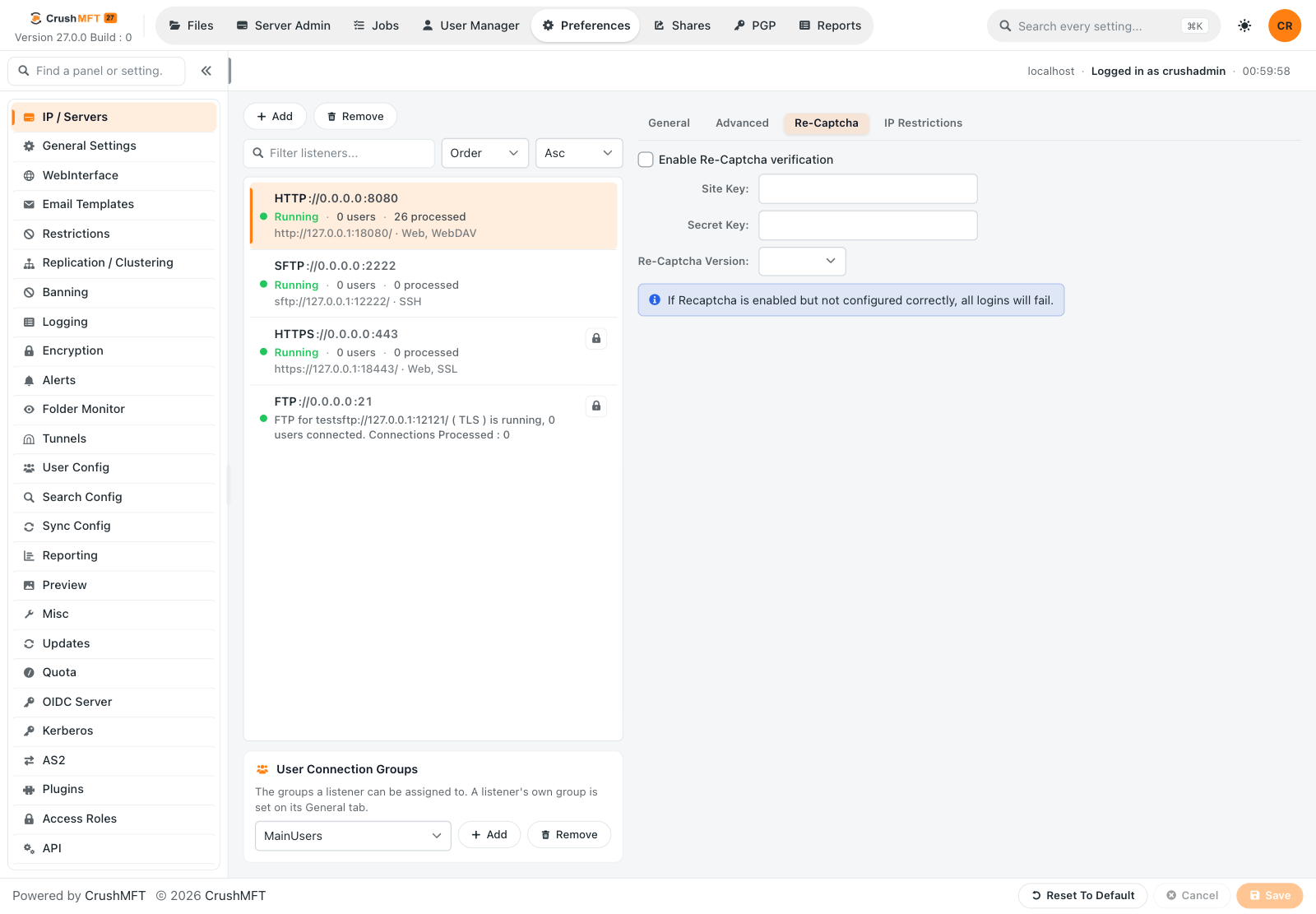
| Setting | What it is |
|---|---|
| Enable Re-Captcha verification | turns it on for this listener |
| Site Key, Secret Key | the two keys Google gives you for your site |
| Re-Captcha Version | 1, 2 or 3, matching the keys |
Warning
If Re-Captcha is enabled but not configured correctly, all logins on this listener fail. Test it on a second listener first, so you cannot lock yourself out.
IP Restrictions#
Who may connect to this listener at all, by address. Add, Edit and Remove change the list; with no entries, everyone may connect.
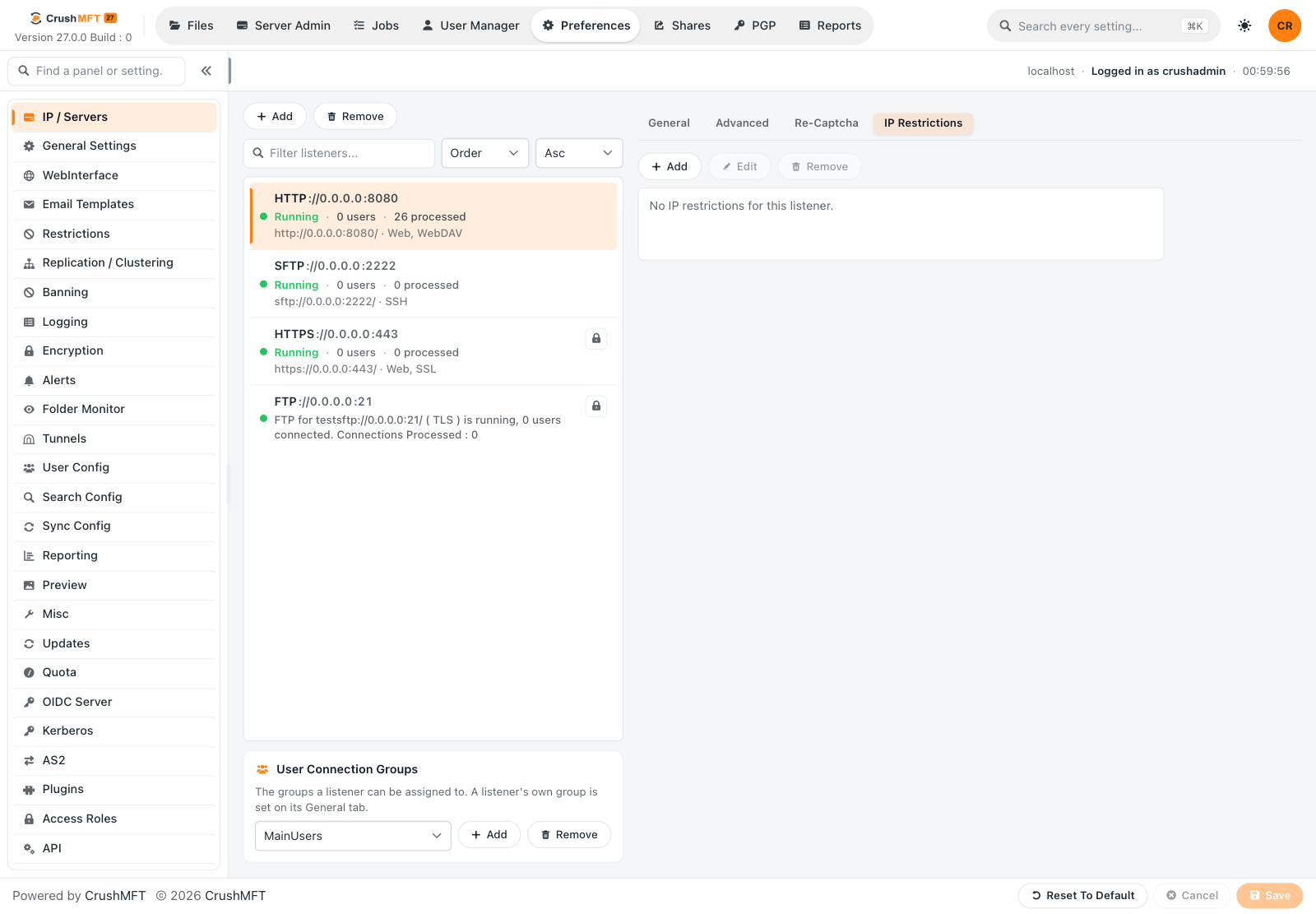
These restrictions are checked for this listener only. Restrictions for the whole server and for single users are set elsewhere and are checked as well.
User Connection Groups#
A user connection group is a separate set of users. Every listener belongs to one group, chosen on its General tab, and only the users of that group can log in there. One server can so serve several separate sets of users, each on its own port or address. A new server has one group, MainUsers.
| Control | What it does |
|---|---|
| The list | the groups that exist |
| Add | makes a new, empty group. Its users are made in the User Manager, which has a group selector of its own. |
| Remove | removes the selected group |
Two special choices in a listener's User Connection Group list pick the group from the request instead of fixing it:
| Choice | The group is |
|---|---|
| @AutoDomain | named after the domain part of the user name the person logs in with |
| @AutoHostHttp | chosen by the host name the browser asked for: it is the group named like the login page set for that host, without the file's ending. With login_partner.html for *.partner.example, that is the group login_partner. See Login pages per domain. |
Saving#
Changes to listeners apply when you press Save at the bottom (Preferences).