CrushLDAPGroup#
CrushLDAPGroup lets people sign in to the server with the name and password they have in your directory: Microsoft Active Directory, OpenLDAP, or any other LDAP server. Nobody is typed into the User Manager. Who may sign in, and what they see, follows from the groups they are in.
It works for every protocol that sends a password: the browser, FTP, SFTP, WebDAV.
The plugin is set up in Preferences › Plugins › CrushLDAPGroup. It comes with the server.
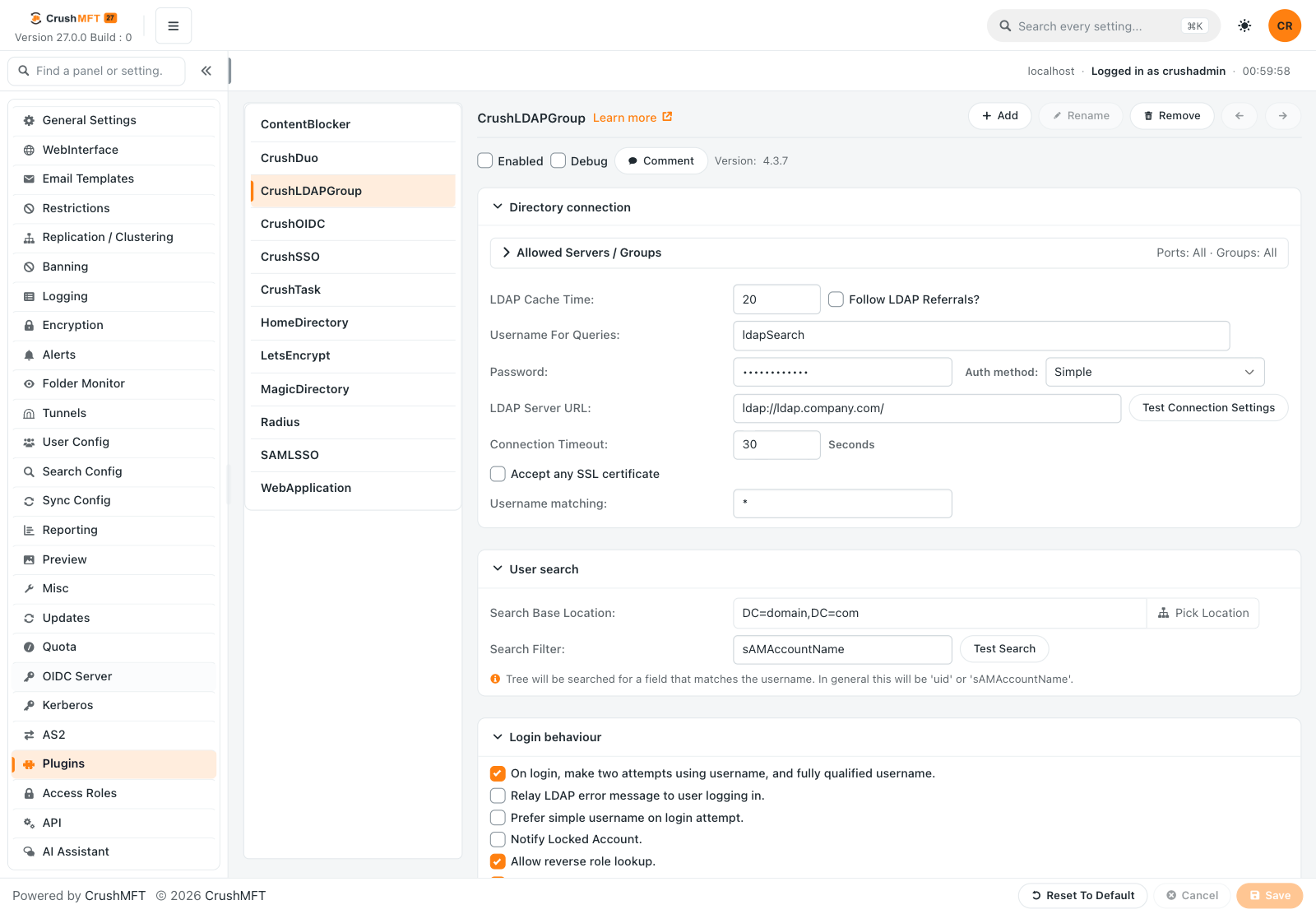
The screen has three parts, and so has this page: reaching the directory, finding the user and their groups, and giving the user folders.
What happens at a login#
- Somebody signs in as
jdoe. The server has no such user, so it asks its plugins. - The plugin connects to the directory as its own account, the Username For Queries, and searches for
jdoe. - It then connects again as jdoe, with the password that was typed. If the directory accepts that, the password is right.
- It reads the groups
jdoeis in. If roles are listed andjdoeis in none of them, the login is refused. - It builds the user: the settings of the template users, a home folder, the rights.
jdoeis in, and for the next 20 minutes the same login is answered from memory, without asking the directory.
The password never leaves the two servers, and the server does not keep it.
Reaching the directory#
| Setting | Is | On a new server |
|---|---|---|
| Enabled, Debug | as for every plugin | off |
| the text field at the top | a note for yourself about this configuration | empty |
| Allowed Server Port, Allowed User Groups | the listeners and connection groups this configuration works for: see what login plugins share | all |
| LDAP Server URL | the directory: ldap://dc1.example.com/, or ldaps://dc1.example.com/ for a protected connection. Several, separated by commas, are used in turn, so that one may be down. |
ldap://ldap.company.com/ |
| Username For Queries, Password | the account the plugin searches with. It needs to read the tree, nothing more. Give its full name, as the directory wants it: svc_crushftp@example.com or CN=svc_crushftp,OU=Service,DC=example,DC=com. |
ldapSearch |
| the list beside the password | how that account proves itself: Simple, CRAM-MD5, DIGEST-MD5. Use Simple over ldaps://. The two MD5 kinds are not offered in FIPS mode. |
Simple |
| Test Connection Settings | connects with what is on the screen and says whether the directory accepted the account | |
| Connection Timeout | seconds to wait for the directory | 30 |
| Follow LDAP Referrals? | follows the directory's pointers to other directories, as between forests that trust each other | on |
| Accept any SSL certificate | does not check the directory's certificate. For a first test. For real use, put the directory's certificate into the trust store of the server's Java and leave this off. | off |
| LDAP Cache Time | minutes a successful login is remembered | 20 |
| Username matching | the names this configuration looks at. * is all. |
* |
Finding the user#
| Setting | Is | On a new server |
|---|---|---|
| Search Base Location, Pick Location | where in the tree to search: the top, DC=example,DC=com, or one branch, OU=Staff,DC=example,DC=com. What lies outside is not seen. |
DC=domain,DC=com |
| Search Filter | the attribute that holds the login name. "Tree will be searched for a field that matches the username. In general this will be 'uid' or 'sAMAccountName'." For Active Directory: sAMAccountName for the short name, userPrincipalName for the name with @. A whole LDAP filter works too, with ? where the name goes. |
sAMAccountName |
| Test Search | searches for a name you give and shows what was found | |
| On login, make two attempts using username, and fully qualified username. | tries both the short name and the full one, so that people can type either | on |
| Prefer simple username on login attempt. | tries the short name first | off |
| Relay LDAP error message to user logging in. | a refused user sees the directory's reason, such as "account locked", beside the usual message. Helpful inside an organisation; on a public server it tells strangers too much. | off |
| Notify Locked Account. | when the directory refuses a login because the account is locked or disabled, the user is sent a mail. It needs an email template named exactly LDAP_Locked_Account. Email address cache timeout keeps it to one mail per that many minutes. |
off, 30 |
| Validate this plugin before calling other plugins. | where several login plugins work together, this one is asked first | off |
| Block web browsers from this plugin only allowing non web browser logins. | this configuration does not answer logins from browsers. For when people sign in to the web interface through an identity provider, and only programs use the directory password. | off |
A filter that lets only enabled Active Directory accounts in:
(&(objectClass=user)(objectCategory=person)(sAMAccountName=?)(!(userAccountControl:1.2.840.113556.1.4.803:=2)))
Roles: which groups may sign in#
A role is a group of the directory. LDAP roles the user must be a member of lists the groups whose members may sign in. "Leave blank for all users."
| Button | Does |
|---|---|
| Add Role, Edit Selected, Remove Selected | a role has two parts: the group, by its full name in the directory, such as CN=FileTransfer,OU=Groups,DC=example,DC=com; and, if you like, a template user of the User Manager whose settings and folders the members get |
| Move Up, Move Down | the order. For somebody in several roles, a setting is taken from the last matching role in the list. Folders are added up: they get the folders of all their roles. |
| Test Search Role | checks a name against the roles |
| Setting | Is | On a new server |
|---|---|---|
| Role Member Field | the attribute that links users and groups: "(memberOf, memberof, member, groupMembership, memberUid, memberuid, etc.)". "For nested groups using ActiveDirectory use: memberOf:1.2.840.113556.1.4.1941:", which also counts groups inside groups. |
member |
| Allow reverse role lookup. | membership is read from the user: the user's own list of groups is compared with the roles | on |
| Allow forward role lookup. | membership is read from the groups: each role's list of members is searched for the user | on |
| Use direct group query. | asks the directory about each group directly, which is faster with many roles | off |
One of the two lookups must be on for roles to work.
A role whose template user is DISABLED works the other way round: its members are refused, whatever else they are in. "User is being blocked due to a negative role that disabled their access."
A group in the directory, a user in the User Manager#
With one role named automap, the plugin takes every group the user is in and looks for a user of the User Manager with the same name as the group. Each one found becomes a template of that user. So a new group in the directory needs only a user of that name on the server, and no change to the plugin.
What the user gets#
There are two ways to settle folders and settings.
The User Manager decides#
LDAP only used for Authentication (User manager then defines user's access.)
Each person also exists in the User Manager, under their directory name, with folders and settings like any user. Their password there is not used. Somebody the directory accepts who is not in the User Manager is refused.
It is the most exact way and the most work: one user to make per person.
The plugin builds the user#
With that box off, the user is made at each login from these:
| Setting | Is | On a new server |
|---|---|---|
| Import settings from CrushMFT user | the template for everybody who comes through this configuration: limits, the look of the web interface, events | empty |
| the template users of the roles | laid over it, as described above | |
| HomeDirectory field | an attribute of the directory that holds the user's home folder, such as homeDirectory in Active Directory or unixHomeDirectory. It may hold several paths, separated by commas. To use none, write a word that is no attribute, such as NA. |
homeDirectory |
| Create HomeDirectory folder if it doesn't exists. | the folder named there is made | off |
| Use local folder if LDAP's HomeDirectory not found? | when the directory names no usable folder, a folder under Path is used. "This field will be used for the users 'home' folder. If not found... see below." | off |
| Path, Browse | that place. On the server's disk, or any address the server can reach: a share, a bucket, another server. For such a place the screen shows the same options a folder of that kind has in a VFS. | empty |
| Append username to path? | each user gets a folder of their own under Path, named after them | on |
| Create folder with username | that folder is made at the first login | on |
| Randomize home folder name. | the folder gets a made-up name, so that nobody can guess another user's folder from a name | off |
| Privs | the rights in the home folder: "CrushMFT formated folder privs that determine what access the user has in their home folder." See the permissions block. | download, upload, view, delete, rename, resume, create and delete folders |
| Create additional subfolders in home directory | folders made inside each home, with rights of their own | none |
Warning
A user for whom no folder can be found or reached is refused, although the password was right. If logins fail after the password was accepted, look here first.
The user's own rights on a Windows share#
To let each person reach a Windows share with their own rights, as Windows gives them, name the share as Path with the login of the person signing in put into the address:
smb3://EXAMPLE{backslash}{username}:{password}@fileserver.example.com/Home/
The server then opens the share as that person, and Windows decides what they may see.
NTFS Permissions, with Windows Domain and ACL Group Lookup Command, is the older way to the same end, for a server that runs on Windows: the command lists the user's Windows groups, and the server applies the folders' own access lists.
Key mappings: taking more from the directory#
Key Mappings:(LDAP -> CrushMFT) copies attributes of the directory into settings of the user: Add Key Mapping, Edit Selected, Remove Selected.
| Use | Mapping |
|---|---|
| the user's email address | nothing to do: mail is taken by itself |
| an SSH public key kept in the directory, so that people can sign in to SFTP with their key | the attribute that holds the key, to the user's public key setting: see SSH keys |
| a quota, a phone number for codes, an expiry date | the attribute that holds it, to the setting of that name in the fields of a user |
A second factor for directory users#
A user who exists only for the length of a login has nowhere to keep the secret of an authenticator app. Two switches give them a place:
| Setting | Is |
|---|---|
| Reference local username settings during login (MFA logins) | at a login, the settings of a user of the same name in the User Manager are used as well |
| Create user from template username: | if there is no such user yet, one is made at the first login, as a copy of the user named here |
| Run task/job after creating user: | a job to run when that happens, for example to tell somebody |
Set it up like this:
- Make a plain user in the User Manager, say
ldap_template: no password, no folders. - Tick both boxes and name
ldap_template. - On the user that the whole configuration takes settings from, under Import settings from CrushMFT user, require the authenticator: see Two-factor sign-in.
At the first login a person is asked to set up their authenticator app. The secret is stored in the small user that was made for them. Every later login checks the password with the directory and the code with that user. The small user can also carry settings for that one person.
Testing#
| Button | Checks |
|---|---|
| Test Connection Settings | the address and the query account |
| Test Search | that a name is found |
| Test Search Role | that a name is in a role |
| Validate User Login | the whole of a login for a name, without that person's password: the search, the roles, the home folder. It says what the user would get, or where it stops. |
Work through them in this order. Each one needs the ones before it.
Several directories#
Make a configuration per directory, or per kind of user in one directory. They are asked from left to right, as their tabs stand. The first that accepts the login wins, and the others are not asked.
Things to know#
- Use
ldaps://. Overldap://the passwords of your users cross the network in the clear. - Not in a DMZ. "CrushLDAPGroup plugin is not supported in DMZ mode." The internal server asks the directory; the DMZ server passes logins inward.
- Users of the User Manager come first. A name that exists there is checked there. With LDAP only used for Authentication that is the intended meeting point; otherwise keep directory names and local names apart.
- A changed password works after the cache has run out, or at once if the old one is no longer accepted: a login that is not in memory is always asked of the directory.
- Somebody removed from a group keeps access until the cache runs out, at most the LDAP Cache Time.
- Keys and certificates are not passwords. A login by SSH key has no password to show the directory. Map the key from the directory, as above.
- Kerberos is another matter: signing in without typing anything, on a Windows network, is described in Kerberos.
Not tried for this page#
Nothing was run against a directory: the test server had none. The page is written from the plugin's screen, from what the plugin's file says it does, and from the earlier documentation. Use the four test buttons with one test user, with Debug on, before you rely on it.