The designer#
The designer is where a job is drawn: tasks on a canvas, joined by lines. It opens when you click a job in the job list.
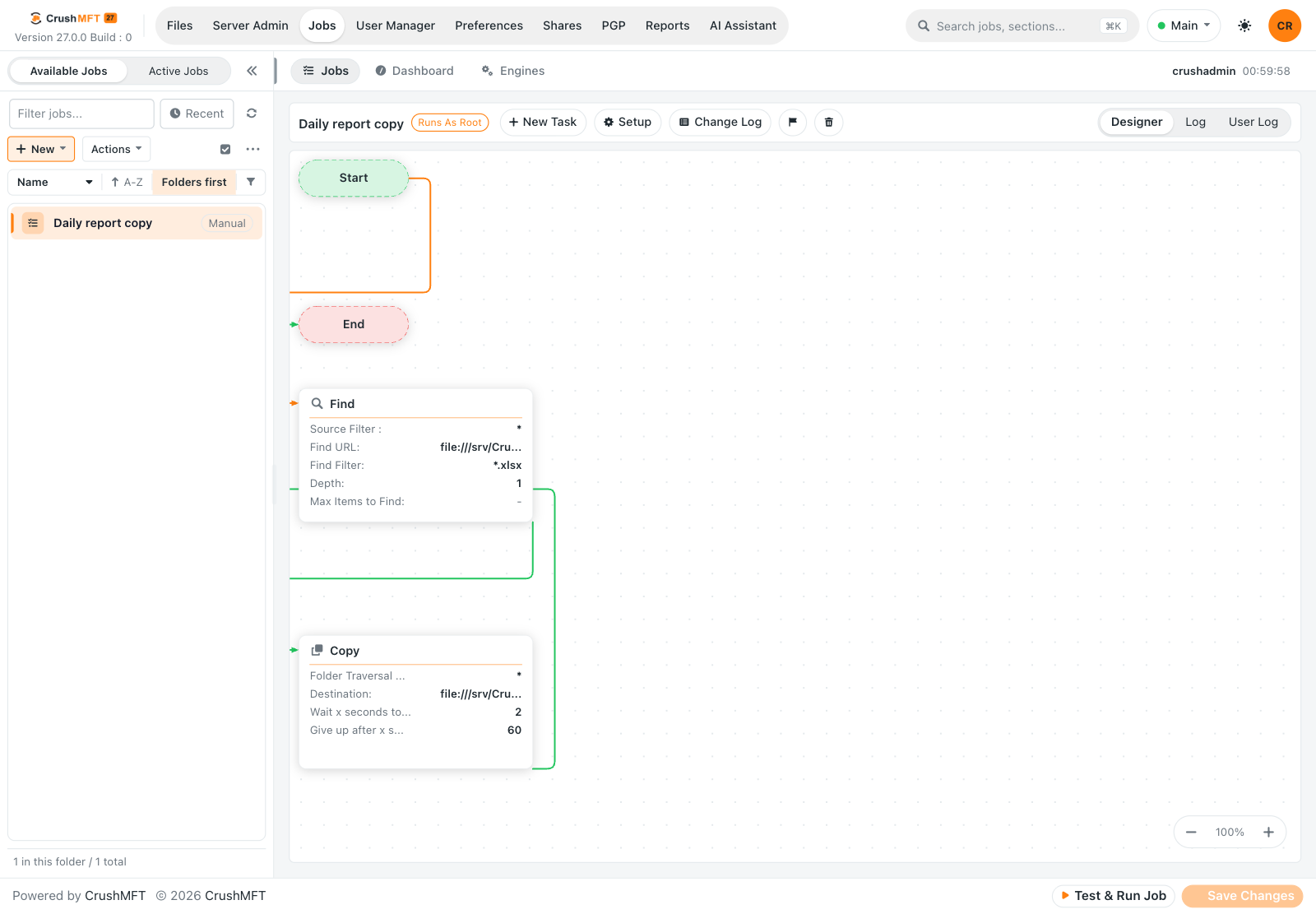
The bar above the canvas#
| Part | What it is |
|---|---|
| the job's name | |
| Runs As Root, or a name | with whose authority the job runs: see Who may see, change and run a job |
| New Task | opens the task picker |
| Setup | the job's name, schedule and options: see Schedules |
| Change Log | who changed the job: see The change log and audit |
| the flag | Add breakpoint to each step, Remove all Breakpoints: see Breakpoints and stepping |
| the bin | deletes what is selected |
| Designer, Log, User Log | the drawing, and the logs of a run you selected under Active Jobs |
At the bottom: Test & Run Job starts a run and shows it on the drawing; Save Changes saves. A dot beside the name marks unsaved changes.
Adding a task#
New Task opens the picker:
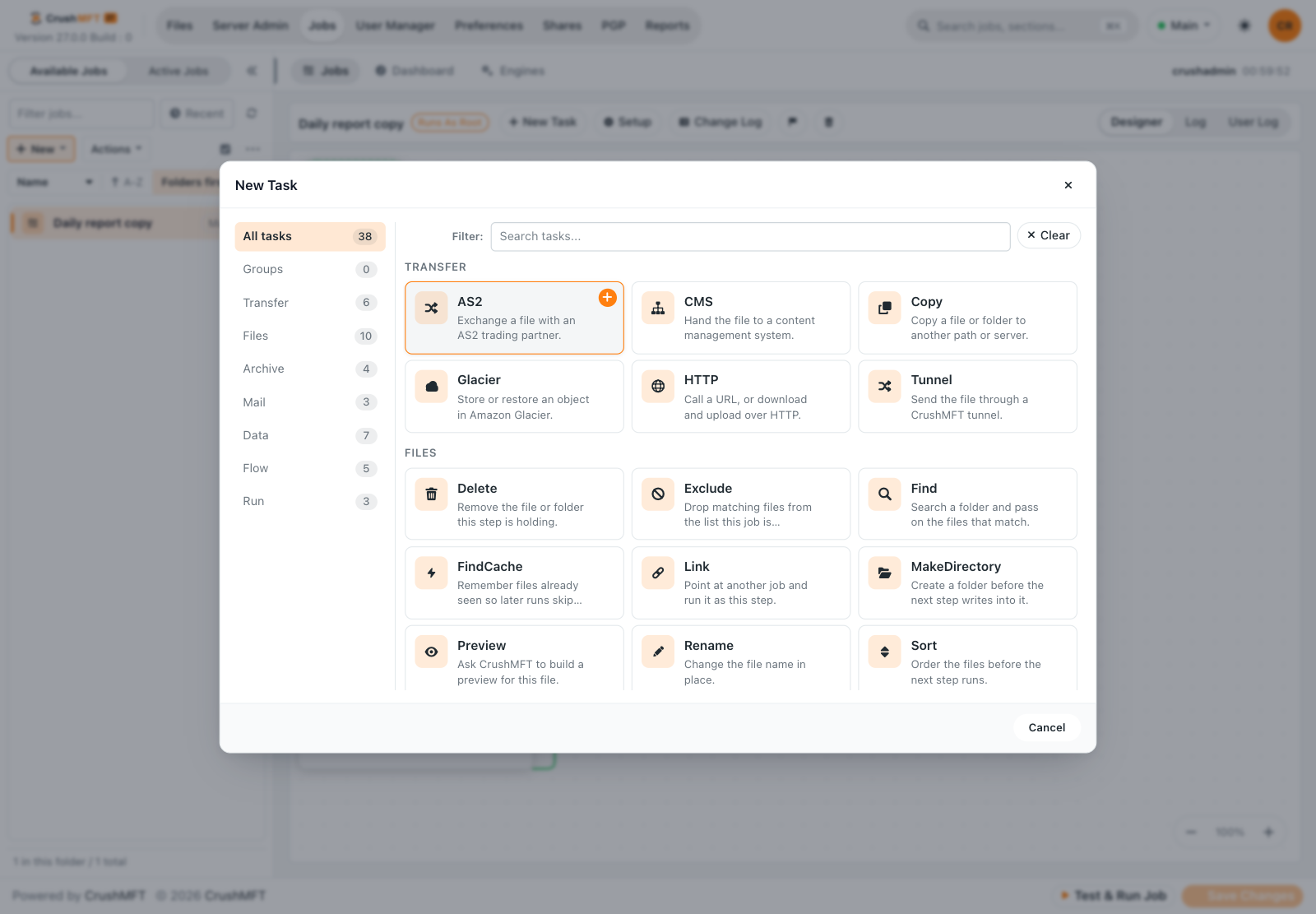
It lists the 38 kinds of task with a line on what each is for, by group: Transfer, Files, Archive, Mail, Data, Flow, Run. Filter finds a task by any word of its name or description. Groups and Templates hold what you saved yourself.
Click a task and it is on the canvas, and its settings open.
The first task of a new job is joined by itself: Start leads to it, and it leads to End. Every further task lies on the canvas unconnected until you draw its lines. A task without a line into it never runs.
A task's settings#
A click on a task opens its panel:
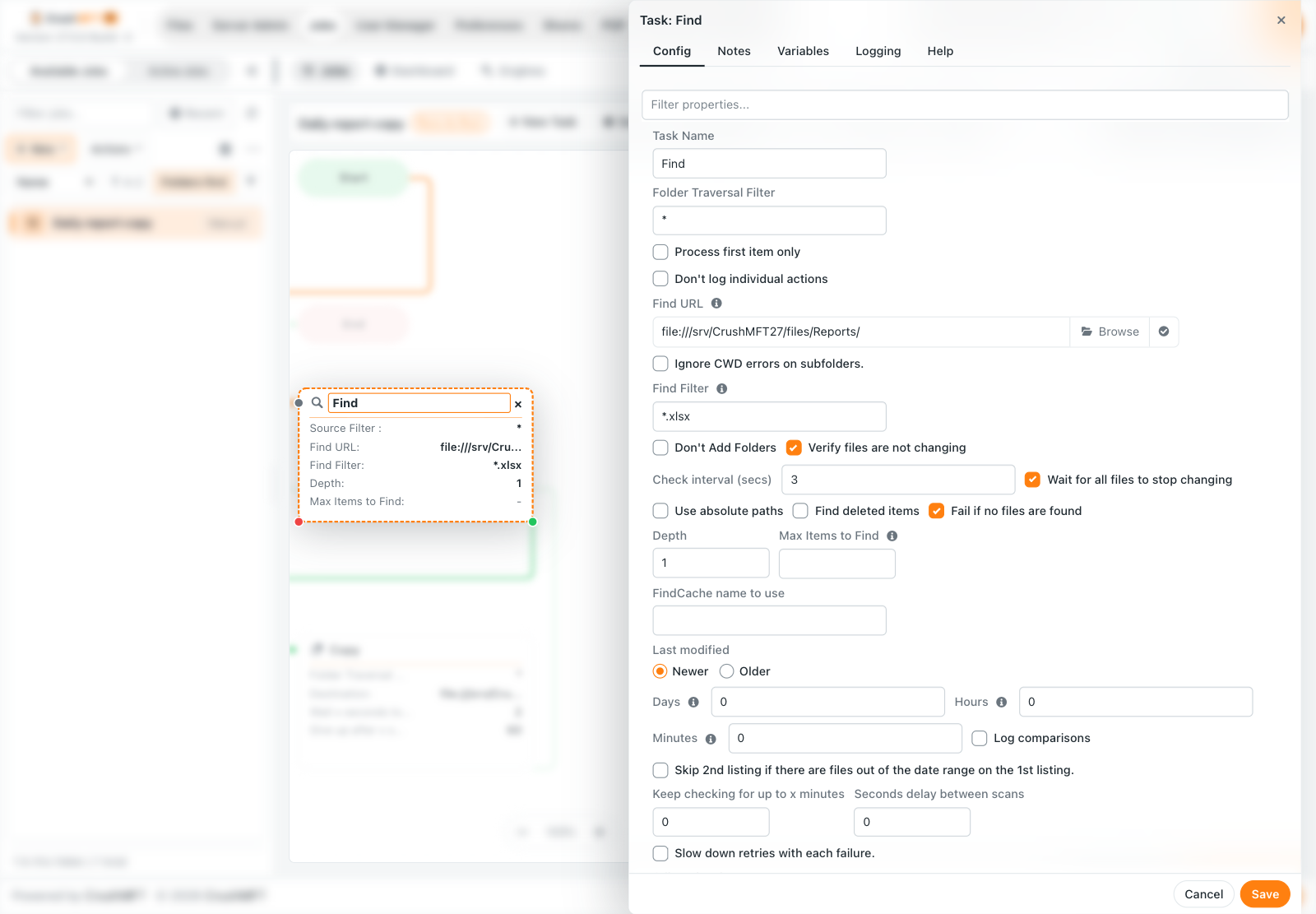
| Tab | Holds |
|---|---|
| Config | the task's own settings. Filter properties… finds a setting in a long form. |
| Notes | a note for whoever opens the job next |
| Variables | a reminder of how variables are written: see Variables |
| Logging | Log Success? and Log Failure?: lines the task writes to a file of your choice when it worked or failed |
| Help | the kind of task, and a link to its page |
Every kind of task has these, above its own fields:
| Field | What it does |
|---|---|
| Task Name | the name on the card, in the log and in {task_error_name}. Give tasks names that say what they do, "Fetch invoices" rather than "Find". A task named Default Failure is where failures without a line of their own lead: see When a job fails. |
| Folder Traversal Filter (Source Filter on a Find) | which of the items the task acts on. * is all. See Conditions on a task. |
| Process first item only | the task acts on the first item that matches and passes the rest on untouched |
| Don't log individual actions | keeps the log short for long lists: the task logs its start and end, not every file |
| On error, jump to task named | an older way to say where a failure leads, by the task's name. The red line does the same and can be seen. |
and on the Logging tab:
| Field | What it does | On a new task |
|---|---|---|
| Log Success?, its file and its line | when the task worked, the line is added to the file | off, ./success.log, OK : {taskName}{r}{n} |
| Log Failure?, its file and its line | when the task failed | off, ./failure.log, FAIL : {taskName}{r}{n} |
These logs are files of your own, apart from the job's log: for a list of what was delivered that another program reads, for example.
Save keeps the panel's changes in the drawing; the job itself is saved with Save Changes.
On the canvas, a task's card shows its most telling settings, so that a job can be read without opening every task.
Lines#
A task has dots: one where lines arrive, and one or more where a line leaves.
| Dot | Followed when |
|---|---|
| success (green) | the task did its work |
| failure (red) | the task failed |
| true / false, on a Jump | the condition held, or did not |
| numbered, on a Branch | always: every dot gets a copy of the items |
| Body, Done, Failure, on a Loop | each pass, the end, and an error |
Drag from a dot to a task to draw a line. One line per dot: a new line from a dot that has one replaces it. Many lines may arrive at one task. Start has one line; a line to End ends the path.
To do two things at once, do not draw two lines from one dot: put a Branch there. See How a job flows.
A right click on a line offers Add Task here, Add Breakpoint here and Remove Connection.
Working on the canvas#
| To | Do |
|---|---|
| move a task | drag it |
| select several | drag a frame around them, or click with the shift key |
| line them up | the menu of a selection: Align Horizontally, Align Vertically, Distribute Vertically |
| tidy the whole drawing | right-click the canvas: Auto Layout |
| copy a task | its menu: Copy task; paste on the canvas, in this job or another |
| give a task a colour | its menu: Color |
| find a task in a big job | Find Tasks |
| zoom | the control at the lower right; Reset zoom |
A task's menu also has Edit properties, Show details and Delete task.
Groups#
Several tasks can be put into a group: a frame with a name around them. A group can be closed to one card, to keep a big job readable, and opened again.
| Entry of a group's menu | What it does |
|---|---|
| Close group, Open group | |
| Rename group… | |
| Save group as template… | keeps the group for other jobs: it is then offered in the picker under Groups |
| Ungroup | removes the frame; the tasks stay |
A group is only a way of drawing. It changes nothing about how the job runs.
Flow warnings#
The designer checks the drawing while you work and shows a count of Flow warnings in the bar. A click lists them: a dot with several lines, a branch without a line, a joiner no branch reaches, a loop without a body. Warnings do not stop you from saving. The server checks again before every run, and refuses to start a job whose lines it cannot run: see How a job flows.
Testing#
Test & Run Job saves nothing by itself: save first. It starts a run and draws it on the canvas: each task shows how many items it was given and how it ended. Click a task for its items. See Running, watching and stopping.
For a job that deletes or sends things, test with a Find that points at a test folder, or put a breakpoint before the task that does the damage.
Export#
Right-click the canvas: Export…, also in the job list's Actions. The dialog shows a preview of the job and four formats:
| Format | Gives | For |
|---|---|---|
| "The job, a task list and a page per task": the drawing with every task numbered, an index, and a page for each task with its settings and its lines | documentation, a review, an audit | |
| PNG | "A picture to print or share" | a ticket, a mail |
| SVG | "A drawing that stays sharp at any size" | a wiki, a poster |
| XML | "The job itself, to import on a server" | another server, a backup: see The job list |
In the PDF and the pictures, passwords are masked and every group is drawn open. The options, such as paper size, show an estimate of the result before you export.