OIDC Server#
Cloud storage can be reached without a stored password or access key: the cloud is told to trust this server, and the server proves who it is with a short token that it signs itself, each time it connects. For that the cloud must be able to check the signature, so the server publishes its public key at an address the cloud can fetch. The OIDC Server section of Preferences sets that up: it makes the server an OIDC issuer.
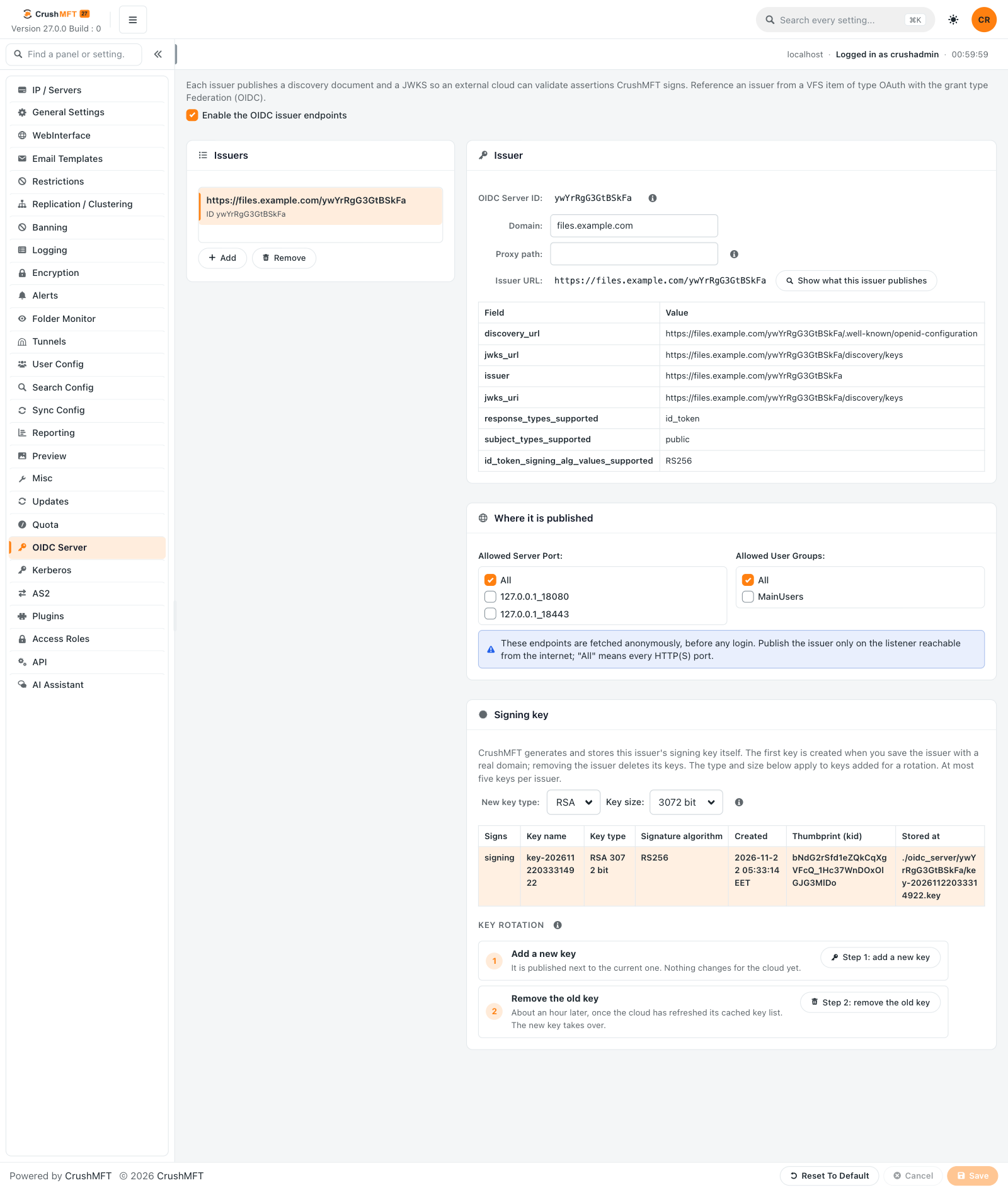
You need it only for virtual file system items of the type OAuth with the grant type Federation (OIDC). Such an item names one of the issuers of this page by its OIDC Server ID.
| Setting | Key | What it does | Default |
|---|---|---|---|
| Enable the OIDC issuer endpoints | oidc_issuer_enabled |
the server answers at the addresses of the issuers below. Off: it publishes nothing. | off |
An issuer#
Add makes an issuer, Remove deletes the selected one together with its keys. Most servers need one.
| Field | What it is |
|---|---|
| OIDC Server ID | made by the server, and fixed. Put the same value into the VFS item's OIDC Server ID. |
| Domain | the public host name under which the cloud reaches this server, such as files.example.com. A new issuer has domain.com here: until you replace it, the issuer serves nothing. |
| Proxy path | leave it empty, unless a reverse proxy publishes the server under a sub-path. It only changes the Issuer URL. What the server itself accepts comes from the listener's reverse proxy path in IP / Servers. |
| Issuer URL | worked out from the fields above: https://files.example.com/ and the ID. This is the address you give the cloud as the identity provider. |
The cloud fetches the issuer's addresses itself, over https, and checks the certificate. So the host needs a TLS certificate from a public certificate authority, served with its full chain: that is the server's own certificate, set under Encryption.
What the issuer publishes#
Show what this issuer publishes lists the addresses and what the server answers there:
| Field | Value, for the issuer of the picture |
|---|---|
discovery_url |
https://files.example.com/PtAv0RP43uiZz3g/.well-known/openid-configuration |
jwks_url |
https://files.example.com/PtAv0RP43uiZz3g/discovery/keys |
issuer |
https://files.example.com/PtAv0RP43uiZz3g |
response_types_supported |
id_token |
subject_types_supported |
public |
id_token_signing_alg_values_supported |
RS256 |
The discovery document is a short piece of JSON that names the issuer and where its keys are; the key list holds the public keys. Fetch both yourself to see that the cloud will get them:
curl https://files.example.com/PtAv0RP43uiZz3g/.well-known/openid-configuration
{"issuer":"https://files.example.com/PtAv0RP43uiZz3g","jwks_uri":"https://files.example.com/PtAv0RP43uiZz3g/discovery/keys","response_types_supported":["id_token"],"subject_types_supported":["public"],"id_token_signing_alg_values_supported":["RS256"]}
Where it is published#
| Setting | What it does |
|---|---|
| Allowed Server Port | the listeners that answer for this issuer: All, or the ones you tick |
| Allowed User Groups | the user connection groups this issuer is for: All, or the ones you tick |
These addresses are fetched without a login, by anybody who knows them. They hold only public keys. Still, publish the issuer only on the listener that the internet reaches: All means every HTTP and HTTPS port.
The signing key#
The server makes and keeps the issuer's signing key itself. The first key is made when you save the issuer with a real domain. It is kept in the folder oidc_server, in a folder named like the issuer's ID, in the server's folder: keep that folder in your backup and away from other people, as whoever has the key can sign as this server. The server makes each key file readable by its own account only, and a key file from before that is made so when the server reads it.
The table Signs shows each key: its name, type, signature algorithm, the time it was made, its thumbprint (the kid the cloud sees), and the file it is stored in.
| Setting | Key | What it is | Default |
|---|---|---|---|
| New key type | oidc_key_type |
RSA or EC, for keys added in a rotation | RSA |
| Key size | oidc_key_size |
2048, 3072 or 4096 bit, for keys added in a rotation | 3072 |
The current key keeps its own type and size. An issuer can have at most five keys.
Key rotation#
The key needs no name, no certificate authority, no expiry date and no scheduled replacement. Replace it only if it may have been exposed, or if a policy of yours requires it. That is done in two steps, with a wait between them:
- Step 1: add a new key. It is published next to the current one. Nothing changes for the cloud yet.
- Wait about an hour, until the cloud has fetched the key list again.
- Step 2: remove the old key. The new key takes over.
If you remove the old key at once, the cloud may still hold the old key list and refuse the server until it fetches it again.
Saving#
Save at the bottom saves the switch and the issuers (saving). The endpoints answer right away.