Mail through Microsoft 365#
How to send the server's mail through a Microsoft 365 mailbox with OAuth: the server holds a token from Microsoft, not the password of the mailbox. The settings are in the SMTP Settings panel, described in Sending mail (SMTP).
Note
Microsoft has announced the end of password logins (basic authentication) for sending mail through Microsoft 365. Do not build on a password or an app password there; use OAuth as described here.
What you need#
- A mailbox in Microsoft 365 that belongs to a real, licensed user who can sign in, with Authenticated SMTP allowed for it (Microsoft 365 admin center › the user › Mail › Manage email apps).
- Rights in Microsoft Entra to register an application.
- The server must be reachable under a web address, and you must open the admin pages under exactly that address when you ask for the token. Microsoft sends the answer back there.
- The server must be able to reach
smtp.office365.comandlogin.microsoftonline.com. If it goes out through a proxy, allow both.
1. Register an application at Microsoft#
In the Microsoft Entra admin center, under App registrations › New registration:
| Field | Value |
|---|---|
| Name | anything, such as CrushMFT mail |
| Redirect URI, platform Web | the address of the server followed by /register_microsoft_graph_api/, such as https://files.example.com/register_microsoft_graph_api/ |
Then, in the new application:
- Certificates & secrets › New client secret. Copy its Value at once; it is shown only this one time. The Value is the secret, not the Secret ID.
- API permissions › Add a permission › Microsoft Graph › Delegated permissions: add SMTP.Send and offline_access.
- From Overview, copy the Application (client) ID and the Directory (tenant) ID.
2. Get the token#
Open the admin pages under the address you gave Microsoft, and go to Preferences › General Settings › SMTP Settings.
-
Set SMTP Server Used for Emailing to
smtp.office365.com:587. A button Get Refresh Token appears.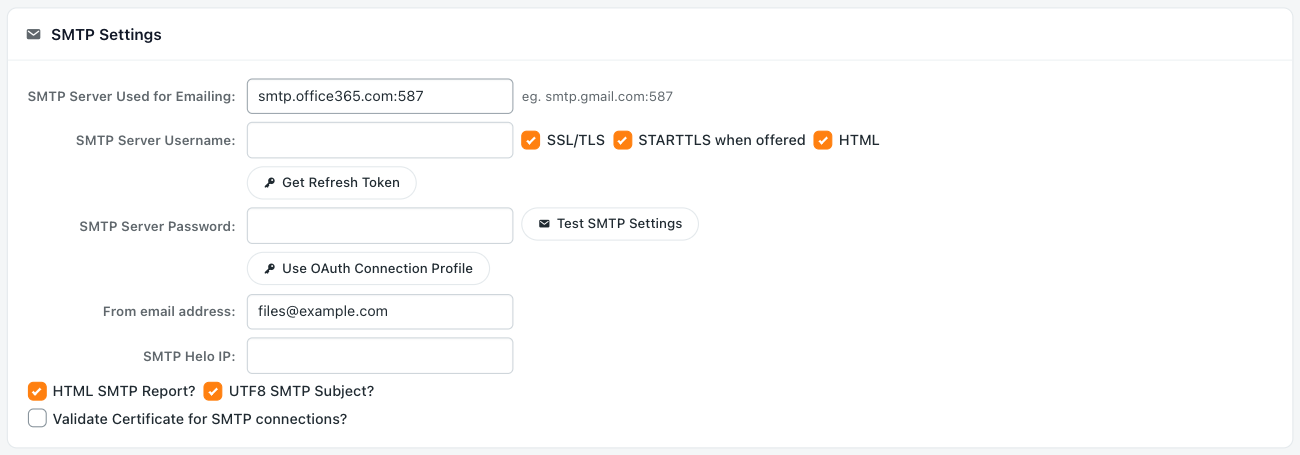
-
Click Get Refresh Token and enter:
| Field | Value |
|---|---|
| Client ID | the Application (client) ID |
| Client Secret | the Value of the client secret |
| Tenant | the Directory (tenant) ID. common, which is filled in, lets Microsoft pick the tenant from the account that signs in. |
The dialog is titled "Please enter OneDrive/Sharepoint Oauth"; it is the right one. The line State is a value of this one request; there is nothing to do with it.
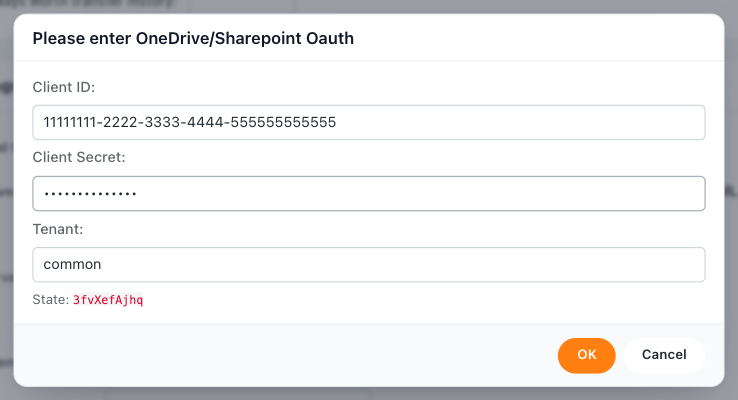
- OK opens Microsoft's sign-in in a new window. Sign in as the mailbox that will send the mail, and accept what the application asks for.
- The window closes, the panel says "Token Refreshed.", and SMTP Server Username and SMTP Server Password are filled in: the user name holds the Client ID, the encrypted secret and the tenant, the password holds the token.
- Set From email address to the address of the mailbox you signed in as, and tick SSL/TLS.
- Test SMTP Settings, then Save.
Warning
The From email address must be the mailbox that signed in. The server logs in to Microsoft under that address; with another one, Microsoft refuses the login.
When it does not work#
| What you see | Why |
|---|---|
| no Get Refresh Token button | the server name has neither office365 nor outlook in it, or an OAuth connection profile is chosen |
| "The authorization window could not be opened. Allow popups for this site and try again." | the browser blocked the new window |
| "The authorization window was closed before a code arrived." | the window was closed before Microsoft answered |
| "Timed out waiting for the authorization code." | no answer within ten minutes |
| Microsoft says the reply URL does not match | the address in the browser is not the Redirect URI of the application: the scheme, the host and the port must all be the same, and the path must end in /register_microsoft_graph_api/ |
| the test fails with "Authentication unsuccessful" | Authenticated SMTP is off for the mailbox, the From address is not the mailbox that signed in, or the permission SMTP.Send is missing |
| it worked and stopped one day | the client secret ran out. Make a new one at Microsoft and get the token again. |
The token is used with a mail server whose name ends in office365.com or outlook.com. For any other mail service that signs in with OAuth, use an OAuth connection profile (Sending mail).