SharePoint#
An item of a VFS can point at a document library of SharePoint Online, or at a folder in one. Users of CrushMFT then work in the library over SFTP, FTP or the web interface, and what they upload is in SharePoint for everybody who works there.
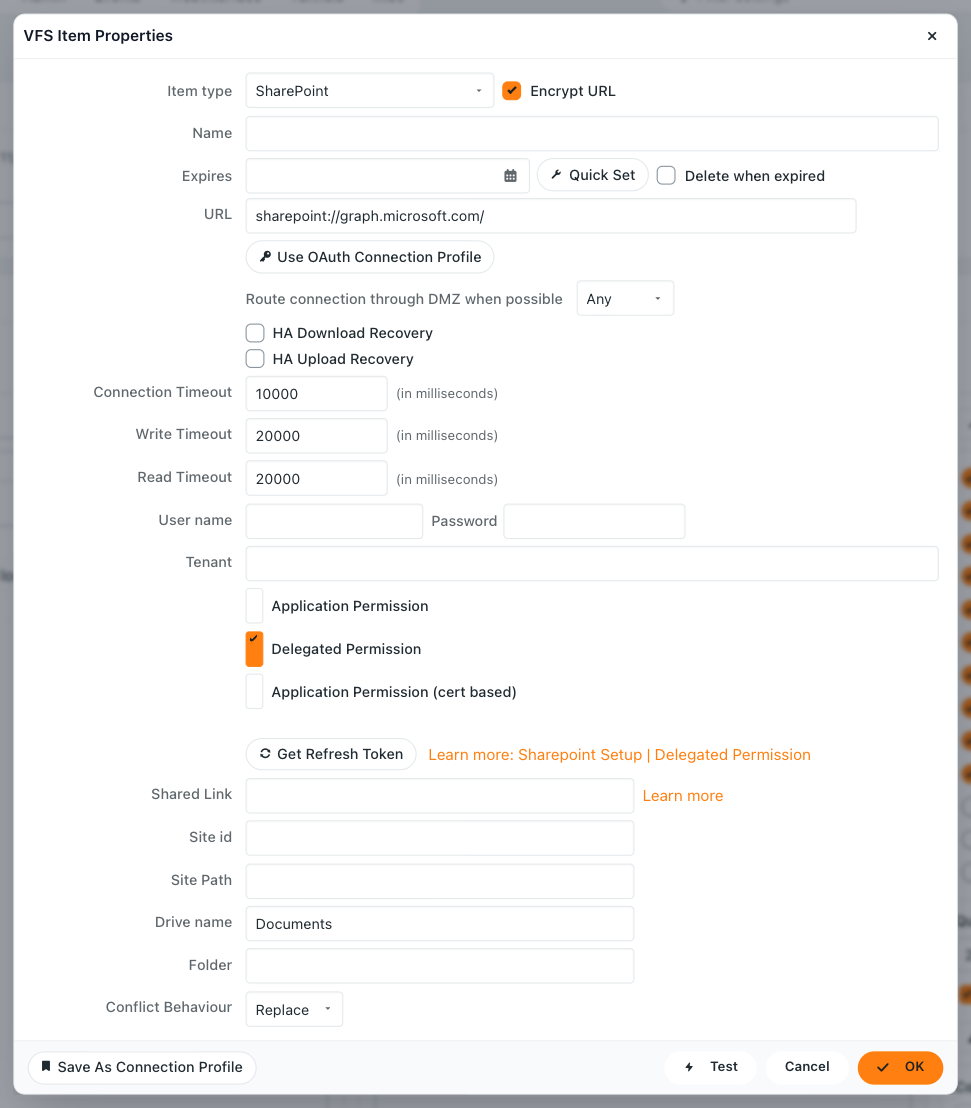
Two item types#
| Item type | Speaks | Page |
|---|---|---|
| SharePoint | Microsoft Graph, at graph.microsoft.com. The one to use. |
this page and the three below |
| SharePoint2 | SharePoint's own REST interfaces, at yourtenant.sharepoint.com |
SharePoint: the older REST interfaces |
Three ways to sign in#
The server reaches SharePoint as an app that you register in Microsoft Entra ID. The app can act in three ways:
| Choice in the item | The server acts as | Page |
|---|---|---|
| Delegated Permission | a person who signs in once | Signing in as a user |
| Application Permission | the app itself, with a client secret | An app with a client secret |
| Application Permission (cert based) | the app itself, with a certificate | An app with a certificate |
| Delegated | App with secret | App with certificate | |
|---|---|---|---|
| reaches | what that person may reach | what the app was granted | what the app was granted |
| stops when | the person leaves or changes role | the secret expires | the certificate expires |
| a secret is stored | a token | yes | no: a private key |
| for a server that runs unattended | workable | good | best |
With the application ways, grant the app only the sites it needs: the Graph permission Sites.Selected instead of Files.ReadWrite.All or Sites.FullControl.All. See An app with a client secret.
The app registration, for all three#
- In the Microsoft Entra admin center, open App registrations and make a New registration.
- For the delegated way, add a Redirect URI of the platform Web: the address of your server's web interface followed by
register_microsoft_graph_api/, such ashttps://files.example.com/register_microsoft_graph_api/. - Note the Application (client) ID and the Directory (tenant) ID from Overview.
- Add the Graph permission of the way you chose, and grant admin consent.
Where in SharePoint#
| Field | What it is |
|---|---|
| Shared Link | the easy way. Paste the address of the library from the browser's address bar, or the link that Copy link gives for a folder. The server looks up the site, the library and the folder. |
| Site id | the ID of the site, when you know it |
| Site Path | the path of the site, such as /sites/projects |
| Drive name | the document library. Documents is the library every site starts with, shown as "Shared Documents" in addresses. |
| Folder | a folder in the library, to give the user only that |
Use Shared Link unless you have a reason not to. For a whole library, open it in the browser and copy the address, which looks like https://example.sharepoint.com/sites/projects/Shared%20Documents/Forms/AllItems.aspx. For one folder, right-click it and choose Copy link.
Options#
| Option | What it does | New item |
|---|---|---|
| Conflict Behaviour | when an upload meets a file of the same name: Replace, Rename the new one, or Fail | Replace |
| Tenant | the tenant ID, or its domain | |
| Use OAuth Connection Profile | uses a sign-in kept in a connection profile: see Special types |
The connection is routed through a DMZ server when one is there: see Route connection through DMZ in Advanced options of a VFS item.
What to expect#
- SharePoint keeps versions of files. An upload over an existing file is a new version there.
- Some characters and names are not allowed in SharePoint, such as
",*,:,<,>,?,/,\,|, and names that end with a dot. An upload with such a name is refused. - Libraries with required columns or check-out turned on can leave uploaded files checked out and invisible to others. Use a library without such rules for file exchange.
- Microsoft slows down an app that makes very many requests. Jobs that move thousands of small files take longer than against a file server.
A server behind a proxy or a strict firewall must be let out to login.microsoftonline.com and graph.microsoft.com.
When it does not work#
| What you see | Usually |
|---|---|
| "access denied" | no admin consent; the permission is of the wrong kind (delegated instead of application, or the other way); with Sites.Selected, the app was not granted this site |
| the site or drive is "not found" | Site Path or Drive name; use Shared Link |
| an upload is refused | a character SharePoint does not allow; a required column |
| it stopped working | an expired secret or certificate; a person who left |
A login that stops working can raise an alert: see When a storage login stops working.