Scheduled reports#
A schedule runs a report by itself and delivers the result: every morning, every Monday, on the first of the month. "Reports that run by themselves and go out by e-mail, to a folder or to a job."
Schedules are in the Schedules section of the Reports app. Making them needs the Report Manager role.
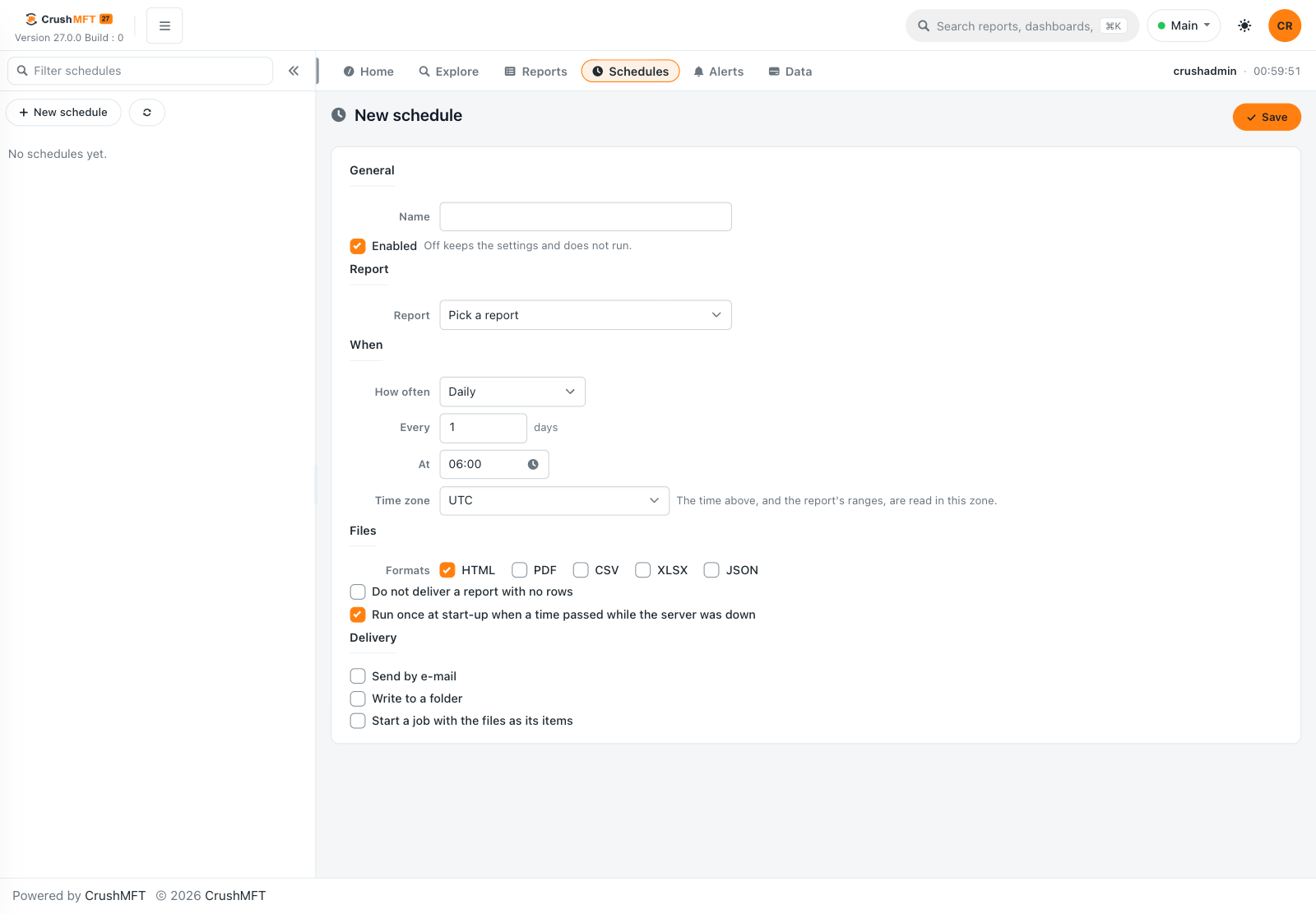
Making one#
New schedule, or Schedule in the menu of a report, which fills in the report and the values it has on the screen.
General#
| Field | What it does |
|---|---|
| Name | |
| Enabled | "Off keeps the settings and does not run." |
| Report | which report: "Pick a report" |
| the report's own fields | the values the report is run with: its users, folders and so on. Any where nothing is filled in. |
| the range | the period, relative to each run: "Last month" in a schedule that runs on the first is always the month that just ended |
When#
| Field | What it does |
|---|---|
| How often | Every few minutes, Daily, Weekly, Monthly |
| Every | every so many minutes, days, weeks or months |
| the week days | for weekly |
| the days of the month | for monthly. Last day is the last day of each month, whatever its number. |
| At | the time of day |
| Time zone | "The time above, and the report's ranges, are read in this zone." |
The time zone matters for the content as much as for the hour: "yesterday" for a partner in Tokyo is not the server's yesterday.
Files#
| Field | What it does |
|---|---|
| Formats | one or several of HTML, PDF, CSV, XLSX, JSON. Each becomes a file. |
| Do not deliver a report with no rows | nothing is sent when there is nothing to report. For reports of failures, this turns a daily mail into a mail on bad days only. |
| Run once at start-up when a time passed while the server was down | a run that was missed is made up for when the server is back |
Delivery#
One, two or all three:
| Way | Fields |
|---|---|
| Send by e-mail | To, Cc, Bcc; From ("Empty: the server's address"); Subject and Body; and either Attach the files or Send a link to the files |
| Write to a folder | Folder, File name, and Overwrite a file of the same name |
| Start a job with the files as its items | Job: the job gets the report's files as its list and does with them what its tasks say |
In the subject and the file name, these are filled in:
| Written | Becomes |
|---|---|
{name} |
the report's name |
{schedule} |
the schedule's name |
{MM} {dd} {yy} {yyyy} |
the date of the run |
{name}-{yyyy}-{MM}-{dd} as the file name keeps every run; a fixed name with Overwrite keeps the latest.
Mail goes through the mail server set up in the Preferences. A job is the way to anything else: upload the report to a partner's SFTP server, put it into a document system, or encrypt it first. See Jobs.
Looking after them#
The list shows each schedule with when it runs: "Every day at 07:00", "Weekly on Mon at 06:30", "Monthly on 1". A selected schedule shows:
- "Last run … : " and how it went
- "Next run …"
- "Runs with the access of …"
| Button | What it does |
|---|---|
| Save | |
| Run now | runs and delivers it once, at once: the way to test a new schedule |
| Delete | "Delete "…"?" |
| Reload | reads the list again |
Whose eyes a schedule has#
A schedule runs with the access of the account that saved it, as that access is at the moment of the run. So:
- a schedule saved by somebody who may see one connection group reports on that group only, whoever receives it;
- when the account is deleted or loses the right to run reports, the schedule is skipped, with a line in the server's log:
REPORT: schedule <name>: …. an alert of the type Report Alert in Preferences, Alerts tells someone ({alert_sub_type}isschedule), and Last run of the schedule shows it; - the folder it writes to and the addresses it mails are checked against what that account may use.
Have schedules that matter saved by an account that stays: a role account for reporting, not a person's.
Coming from CrushFTP 11#
Report schedules from version 11 are carried over. The section says so once: "Converted from v11: … Each now runs the new report that matches its old one." Such a schedule runs "with the access of a full administrator (converted from v11)" until somebody saves it again; open each one and check its report, its values and its recipients.
Things to know#
- In a cluster, schedules run on the master server only, so each report goes out once.
- A delivery that failed, because the mail server refused it, raises the server's alert for mail that could not be sent: Preferences, Alerts.
- Large reports by mail fail at the mail server's size limit. Choose Send a link to the files, or write to a folder.
- A schedule that reports on today should run at the end of the day, or use "Yesterday" and run in the morning.
- Two more reports may run at once for schedules than for people at screens, so a busy morning of schedules does not block the app: Preferences, Reporting.
- For watching rather than reading, use an alert: a schedule sends every time, an alert only when something is wrong. See Report alerts and expected files.