Thumbnails from a conversion tool#
The server can make small pictures of the files in chosen folders, so that users see what a file is before they open it. It does not draw them itself: it runs a program that is installed on the server machine, such as ImageMagick or FFmpeg, once for every file. This is the advanced part of the Preview section of Preferences.
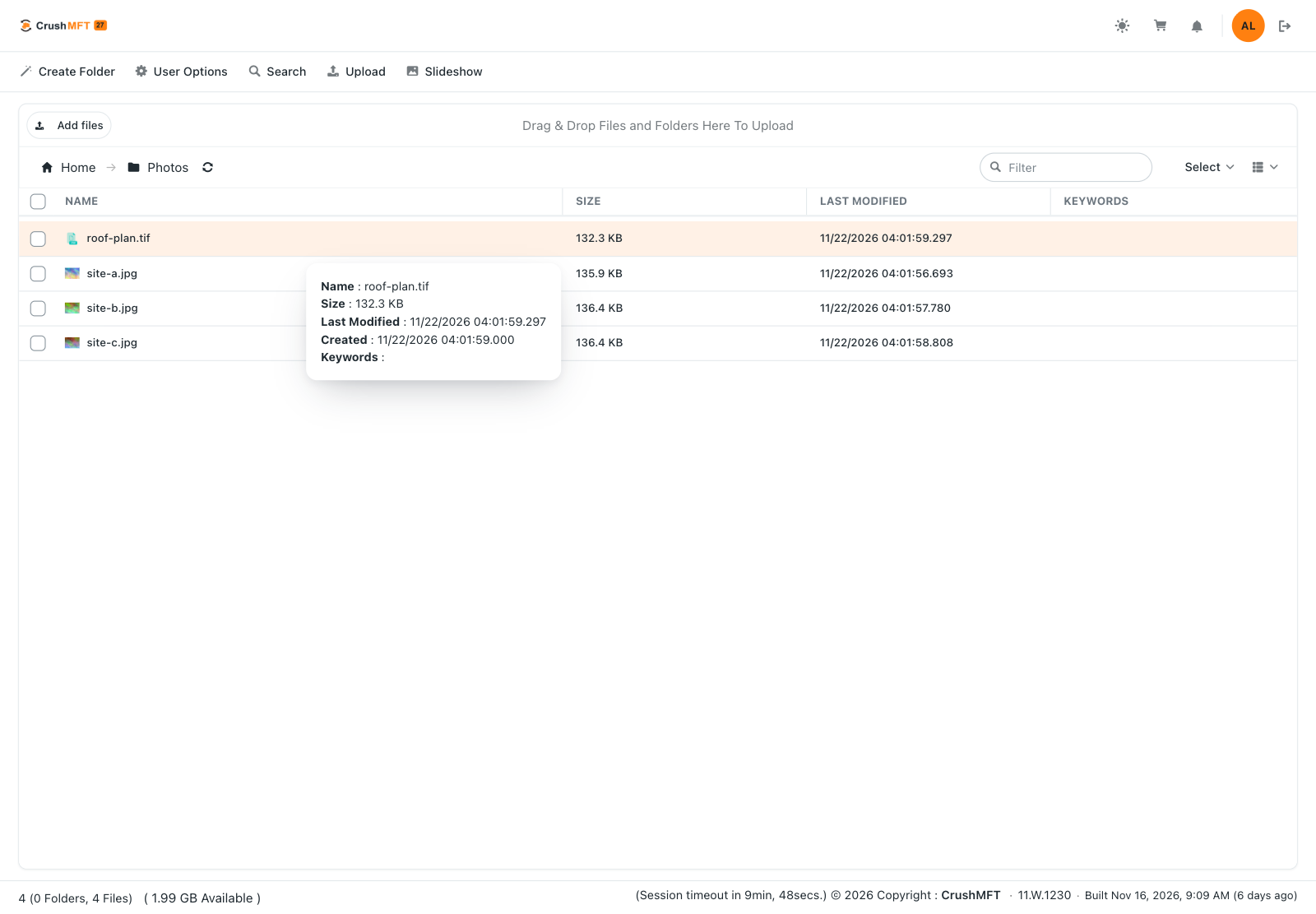
Users get a thumbnail in front of each file name, and a larger picture with the file's details when the mouse rests on a file.
What you need#
- A conversion program on the server machine. The presets know ImageMagick, GraphicsMagick and FFmpeg on any system, and two programs that come with macOS. None of them comes with the server.
- For the details of pictures (size, camera, date taken), the program
exiftool. Without it, thumbnails are still made. - Room on a disk: every file gets one small picture per size.
Setting it up#
- Turn on Advanced: thumbnails from a conversion tool.
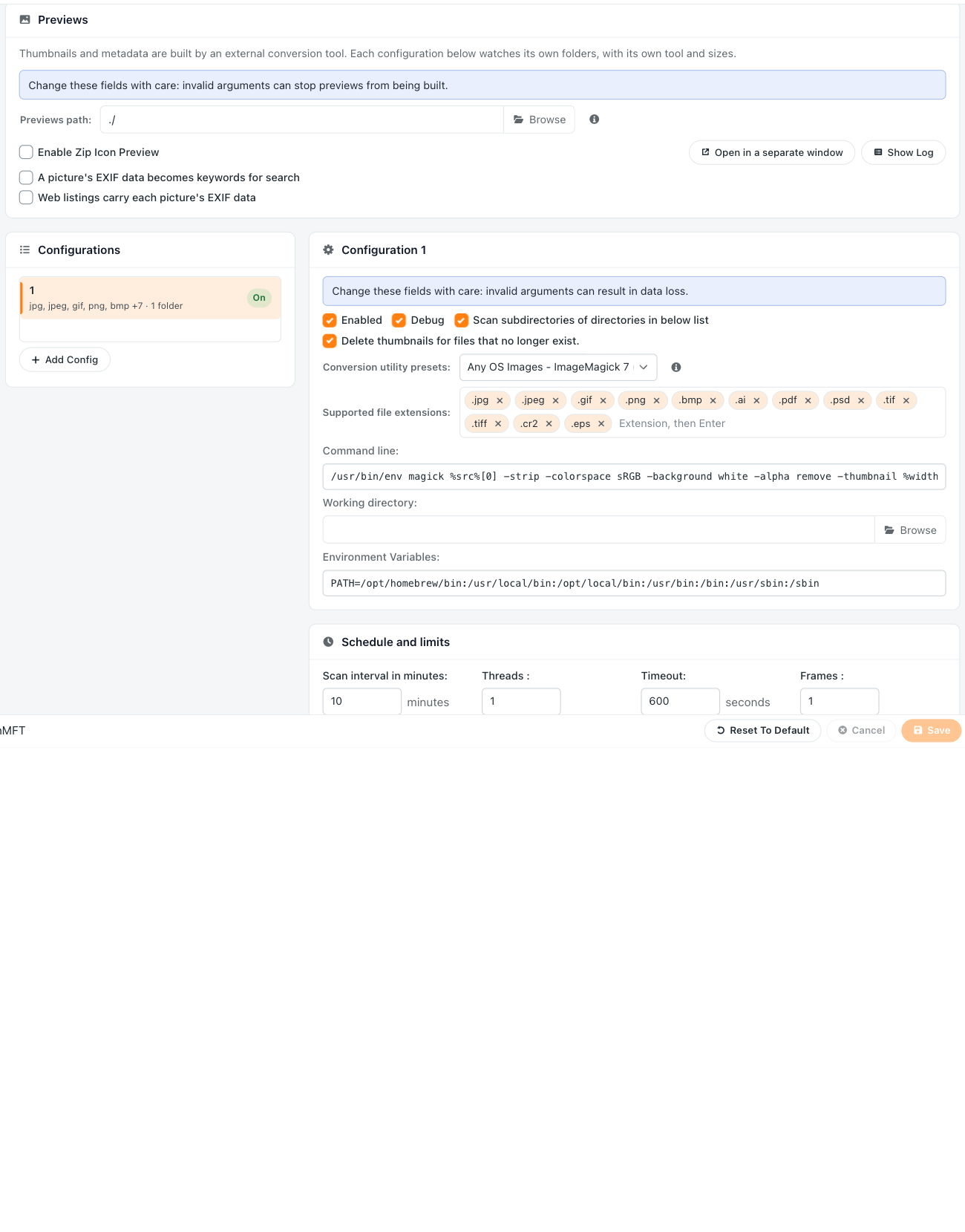
- In Configuration 1, pick your program under Conversion utility presets. That fills in the command and the fields around it.
- Set Working directory to the folder the program is in on your machine, and check the name of the program at the start of Command line.
- Under Folders, press Add Folder and pick a folder whose files should get thumbnails.
- Tick Enabled and press Save.
The server starts at once: it goes through the folders and makes the pictures, one file after another. Nothing has to be restarted.
Previews#
| Setting | What it does | Default |
|---|---|---|
| Previews path | the folder under which everything is kept: the thumbnails, the details read from the files, and the keywords users give to files. The server makes a folder Preview in it. It may not be empty while this part is on. |
./, the server's folder |
| Enable Zip Icon Preview | shows thumbnails for .zip files too. Off: a zip file never shows one. |
off |
| Show Log | shows the server's log inside the page, to watch a run. Open in a separate window opens it in a window of its own. |
The folder can grow large, and what is in it can be made again from the files, except the keywords. Put it on a disk with room, and keep it in your backup if users work with keywords.
Configurations#
A configuration is one program with its folders and sizes. One is enough for pictures. Make a second one with Add Config when another kind of file needs another program, such as FFmpeg for videos: the new one starts as a copy of the one that is selected. Each line of the list shows the file types, the number of folders, and On or Off.
The program#
| Setting | What it does | Default |
|---|---|---|
| Enabled | the configuration runs | off |
| Debug | writes what it does to the log, under the kind PREVIEW. That kind is not logged on a new server: tick it in What is logged. | on |
| Scan subdirectories of directories in below list | also goes into the folders below the listed ones, up to ten levels deep | on |
| Delete thumbnails for files that no longer exist. | at each scan, removes the pictures of files that are gone. Only for folders on the server's own disks. | on |
| Conversion utility presets | fills in the fields below for a program. The choice itself is not stored: the page reads it back from the command line. | |
| Supported file extensions | the file types this configuration handles. Type an extension and press Enter to add one; the cross removes one. * alone means every file. An extension followed by a colon and a number, such as .pdf:50, leaves out files of that type above that many MB. |
|
| Command line | the command that makes one picture, see below | |
| Working directory | the folder the command is run in. Empty: the server's folder. | |
| Environment Variables | variables for the program, as NAME=value, several separated by semicolons |
The command line#
The server runs the command once for each picture it needs and puts these values in:
| In the command | Becomes |
|---|---|
%src% |
the file to read |
%dst% |
the picture to write, always a .jpg |
%width%, %height% |
the size to make, from the list of sizes |
%time% |
for videos: the second of the film to take the picture at |
%previews% |
the Preview folder under the previews path |
%random% |
four random characters, for a temporary folder |
Write a space inside a path as a backslash and a space. On Windows the server puts CMD /C in front by itself.
The presets#
| Preset | Program | For |
|---|---|---|
| Any OS Images - ImageMagick 7 (magick, must be installed separately) | magick; on Windows magick.exe |
pictures, PDF, Photoshop and PostScript files |
| Linux or macOS Images - ImageMagick 6 (convert, an older ImageMagick) | convert. For systems that still have the older ImageMagick. Not offered on Windows. |
the same types |
| Any OS Images - GraphicsMagick (must be installed separately) | gm convert; on Windows gm.exe |
the same types |
| Any OS Movies - FFmpeg (must be installed separately) | ffmpeg; on Windows ffmpeg.exe |
videos, as pictures taken at several moments of the film |
| macOS Images - sips | sips, part of macOS |
pictures, PDF and .heic |
| macOS Everything - qlmanage | Quick Look of macOS, through a small script in the server's folder. The server writes the script itself when it is missing. | pictures, PDF, text and office files |
| Custom command | shown for a configuration whose command fits none of the above |
The two for macOS are only offered when the server runs on a Mac.
A preset needs no path to the program. On Linux and macOS it starts the program by its name and looks for it in the usual places: the folders of Homebrew and MacPorts and the system's own. On Windows it starts magick.exe, gm.exe or ffmpeg.exe as the system finds them: the program's folder must be in the system's PATH. Leave Working directory empty. If your program is somewhere else, write its full path into the command.
The ImageMagick 7 command of the preset is:
/usr/bin/env magick %src%[0] -strip -colorspace sRGB -background white -alpha remove -thumbnail %width%x%width% -quality 75 %dst%
It takes the first page or frame of the file, puts it on white where it is transparent, and makes a thumbnail of the size asked for.
A configuration brought along from an earlier version keeps its command, and the list shows which program it is: a command that begins ./convert shows as ImageMagick 6. It goes on working where that program is still installed where the command says.
Schedule and limits#
| Setting | What it does | Default |
|---|---|---|
| Scan interval in minutes | how long the server waits between two walks through the folders. New and changed files get their pictures at the next walk. | 10 |
| Threads | how many files are converted at the same time | 1 |
| Timeout | seconds after which a conversion that has not finished is stopped | 600 |
| Frames | how many pictures are made per file. 1 for pictures. More for videos: the server then asks the program how long the film is and takes the pictures evenly spread over it. | 1 |
Folders#
| Button | What it does |
|---|---|
| Add Folder | picks a folder on the server machine |
| Remote... | picks a folder on other storage, with its connection. Each of its files is downloaded to a temporary place to be converted, and removed again. |
| Edit Path | changes the path of the selected folder by typing |
| Remove Folder | takes the selected folder off the list, after a question. The pictures that were made stay. |
Sizes#
The sizes of the pictures to make, as width x height in pixels. A new configuration has 80x80, 160x160 and 800x800: the first is the thumbnail of the listing, the larger ones are for the picture on hover and for a closer look. Add and Remove change the list; the two fields under it change the selected size.
The picture keeps its proportions inside the size: a photo of 1600 x 1200 gave 80 x 60, 160 x 120 and 800 x 600. The largest is made from the file, the smaller ones from the largest, which is quicker.
Metadata#
| Setting | What it is | Default |
|---|---|---|
| Info command line | for videos: the command that prints how long the film is. Needed when Frames is more than 1. | empty |
| Get image EXIF info | the command that reads the details of a file. What it prints is kept beside the thumbnails, in info.xml. |
exiftool -S %src% |
| Set image EXIF info | the command that writes one detail back into the file when a user changes it: %key% is its name, %val% the new value |
exiftool -overwrite_original_in_place -%key%=%val% %src% |
Leave a field empty to switch that off.
What is written#
For each file there is a folder of its own under the previews path, named like the file's whole path:
Preview/srv/CrushMFT27/files/Photos/site-a.jpg/p1/1.jpg     80 x 60
Preview/srv/CrushMFT27/files/Photos/site-a.jpg/p1/2.jpg     160 x 120
Preview/srv/CrushMFT27/files/Photos/site-a.jpg/p1/3.jpg     800 x 600
Preview/srv/CrushMFT27/files/Photos/site-a.jpg/info.xml     the details exiftool read
Preview/srv/CrushMFT27/files/Photos/site-a.jpg/index.txt    the file's keywords
A video with several frames, and a PDF or Photoshop file with several pages or layers, get p2, p3 and so on beside p1. When a user renames or deletes a file through the server, its folder here is renamed or deleted with it.
With Debug on and the kind PREVIEW logged, each command is in the log as it was run:
PREVIEW|11/20/2026 17:01:19.500|./convert -colorspace RGB -alpha off -strip -geometry 800x800 -quality 75 /srv/CrushMFT27/files/Photos/roof-plan.tif[0] /srv/CrushMFT27/Preview/srv/CrushMFT27/files/Photos/roof-plan.tif/p1/3.jpg
PREVIEW|11/20/2026 17:01:19.500|New item check complete:/srv/CrushMFT27/files/
PREVIEW|11/20/2026 17:01:22.842|Exif:exiftool -S /srv/CrushMFT27/files/Photos/roof-plan.tif
Files that get no thumbnail#
- Files whose extension is not in Supported file extensions, and files above a size limit written there.
- With ImageMagick or GraphicsMagick: files whose content is not what their extension says. The server looks at the first bytes of a file before it hands it to the program, and passes over a
.pdfthat is not a PDF. - Files the program could not convert. The server remembers them and does not try again until the file changes. To have it try all of them again, make an empty file named
reset_preview_bad_filesin the server's folder. - Files without a dot in their name, and files whose name begins with a dot.
If nothing gets a thumbnail, tick the log kind PREVIEW, wait for the next scan and read the command in the log: run it by hand as the user the server runs as, and the program says what is wrong. The usual causes are the program's folder in Working directory and its name in the command.
Warning
The command runs on the server machine, with the rights of the server, for every file users put into the folders. Use only programs you trust, keep them up to date, and do not widen Supported file extensions beyond what you need.
Settings that are not on the page#
| Key | Where | What it does | Default |
|---|---|---|---|
preview_max_file_size |
in a configuration, in prefs.XML |
files above this many MB are passed over. 0, empty or left out: files of any size are converted. | not set |
preview_download_thumbnails |
in a configuration | true: for remote storage that has thumbnails of its own, takes those instead of converting |
false |
single_preview_serverbeat |
prefs.XML |
true: of two servers that share an address, only the active one makes thumbnails |
false |
Saving#
Save at the bottom saves the whole section (saving). Changed configurations are stopped and started again with their new values right away.
When the server starts a configuration with the ImageMagick preset's full list of extensions, it takes the camera raw types other than .cr2 out of the list: after a save you see the shorter list.