Screen share with a web user#
An administrator can ask a user who is signed in to the web interface to share their browser tab, to see what they see and help them: an upload that fails, a folder they cannot find, a setting in their own options. The user decides each time; nothing is shared until they click Share this tab. While it runs, both can chat, and the administrator can click and type in the user's tab only while the user allows it.
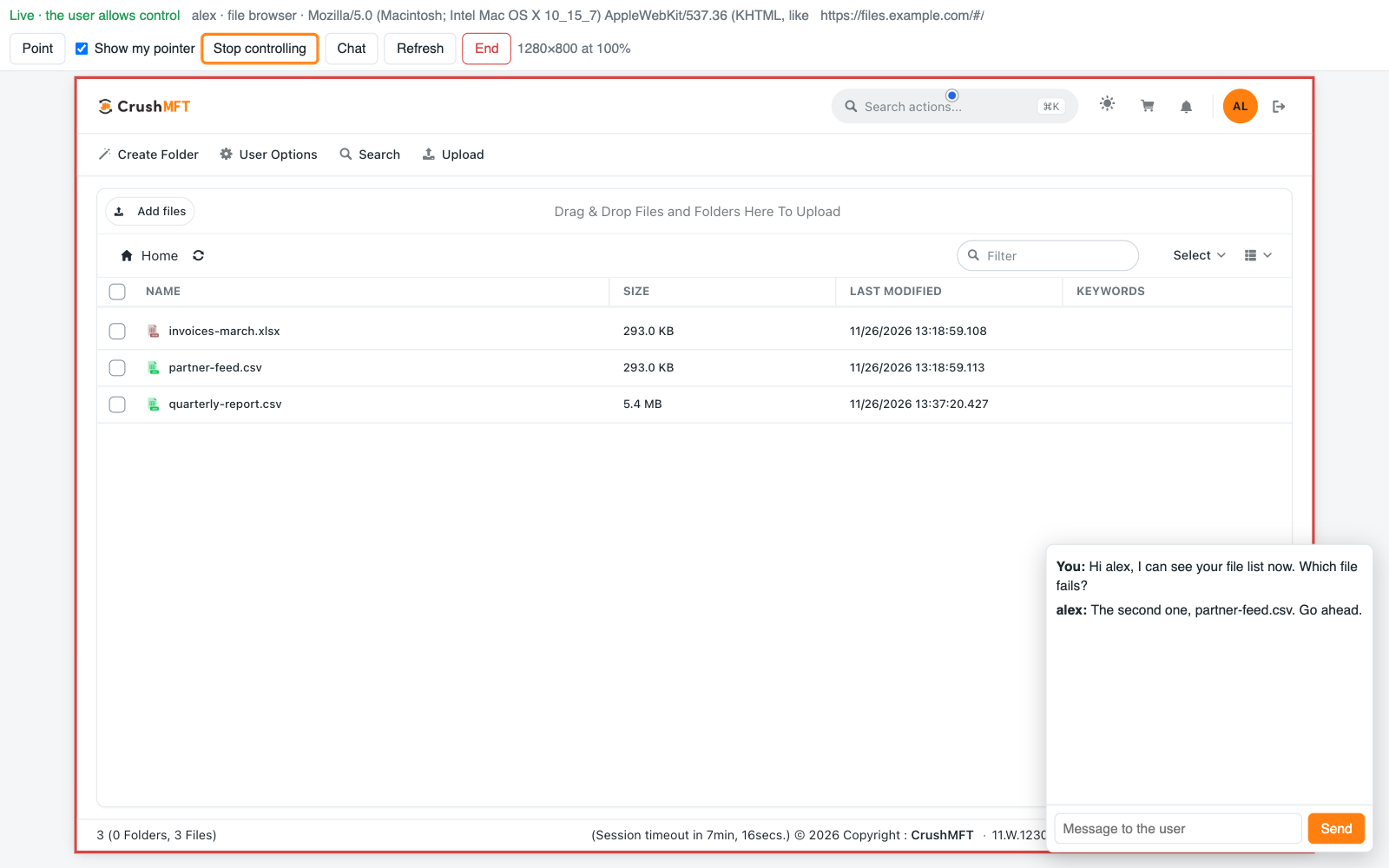
It is the same technique as a support session, the other way round: there, an administrator shares a tab with CrushMFT Support; here, a user shares a tab with an administrator of their own server. It is not a video of the screen. The user's page sends a copy of itself (its elements and text, with passwords left out) and then each change; the administrator's window rebuilds it without running any of its scripts.
Asking#
- In Sessions, open the user's web session (HTTP or HTTPS, logged in).
- Click Ask to share screen. A window of its own opens.
- Type a note for the user if you like ("Let's look at the upload error together"), and click Send the request.
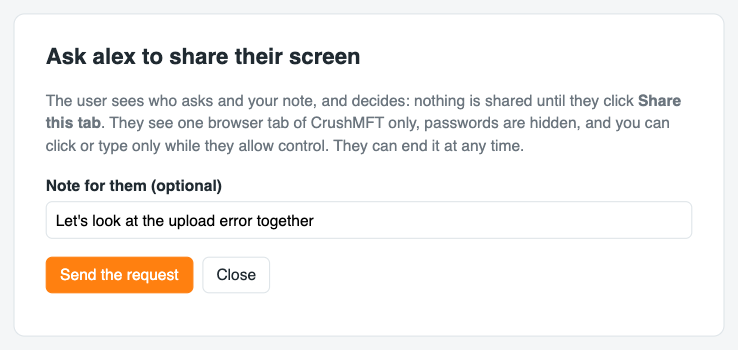
The window waits: "Waiting for alex to answer. The request is shown on their page within about 10 seconds and stays for 2 minutes." Take the request back withdraws it. The answer comes back as "alex said no." or "alex did not answer within 2 minutes.", or the user's tab appears.
The button is there only for a web session of this server. For a session of another server of a cluster, or of a DMZ, open that server's own Server Admin.
What the user sees#
The user's page shows the request, whichever page of the web interface they are on (the file list, an admin app):
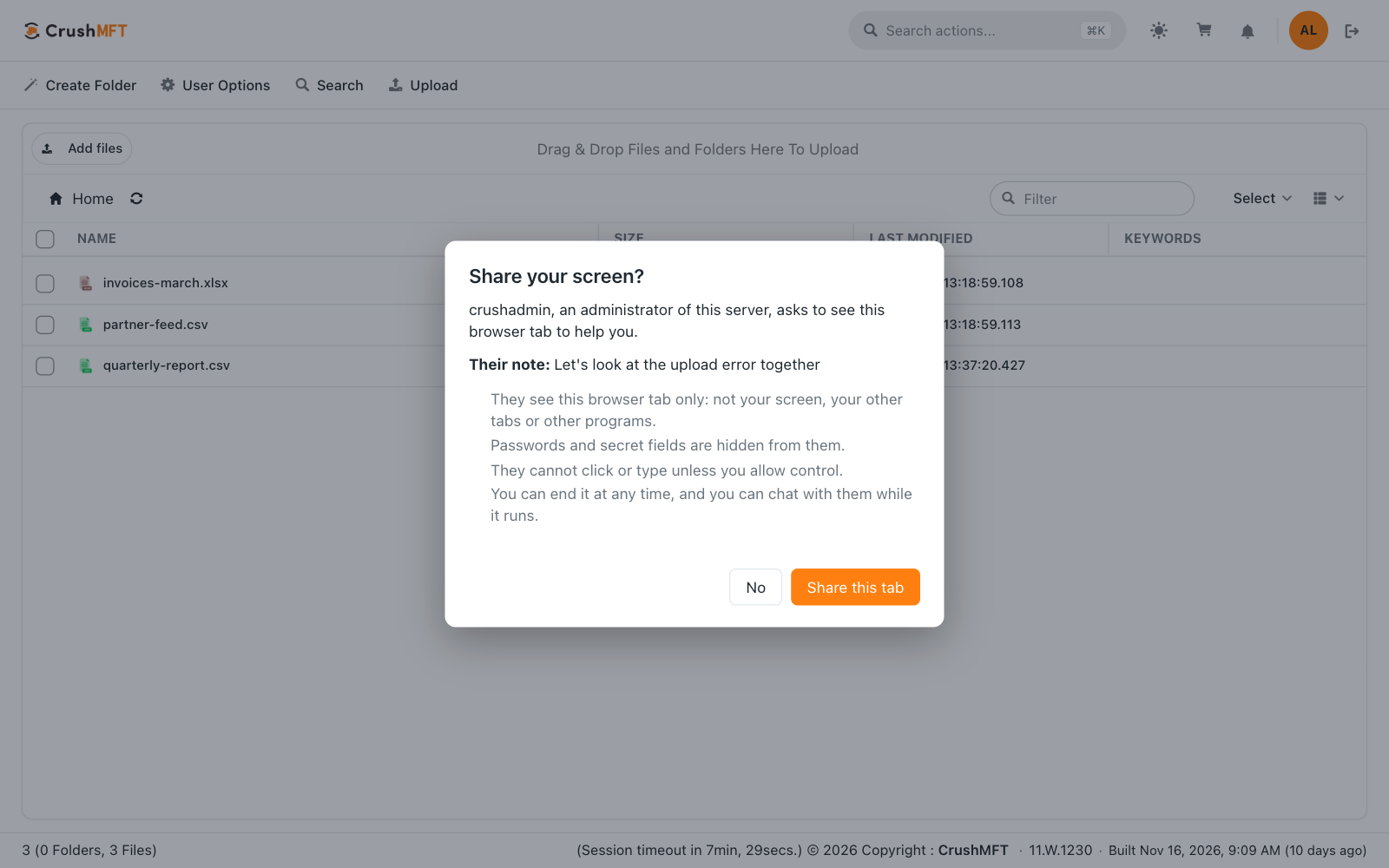
Share your screen?
crushadmin, an administrator of this server, asks to see this browser tab to help you.
Their note: Let's look at the upload error together
- They see this browser tab only: not your screen, your other tabs or other programs.
- Passwords and secret fields are hidden from them.
- They cannot click or type unless you allow control.
- You can end it at any time, and you can chat with them while it runs.
No tells the administrator so. Share this tab starts it: a banner at the top of the page says "Sharing this tab with crushadmin (administrator)" for as long as it runs, with Allow control and End, and the chat opens.
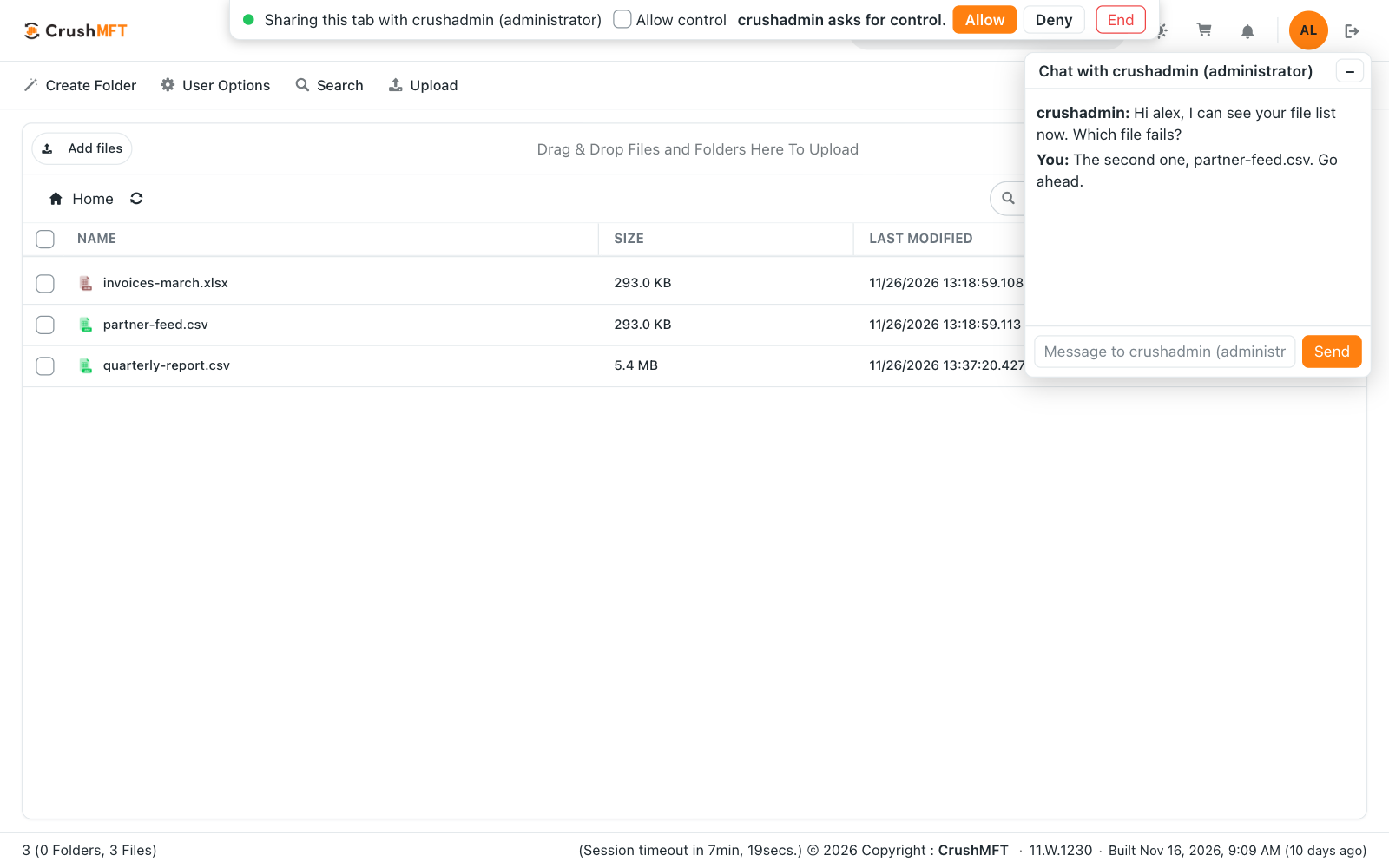
| Part | What it does |
|---|---|
| the banner | the state: waiting for the viewer, sharing, "Connection to crushadmin (administrator) lost. Reconnecting…" |
| Allow control | off at first. When the administrator asks for control, the banner says "crushadmin asks for control." with Allow and Deny. Unticked, the administrator only watches. |
| the chat | "Chat with crushadmin (administrator)": it can be moved, and made small |
| End | ends the share at once |
The share goes on when the user moves to another page in the same tab: the banner comes back and the administrator's view follows. Other tabs are never shared.
The viewer#
| Button | What it does |
|---|---|
| Point | then click an element: it is outlined on the user's page for a few seconds, to show where to look. Works without control. |
| Show my pointer | the user sees where your mouse is, with your name |
| Request control | asks the user. Once they allow it the button is Take control, and Stop controlling while you have it; the view is outlined in red. You click, type, scroll and choose in lists for the user, in their tab, with their session and their rights. |
| Chat | the chat with the user |
| Refresh | asks the user's page for a new copy |
| End | ends the share, after a question |
The line at the top says what is going on ("Live · view only", "Live · the user allows control", "alex's page is gone for now (a page load, or the tab closed). Waiting for it to come back…"), who the user is and with which browser, and the page they are on.
When it ends#
- either side clicks End ("Screen share ended: ended by crushadmin." on the user's page);
- the administrator closes the viewer window;
- the user logs out, or their web session ends;
- the user's page is gone for 10 minutes, or the viewer for 2;
- 8 hours have passed;
- nobody answers a request within 2 minutes.
Nothing of a share is recorded: no copy of the pages, no video.
What is never shared#
- Password fields, and fields whose name says secret, key, token or credential, are blanked before anything leaves the user's page.
- Other tabs, other programs, the browser itself, file pickers and the computer's own dialogs.
- Control cannot upload a file from the user's computer, read their clipboard, or open a window.
In the server log#
Every request, answer, start, control change, each click or key of an administrator in control, and the end is written to the server log as a SCREEN_SHARE line:
SCREEN_SHARE: crushadmin (10.0.1.5) asked alex (session 2492, 10.0.1.25) to share their screen.
SCREEN_SHARE: alex (session 2492, 10.0.1.25) agreed to share their screen with crushadmin.
SCREEN_SHARE: user=alex ip=10.0.1.25 control granted to admin
SCREEN_SHARE: user=alex ip=10.0.1.25 admin clicked a "User Options"
SCREEN_SHARE: crushadmin and alex (session 2492, 10.0.1.25): ended, ended by crushadmin.
What was typed is never written, only where.
Turning it off#
Screen sharing is on. It is turned off in Preferences, WebInterface, under the support session's settings: Admins may ask a web user to share their screen (Server Admin, Sessions). The key is screen_share_enabled, true by default. Off, the button is gone and the users' pages no longer ask.
What it needs#
- HTTPS on both sides, or
localhost: browsers give the encryption a share uses only to pages opened that way. On a plain HTTP page the request dialog says so and cannot start. - A browser that compresses streams (
CompressionStream): every current one. - Who may ask: the Administrator, admins with SERVER_EDIT, and roles with
server.sessions.screenshareon the user.
How it is carried#
The pages and the commands go through this server, never through another one. They are encrypted between the two browsers with a code that the administrator's window makes and this server hands to the user's page when they say yes: this server could read a share, which is the same server the user already works on. A support session with CrushMFT Support is different, see Support session.