Schedule plans#
A schedule plan is one schedule that many jobs run on. Most servers have a handful of schedules that most jobs share: every 15 minutes, every hour, every night at 2. Put those jobs on a plan, and a change to the plan changes all of them at once; the plan also lists which jobs it runs.
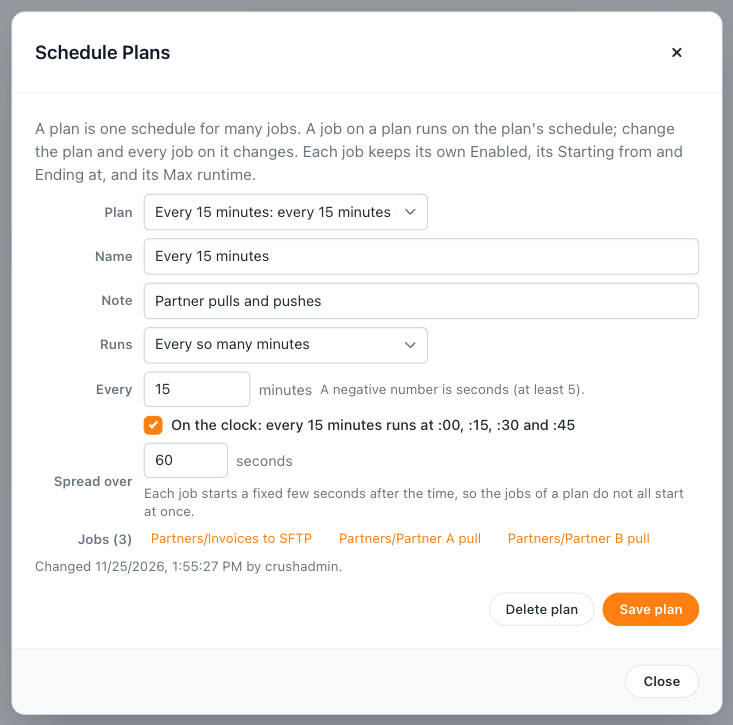
A plan holds what a job's schedule holds: how often, at what times, on which days. Each job keeps the rest of its setup as its own:
| From the plan | Kept by each job |
|---|---|
| Schedule type (every so many minutes, daily, weekly, monthly), Repeat every, Run at, Week days, Days of month, On the clock, Spread over | Job enabled, the Run window (Starting from, Ending at), Max runtime, and everything else of Setup |
A job on a plan#
In the job's Setup, Schedule plan is under the job's name:
| Choice | What the job does |
|---|---|
| None: this job's own schedule | runs on its own schedule, set under Schedule as on Schedules |
| a plan, shown with its schedule in words | runs on the plan's schedule. Schedule type shows the plan's type and cannot be changed, and the Schedule section shows the plan in place of its fields: its schedule, its note and how many jobs use it, with Open plan... |
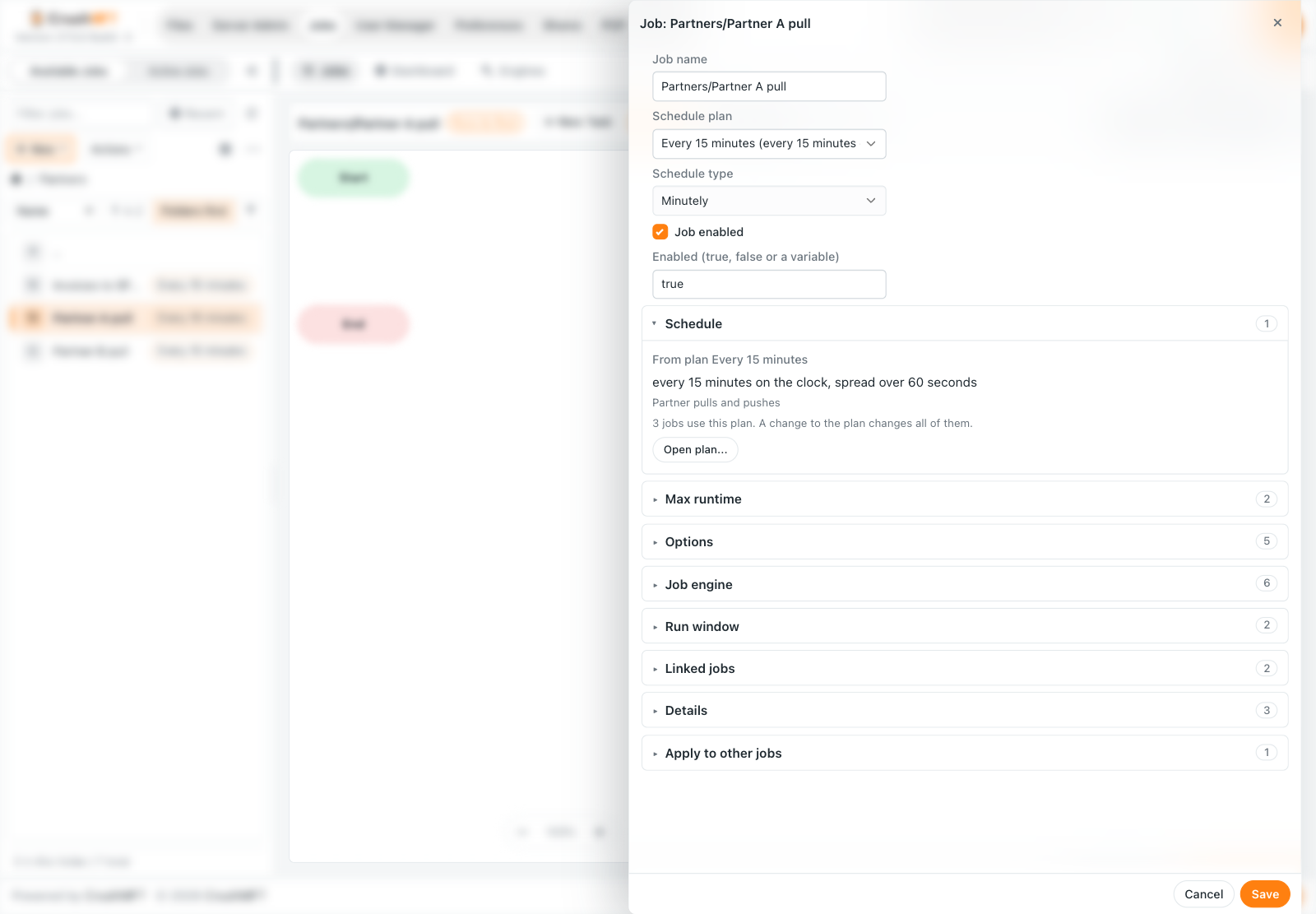
Choosing a plan and saving the job puts the job on it. Choosing None takes the job off its plan; the job keeps the schedule it had from the plan, as its own, until you change it.
A job may name a plan that is not on this server: a job brought from another server, for example. It then shows (not on this server) beside the plan's name, and runs on its own copy of the plan's schedule: "Schedule plan … is not on this server: the job runs on the schedule below."
The plans#
Schedule plans… in the job list's ⋯ menu opens the dialog. Open plan... in a job's Setup opens it at that job's plan, and the command search (the search box at the top) finds it as Schedule plans.
| Field | What it is |
|---|---|
| Plan | the plans, each with its schedule in words and its number of jobs, and New plan... |
| Name | 1 to 64 letters, digits, spaces and _ - . ( ) +. Two plans cannot have names that differ only in capitals. A new name renames the plan, and its jobs follow. |
| Note | what the plan is for |
| Runs | Every so many minutes, Daily, Weekly or Monthly. A plan always runs by itself: there is no plan for jobs started by hand. |
| Every | so many minutes, days, weeks or months. For minutes, a negative number is seconds (at least 5). |
| At | daily, weekly and monthly: the times of day, separated by commas: 9:00 AM, 6:30 PM |
| On | weekly: the week days |
| On days | monthly: the days of the month. A day a month does not have (31 in April) is skipped that month. |
| On the clock | every so many minutes: at whole multiples of the interval, counted from midnight. See below. |
| Spread over | seconds, 0 to 86400: see below |
| Jobs | the jobs on the plan. Click one to open it. An admin who may see only some jobs is told how many more there are. |
Make plan makes a new plan; Save plan saves a change. When jobs are on the plan, the server asks first: "This changes the schedule of 3 jobs on plan Every 15 minutes. Each is worked out again from now." The answer then says how many jobs changed.
A plan the server could not schedule is refused with the reason, for example a daily plan without a time of day; so is a name that is taken: "There is already a schedule plan named …"
Deleting a plan#
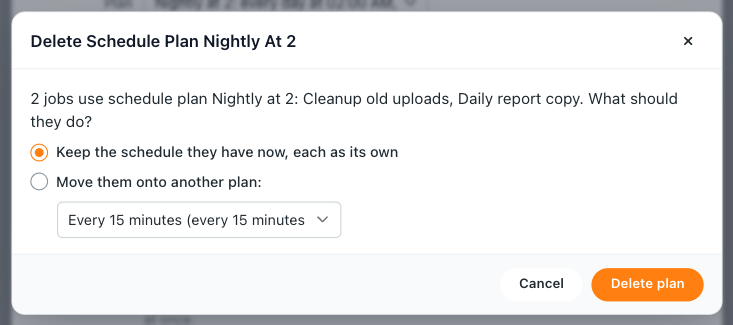
Delete plan. When no job uses the plan, the server asks once and deletes it. When jobs use it, it says which, and asks what they should do:
| Choice | What happens to the jobs |
|---|---|
| Keep the schedule they have now, each as its own | each job keeps the plan's schedule as its own and is on no plan |
| Move them onto another plan: | each job goes onto the plan chosen and runs on its schedule |
| Cancel | nothing changes |
On the clock and spread#
Two settings that matter most for plans with many jobs. They are in a job's own schedule too.
On the clock (every so many minutes only). Without it, "every 15 minutes" counts from the moment the job was saved, so forty jobs set to every 15 minutes run at forty different moments of the quarter hour. On the clock, they run at whole multiples of the interval counted from midnight:
| Every | Runs at |
|---|---|
| 15 minutes | :00, :15, :30, :45 |
| 60 minutes | on the hour |
| 7 minutes | 00:00, 00:07, … 23:55, then 00:00 again: an interval that does not divide the day starts again at midnight |
| -30 (30 seconds) | :00 and :30 of every minute |
On the night the clocks change, the real interval is kept: in spring, 01:45 is followed by 03:00, a quarter of an hour later; in autumn the hour that repeats is run again on its quarter hours.
Spread over a number of seconds. Each job starts a fixed number of seconds after the time, from 0 to one less than the spread: a plan of forty jobs every hour, spread over 300 seconds, starts them over five minutes instead of in the same second. The delay comes from the job's name, so a job always gets the same one, on every start and on every server. For every so many minutes the delay is always shorter than the interval. 0 is no spread.
In the job list#
A job on a plan shows the plan's name in place of its schedule type:
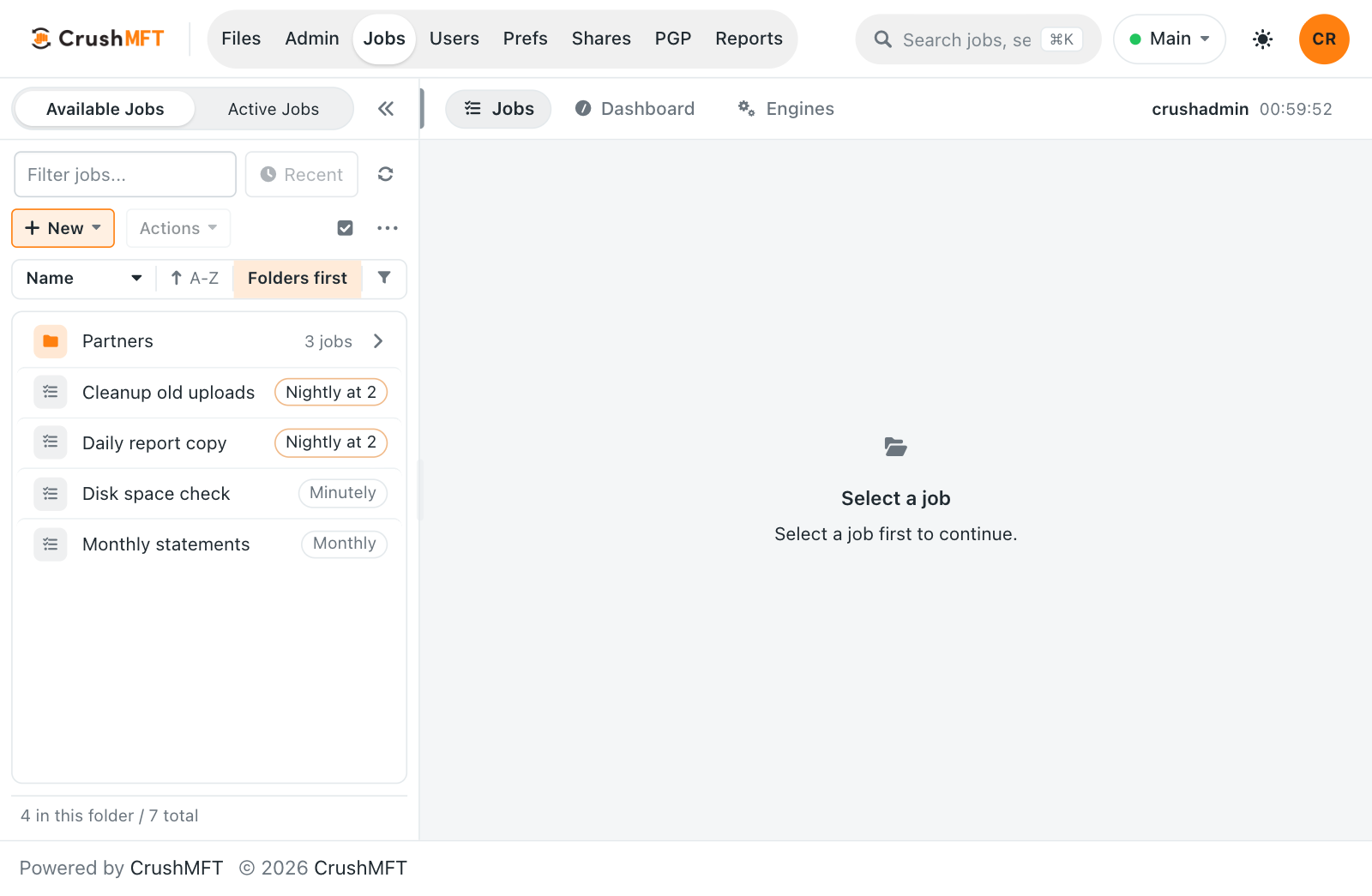
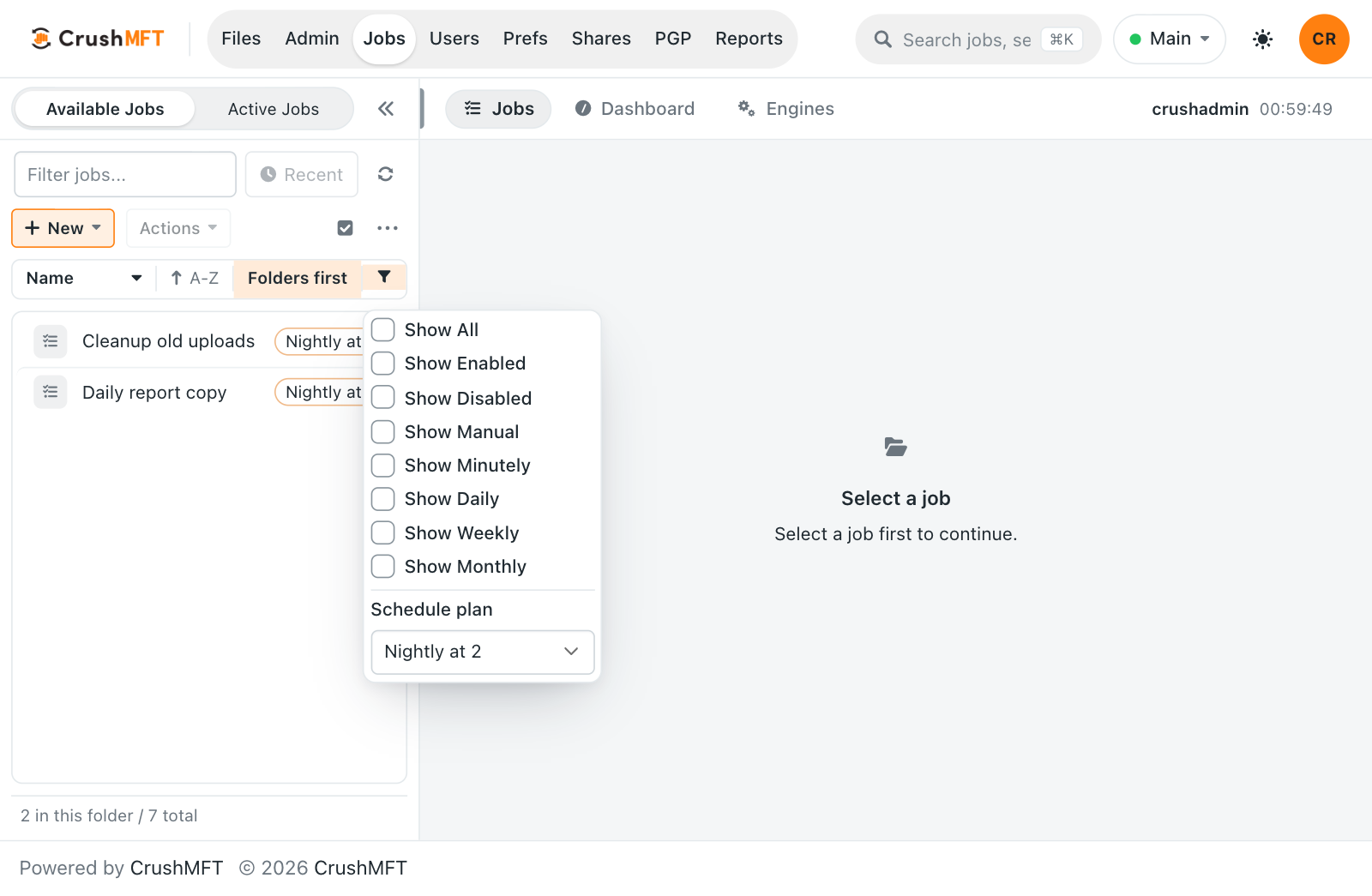
The funnel (Show / hide jobs) has Schedule plan at the bottom once there are plans: Any plan, On no plan, or one plan, to list only its jobs. A folder stays in the list while a job in it matches.
Apply to other jobs#
In a job's Setup, Apply to other jobs with the setting Schedule copies the job's schedule to other jobs, and its plan with it: when the job is on a plan, the others go onto the same plan; when it has its own schedule, the others leave their plans and take that schedule. See Schedules.
Who may change plans#
A plan reaches jobs in every folder, so only admins who may change every job change plans.
| Admin | Plans |
|---|---|
| full administrators, and admins with the right to edit jobs who are not limited to a group | make, change, rename and delete plans; see every job on every plan |
| admins limited to a group (their jobs are in their group's folder) | see the plans, and on each plan only the jobs of their folder, with how many others there are; put their own jobs on a plan or take them off |
| admins who may only see or run jobs | see the plans |
| role holders and access tokens (see Who may see, change and run a job) | see the plans, with only the jobs their scope has; put a job they may change on a plan. Changing plans is not open to them. |
The dialog says so when the admin may not change plans: "Only full admins and job editors not limited to a group change schedule plans."
A plan changes when its jobs run, never what they do or as whom: the server writes only the schedule into each job, and the signed record of who saved the job stays as it was.
What the server does with a change#
- The plan's schedule is written into every job on it, so each job's file always holds the schedule it runs on. A job saved with a plan takes the plan's schedule, whatever came with it.
- Each changed job is worked out again from now: its next run is the first time after the change.
- The job's Modified time and its backups are not touched. With Audit job changes on in the Jobs settings, each job's change log gets one line: "schedule plan Every 15 minutes changed by alex: from 'every 15 minutes on the clock' to 'every 30 minutes on the clock'".
- The server log has a line for every plan saved or deleted, with who did it and how many jobs it changed.
- In a server group that replicates jobs, a plan saved or deleted is sent to the other servers like a saved job.
All plans are kept in one file, schedule_plans.XML, next to the server's jobs folder.
By API#
| Operation | What it does |
|---|---|
GET /schedule-plans |
the plans with their jobs |
PUT /schedule-plans/{name} |
makes a plan, or changes or renames one (rename_to). Fields left out keep the plan's values. |
DELETE /schedule-plans/{name} |
deletes a plan. While jobs use it, the answer is 409 with the jobs, unless jobs=keep or jobs=move with move_to. |
PATCH /jobs/{name}/schedule with plan |
puts a job on a plan; "plan": "" gives it its own schedule again |
See Jobs in the API.