Google Cloud Storage Integration#
Google Cloud Storage requires several steps to configure.
You will start at the API credentials manager:
https://console.developers.google.com/projectselector/apis/credentials
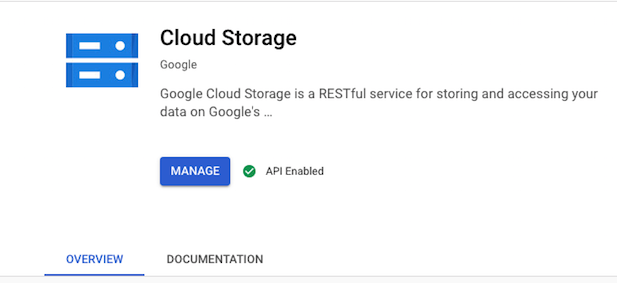
You need to enable the GoogleStorage API for your account if its not already.
https://console.developers.google.com/apis/library/storage-component.googleapis.com/
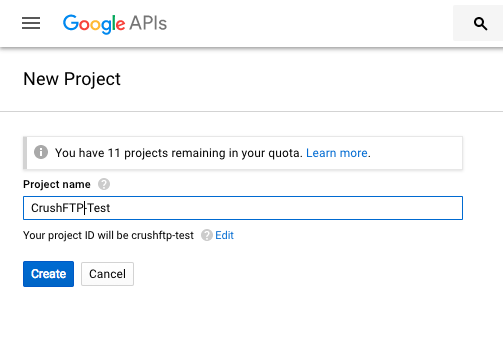
Create a new project. My example calls this "CrushFTP-Test".
1. Web Application type#
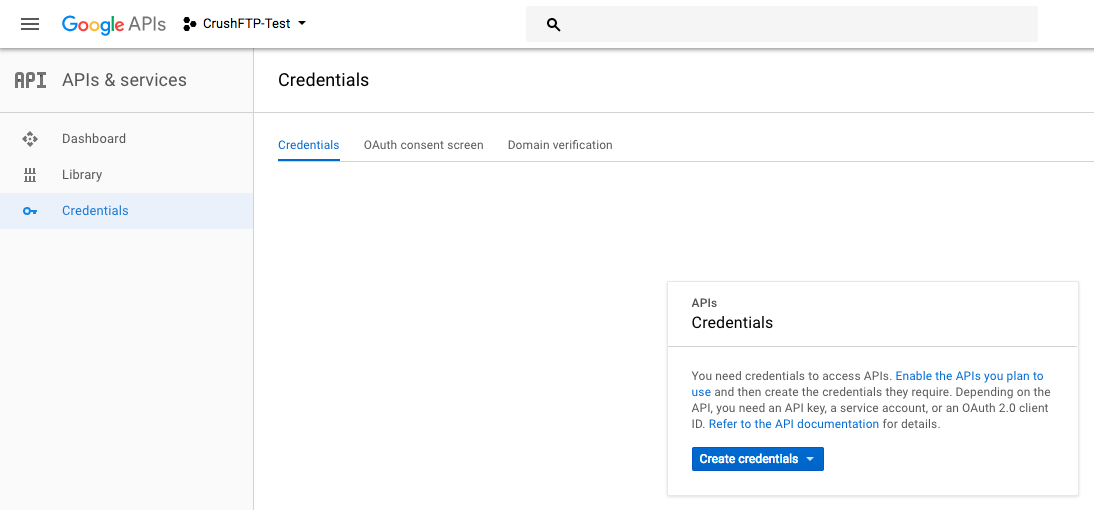
Next, click on the "Create Credentials" button, and choose the Web Application type.
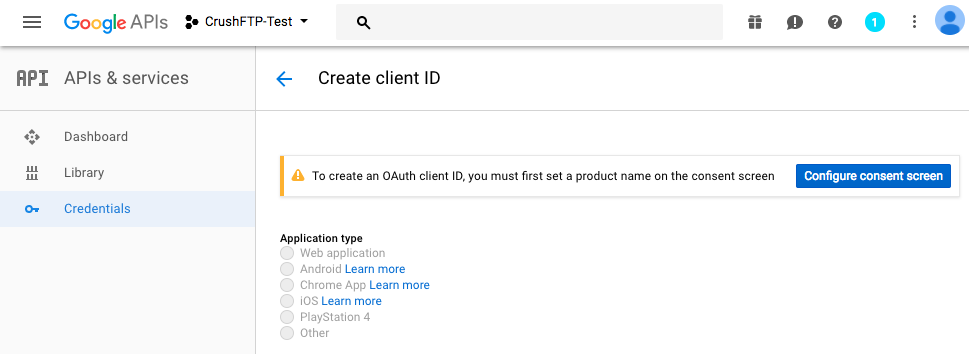
It will warn you if you don't have an "OAuth Consent" screen configured, so go there and configure that screen too.
When configuring the credential, you have to tell Google the domain you will be originating from when creating the auth token, so this is the URL you use for server administration. Just the protocol://dns_or_ip:port Don't have a trailing slash or it will complain.
Configure the redirect URL of where Google will send you back after approval. This needs to follow the syntax in the example. Specifically, your domain needs to end with:
?command=register_gdrive_api
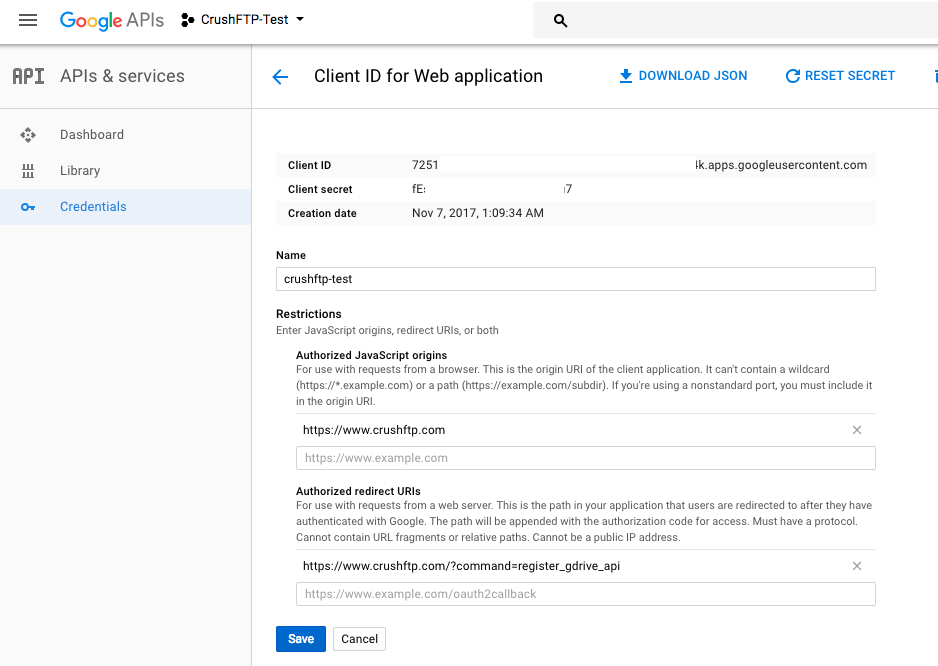
And one last important step, you need to enable the GoogleDrive API for your account if its not already.
https://console.developers.google.com/apis/library/storage-component.googleapis.com/
Now that the API is enabled, your credentials are setup, and your redirect domains are configured, you can use the credentials in CrushFTP to get your Google auth token and get access.
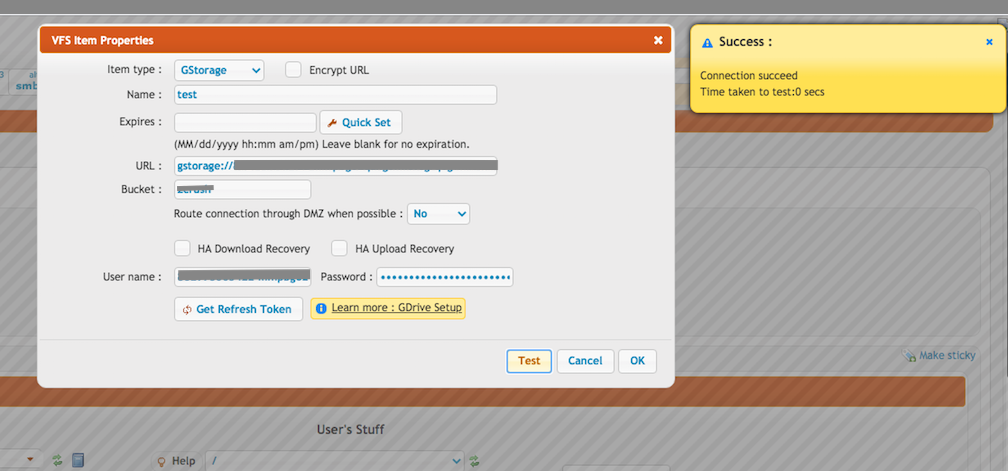
In the User Manager, add a new remote VFS item type and set the protocol to be "GStorage".
Click "Get Refresh Token" to finish the config. Provide the client id and secret.
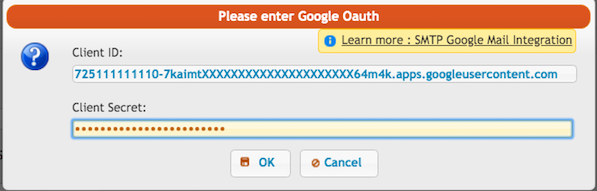
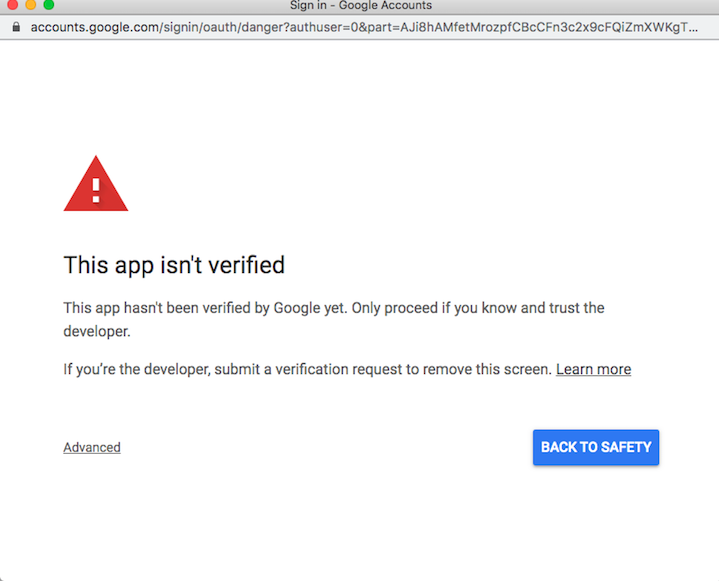
If your domain is not verified you will get a warning message, click on Advanced and proceed further:
Click on allow:
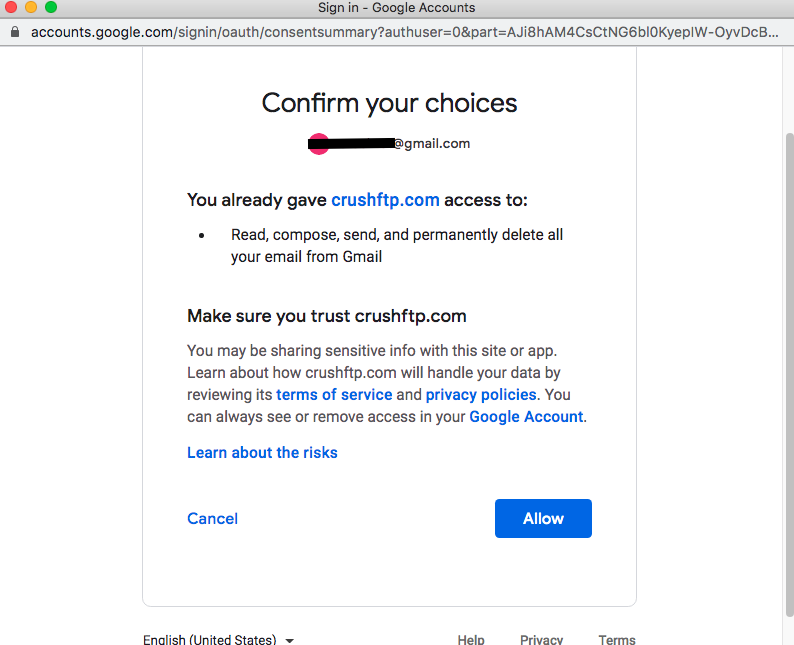
The refresh token will be saved as password.
Provide the bucket and the path.
It is done! Test the connection and save it!
2. Service Account type#
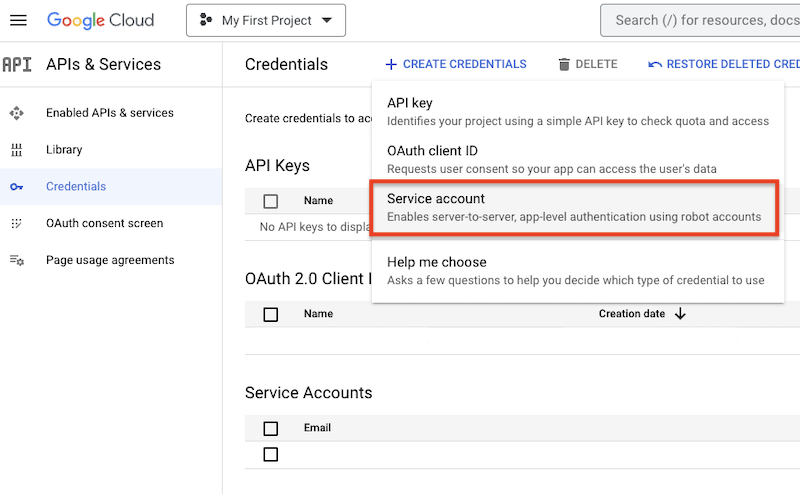
Create Credentials -> Service Account.
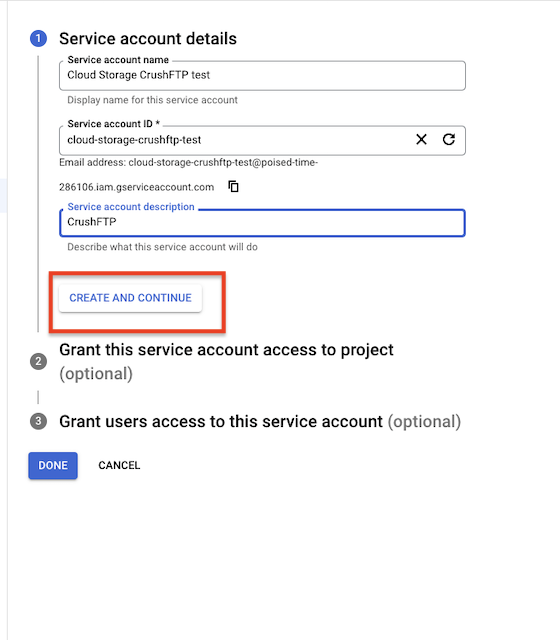
Provide a name and continue.
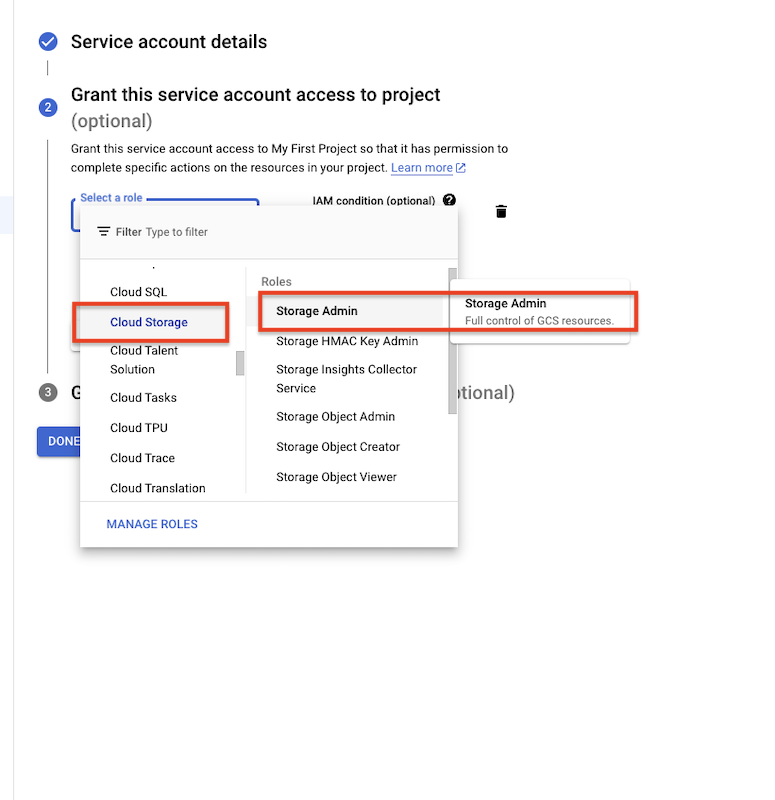
Configure the service account access.
Click on the "Done" button.
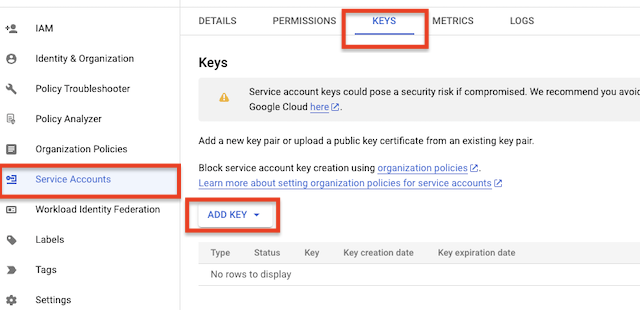
Navigate to the newly created Service Account. Go to the KEYS tab. Click on the "Add KEY" button, and then select "Create new key".
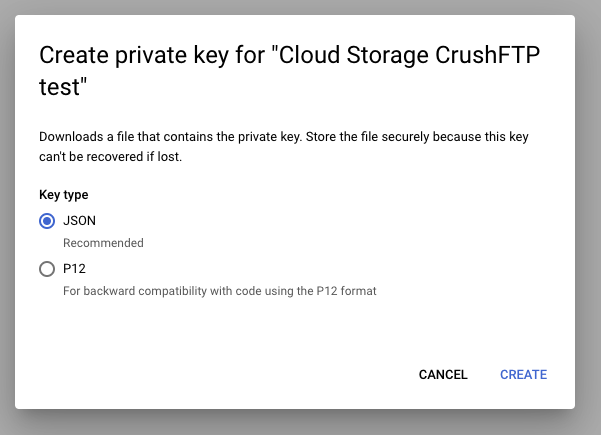
Download the JSON file.
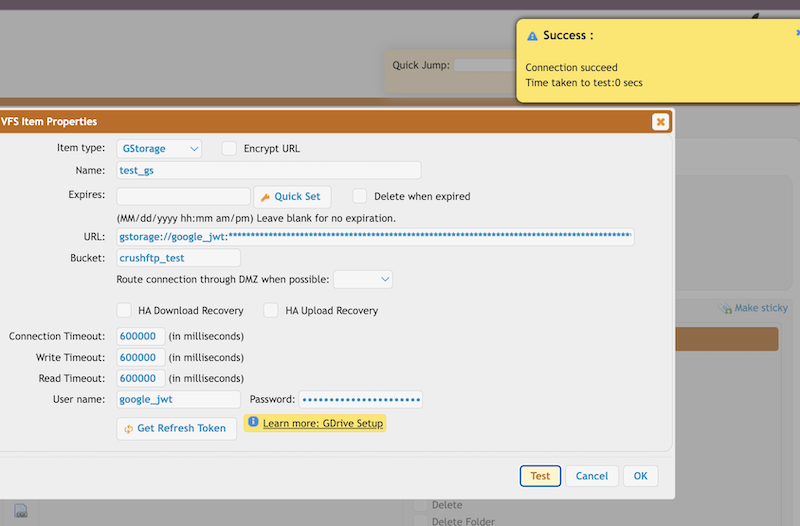
VFS configuration:
Username:google_jwt
Special user name for Service Account Access.
Password:<<the JSON file content>>
It authenticates based on the provided JSON file.
Provide the bucket and the path.
It is done! Test the connection and save it!
3. Access through S3 API#
Generate Access key and Secret. Got to https://console.cloud.google.com/ In the left sidebar of the dashboard, click Google Cloud Storage and then Settings.
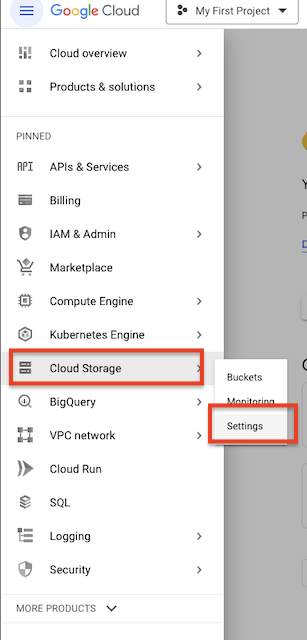
Select the Interoperability tab. If you haven't enabled it already, click on Interoperable Access. Now you should see an empty list and a Create New Key button. Click the button to create an Access/Secret key pair.
Google Cloud S3 VFS configuration:
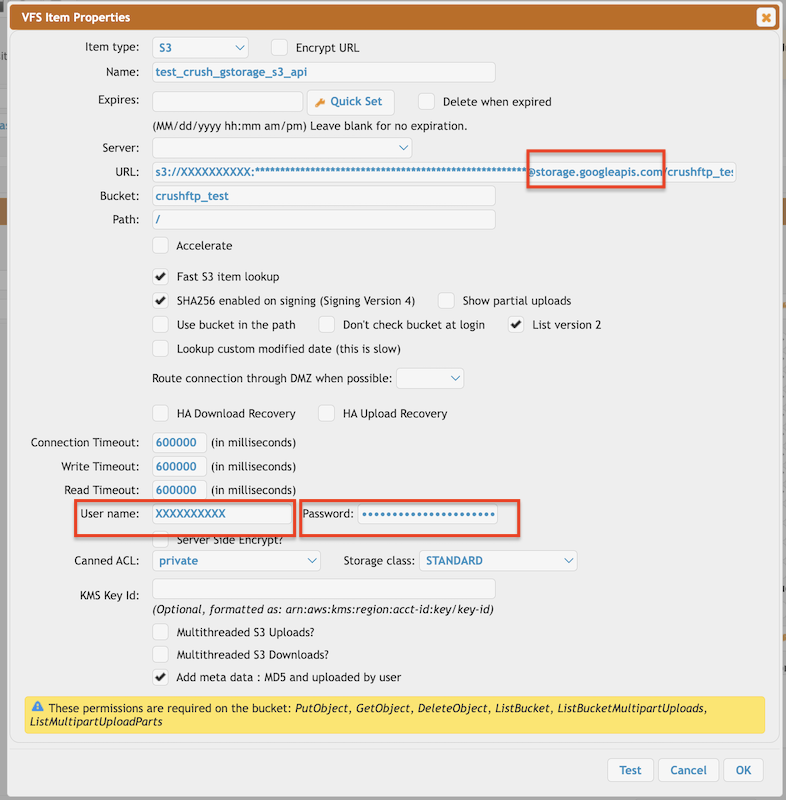
1.
Domain:<<Cloud Storage -> Settings -> INTEROPERABILITY -> Domain of Storage URI default is storage.googleapis.com>>
Change the S3 default domain (s3.amazonaws.com) to the domain of Google Cloud Storage domain.
User name:<<Access Key>>
Password:<<Secret>>
Bucket:<<Google Cloud Storage Bucket Name>>
SHA256 enabled on signing (Signing Version 4):<<Enabled>>
!Warning Signing version 4 must be enabled, as Google Cloud Storage does not support older signing versions.
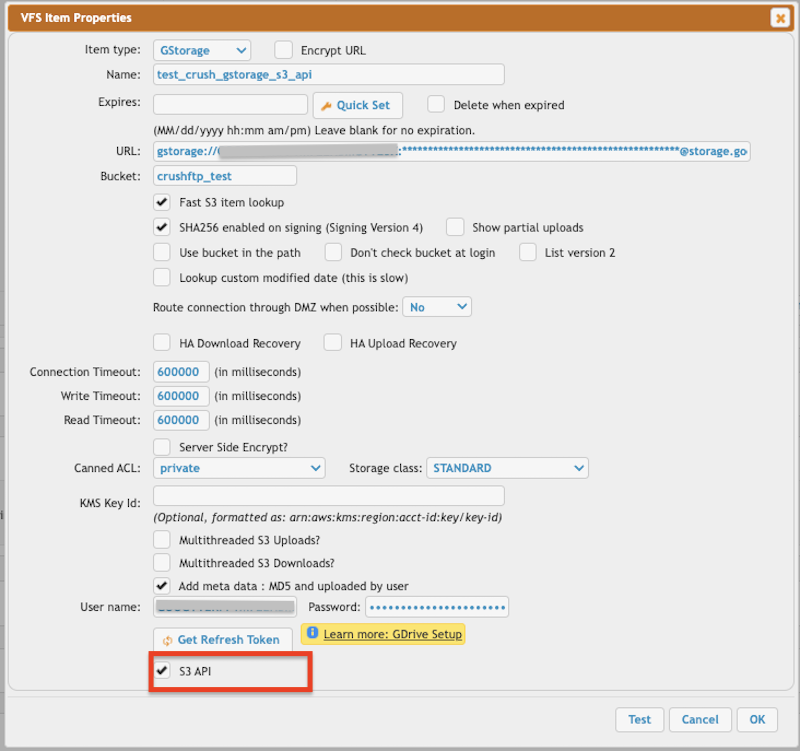
2. Select GStorage Item type.
Enable S3 API flag.
Domain:<<Cloud Storage -> Settings -> INTEROPERABILITY -> Domain of Storage URI default is storage.googleapis.com>>
Change the S3 default domain (s3.amazonaws.com) to the domain of Google Cloud Storage domain.
User name:<<Access Key>>
Password:<<Secret>>
Bucket:<<Google Cloud Storage Bucket Name>>
SHA256 enabled on signing (Signing Version 4):<<Enabled>>
!Warning Signing version 4 must be enabled, as Google Cloud Storage does not support older signing versions.
More info about s3 VFS configuration: S3 integration