Preview#
IMPORTANT: Since August 2023 we've found ImageMagick to be unstable or completely incompatible with javaexec. We strongly recommand to use GraphicsMagick instead. It's a compatible, well maintained forked version of ImageMagick, their dev team boasts 0 bugs per 1000 lines of code.
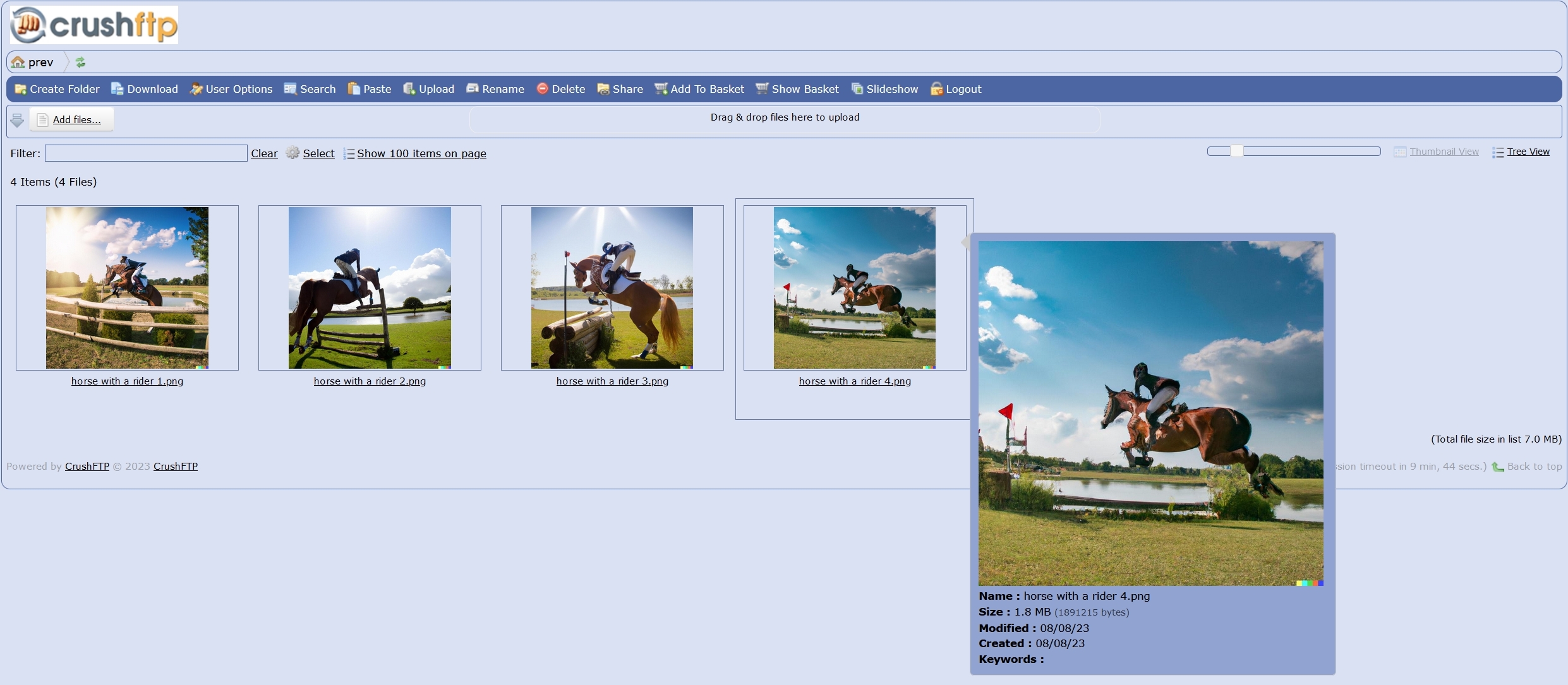
The Preview feature, when enabled allows displaying the user file list in Thumbnail View mode, for most popular image, document and video file formats.For documents, a thumbnail image of the first (usually title) page is rendered. For videos, 10 slides evenly sampled along the duration time, moving the mouse cursor horizontally over the thumbnail will play the slides.
Prerequisits:#
Thumbnails generation relies on widely used free 3rd party conversion utilities. CrushFTP renders the thumbnail list, but it doesn't include no native media conversion code to generate these, except the conversion scheduler. This latter we call the Preview Scanner component. The required external media conversion utilities are either part of the host operating system (in case of Mac OS), can be downloaded from the OS apps repository ( Linux yum and apt), or as a standalone package from the maintainer's site (Windows, all OS). In case of Windows and Linux the conversion utilities need to be deployed manually.
Support for GraphicsMagic only exists from CrushFTP v10.5.0 Build: 5 and upwards, previous versions need to be updated.
Image and document files:#
On Linux platforms need to deploy GraphicsMagick for image formats and also Ghostscript for documents. On Debian based platforms the packages are readily available from the apt repository
apt-get install graphicsmagick
On Red Hat/CentOS and usually other RPM based distros, can be installed from the EPEL repository. Download the latest epel-release rpm from
http://dl.fedoraproject.org/pub/epel/[your redhat version here]/x86_64/
Install epel-release rpm:
rpm -Uvh epel-release*rpm
Install GraphicsMagick the package:
yum install graphicsmagick
Alternatively, can try to use ImageMagick still, the v6.x version line if available, is stable. The v7.x version line however may not be.
apt-get install imagemagick
Ghostscript has been on all major Linux app repositories for long, can simply install it like
apt-get install ghostscript
On Windows platforms will need to use GraphicsMagick mandatorily, for the recent versions of ImageMagick will not work with Java no more. There are options, either use the binary installer, or use the portable .zip package and deploy it somewhere.
External links to maintainer's download page
GraphicsMagick: http://www.graphicsmagick.org/download.html
Ghostscript: https://ghostscript.com/releases/gsdnld.html
On Mac OS platforms usually don't need to do nothing, the conversion utility is readily available, need to use the qlmanage preset, it will work out of the box.
Video files:#
On Linux, need to install ffmpeg from the official app repository, depending on the distro, with apt, yum or dnf, like
apt-get install ffmpeg
On Windows need to download from the maintainer either the binary installer and run it, or the portable .zip package then unzip it somewhere on the host. External link to maintainer's download page:
FFmpeg: https://ffmpeg.org/download.html
On Mac OS platforms usually don't need to do nothing, the conversion utility is readily available, need to use the pcastaction preset, it will work out of the box.
EXIF data (optional):#
We can display additional information under the thumbnails, and potentially all image metadata in the Quickview perspective, if exiftool is deployed. It's not a mandatory component, Preview works fine without.
On Linux can install it from the official apt, yum, dnf, etc. repository. On newer versions of Windows, the original Phil Harvey build may not work, in that case need to use the alternate build
Original: https://exiftool.org/
Alternate(includes Perl runtime): https://oliverbetz.de/pages/Artikel/ExifTool-for-Windows
Deploy the installer version, or download the portable zip, unpack and drop it into the GraphicsMagick binary's parent folder.
On Mac OS, need to download and install from the dmg package.
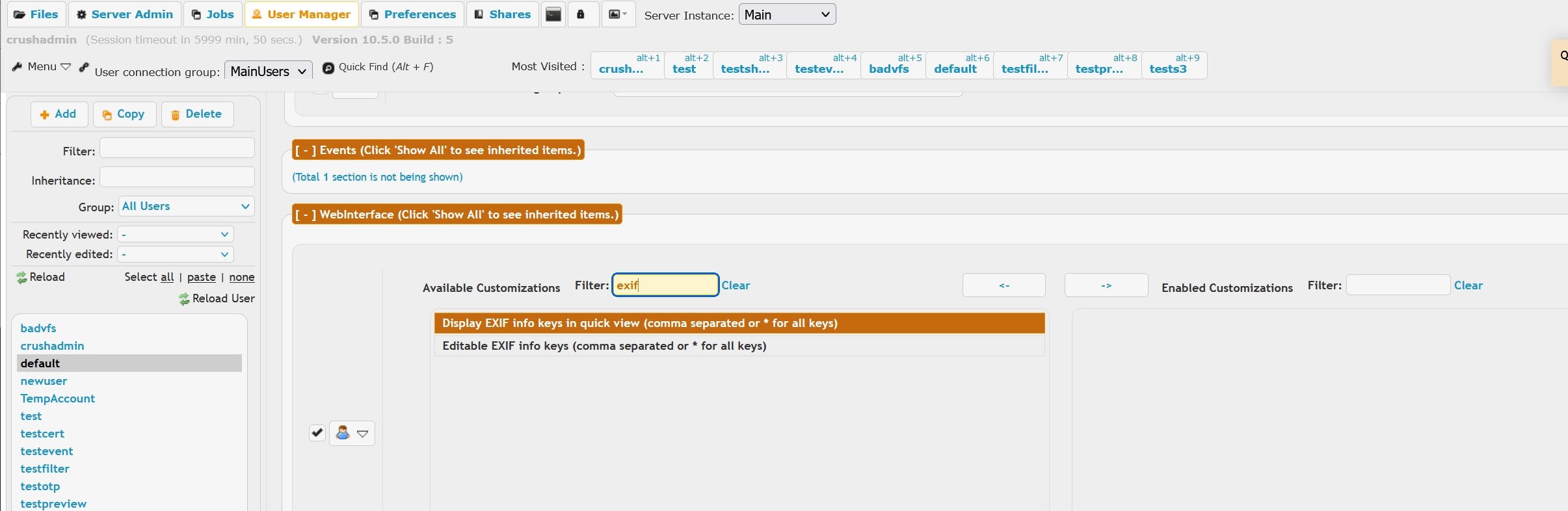
To actually display the EXIF data, need to configure in User Manager->Available Customizations section the Display EXIF info keys in quick view option.
To edit the EXIF data, need to enable the Editable EXIF info keys option.
Setting it up:#
Once the prerequisites are fulfilled, choose the appropriate preset from the Conversion utility presets dropdown list.

In some cases the automatic Working directory path may be inaccurate, in that case, use the right side Browse button to locate the installation directory of the media conversion utility.
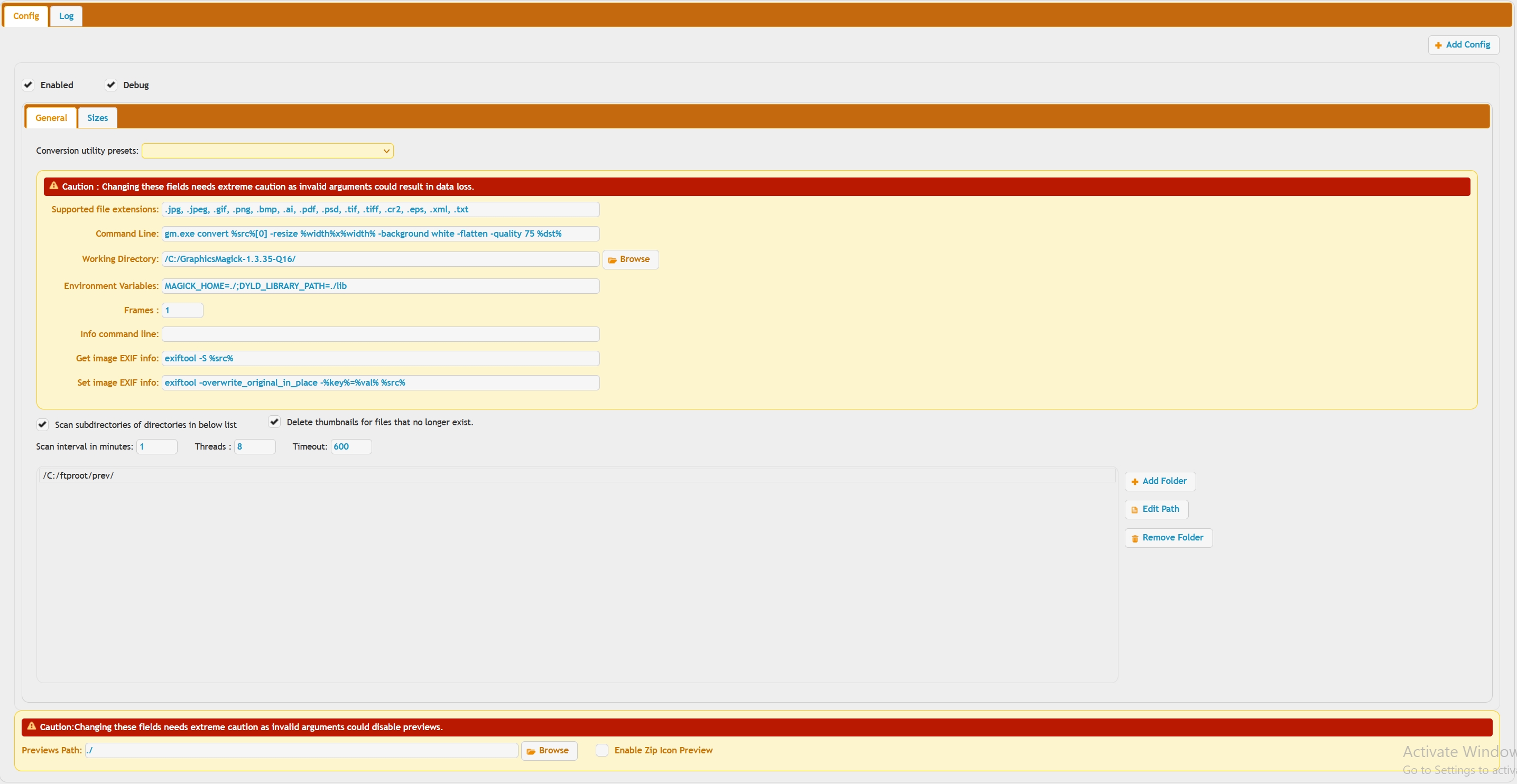
Then in the lower half of the Preview config page, use the Add folder button to browse for the user data directory to be processed by the Preview Scanner. This usually is the top level directory of all user VFS data directories.
Holding down the Alt key or Shift key while click the Add Folder button allows adding remote items (FTP://, SMB3://, etc.)
So the top half of the window in general you don't touch or change anything. Just use the preset menu. The bottom half of the window, you specify directories that CrushFTP should monitor for new files. When it sees a new file, it generates a thumbnail for that file.
To enable both images/documents and videos preview, need to add one instance of the Preview config for each with the appropriate preset, using the top right corner Add Config button.
Config parameters explained:#
Caution : Changing these fields needs extreme caution as invalid arguments could result in data loss !
Conversion utility presets
as mentioned above, to choose a conversion preset for images, videos based on the available utility and OS platform
Supported file extensions
the file extensions we'll generate thumbnails for. For those unsupported or not listed, we'll render the default icons
Command Line
the commands the Preview Scanner issues to call the conversion utility.
Working Directory
the parent directory path of the conversion utility package's main binary
Environment Variables
some of the conversion tools may read additional parameters from the shell environment these run within, such can be forced here
Frames
only for video preview, this sets the number of slides we generate
Info command line
only for video preview, this sets the command to query the video length. the returned value is divided internally by the Frames value to generate the position of the slide
Get image EXIF info
only used with exiftool, the command to query image files' metadata
Set image EXIF info
only used with exiftool, the command to update image files' metadata
Scan subdirectories of directories in below list
toggles recursive scan of the data directories
Delete thumbnails for files that no longer exist
toggles automatic cleanup of the Previews thumbnail database. May need to turn off in case the VFS backend is unstable.
Scan interval in minutes
the frequency of the Preview Scanner's scheduler. The more aggressive, the quicker new files are detected at the cost of higher the CPU load
Threads
multithreaded scanner, needs to be set 2x the number of CPU cores
Timeout
timeout of a scanner thread, if reached, the failing file will also be blacklisted
Previews Path
the location of the Preview thumbnails database, by default the CrushFTP10 installation directory. Need to relocate to a separate drive if the users' VFS directory structure is large
Troubleshooting:#
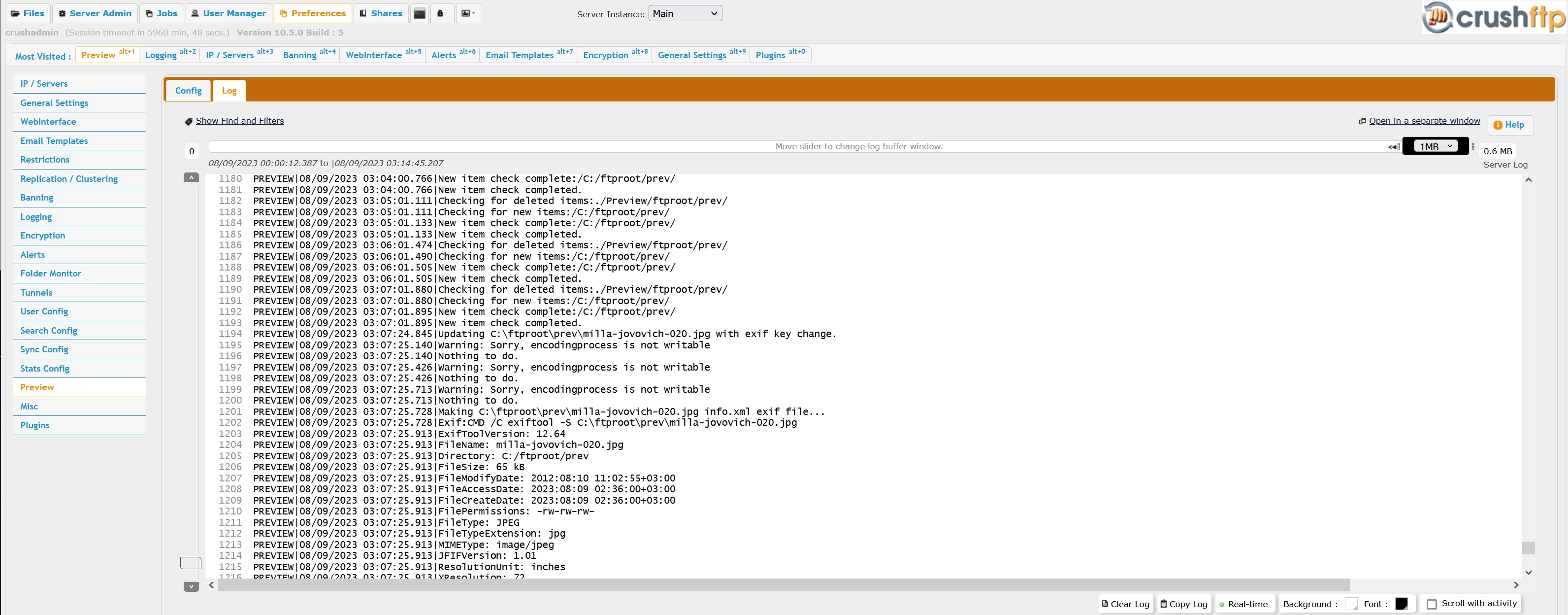
Issues with Preview can be traced in the main server log, the Log tab reveals a filtered stream on Preview specific activity.