Amazon Cognito Configuration#
About Amazon Cognito : https://aws.amazon.com/cognito/
Create (https://docs.aws.amazon.com/cognito/latest/developerguide/cognito-user-identity-pools.html) or use one of your existing Amazon Cognito user pool: https://docs.aws.amazon.com/cognito/latest/developerguide/cognito-user-identity-pools.html
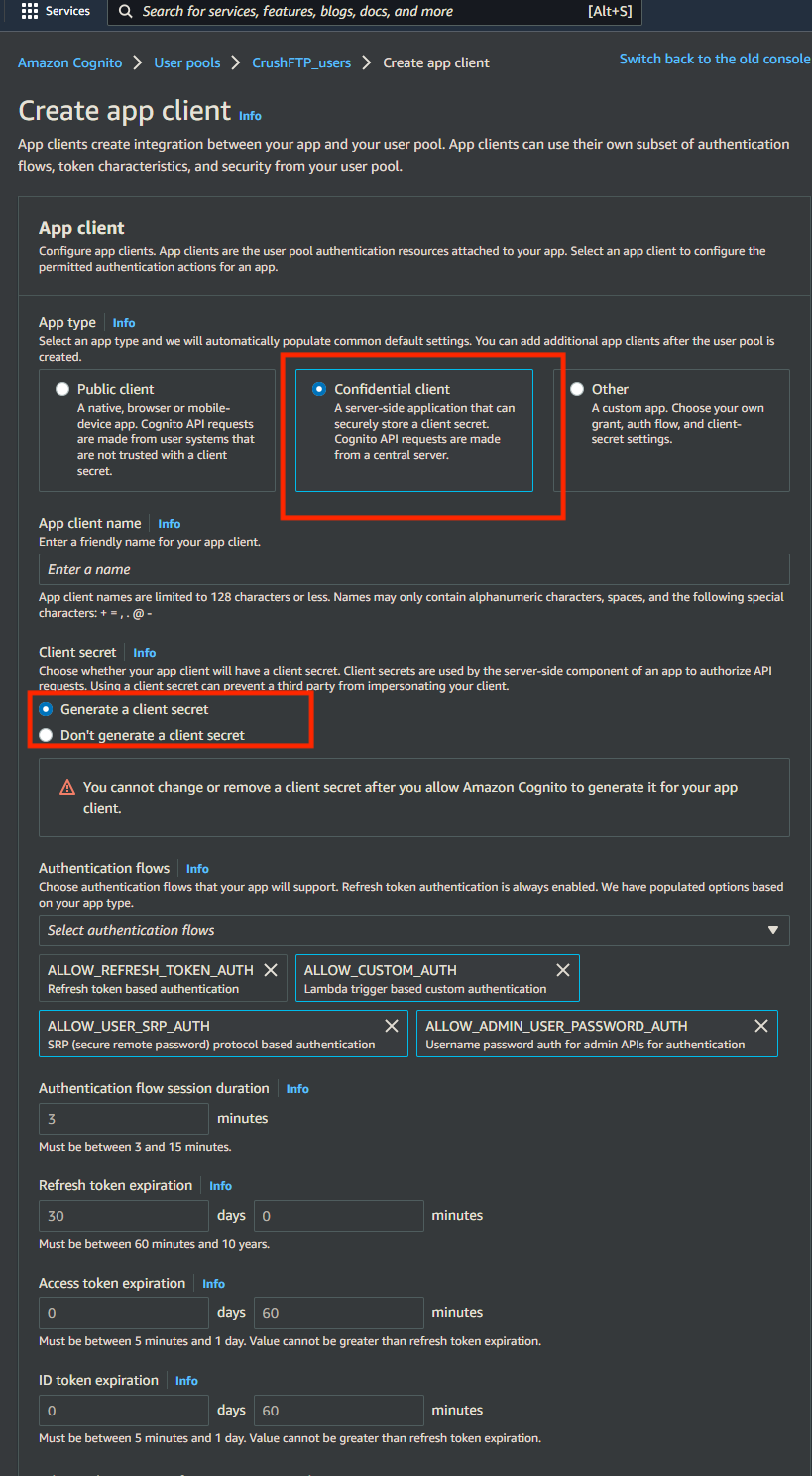
Create or configure app client of the user pool (https://docs.aws.amazon.com/cognito/latest/developerguide/user-pool-settings-client-apps.html).
App type : Select Confidential client.
Enable Generate client secret.
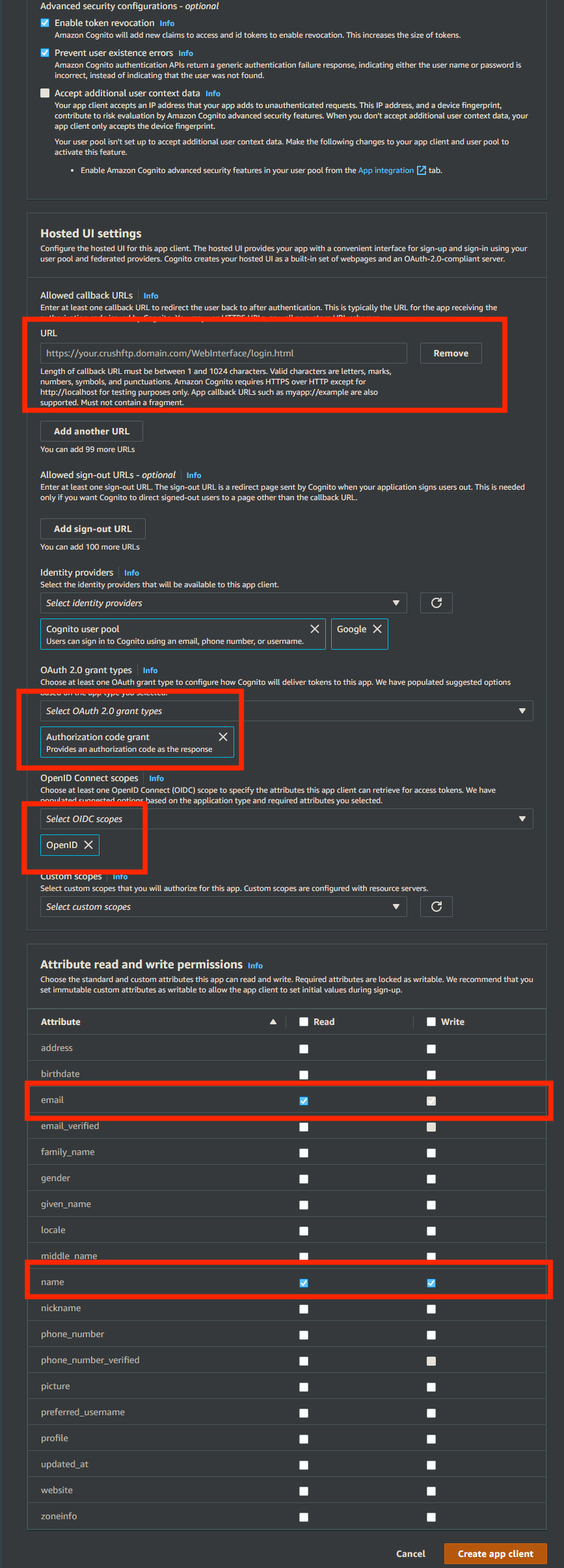
Allowed callback URLs: https://<<your CrushFTP domain>>/WebInterface/login.html
OAuth 2.0 grant types : Authorization code grant
OpenID Connect scopes : OpenID
Go to the Preferences-> Ip/Servers and select the HTTP or HTTPS port item(OAuth Sign in Tab) where you want to enable the Amazon Cognito Sing-In button. Check the "Enable Amazon Cognito Sign in" flag.
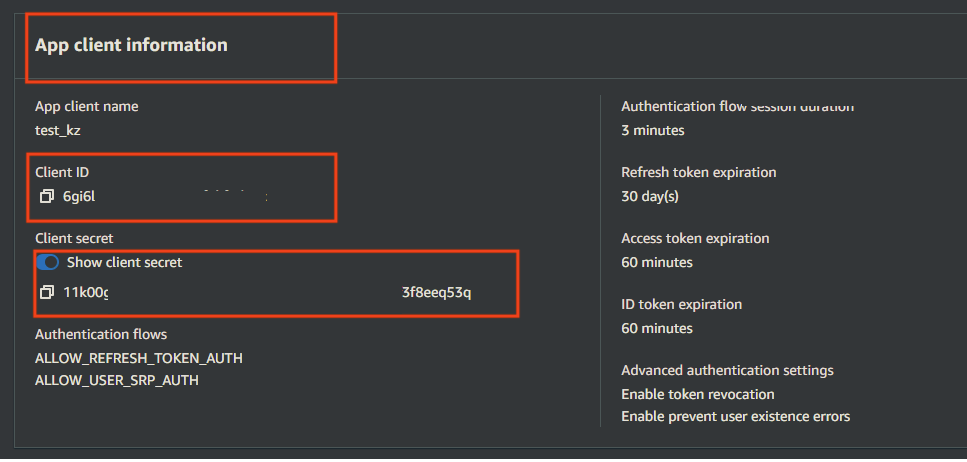
Required info from App client of the User Pool : Client ID and Client Secret.
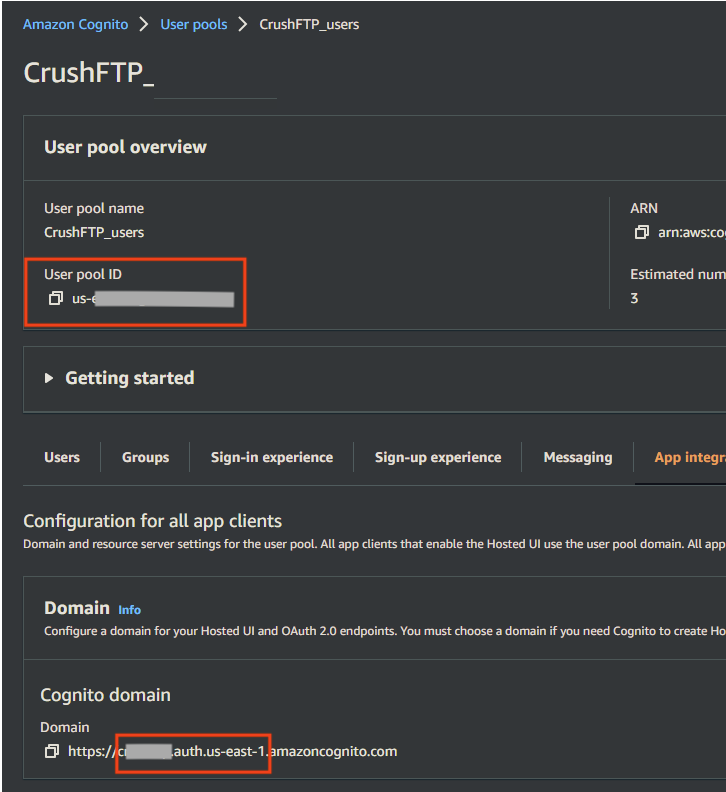
Required info from User Pool :
Cognito Domain Prefix: It is part of the Cognito domain (Amazon console -> Amazon Cognito -> User Pools -> User poll -> App integration tab). It also contains the region of the User Pool.
Like:
[domain_name].auth.[amazon region]
User pool ID
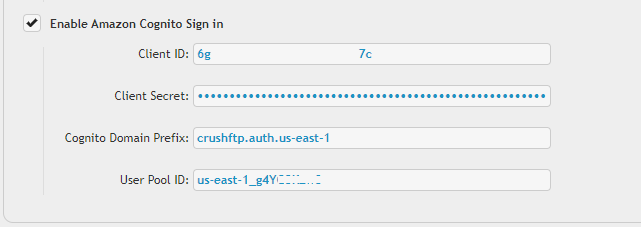
Configure the CrushOAuth plugin and enable the flag: Enable Amazon Cognito Auth.
Continue on: CrushOAuth