Azure Integration#
General restrictions: Azure storage is not a file system, but an object storage. The folder is more like a prefix of the object name. That is why renaming folders is not supported. Folder moves are only possible through copy and deletion.
1. Azure File Share#
CrushFTP supports Microsoft Azure Shares as VFS item, it requires a Storage Account: https://learn.microsoft.com/en-us/azure/storage/common/storage-account-overview. About Azure file share: https://learn.microsoft.com/en-us/azure/storage/files/storage-how-to-create-file-share?tabs=azure-portal
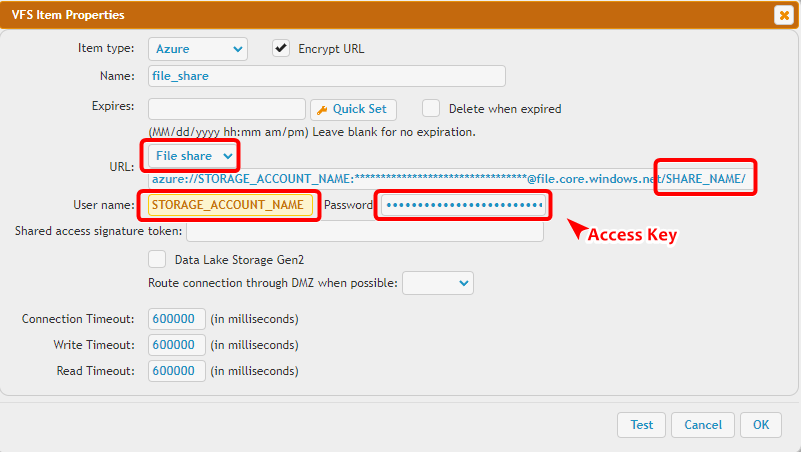
The URL should looks like (Replace the url with your corresponding data!):
azure://STORAGE_ACCOUNT_NAME:ACCESSKEY@file.core.windows.net/SHARE_NAME/
You can find those on the Azure portal, under Storage Account. From the left-side menu select Access keys to reveal them.
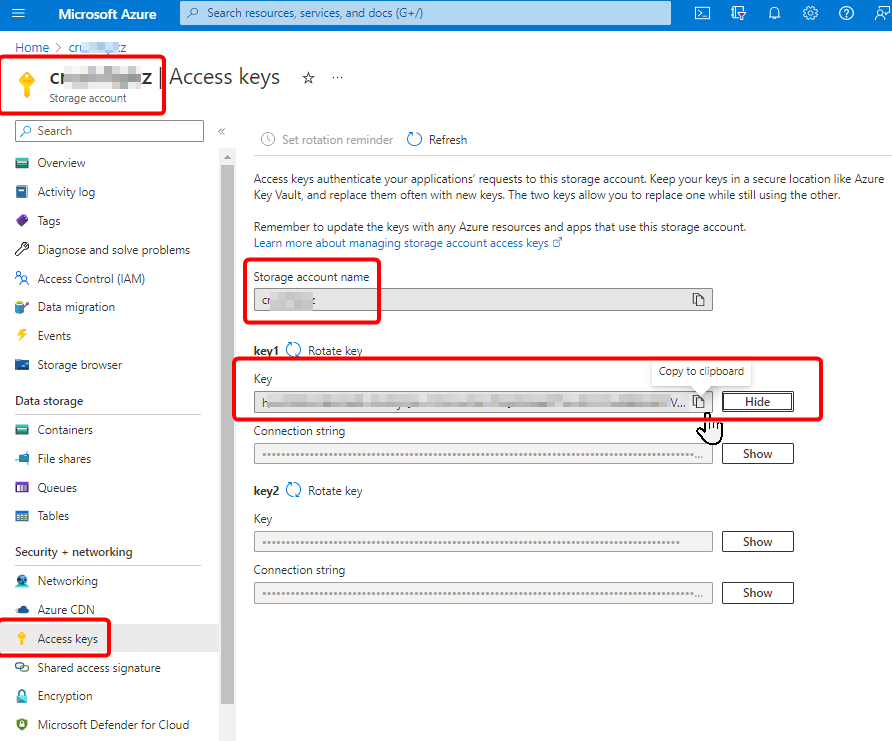
Then paste them on the appropriate fields in CrushFTP.
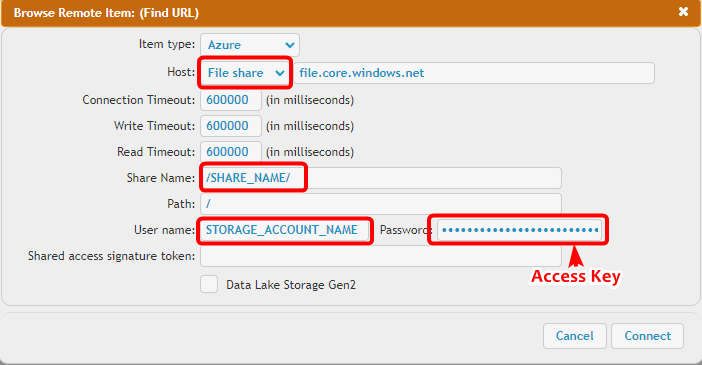
When using “Browse…” in the Jobs interface, or plugin interfaces, the UI is slightly different:
There is an input field for the file service share: Share Name
2. Azure Blob Container#
CrushFTP supports Azure Blobs(https://learn.microsoft.com/en-us/azure/storage/blobs/storage-blobs-introduction) as VFS item, it requires a Storage Account: https://learn.microsoft.com/en-us/azure/storage/common/storage-account-overview.
Azure Blob Storage is not like a normal filesystem with folders and deeper levels you can go into. It's more like S3 where a file’s name contains slashes making it simulate a folder structure but with many limitations when it comes to renaming and truly simulating a normal file system. Folder rename is not supported.
The URL should look like (Replace the url with your corresponding data!):
azure://STORAGE_ACCOUNT_NAME:ACCESSKEY@blob.core.windows.net/BLOB_CONTAINER_NAME/
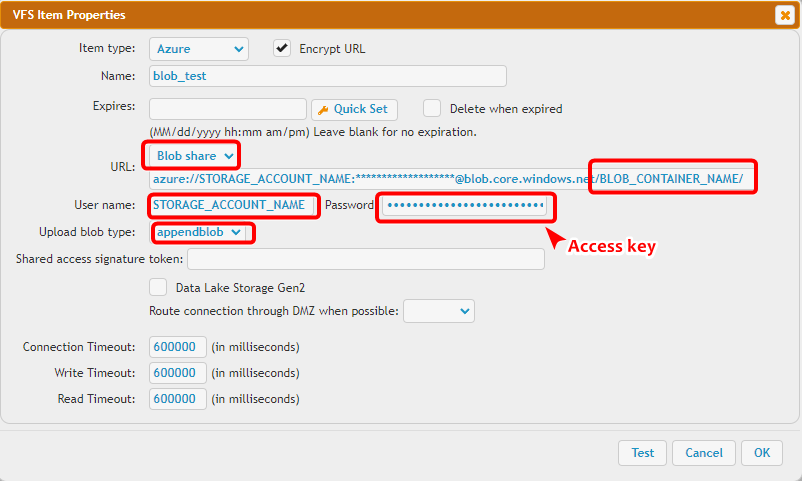
Data Lake storage Gen2: More info on the official website: https://learn.microsoft.com/en-us/azure/storage/blobs/data-lake-storage-introduction.
Turn on the flag if the storage type is the data lake. It connects through Azure Blob Storage REST API https://learn.microsoft.com/en-us/rest/api/storageservices/blob-service-rest-api.
(This is not Azure Data Lake Storage Gen2 REST API: https://learn.microsoft.com/en-us/rest/api/storageservices/data-lake-storage-gen2)
When using “Browse…” in the Jobs interface, or plugin interfaces, the UI is slightly different:
To specify the blob container use the input field: Share Name
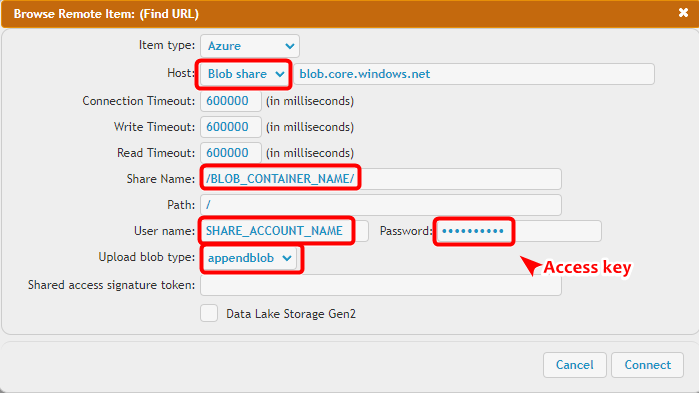
You need to select the blob type (append blob or block blobs - page blobs are not supported) specified when creating the blob on Azure.
3. SAS token#
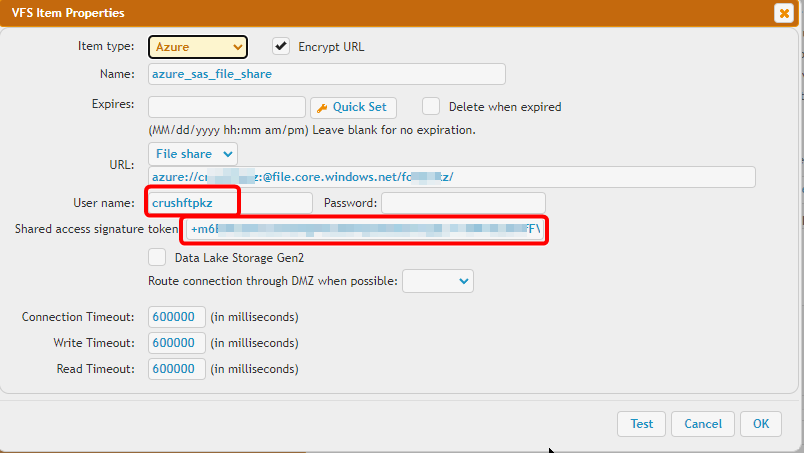
Azure also has the ability to delegate access with a shared access signature (SAS) https://learn.microsoft.com/en-us/azure/storage/common/storage-sas-overview.
In this case, the url should look like:
azure://STORAGE_ACCOUNT_NAME:@blob.core.windows.net/BLOB_CONTAINER_NAME/
Or
azure://STORAGE_ACCOUNT_NAME:@file.core.windows.net/SHARE_NAME/
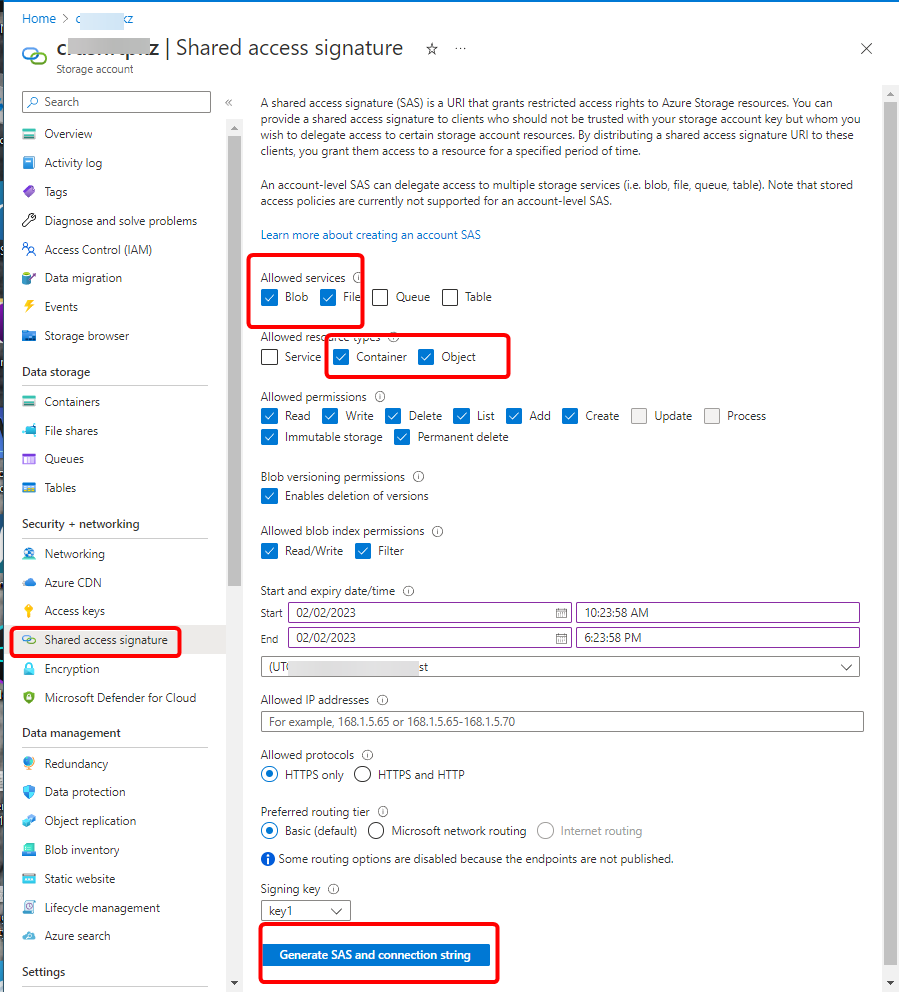
The password field should be empty and put the SAS token to the "Shared access signature token" input field.