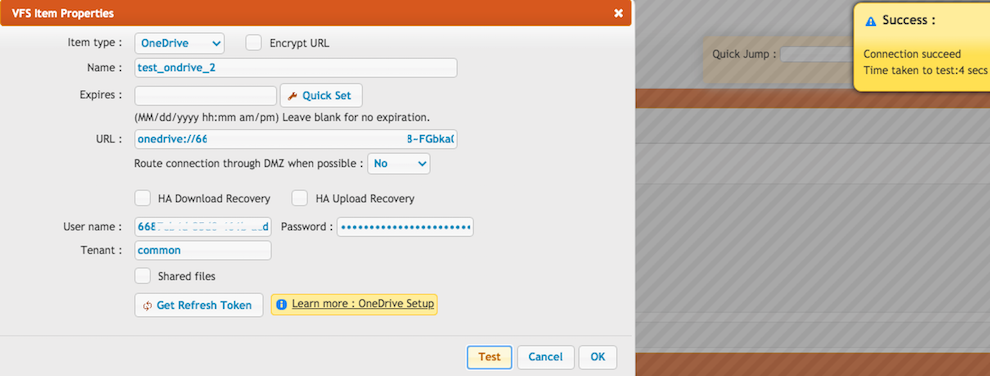
OneDriveSetup#
OneDrive integration#
It is Microsoft Graph REST API-based integration.
Proxy: If your server's internet connection uses a proxy server. You need to whitelist domains: login.microsoftonline.com, graph.microsoft.com
You will start at the Microsoft Azure portal:
https://azure.microsoft.com/en-us/features/azure-portal/
Ondrive Personal and OneDrive Business have different settings.
Application registration: Go to the App registrations and click on New registration:
Name it. Select the Microsoft account types. The redirect URL must end with register_microsoft_graph_api/. Then click on register.
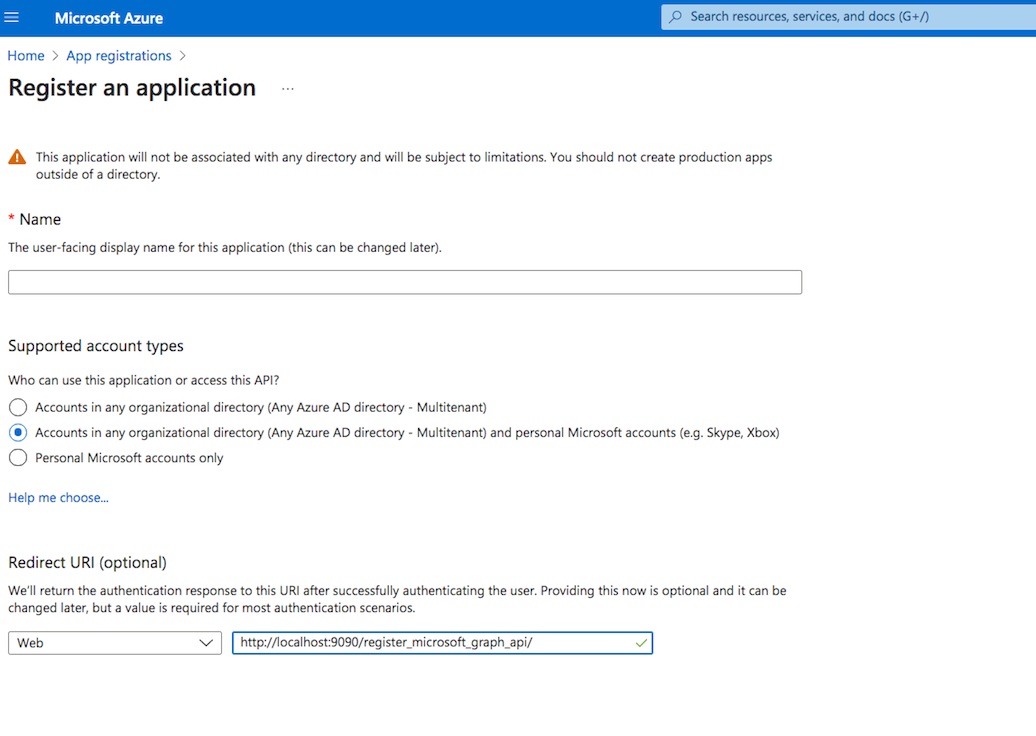
Under the redirect URL configuration enable the Access Token to be issued by the authorization endpoint:

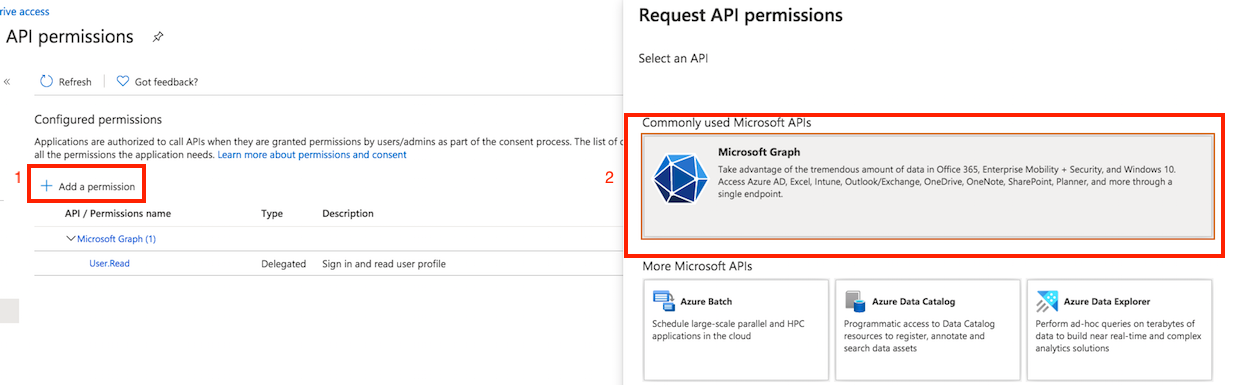
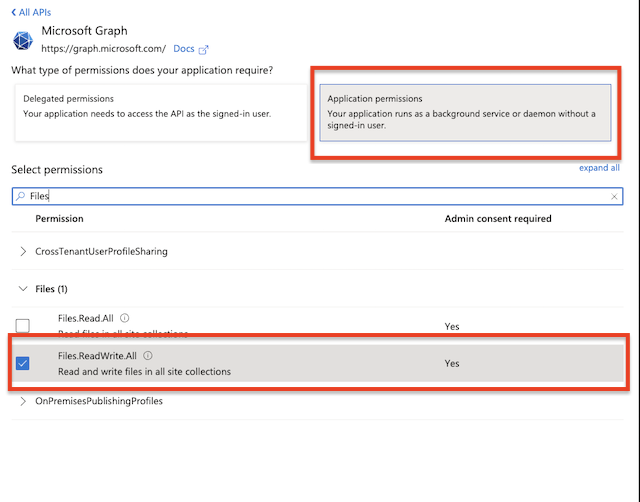
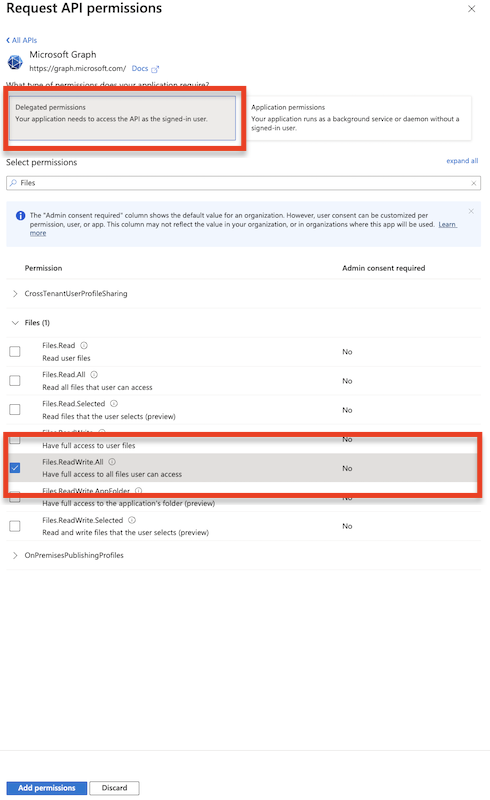
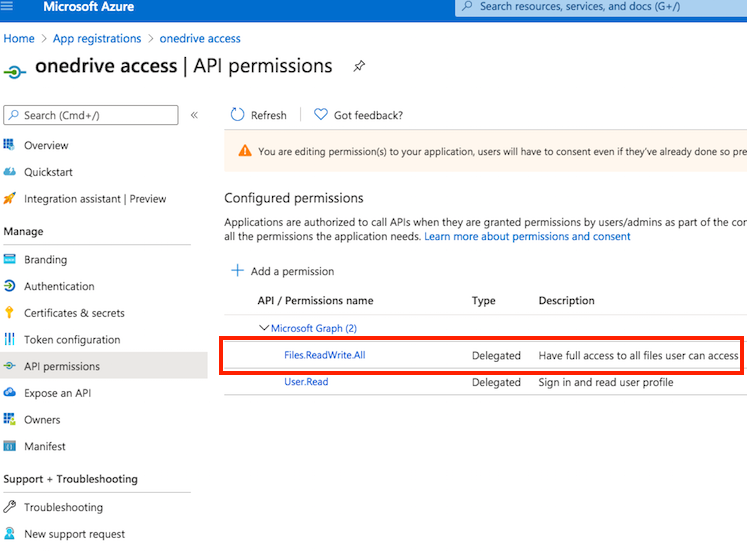
API permission: You must also provide permission for the Microsoft Graph. Go to the Api permission. Click on Add permission, and select Microsoft Graph. Choose Delegated permission and add the "Files.ReadWrite.All" permission:
1. OneDrive Business Type#
Available on Version 10.5.1 Build : 14+
About Microsoft Graph Permission see more details at https://learn.microsoft.com/en-us/graph/permissions-overview?tabs=http (it explains Application Permission and Delegated Permission).
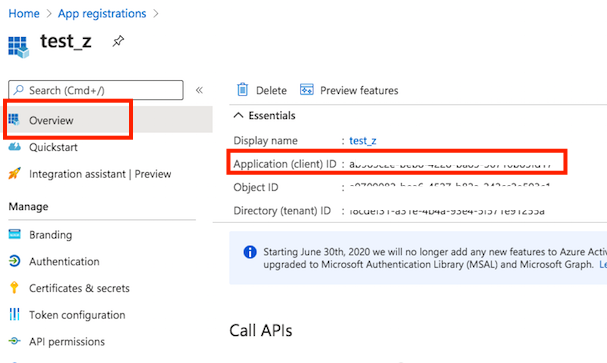
Client id : You can find it at Azure portal -> App Registration -> Overview:
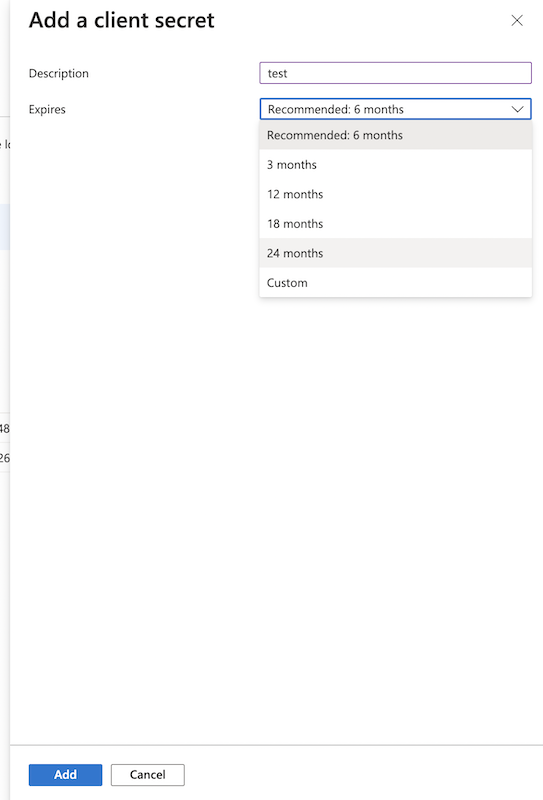
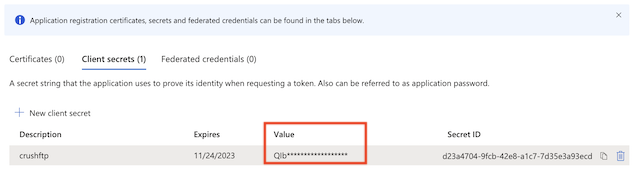
Secret key: A new client secret needs to be created as well. Go to the "Certificate & secrets" and generate a new secret key. Click on New client secret:
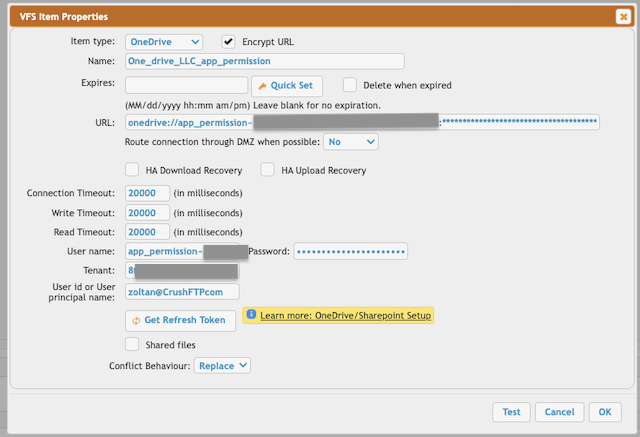
OneDrive remote item settings:
User name: Itt must start with "app_permission", then the Client ID separated with tilda.
app_permission~<<Client ID>>
Password: Client Secret.
Tennant: The tenant id.
User id or User principal name: Provide the user's Id or the user's principal name.
2 Ondrive Personal Type#
!!!Constraint: Microsoft Graph REST API does not support stream upload. In order to integrate with CrushFTP the files are temporarily stored as a local file (CrushFTP install folder/onedrive/) during the upload.
About Microsoft Graph Permission see more details at https://learn.microsoft.com/en-us/graph/permissions-overview?tabs=http (it explains Application Permission and Delegated Permission).
Client id : You can find it at Azure portal -> App Registration -> Overview:
Secret key: A new client secret needs to be created as well. Go to the "Certificate & secrets" and generate a new secret key. Click on New client secret:
OneDrive remote item settings:
!!! The CrushFTP admin page URL must match the redirect URL. In our example: http://localhost:9090
Select the OneDrive item type and click on the "Get Refresh Token" button. Provide the Client ID, Client Secret, and Tenant. Tenant: See your App registration -> Overview -> EndPoints. Based on the App Registration Account type it can be an id, common, or consumer.
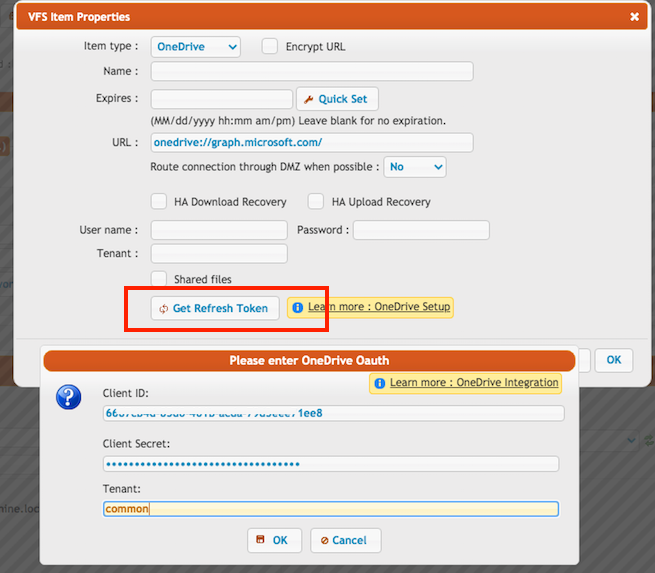
Click on the "OK" button, log in with your Azure credentials, and allow CrushFTP to have access to your OneDrive files. After that the form will disappear and the username and password will be filled. Done.