SMTP Google Mail Integration#
Google Mail requires OAUTH2 for authentication (for more information : https://developers.google.com/gmail/imap/imap-smtp).
It requires several steps to configure.
You will start at Google API's and Service:
https://console.developers.google.com/projectselector/apis/credentials
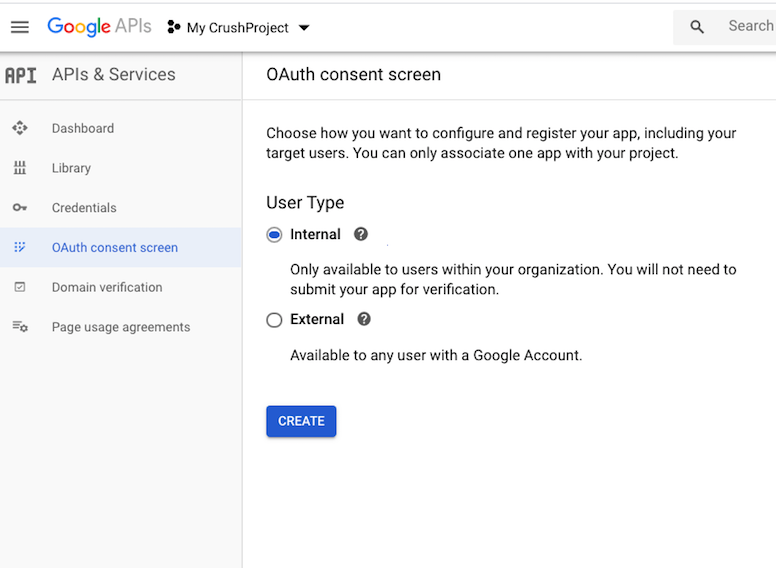
Setup Oauth Consent (if was not yet created), make an internal one:
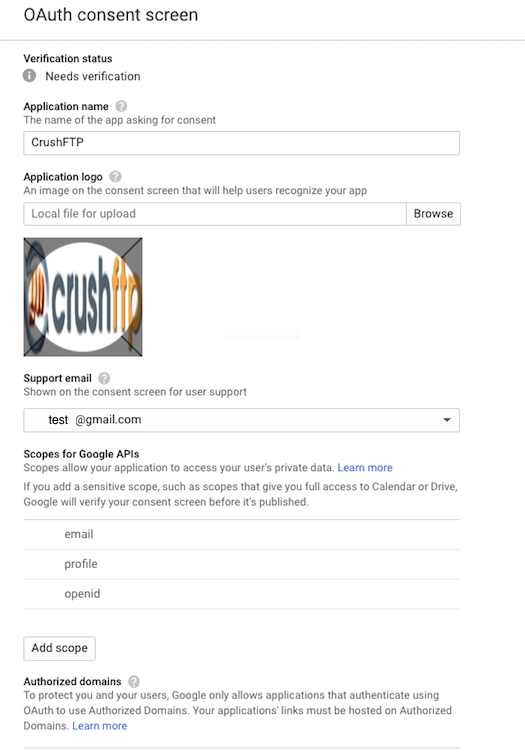
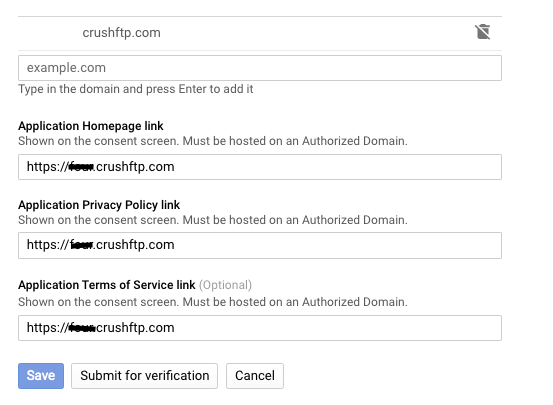
Set the support emails, the application domain and save it.
Go to the Credentials menu and create new credentials, choose OAuth client ID: 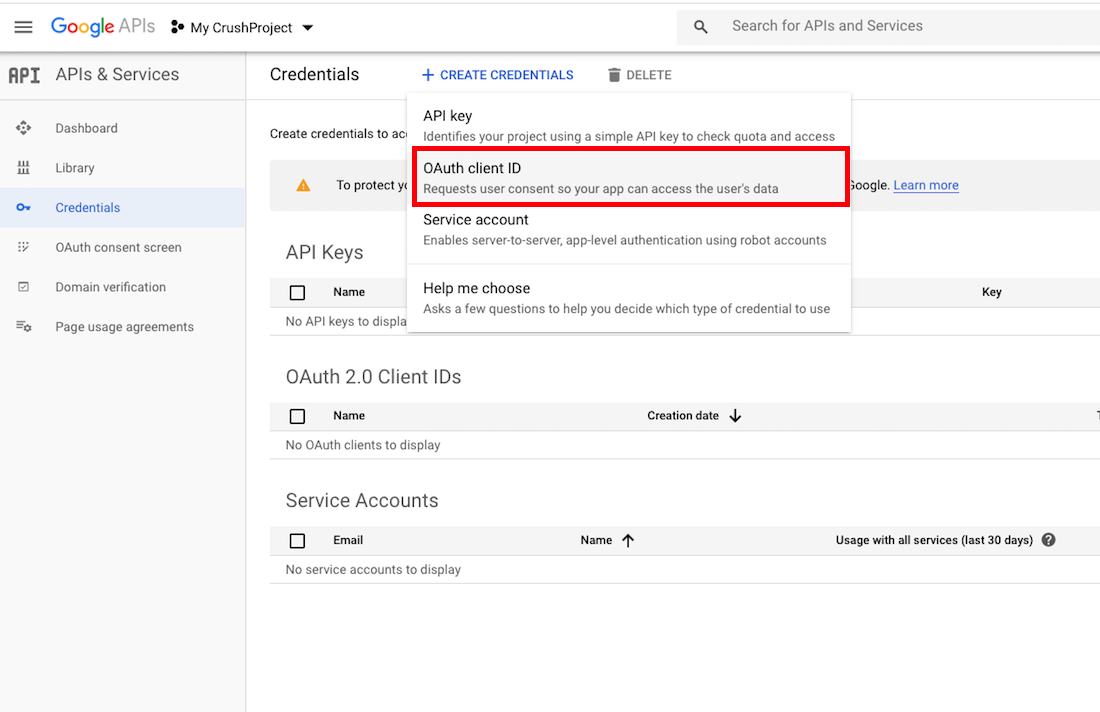
Choose Web application:
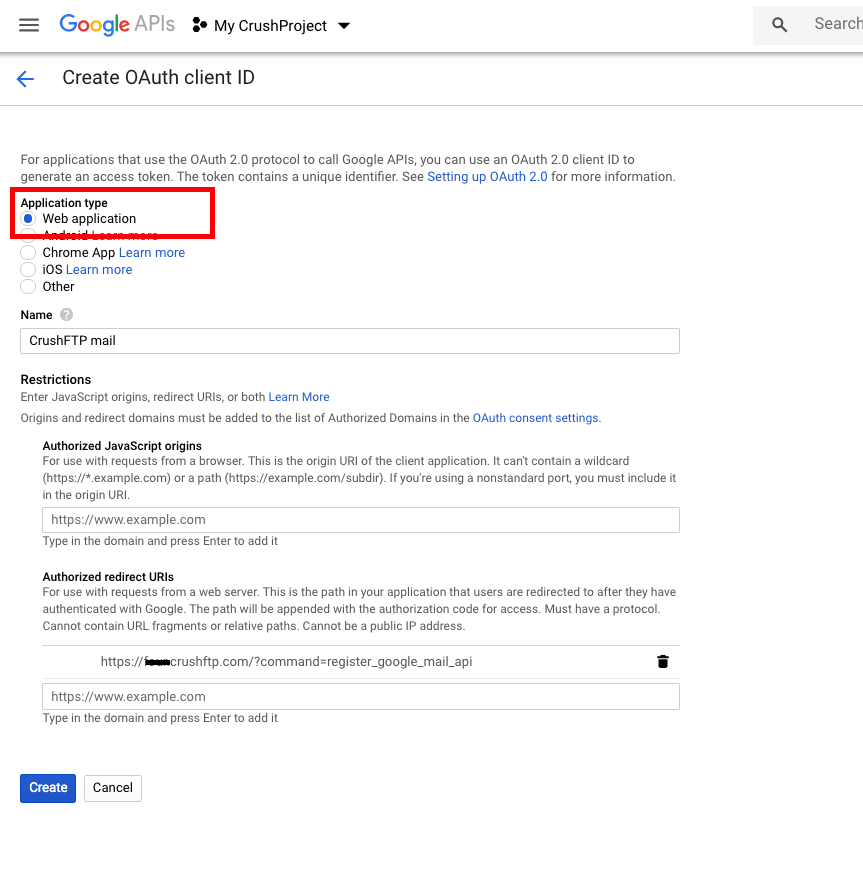
It is required to set up the Authorized Redirect URIs. You can domain (where your CrushFTP is available), or localhost. The URI needs to end with:
?command=register_google_mail_api
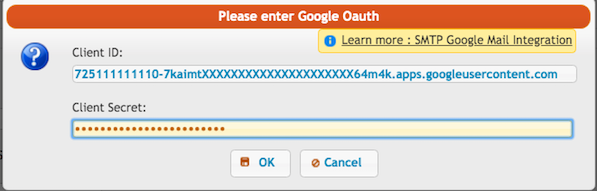
After Credentials are created copy the Client ID and Secret.
Now if your credentials are setup, and your redirect domains are configured, you can use the credentials in CrushFTP to get your google auth token and get access.
CrushFTP admin page url must match with the redirect url. In our example: http://XXXXcrushftp.com
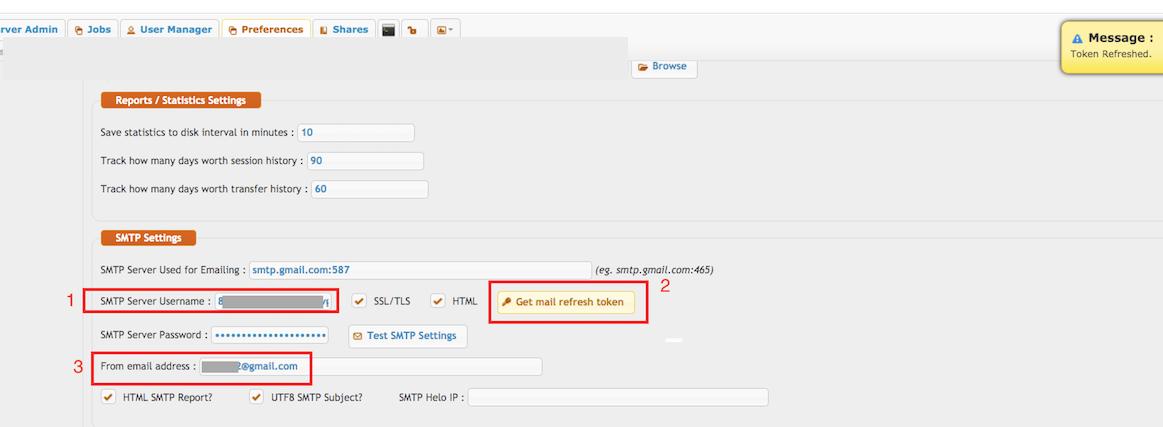
In the Preferences -> General Settings -> SMTP Settings, at username SMTP Server Username put your google email address. Then click "Get mail refresh token" to get the "SMTP Server Password". Put your client id and secret on the appeared form.
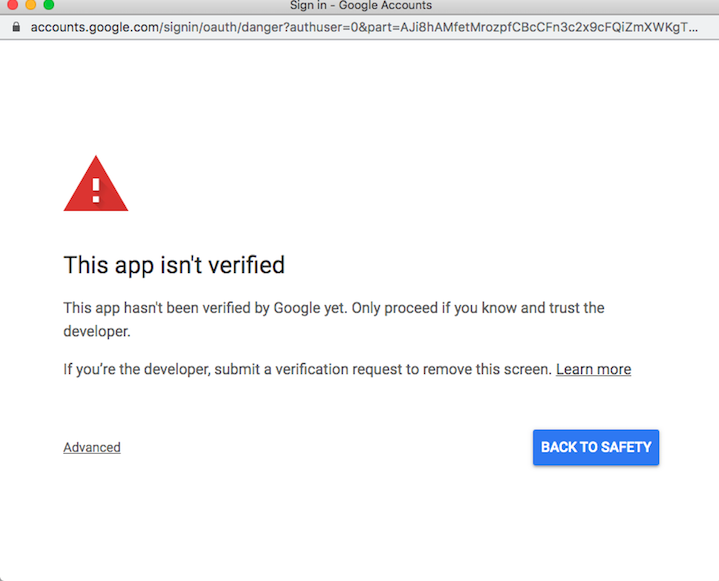
If your domain is not verified you will get a warning message, click on Advanced and proceed further:
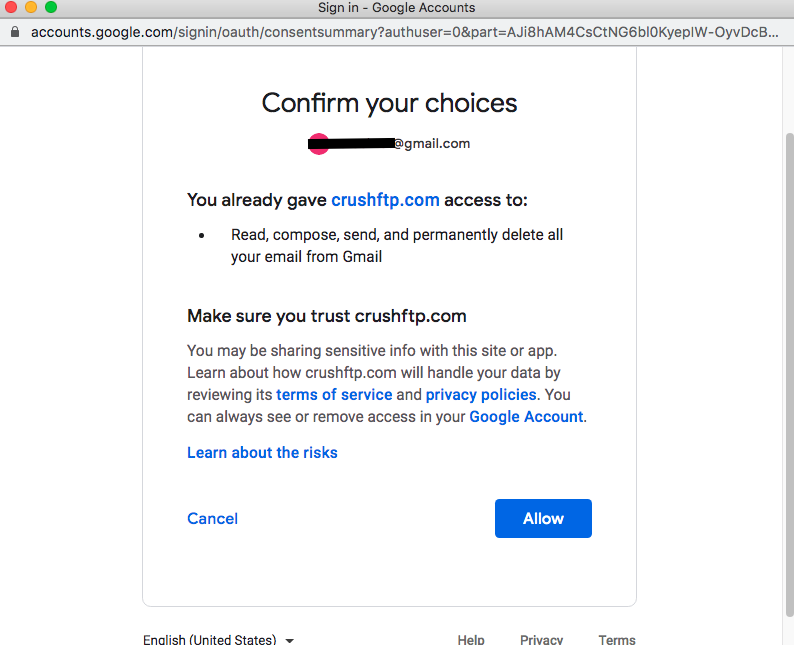
Click on allow:
Once it is finished the "SMTP Server Password" input field will be filled with the refresh token.