OneDrive integration#
Microsoft Graph REST API based integration. (Working with files in Microsoft Graph Link
 )
)CrushFTP supports both OneDrive Personal (Designed for individual users to store personal files, photos, and documents.) and OneDrive for Business (Microsoft OneDrive service description Link
) account types.🛑 Important: If your environment uses a Proxy or a strict Firewall, you must authorize outbound traffic to the following Microsoft endpoints:
• login.microsoftonline.com
• graph.microsoft.com
Open the Microsoft Entra Admin Center (formerly Azure AD) to manage your app registration: Microsoft Entra Admin Center Link
Navigation: Go to App registrations.
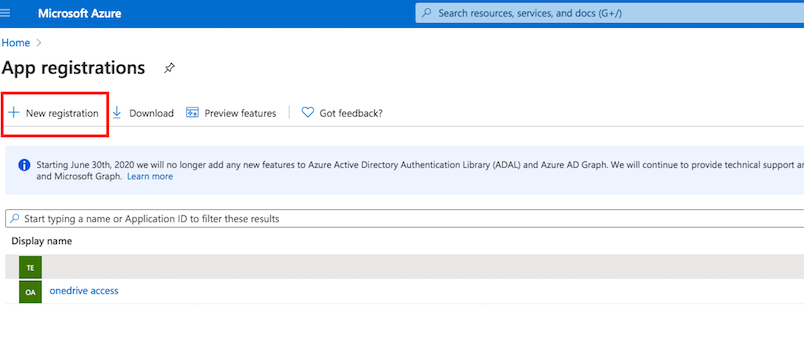
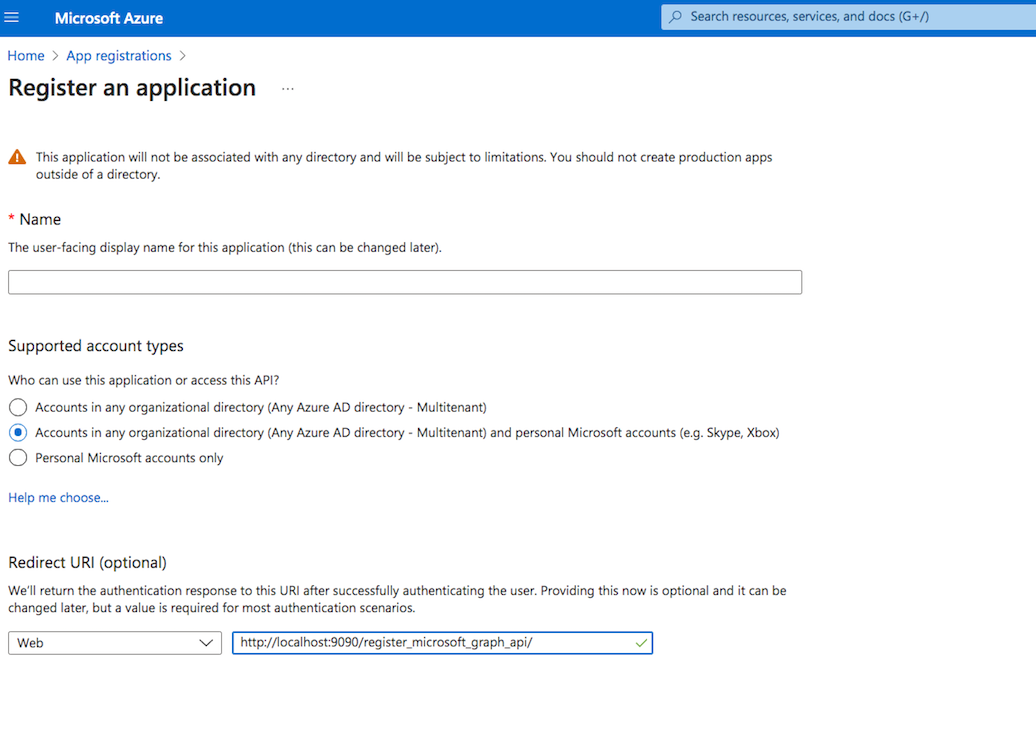
In the Redirect URI section, for Platform configuration, select Web. The Redirect URL must end with register_microsoft_graph_api/
http://localhost:9090/register_microsoft_graph_api/
    or
https://your.crushftp.domain.com/register_microsoft_graph_api/
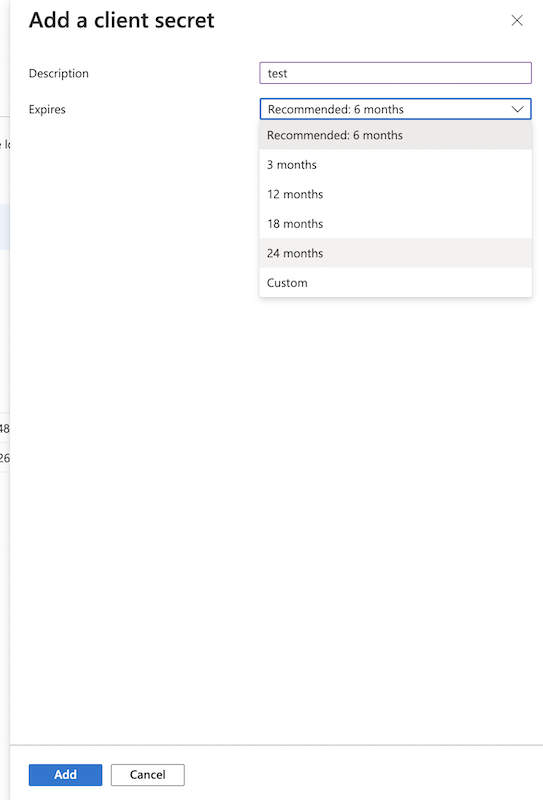
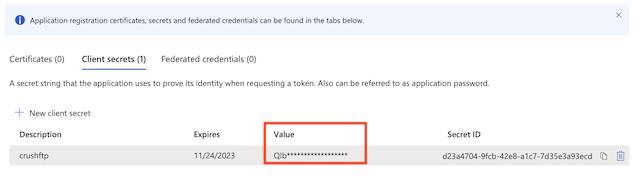
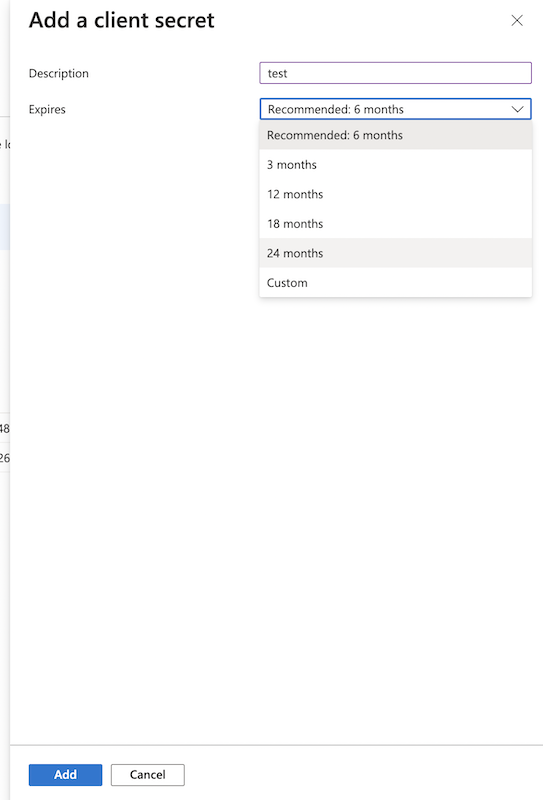
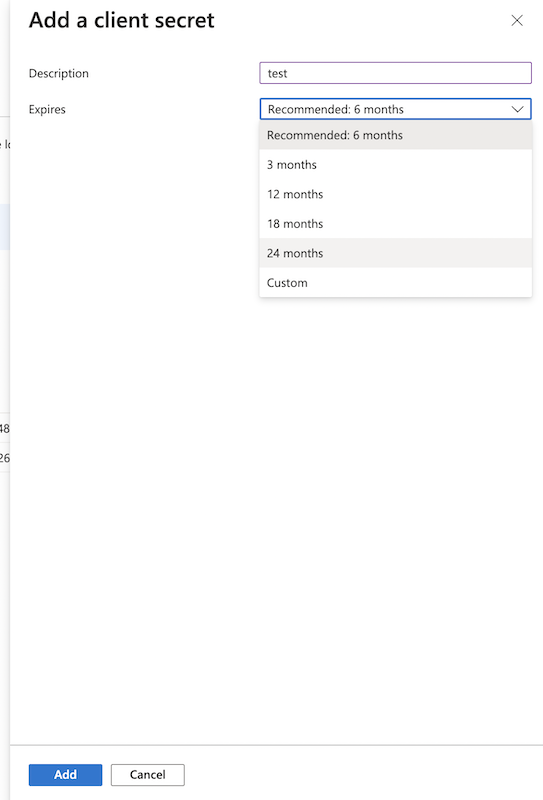
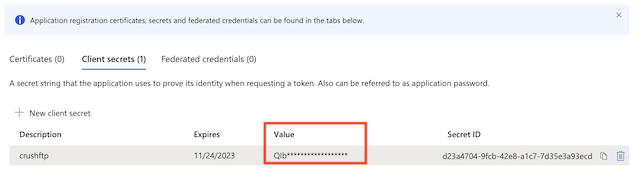
Secret key: A new client secret must be created. Go to Certificates & secrets, and generate a new client secret by clicking on New client secret. ⚠️ Ensure you copy over the value immediately!
1. OneDrive Business Type
#
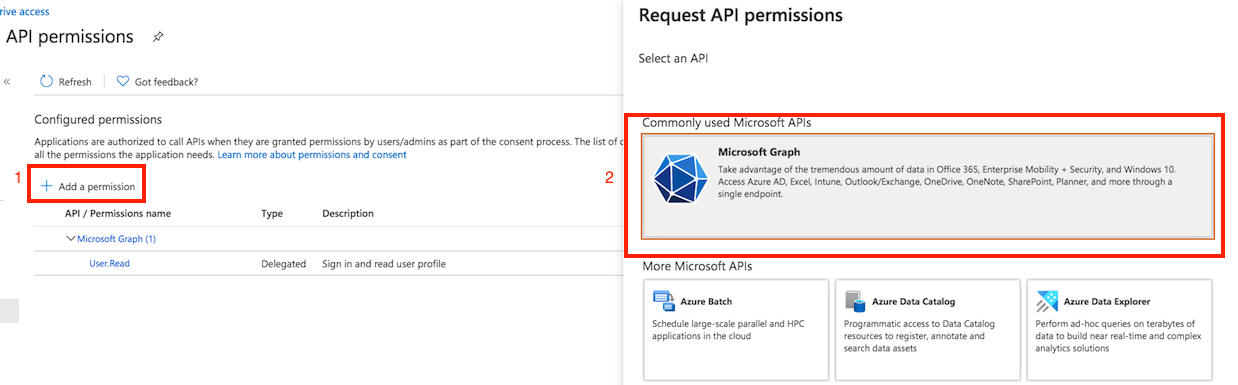
About Microsoft Graph Permission see more details at Link
Permission: Files.ReadWrite.All (Application permission): Read and write files in all site collections. This permission allows the application to access and manage files across your entire organization’s OneDrive and SharePoint—even without a user being signed in. It’s used for background services or automated tasks (like syncing or backups) that need to run without user interaction.
⚠️ Because this permission grants broad access to all users’ files, it requires admin consent.
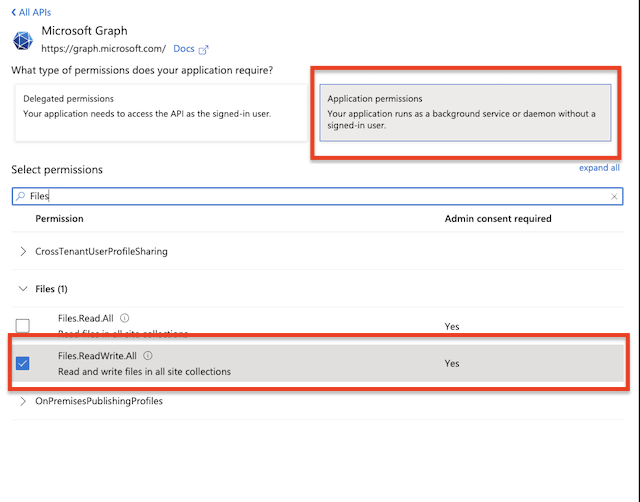
⚠️ Grant Admin consent for the newly added permission.
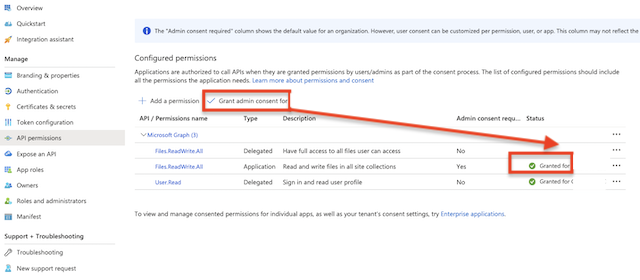
Client Id : You can find it at Azure portal -> App Registration -> Overview: Application (client) ID)
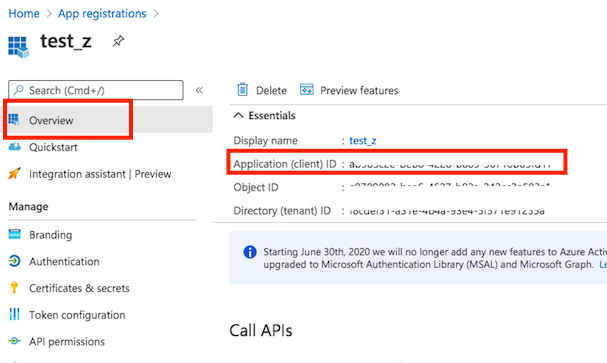
OneDrive Business Type remote connection settings:
Username: It must start with app_permission, followed by the Client ID:Azure portal -> App Registration -> Overview: Application (client) ID), separated by a tilde (~).
app_permission~<<Client ID>>
Password: Client Secret. (See at App Registration -> Manage -> Certificates & secrets)
Tennant: Tenant Id. (See at App Registration -> Overview -> Directory (tenant) ID)
User id or User principal name: Provide the user's ID or the user principal name (UPN).
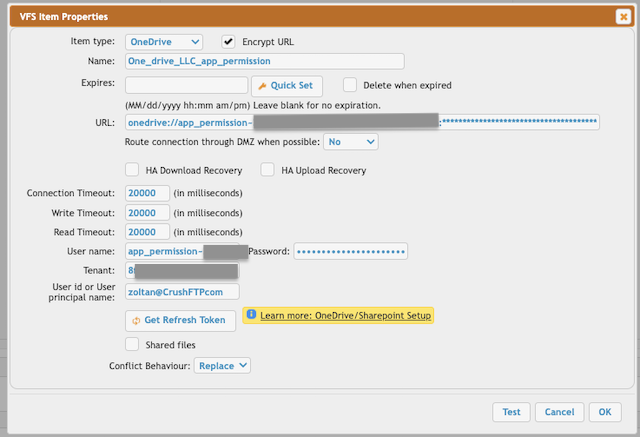
Shared Link (Easy Configuration): Instead of browsing for a specific Drive ID or constructing a complex path, you simply paste the sharing URL generated by OneDrive/SharePoint. CrushFTP communicates with the Microsoft Graph API to resolve this link into the correct storage location automatically.
Get the Link: Log in to the OneDrive/SharePoint Online web interface. Right-click the folder you want to share and select Copy Link.
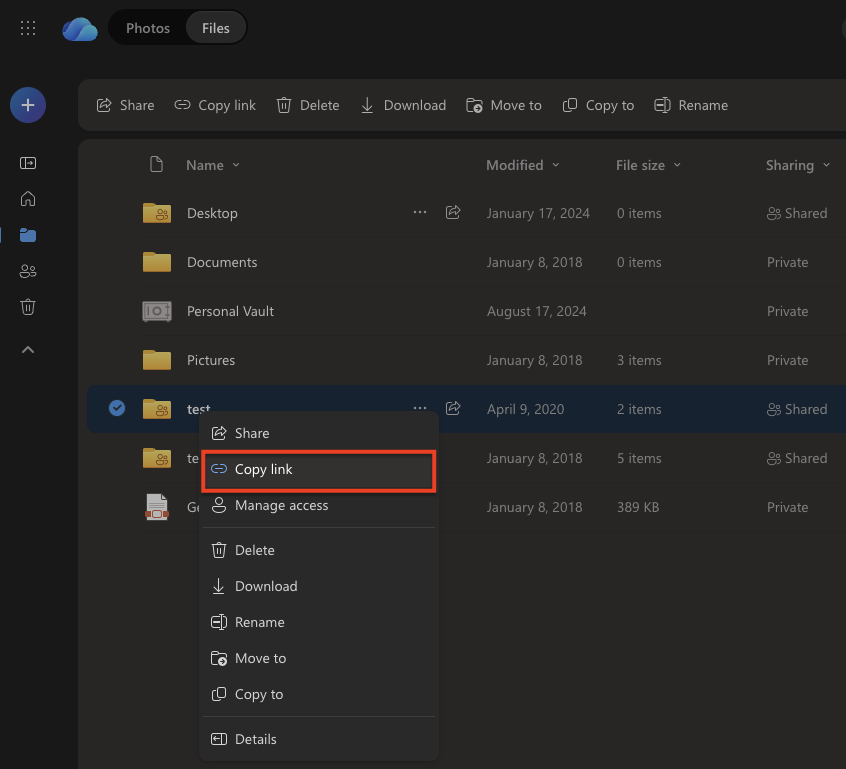
Paste this link URL into the Shared Link field.

2. Ondrive Personal Type
#
⚠️ Constraint: The Microsoft Graph REST API does not support direct stream uploads. To integrate with CrushFTP, files are temporarily saved as local files in the onedrive/ folder within the CrushFTP installation directory during the upload process.
Permission: Files.ReadWrite.All (Delegated) : Have full access to all files user can access. This permission allows the application to view, edit, upload, and delete any files that you (the signed-in user) have access to in OneDrive or SharePoint.
The application acts on your behalf, using your permissions—so it can only access the files you can normally access. ⚠️ It does not give the app access to files you don’t have access to.
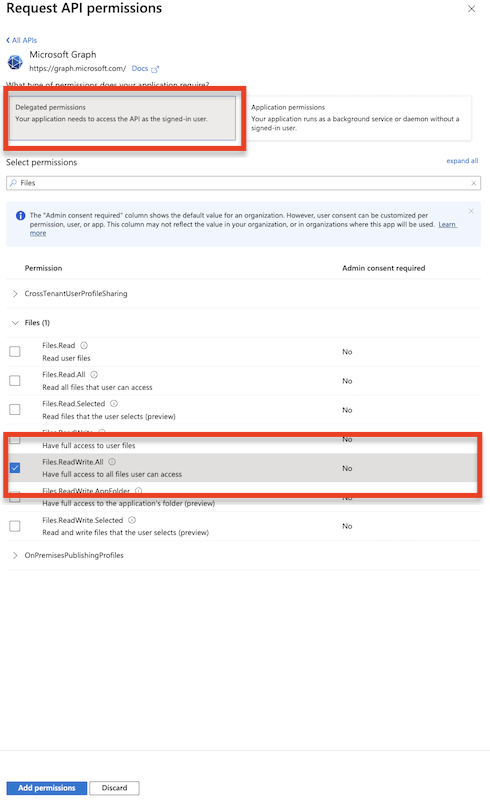
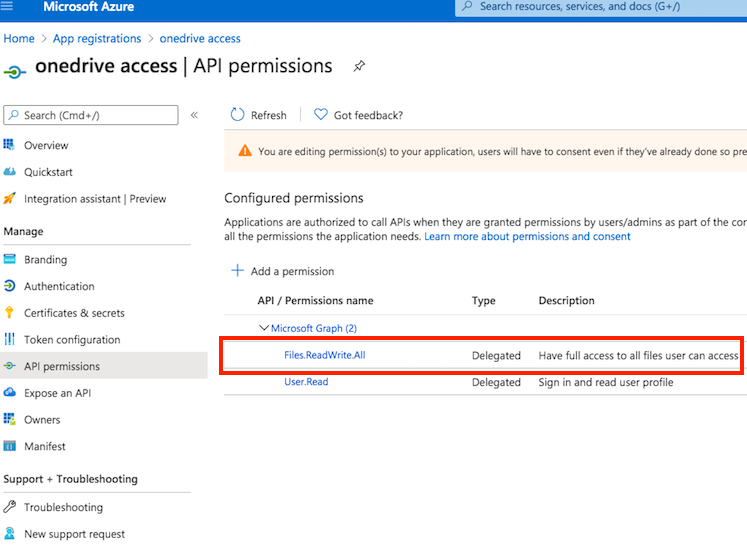
Client id : You can find it at Azure portal -> App Registration -> Overview:
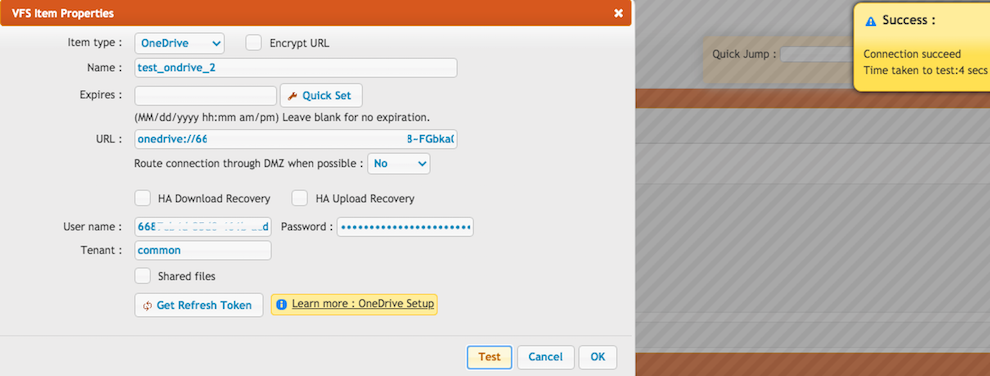
OneDrive Personal Type remote connection settings:
⚠️ Important: To obtain the Refresh Token, the CrushFTP WebInterface’s host and port must match the Redirect URL specified in the Azure App Registration. In our example, it was: http://localhost:9090 or https://your.crushftp.domain.com/
Select the OneDrive item type and click the Get Refresh Token button. Provide the Client ID(See at App Registration -> Overview -> Application (client) ID), Client Secret(See at App Registration -> Manage -> Certificates & secrets), and Tenant: consumers or common.
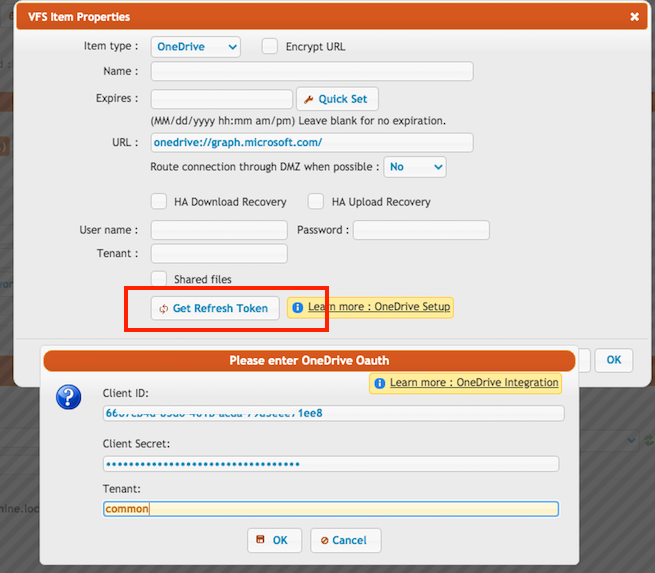
Click the OK button, sign in with your Azure credentials, and grant CrushFTP access to your OneDrive files.
⚠️ Important: Be sure to sign in with the Microsoft Account that has the necessary permissions, as configured in the Azure App Registration mentioned above. After authorization, the form will close, and the username and password fields will be automatically filled. You’re done!
Add new attachment
Only authorized users are allowed to upload new attachments.
List of attachments
| Kind | Attachment Name | Size | Version | Date Modified | Author | Change note |
|---|---|---|---|---|---|---|
png |
client_id.png | 93.9 kB | 1 | 05-Dec-2023 05:32 | krivacsz | |
png |
ms_graph_app_permission.png | 81.4 kB | 1 | 05-Dec-2023 05:32 | krivacsz | |
png |
ms_graph_delegated.png | 107.3 kB | 1 | 05-Dec-2023 05:32 | krivacsz | |
png |
new_registration.png | 81.9 kB | 3 | 05-Dec-2023 05:32 | krivacsz | |
png |
new_secret.png | 81.9 kB | 2 | 05-Dec-2023 05:32 | krivacsz | |
png |
oidc_idp_related_plugin_settin... | 177.6 kB | 1 | 19-Mar-2026 07:16 | krivacsz | |
png |
onedrive_shared_link.png | 85.8 kB | 1 | 29-Jan-2026 02:25 | krivacsz | |
png |
permission_final.png | 165.2 kB | 1 | 05-Dec-2023 05:32 | krivacsz | |
png |
permission_microsoft_graph.png | 182.9 kB | 2 | 05-Dec-2023 05:32 | krivacsz | |
png |
register_app.png | 230.6 kB | 2 | 05-Dec-2023 05:32 | krivacsz | |
png |
remote_item_app_permission.png | 101.1 kB | 1 | 05-Dec-2023 05:32 | krivacsz | |
png |
remote_item_done.png | 193.7 kB | 1 | 05-Dec-2023 05:32 | krivacsz | |
png |
remote_item_settings.png | 176.3 kB | 1 | 05-Dec-2023 05:32 | krivacsz | |
png |
secret_value.png | 42.7 kB | 1 | 05-Dec-2023 05:32 | krivacsz |










«
This page (revision-140) was last changed on 05-Mar-2026 10:18 by krivacsz
G’day (anonymous guest)
Log in
- WebInterface
- Server Admin
- User Manager
- Client Apps
- CrushBalance Load Balancer
- High Availability
- Self Registration
- Preferences
- Email Templates
- Restrictions
- Replication
- Banning
- Logging
- Encryption
- Alerts
- Folder Monitor
- Tunnels
- Syncs
- User Config
- Search Config
- Preview
- Misc
- Plugins
- Manage Shares
- PGP
- Telnet
- FAQ
- API
- Linux Install
- Virtual Linux Server
- Server Variables
- Google Authenticator and Microsoft Authenticator
- AS2 EDI
JSPWiki