Based on Microsoft Graph REST API ( More info: Message Resource Type Link ).
).
🛑 Proxy Configuration: If your environment uses a Proxy or a strict Firewall, you must authorize outbound traffic to the following Microsoft endpoints:
•login.microsoftonline.com
•graph.microsoft.com
1. Microsoft Graph Application Registration
#
It requires Microsoft Graph Application registration. Start at the Microsoft Azure portal:
https://azure.microsoft.com/en-us/features/azure-portal/
App Registration:
#
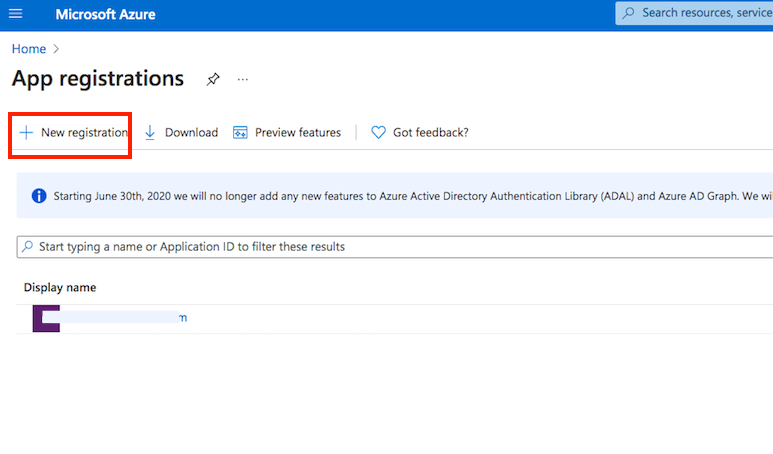
Open the Microsoft Entra Admin Center (formerly Azure AD) to manage your app registration: Microsoft Entra Admin Center Link
Navigation: Go to App registrations.
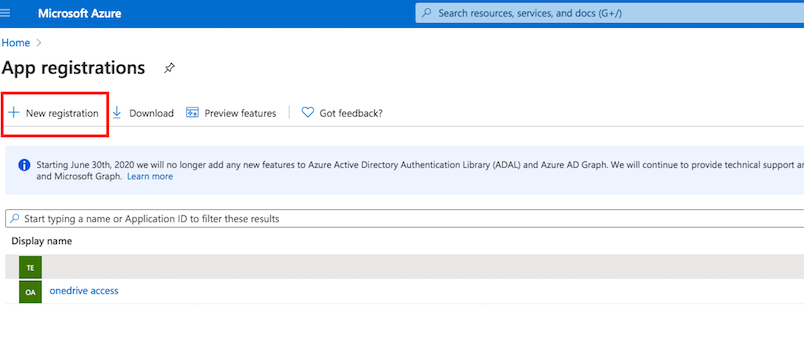
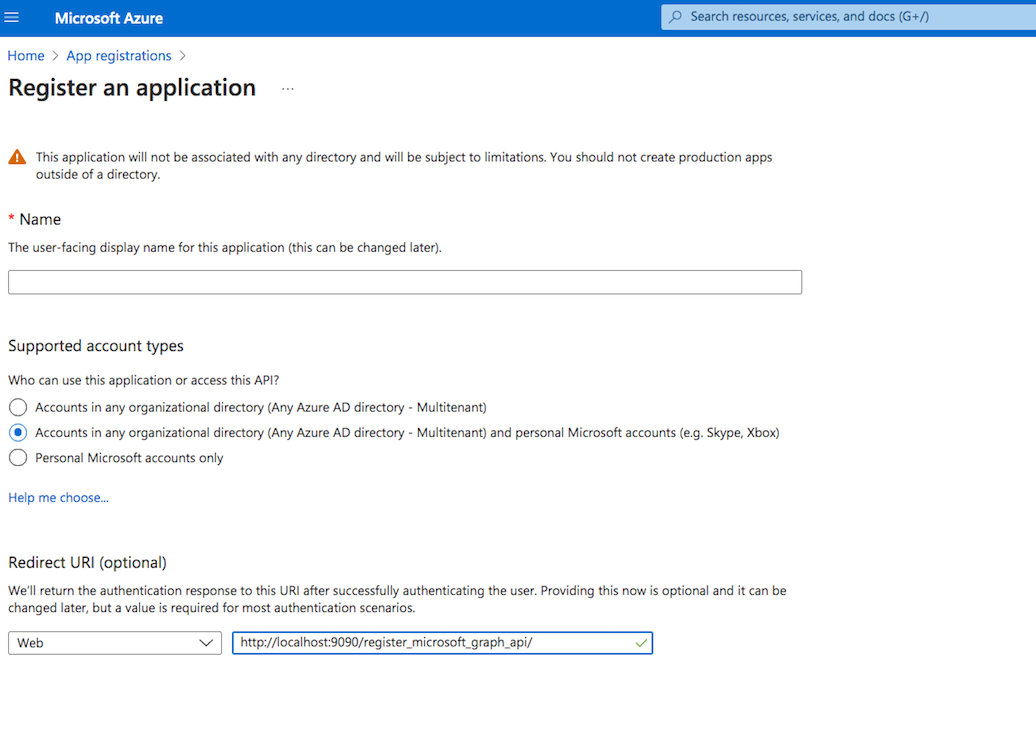
In the Redirect URI section, for Platform configuration, select Web. The Redirect URL must end with "register_microsoft_graph_api/".
    http://localhost:9090/register_microsoft_graph_api/
    or
    https://your.crushftp.domain.com/register_microsoft_graph_api/
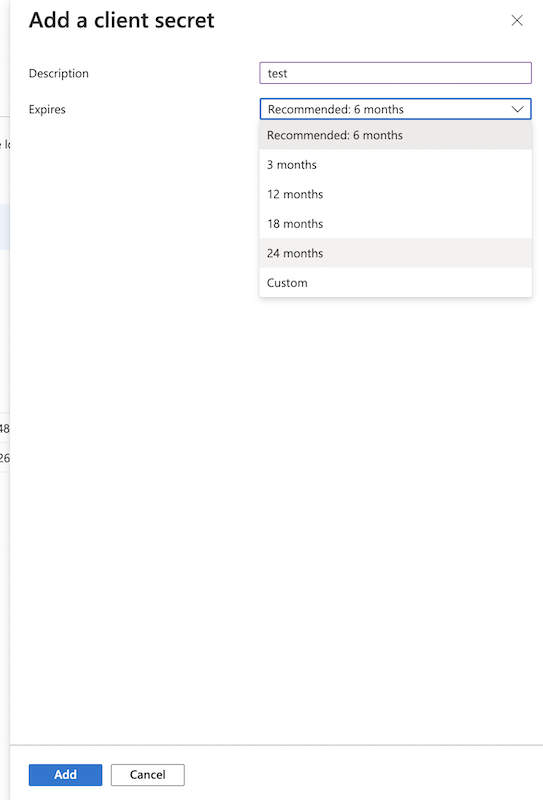
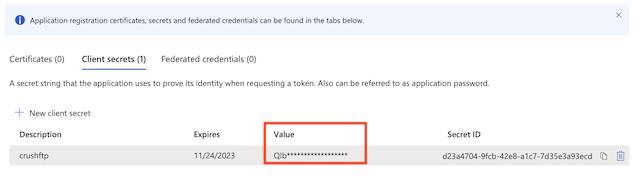
Secret key: A new client secret must be created. Go to Certificates & secrets, and generate a new client secret by clicking on New client secret. ⚠️ Ensure you copy over the value immediately!
API permissions :
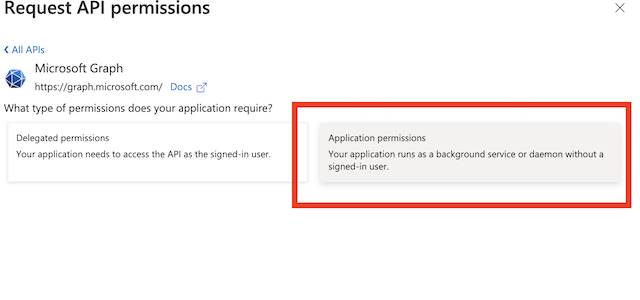
Go to API permissions, click Add a permission, and select Microsoft Graph. Then choose Application permissions and add the following permissions:
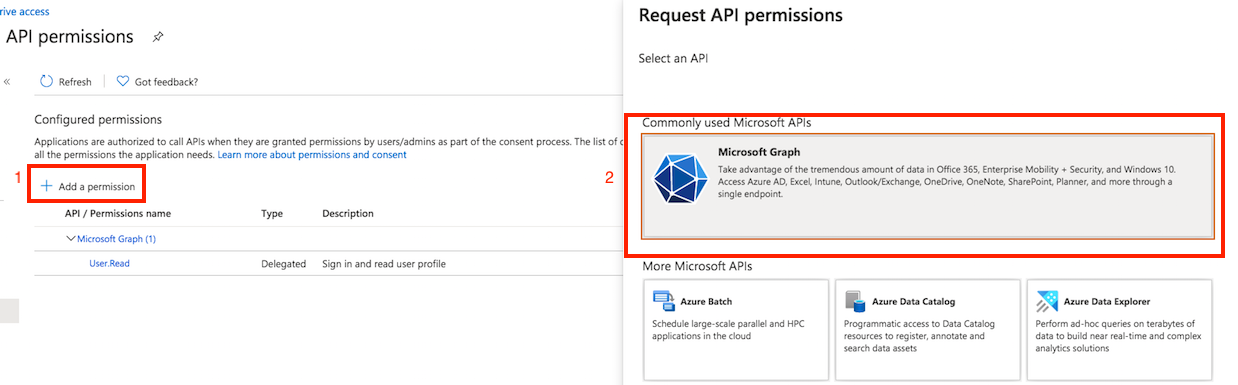
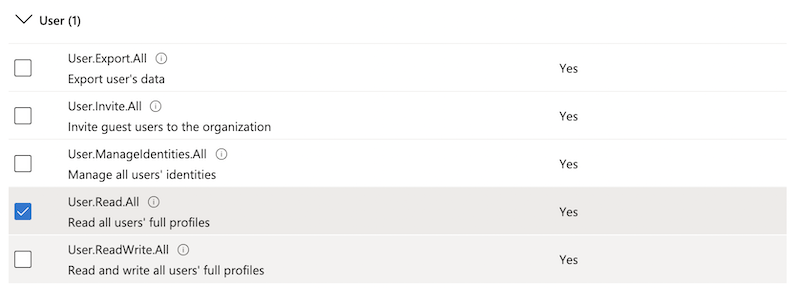
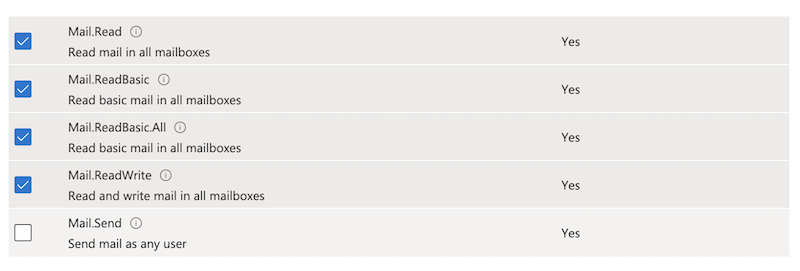
Grant Admin consent for the newly added permission.
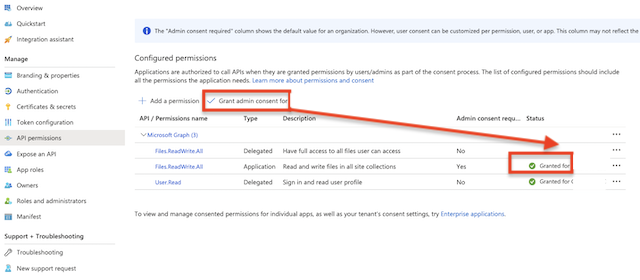
Alternatively, you can perform this action via CrushFTP: Click the Get Admin Consent button. ⚠️ Note: Make sure the WebInterface host and port match the host and port specified in the App Registration’s Redirect URL.
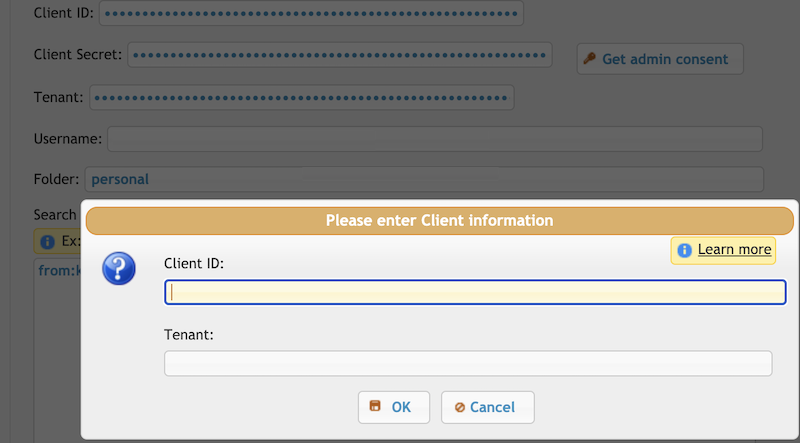
You need to log in with an admin account to grant permissions for CrushFTP.
⚠️ Any changes made to API permissions in the Azure App Registration require new admin consent.
2. Task Settings
#
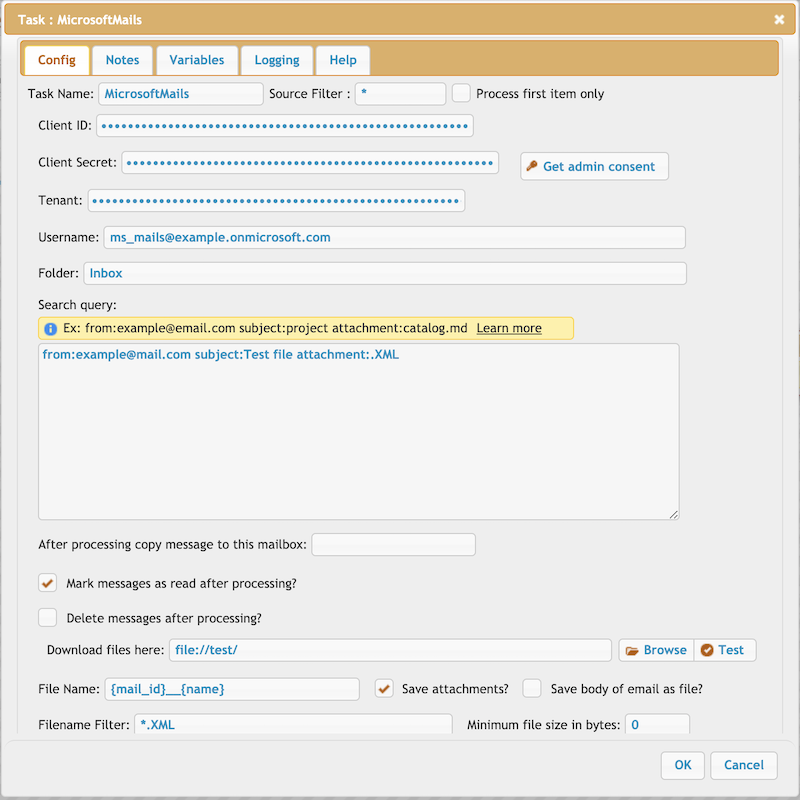
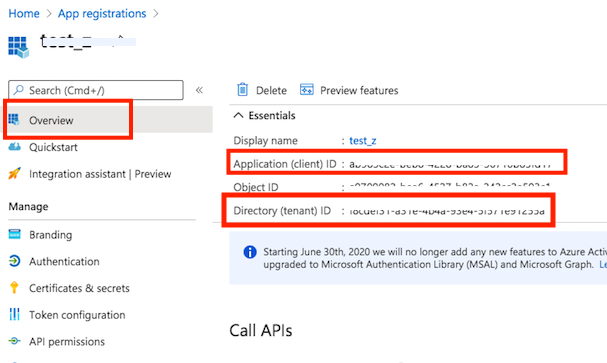
Client ID : See at App Registration -> Overview -> Application (client) ID
Client Secret: See at App Registration -> Manage -> Certificates & secrets) make sure to copy the value field, not the ID
Tenant: See at App Registration -> Overview -> Directory (tenant) ID
Get admin consent button: A button used in the setup process to grant administrator consent for the application to access all mailboxes in the tenant (required for specific API scopes).
Test button: Performs a critical two-step diagnostic:
1. Connectivity Check: Verifies the connection and authentication parameters (Client ID, Client Secret, Tenant, Username) against the Microsoft Graph API endpoint.
2. Query Validation: Executes the current Search and Filter criteria against the mailbox to check their syntax and efficiency.
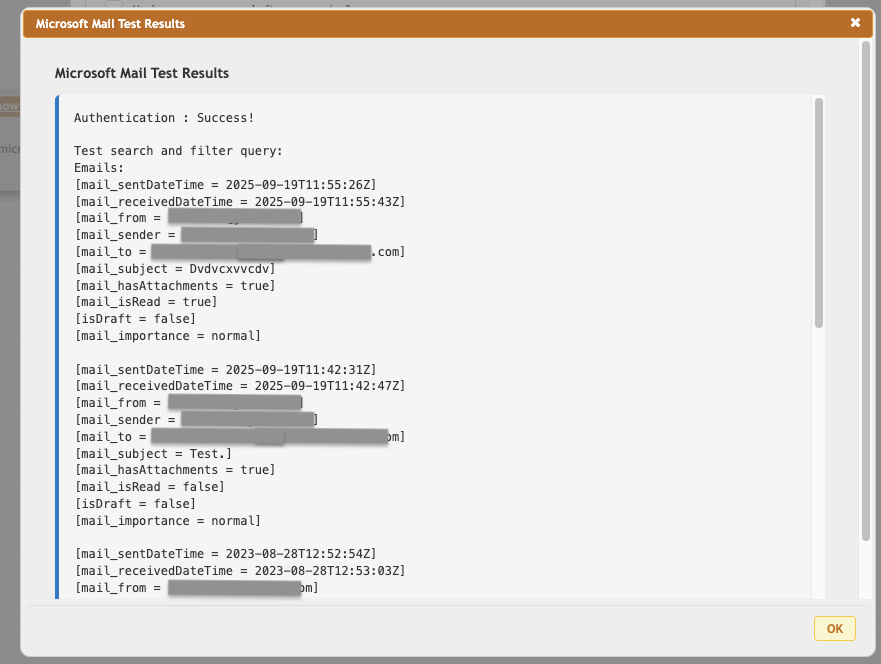
Log Microsoft Graph response: If checked, includes the raw JSON data received from the Microsoft Graph API in the application's debug logs (useful for troubleshooting).
Log only first 10 skipped messages: Limits the verbosity of the log output by only showing details for the first 10 messages that are skipped due to local filtering/processing rules.
Username: The specific mailbox primary SMTP address (e.g., mails@example.onmicrosoft.com) the task will connect to and search within.
Based on user id: If checked, authentication is performed using the local application user's ID/credentials (if mapped to an Azure user) instead of the explicit Username/Password credentials stored in the task.
Folder: Specifies the mail folder to process. Supports subfolders using the format Folder/Subbolder/SubSubFolder
Search and Filter Query: See at Link
.After processing copy message to this mailbox: If provided, the successfully processed email is moved or copied to a different folder within the Exchange mailbox (e.g., Processed or Archive).
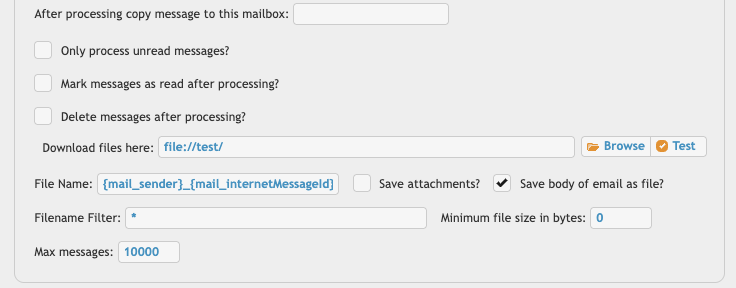
Only process unread messages?: If checked, the task will only retrieve and process emails that have the "Unread" flag set.
Mark messages as read after processing?: If checked, the task updates the Exchange mailbox, changing the status of processed emails from Unread to Read.
Delete messages after processing?: If checked, the emails are permanently removed from the mailbox after successful processing.
Save attachments?: If checked, the binary files attached to the email will be downloaded and saved to the local destination defined in Download files here.
Save body of email as file?: If checked, the main text or HTML content of the email body will be saved as a separate file (e.g., .txt or .html) to the local destination.
File Name: Defines the naming convention for the saved files, often using dynamic variables like {mail_sender} and {mail_internetMessageId}.
{mail_sender}_{mail_internetMessageId}_{mail_index}.html
Filename Filter: A local filter applied to the names of the files/attachments found in the emails. Used for post-retrieval filtering (e.g., *.pdf).Minimum file size in bytes: A local filter that requires files/attachments to meet a specified minimum size before being saved or processed.
Max messages: The maximum total number of emails to retrieve and process during this single task run.
2.1 Search and Filtering
#
Modes:
1. Search Query: Use it for a fast, broad search to find a smaller, relevant set of messages quickly. Set at 2.1.1. Search query: Link
2. Filter Query: Use it to apply precise, complex logic to that smaller set of results. See 2.1.2. Filter Query Link
3. CrushFTP Simple Query: It provides a standardized, cross-task filtering language within CrushFTP, based on KQL (Keyword Query Language) syntax. Its fundamental purpose is to offer users a unified, easily readable method.
a. Unified Syntax: It allows users to consistently use syntax like key:value* and the pipe operator (|) for OR conditions, and (!) for negation, which is compatible with other CrushFTP task filters.
b. Backend Execution: The engine takes the generalized filter and converts it into the most appropriate query understood by the remote service (e.g., converting the simple syntax into an OData $filter or an underlying KQL search string for the Microsoft Graph API).
To activate this mode, prefix your input in the Search query or Filter query input field with the marker: [SQ]
[SQ]from:value1*|*value2* subject:value3*
[SQ]from:value1*|*value2* subject:value3* | subject:!value4*
Prefix: value1*
Contains: *value2*
❗ In Microsoft Graph Query language, the asterisk (*) wildcard is only supported for prefix matching (e.g., subject:report*). It does not have a character or function for a suffix (*report). Use the Local filter to perform a suffix (*report) query.
Local Filter: Any filter expression where the key starts with LF_ will be interpreted as a local filter, applying the criteria to the messages after they have been returned from the remote server.
LF_{CrushFTP message variable names}:val1*|*val2
More examples:
[SQ]from:*value1* LF_mail_from:*value3
[SQ]from:value1*|value2* LF_mail_subject:*value3
Expanding Properties: Since the Microsoft Graph API does not support direct filtering on complex or collection properties (such as attachment size), the solution is to retrieve the necessary metadata using $expand and then apply the filter locally within the task.
EXPAND:attachments
Once the expanded data is present in the message variables, the Local Filter (LF_) can be used to perform precise checks on the attachment properties, effectively solving the performance limitation of the Microsoft Graph API.
[SQ]from:*value1* EXPAND:attachments LF_mail_attachments_name:project*.pdf
[SQ]from:*value1* EXPAND:attachments LF_mail_attachments_size:>5242880
[SQ]from:*value1* EXPAND:attachments LF_mail_attachments_count>2
CrushFTP message variable names: See at.2.2 CrushFTP Variables Link
4. Test Mode: It is a non-destructive diagnostic tool used to verify that complex search syntax, like KQL (Keyword Query Language) and OData filters, successfully retrieve the intended emails from the remote mailbox without performing any file operations (such as downloading, moving, or deleting).
To activate Test Mode prefix your input in either the Search query or Filter query field with the marker [TM]. Example: Search Query:
[TM] subject:"Financial Report" AND hasattachments:true
Filter query:
[TM] receivedDateTime ge 2025-10-01T00:00:00ZSimple Query on Search or Filter input field:
[TM][SQ]from:value1*|*value2* subject:value3* | subject:!value4*
Example Log Output:
[Emails: Size: X]
[Email index:0]
[mail_from = user@domain.com]
[mail_subject = Subject of matched email]
2.1.1. Search query:#
Search query: Defines the search criteria for messages. It uses a specific syntax called Keyword Query Language (KQL).
❗ In this language, the asterisk (*) wildcard is only supported for prefix matching (e.g., subject:report*). It does not have a character or function for suffix (*report) or contains (*report*) matching.
❗ The search functionality within the Microsoft Graph API (which uses Keyword Query Language, KQL) does not strictly enforce field limitations when performing general text searches, especially when using wildcards.
The core issue is that the search engine attempts to match the query across **all indexed recipient-related fields** of an email, even if the query specifies the restrictive `from:` operator.
Refer to the Microsoft Graph Search Parameters for syntax and options. More info: Microsoft Graph Search Parameter Link.
Examples:
from

Searches the display name and email address of the sender.
Example: from:"John Doe" or from:john.doe@example.com
to

Searches the display names and email addresses in the To: line.
Example: to:marketing
cc

Searches the display names and email addresses in the Cc: line.
Example: cc:jane.doe@example.com
bcc

Searches the display names and email addresses in the Bcc: line.
Example: bcc:"Project Leads"
recipients

Searches across all recipient fields (to, cc, and bcc) simultaneously.
Example: recipients:management
subject

Searches the subject line of the message. For phrases, use double quotes.
Example: subject:"Q4 Financial Report"
body

Searches the content of the message body.
Example: body:invoice or body:"Action Required"
attachment

Searches the file names of attachments.
Example: attachment:presentation.pptx
sent

Searches for messages sent on a specific date.
You can use date keywords or specific dates in:
YYYY-MM-DD, YYYY-MM-DDThh:mm:ss, YYYY-MM-DDThh:mm:ssZ, or YYYY-MM-DDThh:mm:ssfrZ

Example: sent:yesterday or sent:2025-10-14
received

Searches for messages received on a specific date.
Example: received:last week or received:>=2025-10-01
hasattachment

Searches for messages that have at least one attachment. This is a boolean search.
Example: hasattachment:true
importance

Searches for messages with a specific importance level.
Example: importance:high
isread

Searches for messages based on their read status.
Example: isread:false
size

Searches for messages based on their size in bytes. You can use range operators (>, <, >=, <=).
Example: size:>5000000 (for messages larger than 5MB)
2.1.2. Filter Query:#
Filter Query: The Filter Query utilizes the OData( OData v4 Link
) $filter parameter and is used for applying precise, structured criteria directly against indexed email properties in the Exchange Online backend. This method is the most deterministic way to limit the dataset before it is transferred to the client.More info: Microsoft Filter Query Parameter Link
Examples:
Searches sender's display name/email:
sender/emailAddress/address eq 'john.doe@example.com'
Searches the subject line:
subject eq 'Q4 Financial Report' or startswith(subject, 'Q4')
Messages with a specific importance level:
importance eq 'High'
Searches messages sent on a specific date:
sentDateTime ge 2025-10-14T00:00:00Z and sentDateTime lt 2025-10-15T00:00:00Z
2.2 CrushFTP variables:
#
a.) Message-related variables:
{mail_id},{mail_hangeKey},{mail_internetMessageId},{mail_parentFolderId},{mail_conversationId}

{mail_from},{mail_sender},{mail_to},{mail_cc},{mail_bcc},{mail_reply_to}

{mail_subject}, {mail_body_content},{mail_body_type}

{mail_createdDateTime}, {mail_lastModifiedDateTime},{mail_sentDateTime}, {mail_receivedDateTime}

{mail_createdDateTime_millis}, {mail_lastModifiedDateTime_millis},{mail_sentDateTime_millis}, {mail_receivedDateTime_millis}

{mail_hasAttachments},{mail_importance},{mail_isRead},{mail_isDraft},
b.) Attachment-related variables:
{id}, {contentType}, {size}, {name}, {lastModifiedDateTime}, {lastModifiedDateTime_millis}, {modified}
For alternatives, see the general POP/IMAP Task description: POP/IMAP Task – CrushFTP Documentation Link
Add new attachment
List of attachments
| Kind | Attachment Name | Size | Version | Date Modified | Author | Change note |
|---|---|---|---|---|---|---|
png |
admin_consent.png | 84.1 kB | 1 | 05-Dec-2023 05:32 | krivacsz | |
png |
client_id.png | 93.3 kB | 1 | 05-Dec-2023 05:32 | krivacsz | |
png |
mail_task.png | 84.1 kB | 2 | 20-Oct-2025 04:15 | krivacsz | |
png |
mail_task_2.png | 40.3 kB | 1 | 20-Oct-2025 04:15 | krivacsz | |
png |
new_registration.png | 86.9 kB | 1 | 05-Dec-2023 05:32 | krivacsz | |
png |
permission_app_permissions.png | 59.4 kB | 3 | 05-Dec-2023 05:32 | krivacsz | |
png |
permission_microsoft_graph.png | 182.9 kB | 1 | 05-Dec-2023 05:32 | krivacsz | |
png |
permission_user.png | 83.1 kB | 1 | 05-Dec-2023 05:32 | krivacsz | |
png |
permissions_mail.png | 83.2 kB | 1 | 05-Dec-2023 05:32 | krivacsz | |
png |
register_app.png | 230.6 kB | 1 | 05-Dec-2023 05:32 | krivacsz | |
png |
task_test.png | 90.7 kB | 1 | 20-Oct-2025 05:15 | krivacsz |






- WebInterface
- Server Admin
- User Manager
- Client Apps
- CrushBalance Load Balancer
- High Availability
- Self Registration
- Preferences
- Email Templates
- Restrictions
- Replication
- Banning
- Logging
- Encryption
- Alerts
- Folder Monitor
- Tunnels
- Syncs
- User Config
- Search Config
- Preview
- Misc
- Plugins
- Manage Shares
- PGP
- Telnet
- FAQ
- API
- Linux Install
- Virtual Linux Server
- Server Variables
- Google Authenticator and Microsoft Authenticator
- AS2 EDI