Advanced Custom VFS examples#
This Custom VFS setup allows access to remote resources using a refresh token obtained through OpenID Connect (OIDC) authentication.
During this authentication process, the CrushOIDC plugin automatically resolves specific variables:
- {oidc_client_id} and {oidc_client_secret_decoded}, {oidc_client_secret_encoded}: These are replaced by the static values stored in your CrushOIDC plugin settings.
- {oidc_refresh_token}: This is dynamically replaced by the actual refresh token obtained during the user's login. ⚠️ Important: This variable will only be populated if the Get Refresh Token flag is enabled in the plugin configuration.
GDrive:
#
gdrive://{oidc_client_id}~{oidc_client_secret_decoded}:{oidc_refresh_token}@www.google.com/
More info at: GDriveSetup
⚠️ It requires the scope:
https://www.googleapis.com/auth/drive
Check the description of : 2.1.3 Authorization related settings Link
 regarding scope.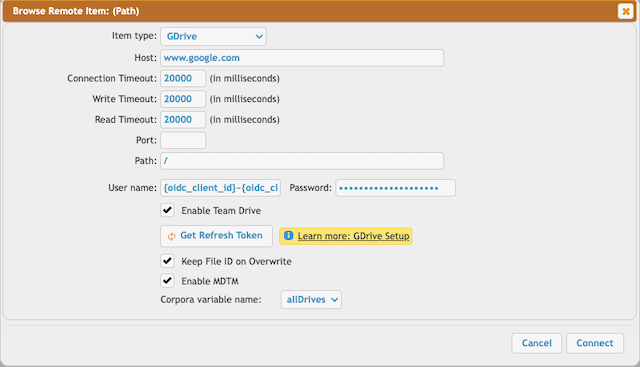
Google Cloud Storage:
#
gstorage://{oidc_client_id}~{oidc_client_secret_decoded}:{oidc_refresh_token}@storage.googleapis.com/
More info at: Google Cloud Storage Integration
⚠️ It requires the scope:
https://www.googleapis.com/auth/devstorage.full_control
Check the description of : 2.1.3 Authorization related settings Link
regarding scope.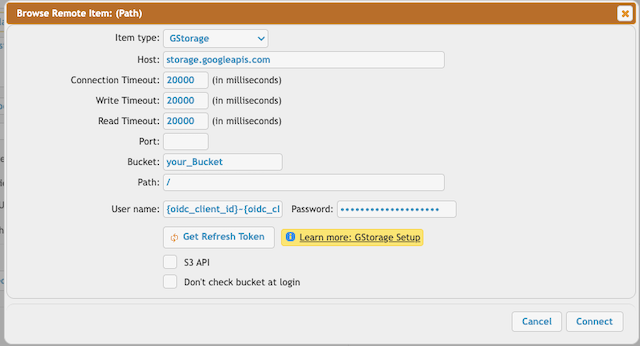
OneDrive:
#
Onedrive Personal Type: onedrive://{oidc_client_id}~{oidc_client_secret_encoded}:{oidc_refresh_token}@graph.microsoft.com/
or
OneDrive Business Type: onedrive://app_permission~{oidc_client_id}:{oidc_client_secret_decoded}@graph.microsoft.com/
More info at: OneDriveSetup
⚠️ Note:
-Ensure the Azure App Registration includes the required API Permission (More info at OneDriveSetup).
-User id or User principal name: Provide the user's ID or the user principal name (UPN) or {user_name} variable.
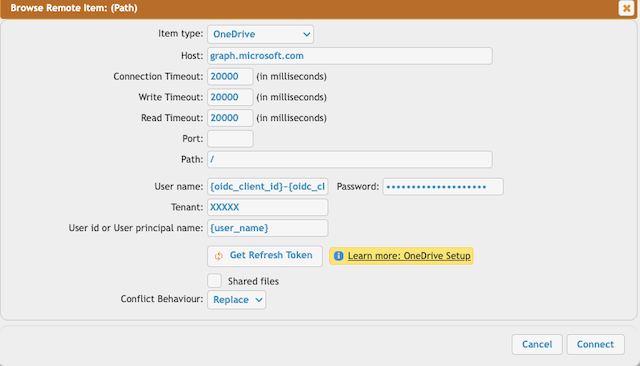
SharePoint:
#
Sharepoint Delegated Permission: sharepoint://{oidc_client_id}~{oidc_client_secret_encoded}:{oidc_refresh_token}@graph.microsoft.com/
or
Sharepoint Application Permission: sharepoint://app_permission~{oidc_client_id}:{oidc_client_secret_decoded}@graph.microsoft.com/
or
SharePoint REST service API-based: sharepoint2://delegated_permission~{oidc_client_id}~{oidc_client_secret_encoded}:{oidc_refresh_token}@graph.microsoft.com/
More info at: SharePoint Integration
⚠️ Note:
- Ensure the Azure App Registration includes the required API Permission (More info at SharePoint Integration).
- Configure the Sharepoint-specific settings too (More info at SharePoint Integration):
Tennant: See at App Registration -> Overview -> Directory (tenant) ID. Based on the App Registration Account type it can be an ID, common, or consumer. Site id : The SharePoint domain name.
Site Path: The path of the SharePoint site. It should start and end with a slash.
Drive name: Each SharePoint site has a Document Library where the site-related files are stored. See SharePoint: Documents and Libraries Description Link
Provide its nameFolder: Relative path of the document library of the SharePoint site.
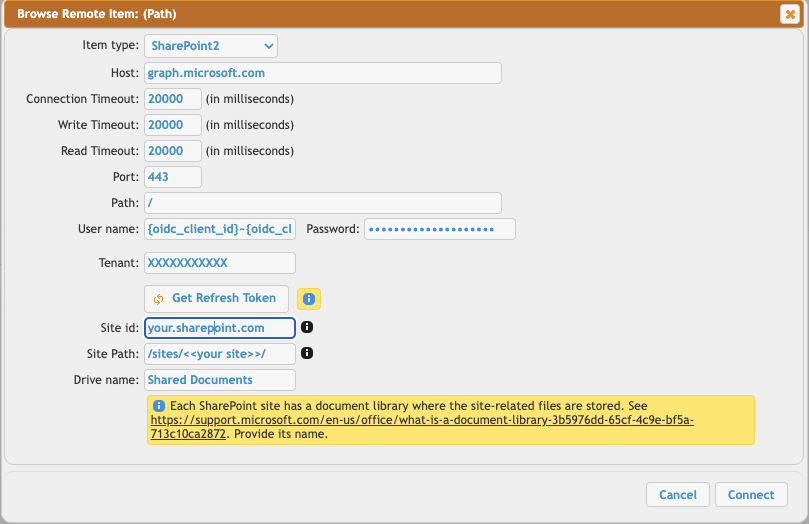
DropBox:
#
DropBox: dropbox://{oidc_client_id}~{oidc_client_secret_decoded}:{oidc_refresh_token}@api.dropboxapi.com/
More info at: Dropbox Integration
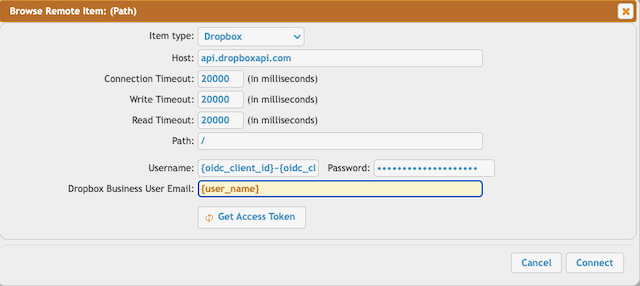
!!!Continue on: CrushOIDC
Add new attachment
Only authorized users are allowed to upload new attachments.
«
This page (revision-17) was last changed on 19-Mar-2026 06:44 by krivacsz
G’day (anonymous guest)
Log in
CrushFTP11 | What's New
- WebInterface
- Server Admin
- User Manager
- Client Apps
- CrushBalance Load Balancer
- High Availability
- Self Registration
- Preferences
- Email Templates
- Restrictions
- Replication
- Banning
- Logging
- Encryption
- Alerts
- Folder Monitor
- Tunnels
- Syncs
- User Config
- Search Config
- Preview
- Misc
- Plugins
- Manage Shares
- PGP
- Telnet
- FAQ
- API
- Linux Install
- Virtual Linux Server
- Server Variables
- Google Authenticator and Microsoft Authenticator
- AS2 EDI
JSPWiki