Settings#
Settings in the sidebar holds everything about how CrushClient looks and behaves on this computer.
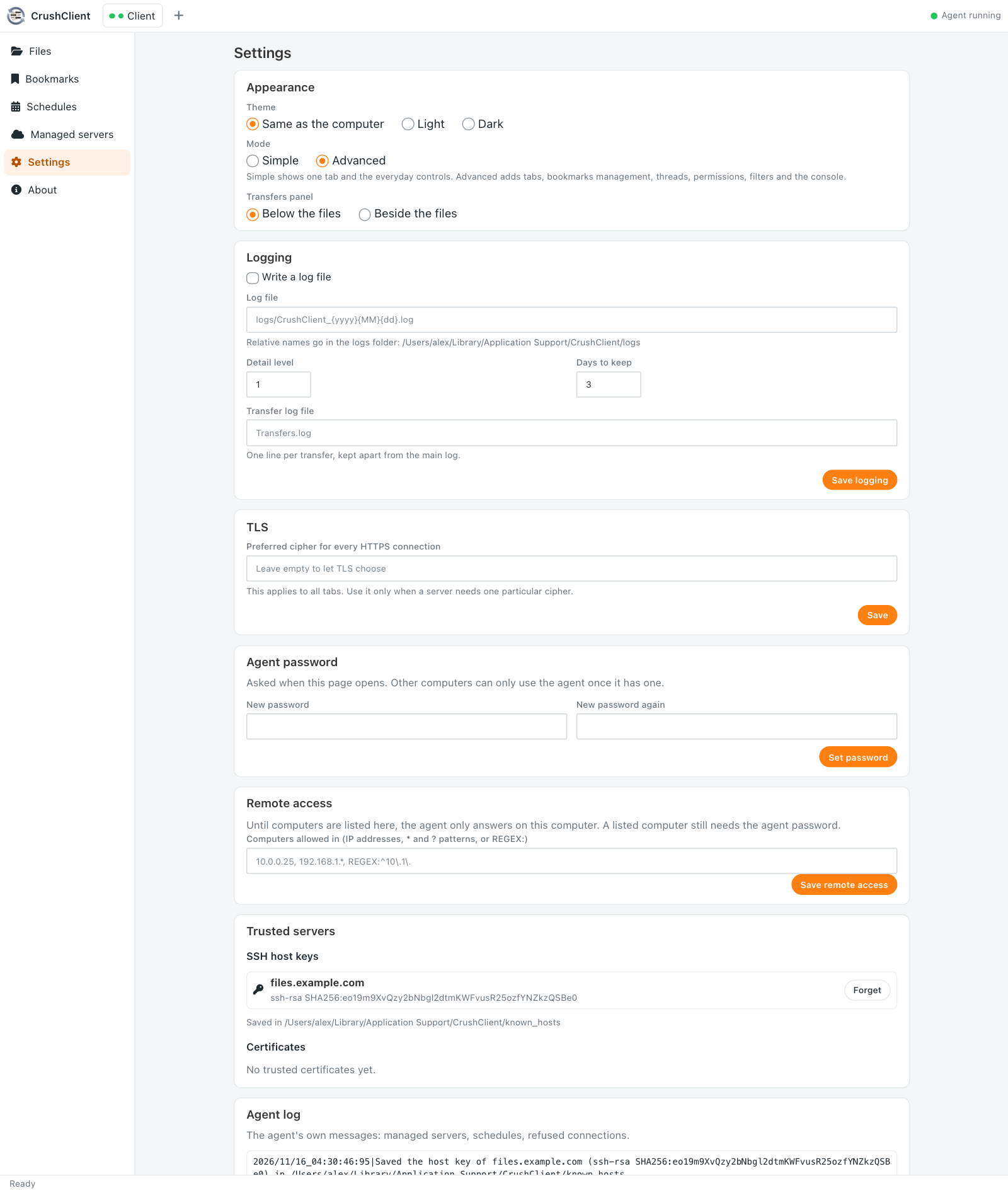
Appearance#
| Setting | Choices |
|---|---|
| Theme | Same as the computer, Light, Dark |
| Mode | Simple shows one tab and the everyday controls. Advanced adds tabs, bookmark management, threads, permissions, filters and the console. See The window. |
| Transfers panel | Below the files, or Beside the files |
These apply at once.
Logging#
CrushClient writes no log file until you turn it on. (The Log tab in the window works either way.)
| Setting | What it is |
|---|---|
| Write a log file | turns the file on |
| Log file | its name. A plain name goes into the logs folder inside the settings folder; the page shows that folder. The name can carry the date, as in logs/CrushClient_{yyyy}{MM}{dd}.log, to get a file per day. |
| Detail level | how much is written; higher is more |
| Days to keep | older log files are removed |
| Transfer log file | a second file with one line per transfer, apart from the main log |
Save logging applies the changes. File › Locate log file opens the folder.
TLS#
Preferred cipher for every HTTPS connection: leave it empty to let TLS choose. Set it only when a server needs one particular cipher; it applies to all tabs.
Agent password#
A password for CrushClient itself. It is asked when the page opens, in the app and in a browser. Other computers can only use this CrushClient once it has one (Remote access).
Enter it twice and press Set password. Removing the password asks first.
Remote access#
The computers that may open this CrushClient's page from elsewhere. Until computers are listed, it only answers on this computer. See Remote access.
Trusted servers#
- SSH host keys: the keys you chose to remember, with the file they are saved in. Forget removes one; the next connection to that server asks again.
- Certificates: the certificates you chose to trust, each with Forget.
See Trust prompts.
Agent log#
The messages of CrushClient's engine that do not belong to a tab: managed servers, schedules, saved host keys, and refused connections. Refresh reads it again.
Where settings are kept#
Everything on this page, and the bookmarks and schedules, is in two files in your settings folders: Files and folders.