Connecting#
Each pane connects to one location. While a pane is not connected it shows the connection form.
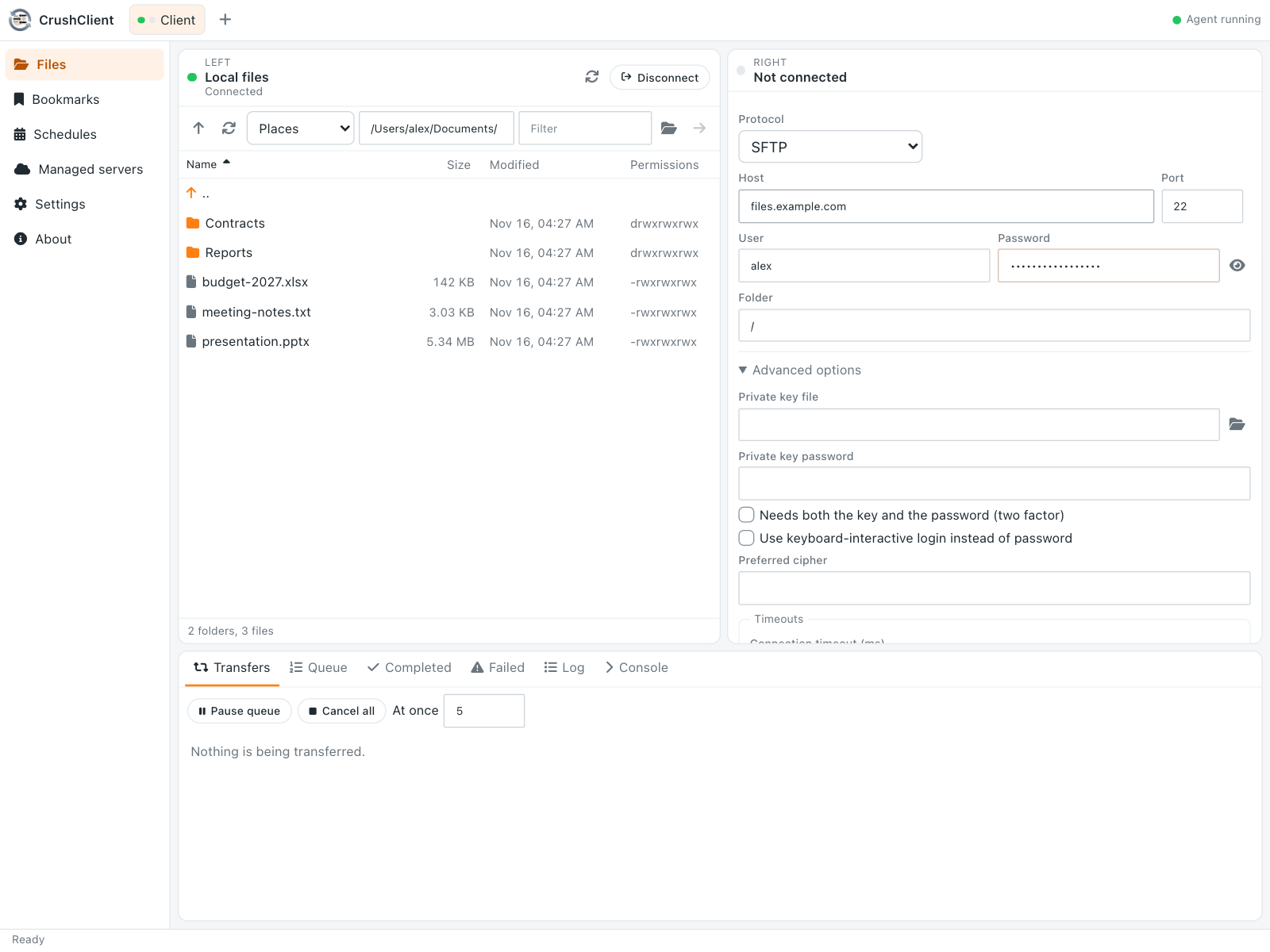
The form#
| Field | What to enter |
|---|---|
| Protocol | Local files for this computer, or the kind of server. The port changes to the usual one for the protocol. See Protocols. |
| Host and Port | the server's name or address |
| User and Password | your login. The eye button shows the password while you type. |
| Folder | where to start; / is your home on the server |
| Advanced options | the settings of that protocol: keys for SFTP, the transfer mode for FTP, and so on |
| Save as bookmark | keeps this connection under a name (Bookmarks) |
For Local files there is only the Folder, with a button to choose it. Above the file list, Places jumps to your home, Desktop, Documents and Downloads.
Once you have bookmarks, Connect to a bookmark… at the top of the form fills everything in and connects.
Press Connect. The pane shows what it is doing: connecting, waiting for you (a trust question, a one-time code, a missing password), listing, or the reason it failed.
While connected#
The top of the pane shows the address and Connected.
- Refresh reads the folder again.
- Disconnect closes the connection and brings the form back, with your entries still in it (the password is not kept unless it is in a bookmark). Disconnecting with transfers waiting asks first.
If a connection drops, CrushClient reconnects by itself when you next use the pane.
After a restart#
CrushClient remembers each tab's two sides. After a restart the panes show where they were, with a Reconnect button. Sides that came from a bookmark reconnect with the saved password; the others ask for it.
One-time codes and passwords#
- If the server asks for a one-time code (two-factor login), CrushClient asks you for it and continues.
- A bookmark saved without a password asks for it when you connect, with the choice to remember it.
What an administrator can limit#
On a managed installation the form can be restricted: fewer protocols, only host names, a fixed list of servers to pick from, or local files only on one side. See Admin defaults.