Connecting#
Click CrushTunnel's icon in the menu bar or the notification area to open its window.
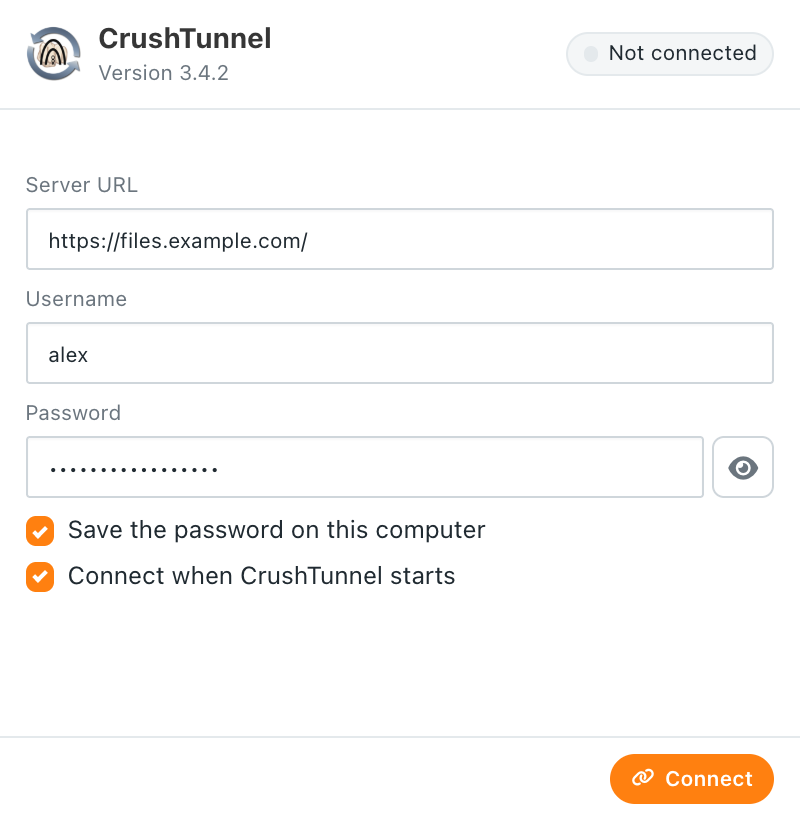
The form#
| Field | What to enter |
|---|---|
| Server URL | your CrushMFT server's web address, for example https://files.example.com/ |
| Username, Password | your CrushMFT login. The eye button shows the password while you type. |
| Save the password on this computer | keeps the password (encrypted) for next time. Without it, the password is used for this connection and then forgotten. |
| Connect when CrushTunnel starts | connects by itself each time the app starts. It needs a saved password. |
Press Connect. The badge at the top right goes from Not connected to Connecting… to Connected.
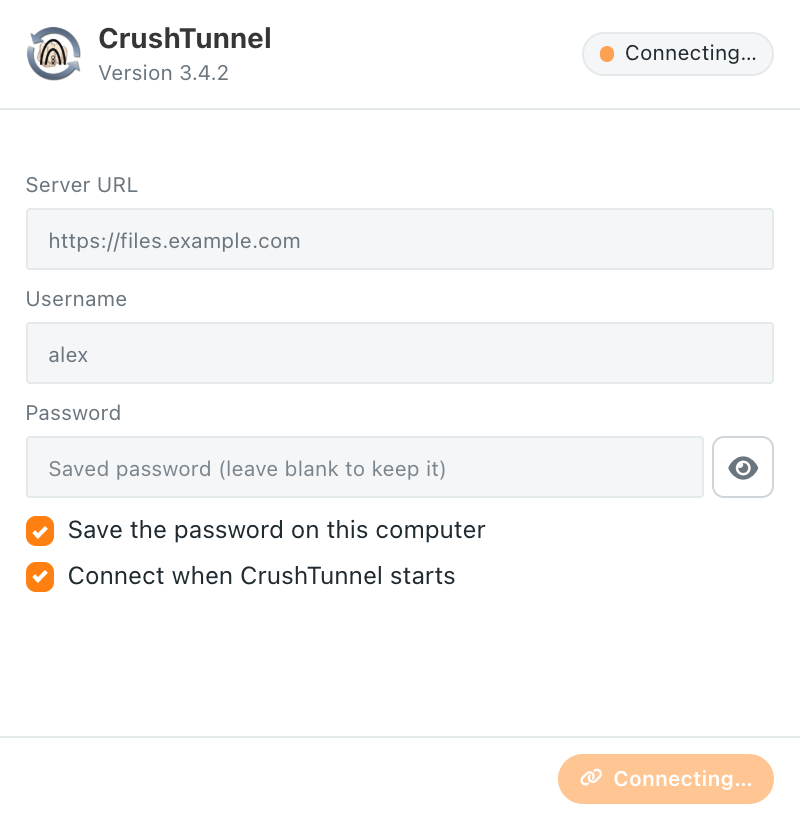
While connected#
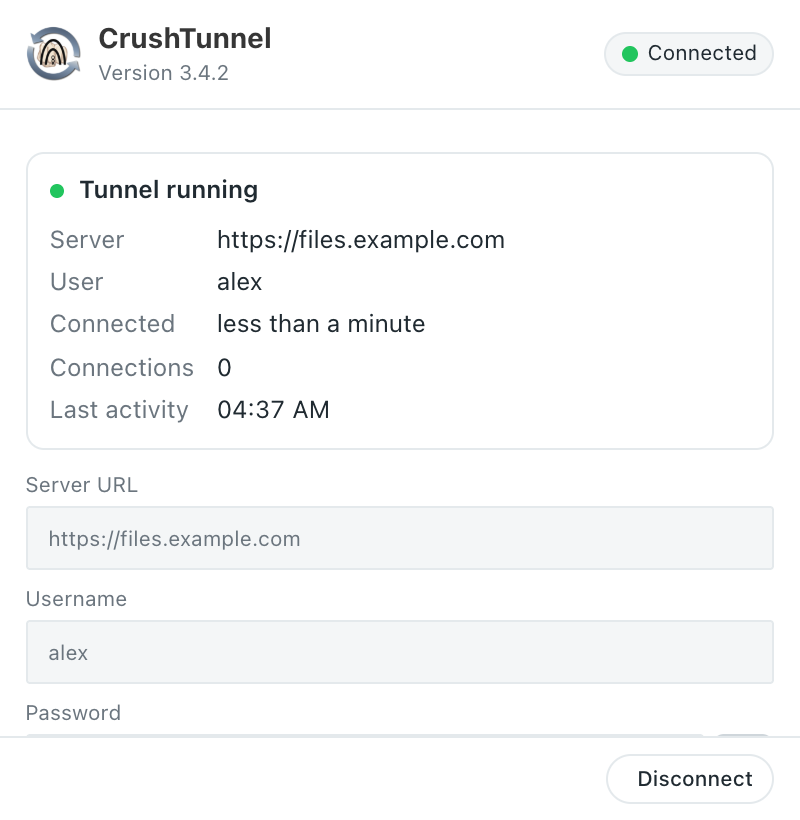
The Tunnel running card shows:
| Line | What it is |
|---|---|
| Server | the server the tunnel goes to |
| User | the login it uses |
| Connected | for how long |
| Local address | the address on your computer that leads into the tunnel, when the server gave your user a tunnel. Click it to open it in your browser. |
| Destination | where the tunnel ends on the server's side |
| Connections | how many connections are going through the tunnel now |
| Last activity | when something last used it |
The form is locked while the tunnel is up. Disconnect closes the tunnel.
Now send your traffic to the local address: Using the tunnel.
When it does not connect#
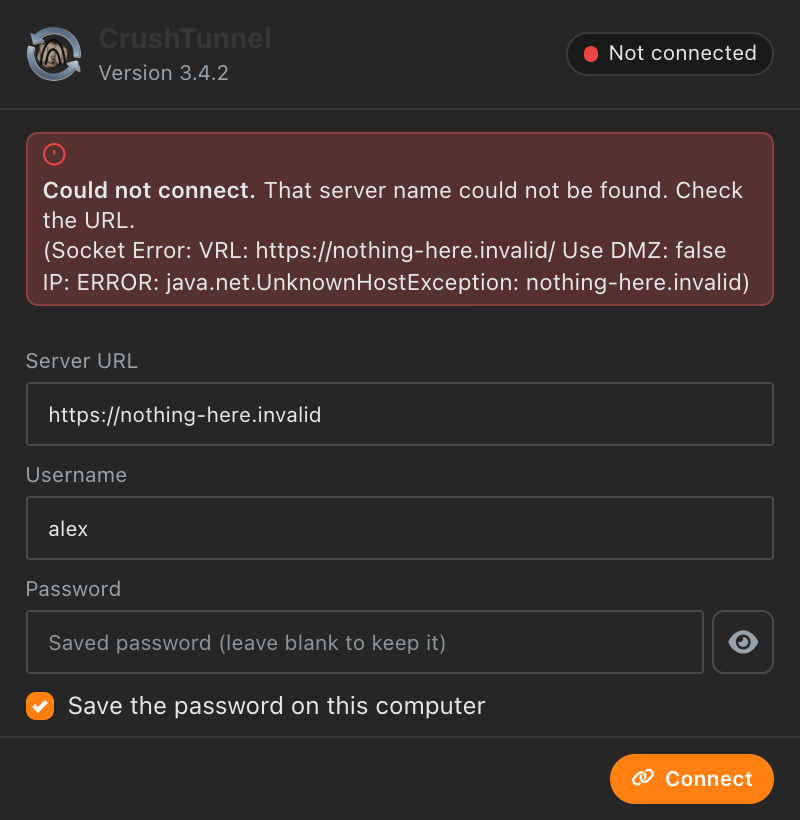
CrushTunnel says what went wrong in plain words, with the technical message in brackets for support:
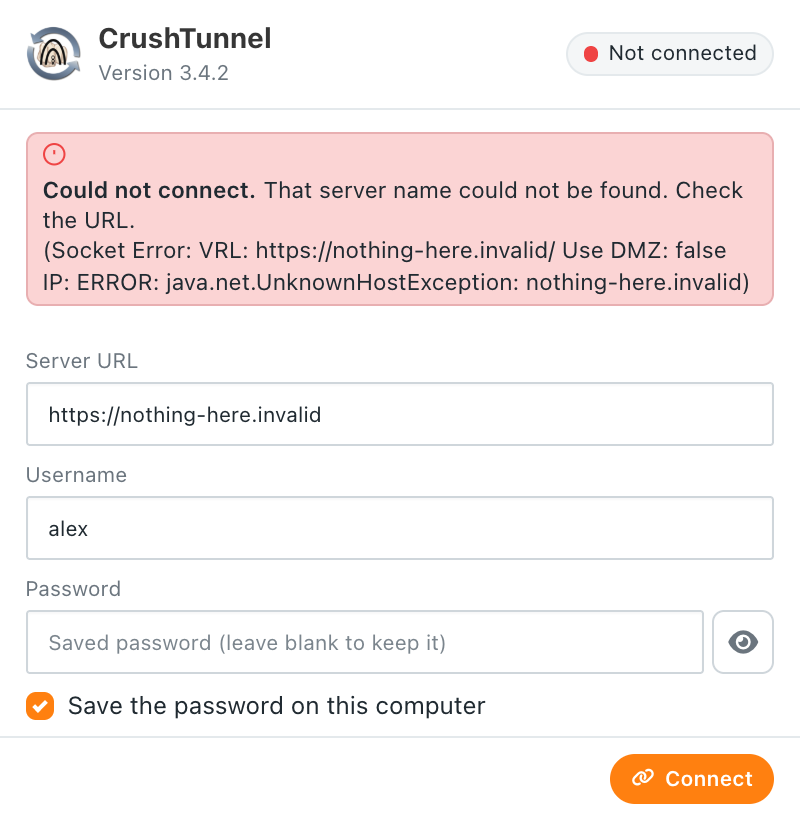
More cases are on the Troubleshooting page.
Light and dark#
The window follows your computer's light or dark setting.