The window#
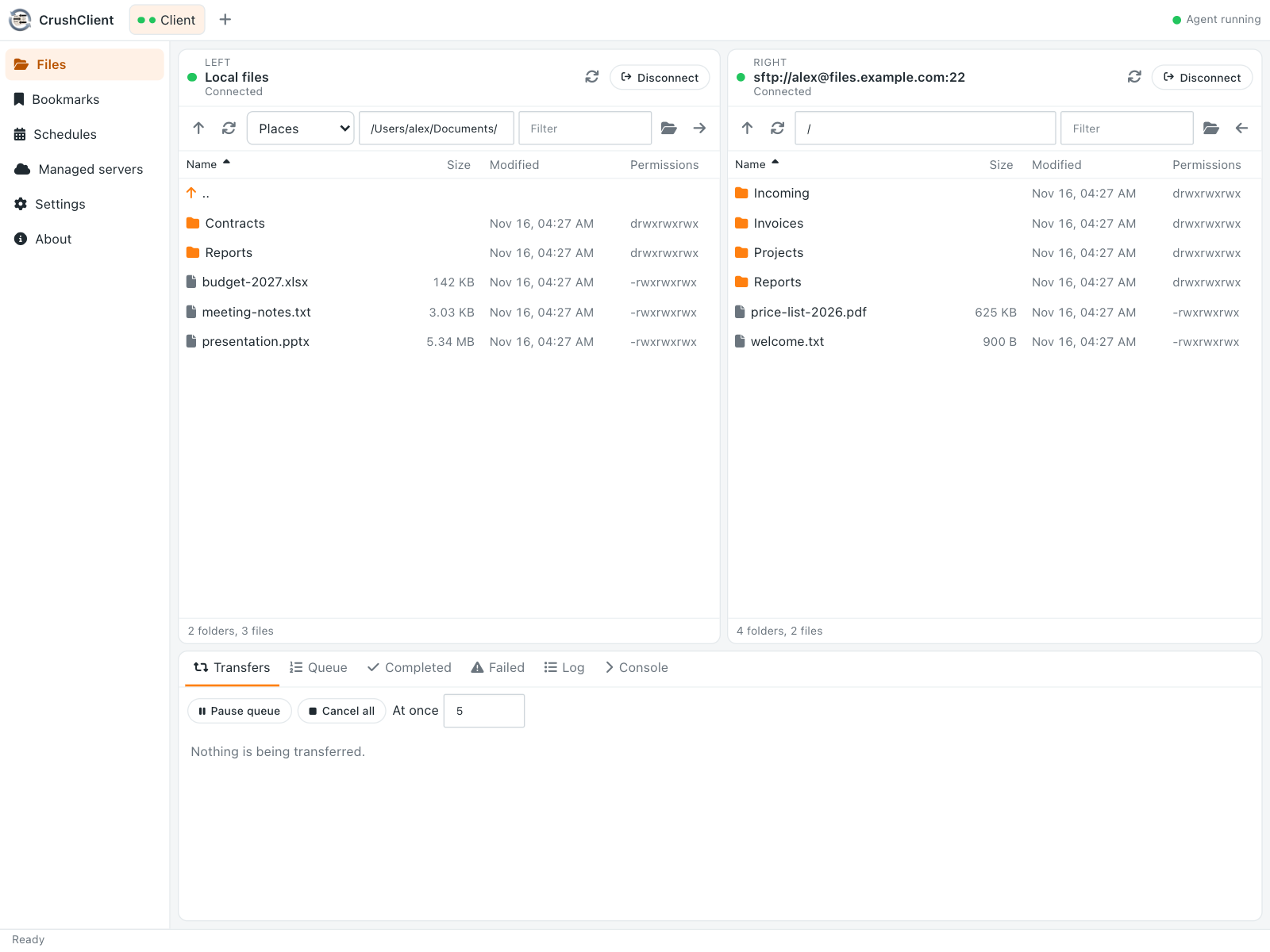
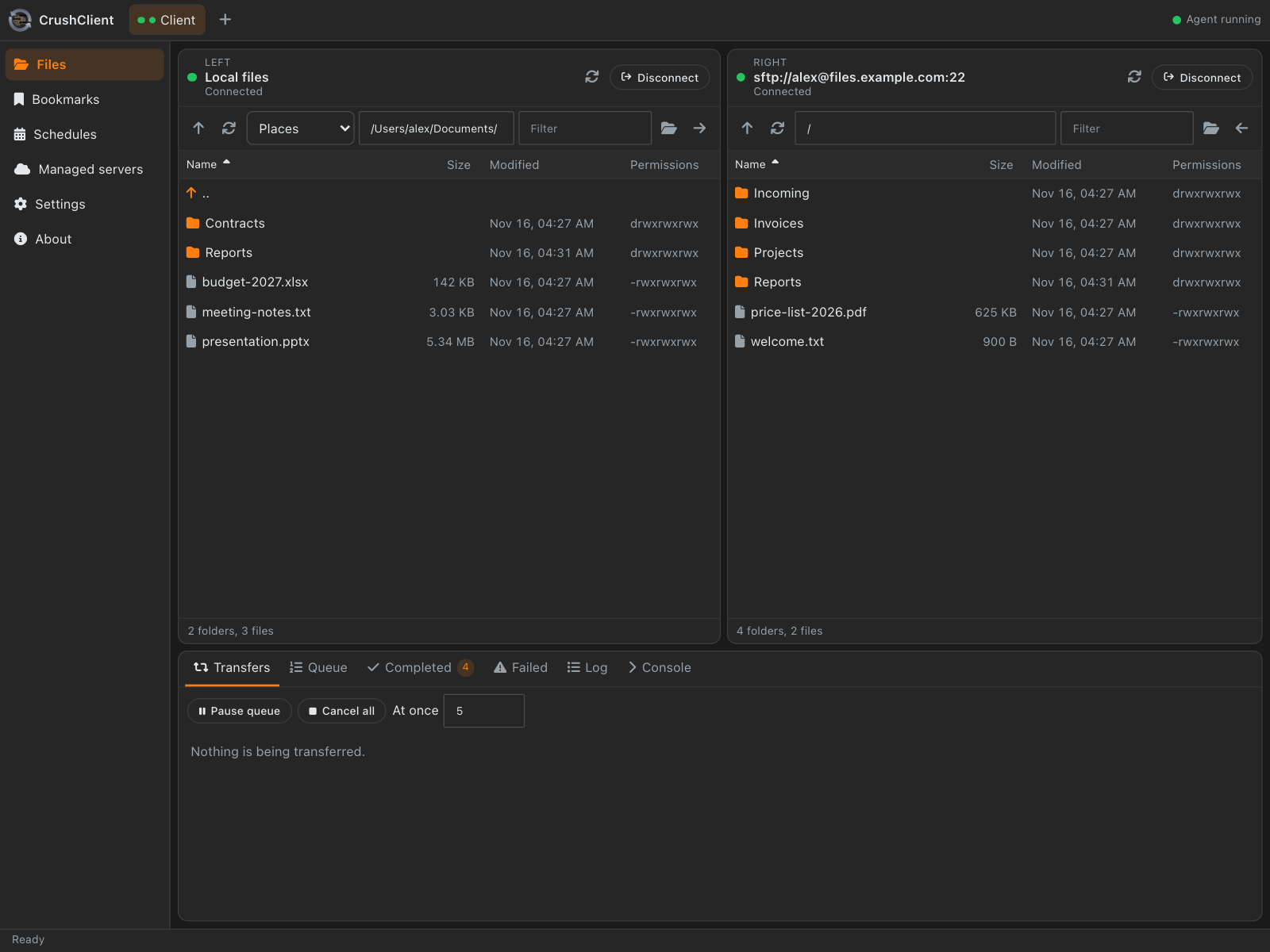
The parts#
| Part | What it is |
|---|---|
| Tabs (top) | one tab per pair of connections. The two dots on a tab show whether its left and right side are connected. + opens another tab. |
| Agent running (top right) | CrushClient's engine is working. It turns to "reconnecting" or "offline" if the page loses touch with it. |
| Sidebar (left) | Files (the two panes), Bookmarks, Schedules, Managed servers, Settings and About |
| Left and Right panes | two locations. Each has its connection at the top, a toolbar, and the file list. See Connecting and Browsing files. |
| The bottom panel | Transfers, Queue, Completed, Failed, Log and Console. See Transfers and Log and console. |
| Status line (bottom) | what was sent and received in this tab |
Left and Right are only names for the two sides. Either side can be this computer or a server, so you can also copy from one server to another.
Tabs#
Each tab is its own pair of connections with its own queue, so a long transfer in one tab does not hold up another.
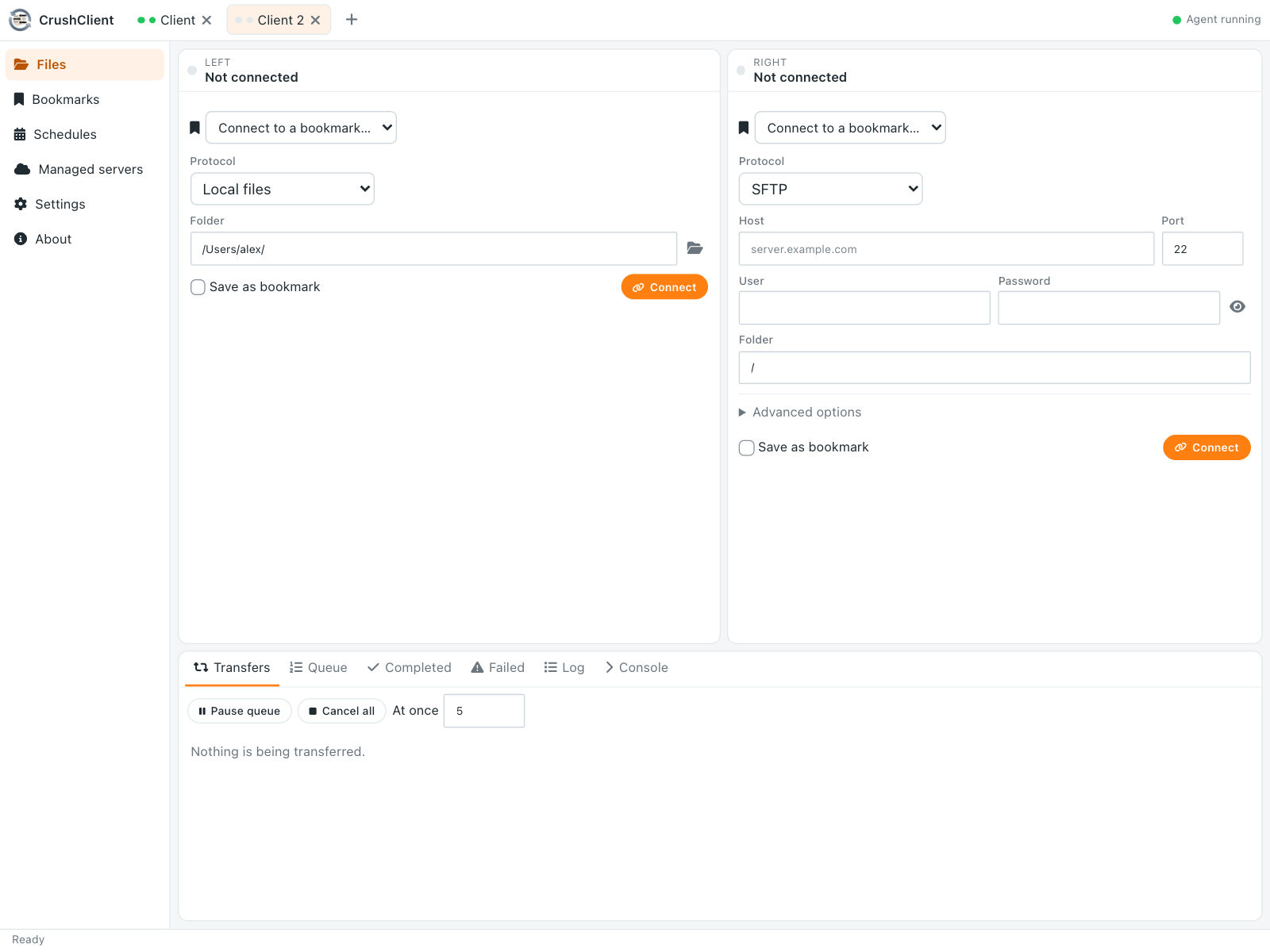
- + opens a tab. Double-click a tab's name (or press F2 on it) to rename it, and use its × to close it. Closing a tab with transfers running asks first.
- A tab that needs you, for example for a trust question, is marked.
- Tabs come back after CrushClient restarts, with a Reconnect button on each side.
Simple and advanced mode#
Settings › Appearance › Mode switches between two layouts.
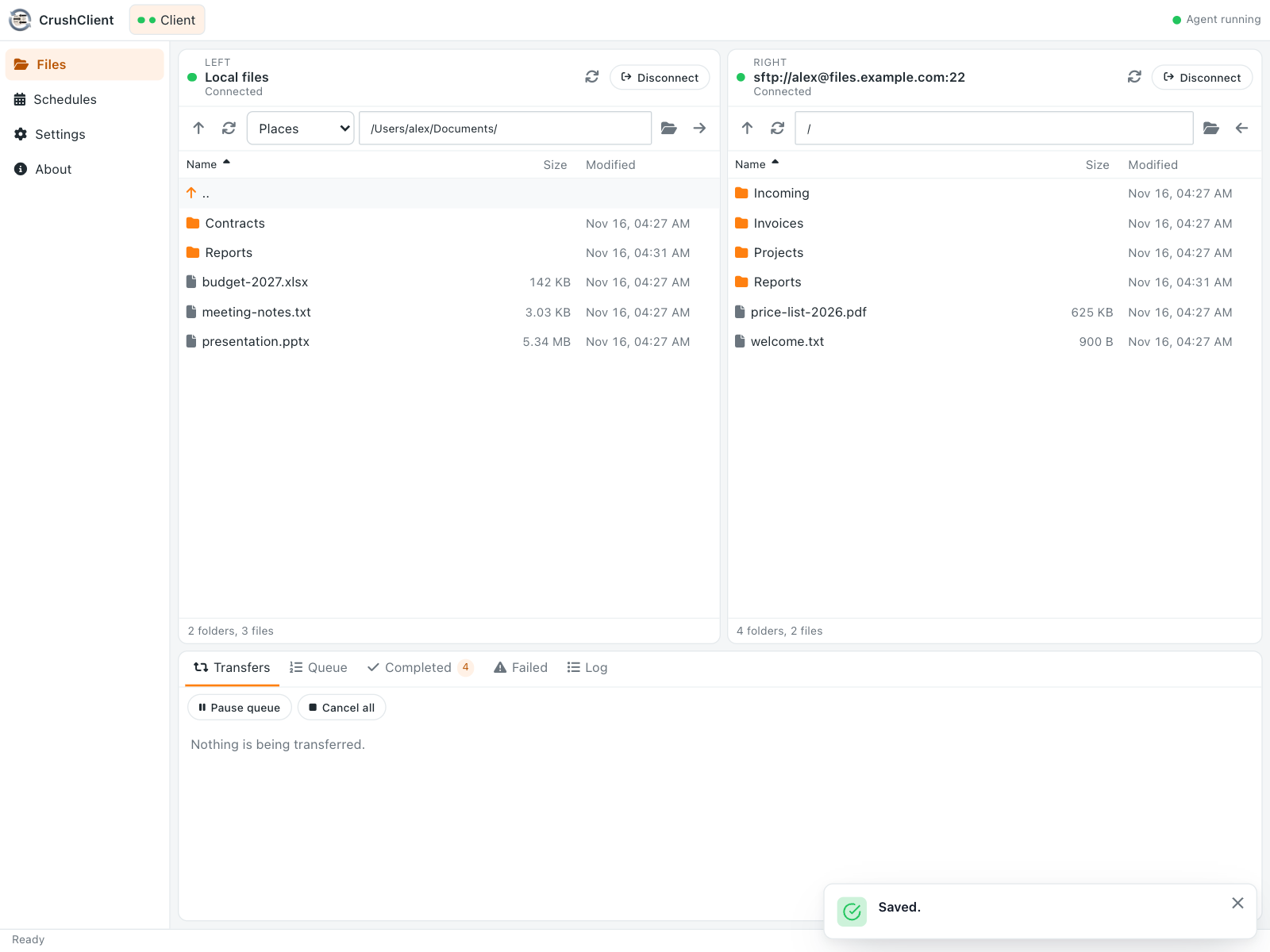
| Mode | Shows |
|---|---|
| Simple | one tab and the everyday controls: connect, browse, send, and the transfer lists |
| Advanced | adds tabs, bookmark management, managed servers, the thread count, the Permissions column, the filter and the Console |
Light and dark#
Settings › Appearance › Theme: Same as the computer, Light or Dark.
Where the transfers panel sits#
Settings › Appearance › Transfers panel: Below the files, or Beside the files (better on a wide screen).
The menus#
File (on macOS some of these are under the app's own menu):
| Item | What it does |
|---|---|
| Locate log file | opens the folder with the log, once logging is on (Settings) |
| Install latest version (will restart app) | downloads the newest build and restarts (Updates) |
| Check for updates | looks for a newer build and asks before downloading it |
| About | the version |
| Quit | asks first while transfers are running |
Edit has Undo, Redo, Cut, Copy, Paste and Select All for the text fields.
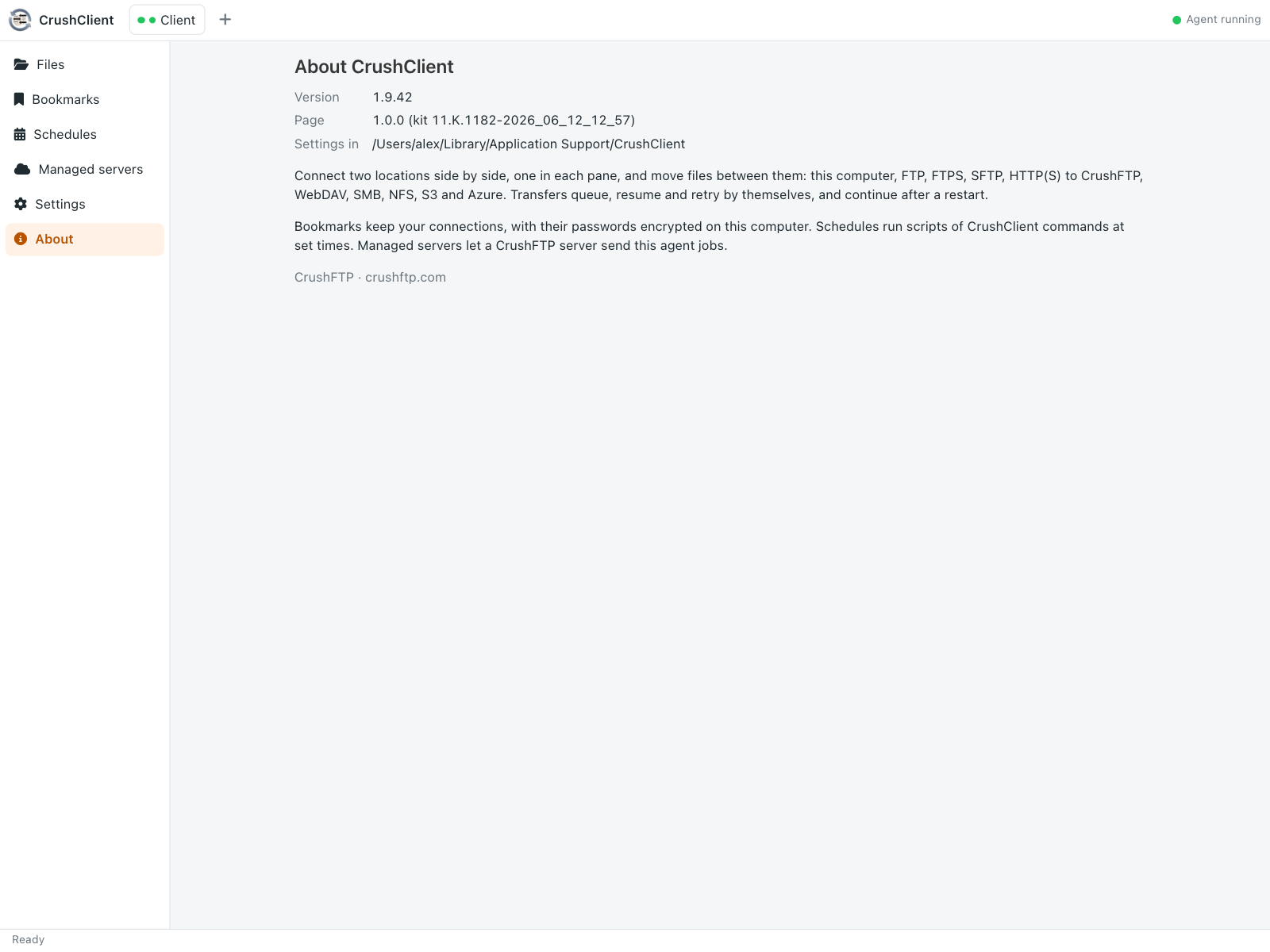
About#
About in the sidebar shows the version, where your settings are kept (with a button to open that folder), and a short summary of what CrushClient does.