Schedules#
A schedule runs a script of CrushClient commands at set times: connect, transfer, quit. CrushClient has to be running at that time; to have it run without anyone logged in, install it as a service (Services).
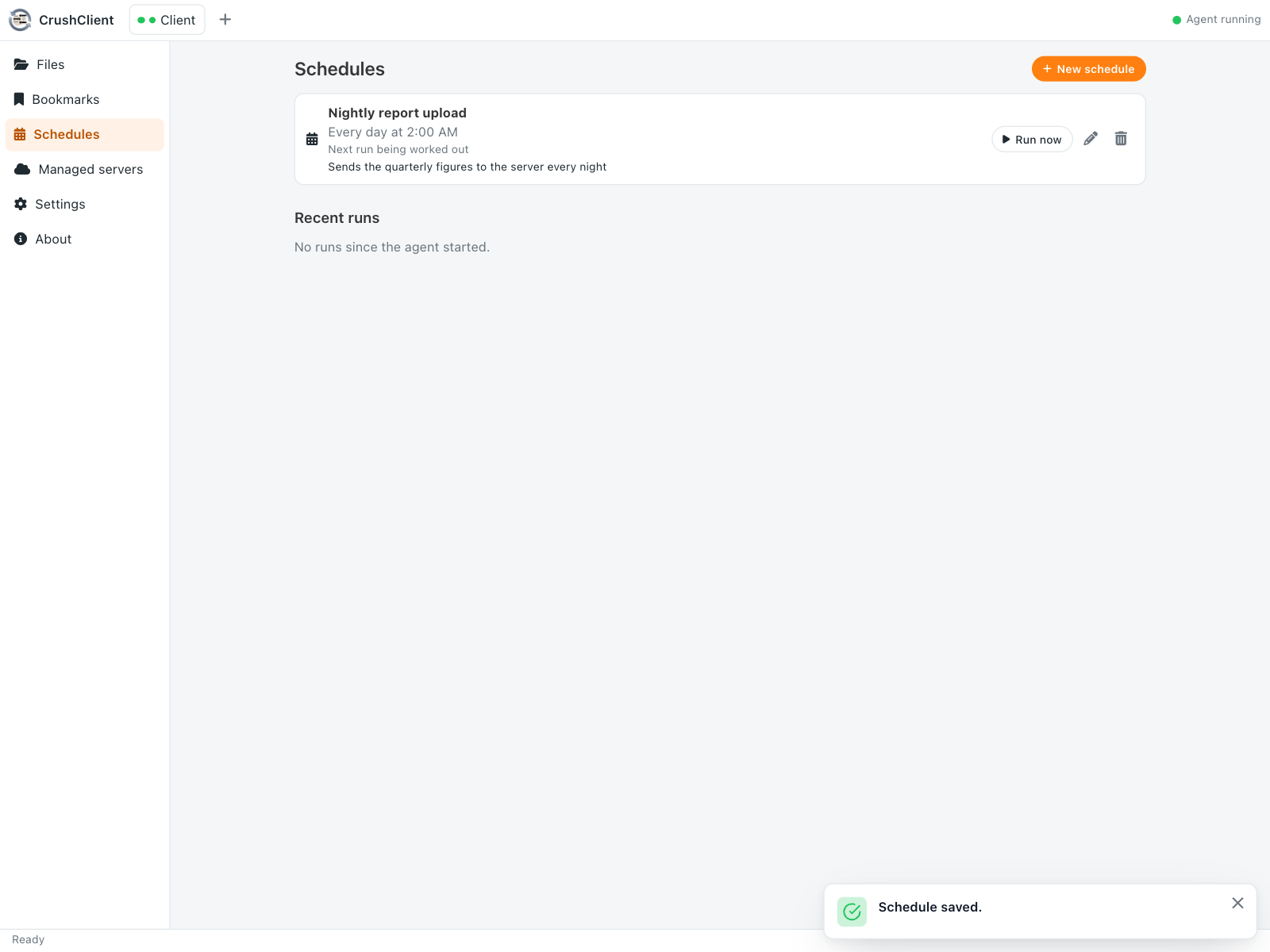
The page lists each schedule with when it runs and when its next run is, and under Recent runs how the last runs ended. A run that failed says why. Run now starts a schedule at once.
Making a schedule#
The quickest way is from a transfer you can already do by hand: select the files in a pane, right-click, and choose Schedule this transfer…. CrushClient writes the script for you.
Or use New schedule:
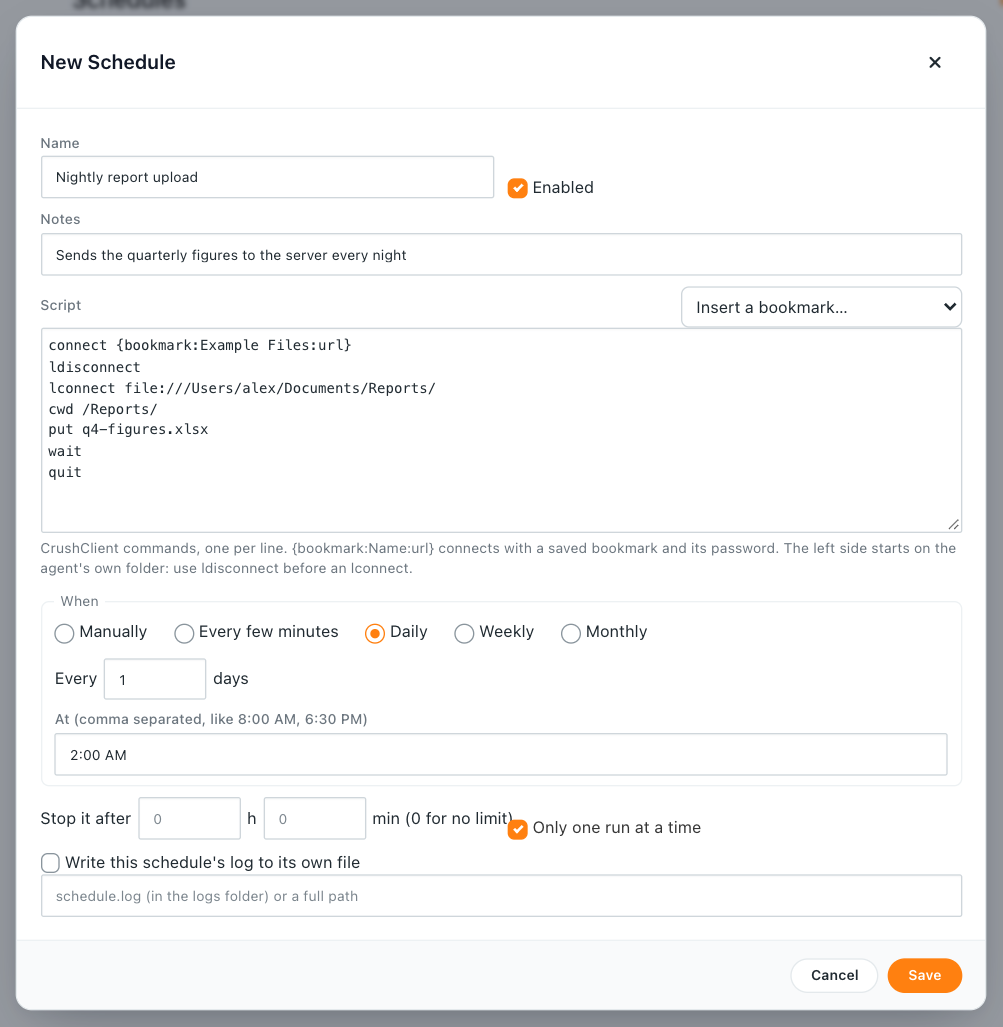
| Field | What it is |
|---|---|
| Name | |
| Enabled | untick to keep a schedule without running it |
| Notes | shown in the list |
| Script | CrushClient commands, one per line. Insert a bookmark… adds a connect line for a saved bookmark. |
| When | Manually (only with Run now), Every few minutes, Daily (every so many days, at one or more times such as 8:00 AM, 6:30 PM), Weekly (on chosen weekdays) or Monthly (on chosen days of the month) |
| Stop it after | the longest a run may take, in hours and minutes; 0 for no limit |
| Only one run at a time | does not start a run while the previous one is still going |
| Write this schedule's log to its own file | keeps its log apart from the main one |
The script#
The script uses the same commands as the command line. Commands that start with l act on the left side, the others on the right.
connect {bookmark:Example Files:url}
ldisconnect
lconnect file:///Users/alex/Documents/Reports/
cwd /Reports/
put q4-figures.xlsx
wait
quit
| Line | What it does |
|---|---|
connect {bookmark:Example Files:url} |
connects the right side with the bookmark "Example Files" and its saved password |
ldisconnect, then lconnect file:///… |
points the left side at a local folder. The left side starts on CrushClient's own folder, so disconnect it first. |
cwd /Reports/ |
changes the folder on the server |
put q4-figures.xlsx |
uploads; get downloads. Patterns such as *.xlsx work. |
wait |
waits until the transfers are done |
quit |
ends the run |
End every script with wait and quit.
Things to know#
- Trust questions cannot be answered by a schedule. Connect to the server once in the window and choose Trust and remember first (Trust prompts).
- A run in which a step fails is reported as failed, with the reason, in Recent runs and in the log.
- An administrator can turn schedules off for an installation (Admin defaults).
- Schedules made with the older CrushClient are kept.