First-run setup#
The first time CrushBalance starts it has no admin password. It creates a one-time setup token, and the admin page asks for that token and a new password.
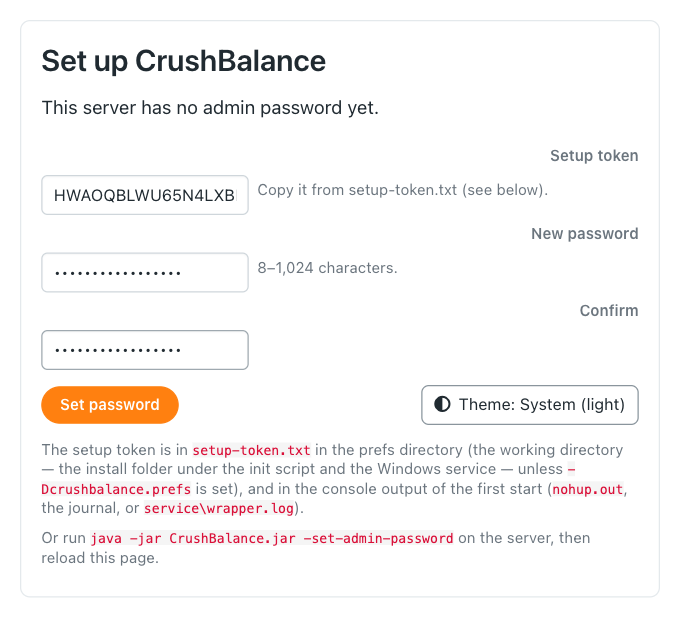
The token is in setup-token.txt in the install folder and in the console output of the first start (Install on Linux, Install on Windows).
Steps#
- Open
https://<host>:8090/. The admin certificate is generated per installation and self-signed, so the browser warns. - Compare the certificate's SHA-256 fingerprint in the browser with the
Certificate SHA-256line of the console output (Install on Linux, Install on Windows) before you continue. The same fingerprint is in the log lineadmin listening on https://…/ cert=generated sha256=…. While the admin listens on every address (the default) the console shows the URL ashttps://127.0.0.1:8090/; from another machine use the server's name or address. - Enter the setup token and a new password twice (8–1024 characters), then Set password.
- When you started CrushBalance on a desktop without
-d, it opened the browser itself, with the token already filled in. - Setup works from any address that
admin_allowed_ipsallows (by default every address). The token is the only proof needed; the local host gets no special trust. - A new token is created at every start while no password is set.
- Instead of the token, you can run
java -jar CrushBalance.jar -set-admin-passwordon the server (Install on Linux).
- When you started CrushBalance on a desktop without
After setup#
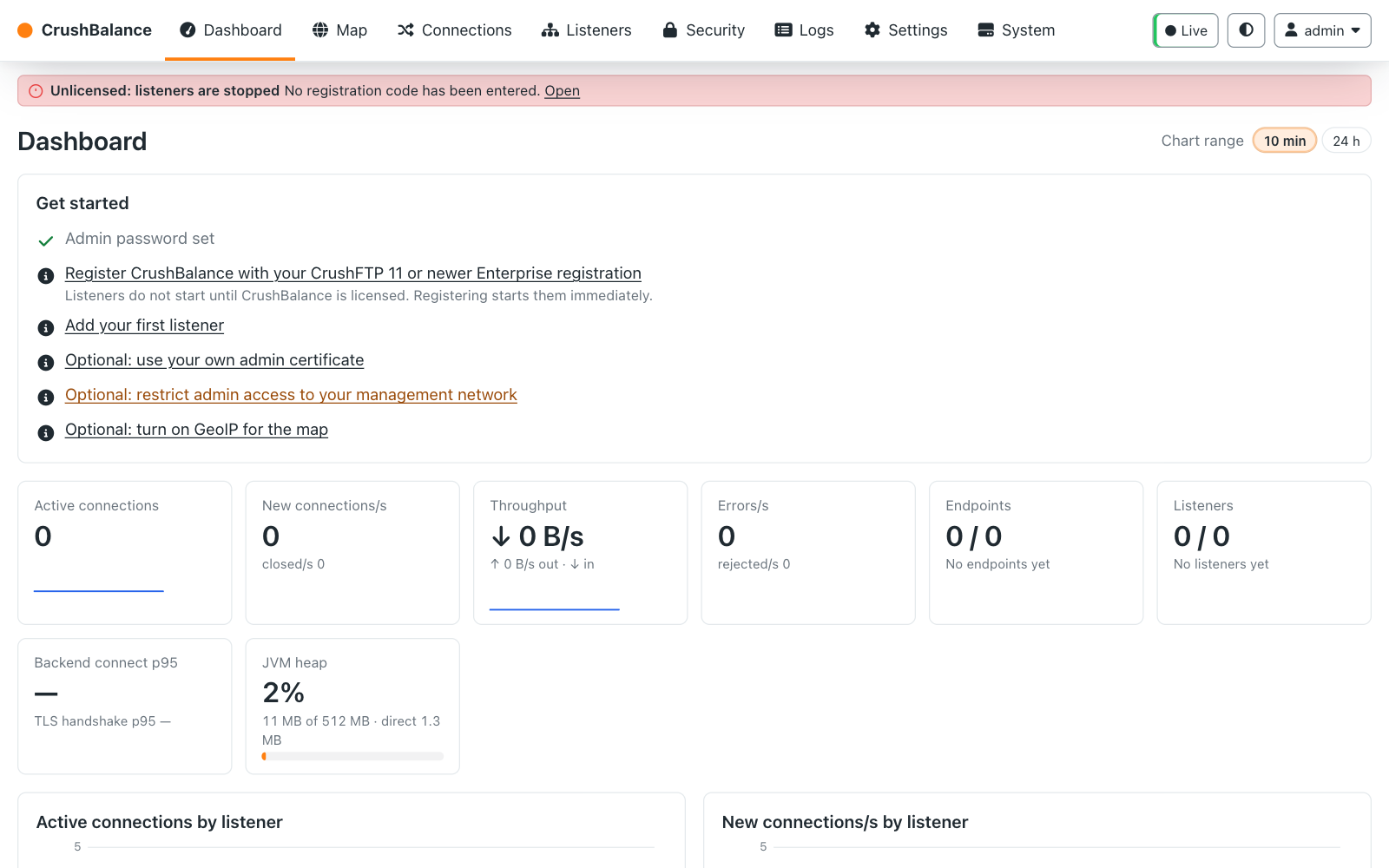
- The Dashboard shows a Get started card: register (Registering) and add your first listener (Listeners); optionally your own admin certificate,
admin_allowed_ipsand GeoIP. - Next steps (Hardening):
- your own admin keystore (Settings › Admin › keystore and keystore password);
admin_allowed_ips(Settings › Admin › Allowed admin IPs): the management network only;- binding the admin to a management interface (
admin_bind_ip; needs a restart).