GDriveSetup#
Google Drive REST API v3 based integration: Google Drive API Link Authentication is handled through OAuth 2.0 (OAuth Wikipedia Link), ensuring secure, user-consented access to Google Drive data.
⚠️ Proxy Configuration: If your server accesses the internet through a proxy, make sure to whitelist the following domains for Google Authentication and Drive access:
- oauth2.googleapis.com
- www.googleapis.com
1. Google OAuth 2.0 Configuration#
Start by navigating to Google APIs & Services: Google APIs & Services Link
⚠️ Important: Ensure the Google Drive API is enabled at Enabled APIs & services. Google API Library Link
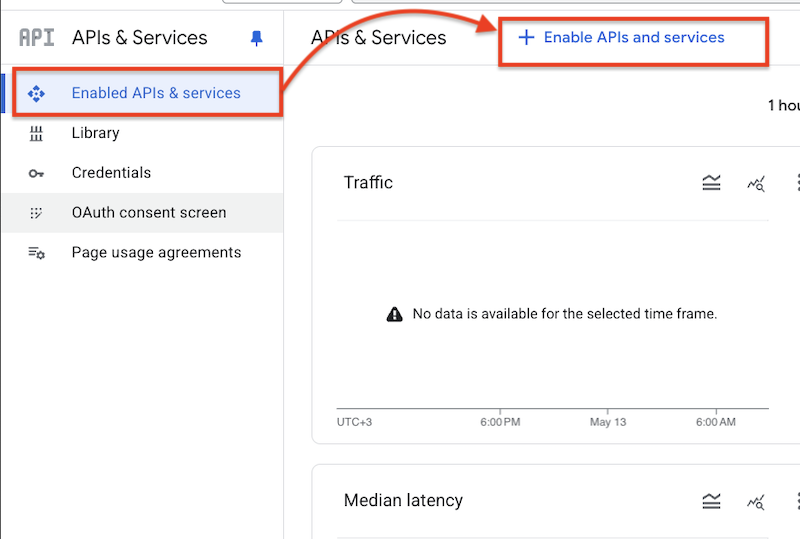
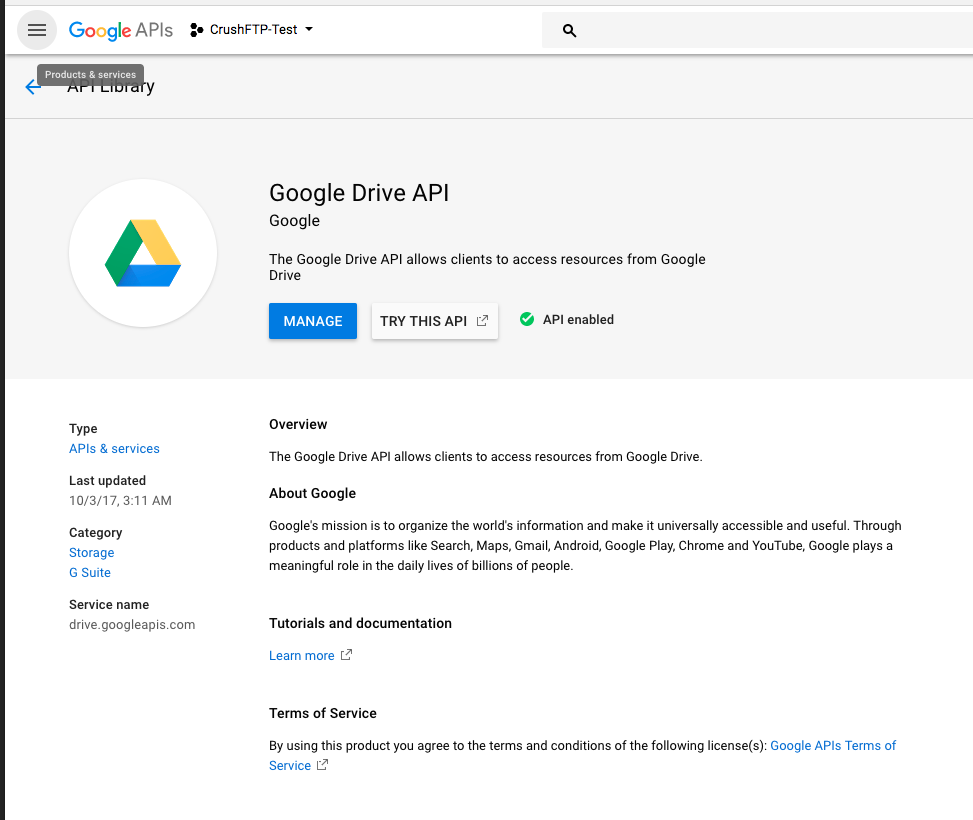
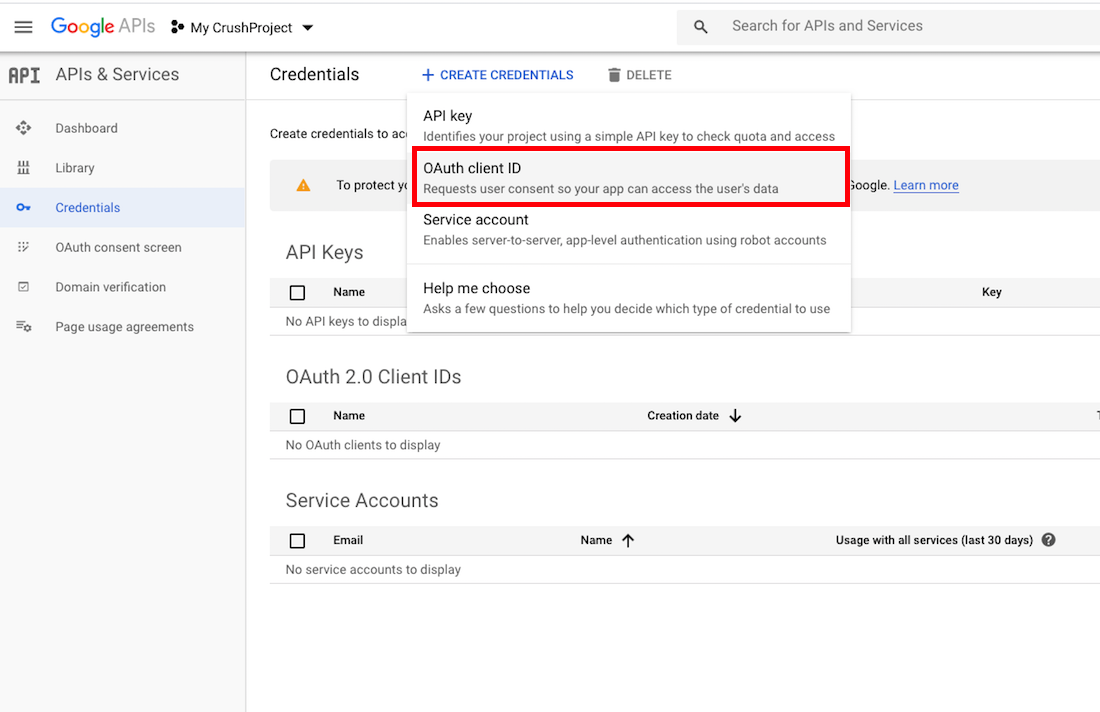
Go to the Credentials menu, click on Create Credentials, and select OAuth client ID:
• Select the application type: Web application.
• Provide a unique name to identify your OAuth client (e.g., CrushFTP Integration).
Then configure the following:
• Authorized JavaScript origins: Add the base URL of your CrushFTP server (e.g., https://your-domain.com).
• Authorized redirect URIs: This is the URL Google will redirect to after successful authorization. The Redirect URL must end with ?command=register_gdrive_api
    http://127.0.0.1:9090/?command=register_gdrive_api
    or
    https://your.crushftp.domain.com/?command=register_gdrive_api
⚠️ Important: For CrushOIDC Plugin the Redirect URL must be added in the following format:
https://www.your.crushftp.com/SSO_OIDC/
It is important that the URL ends with /SSO_OIDC/, as required by the CrushOIDC integration.
Finally, click the Create button.
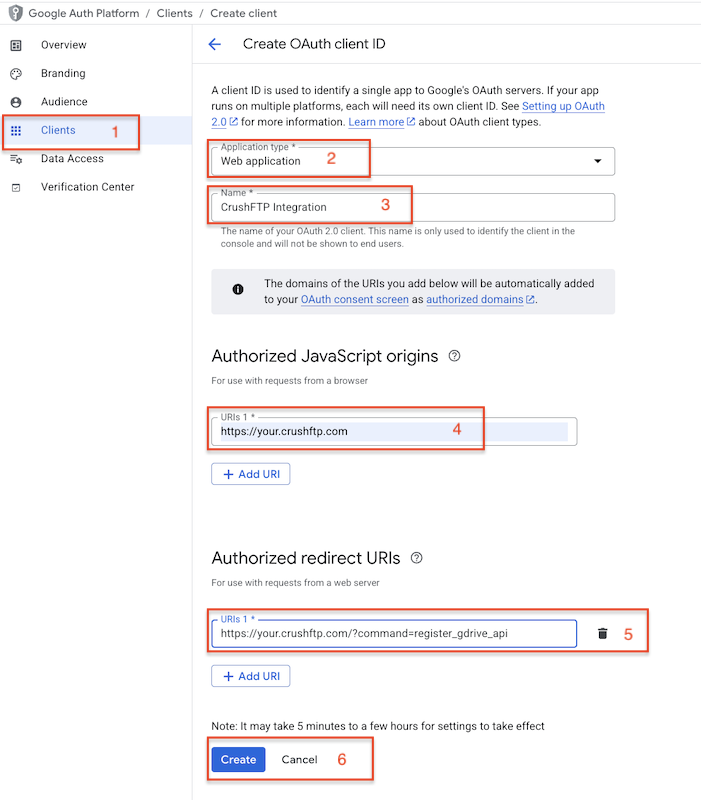
After the credentials are created, copy the Client ID and Client Secret.
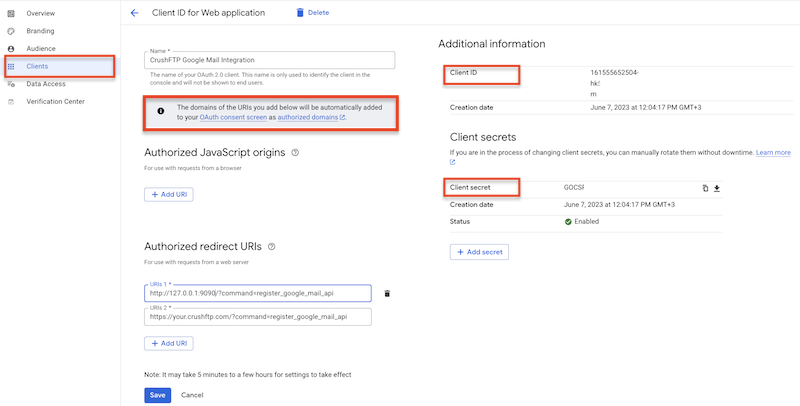
⚠️ Note: You can configure the OAuth consent screen by clicking the link above the Authorized JavaScript origins section:
"The domains you enter in the fields below will be automatically added to your OAuth consent screen as authorized domains."
Click the link to open the OAuth consent screen settings, complete the configuration, and authorize your CrushFTP domain.
Important: After configuration, don’t forget to click Publish App at Audience page to make it active. Without publishing, the app will remain in Testing mode, which restricts access to authorized test users only.
2. Gdrive Remote Item Settings:#
Select the GDrive item type and click the Get Refresh Token button.
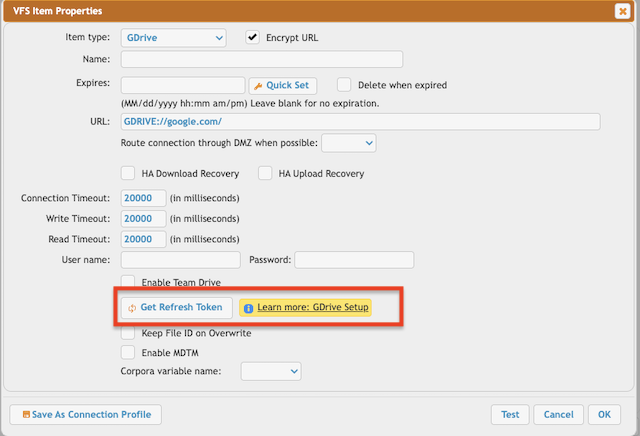
⚠️ Important: To obtain the Refresh Token, the CrushFTP WebInterface’s host and port must match the Redirect URL specified in the Google APIs & Services-> Credentials -> OAuth 2.0 Client IDs. In our example, it was: http://127.0.0.1:9090 or https://your.crushftp.domain.com/
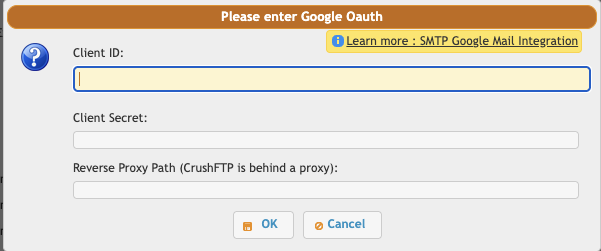
Enter the Client ID , Client Secret. Proceed with the authentication and authorization process.
⚠️ Important: Be sure to sign in with the Google Account that has the necessary permissions, as configured in the Google APIs & Services-> Credentials -> OAuth 2.0 Client IDs. This will automatically configure the User name and Password.
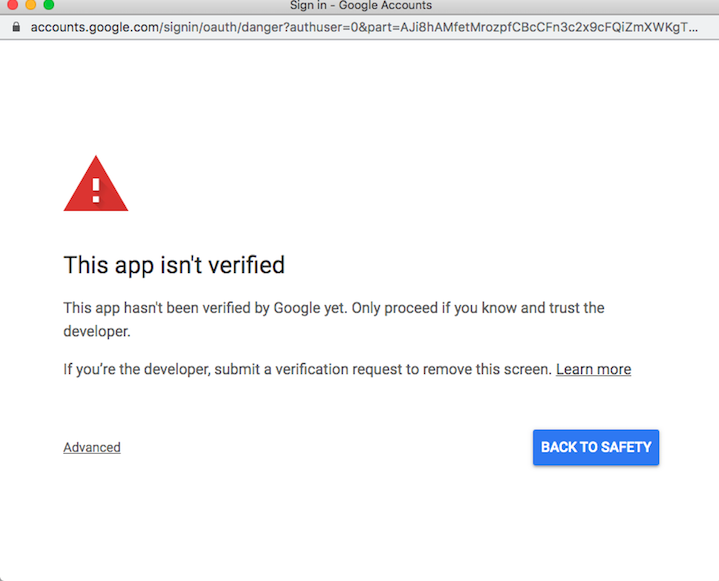
If the domain is unverified, a warning message may appear. Click Advanced and choose to proceed:
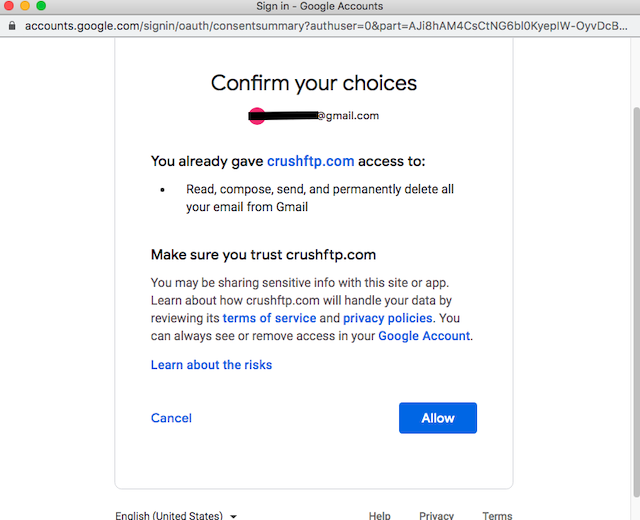
Click on the Allow button:
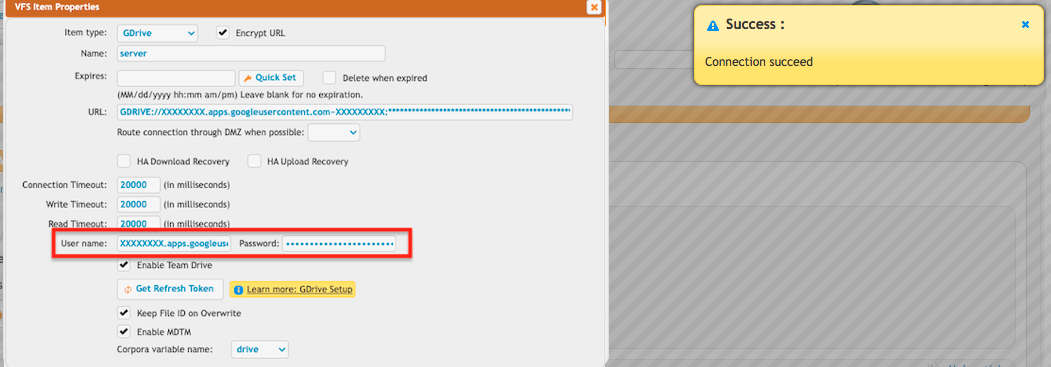
Enable Team Drive: Enable this option to allow access to Shared Drives (formerly Team Drives) in Google Drive. When selected, file operations will include content stored in Shared Drives, not just the user’s personal My Drive. This is useful when your organization collaborates using Google Workspace Shared Drives.
Keep File ID on Overwrite: Enable this option to retain the original file’s ID when overwriting a file in Google Drive. Instead of deleting and re-uploading the file (which generates a new ID), the existing file is updated in-place. This ensures that any shared links or references to the file remain valid after an overwrite.
Enable MDTM: Activates support for the MDTM (Modification Time), which allows clients to set the last modified timestamp of a file after the upload action. This can be useful for synchronization tools and backup software that rely on accurate file timestamps.
Corpora variable name: It defines the logical buckets of content that Google Drive should search within. It’s especially important in complex Drive environments where you may be working across personal drives, shared drives (Team Drives), or content shared with you by others.
Values:
- user: Search within the current user’s My Drive.
- drive: Search within a specific Shared Drive (must be used with driveId).
- allDrives: Search across the user’s My Drive and all accessible Shared Drives.
- domain: Search all files in the user’s domain (only works with G Suite / Workspace).