SAMLSSO_AZURE#
Azure SAML is the same as all other SAMl providers, just a little different UI configuration. Use the screenshots below to help guide you.
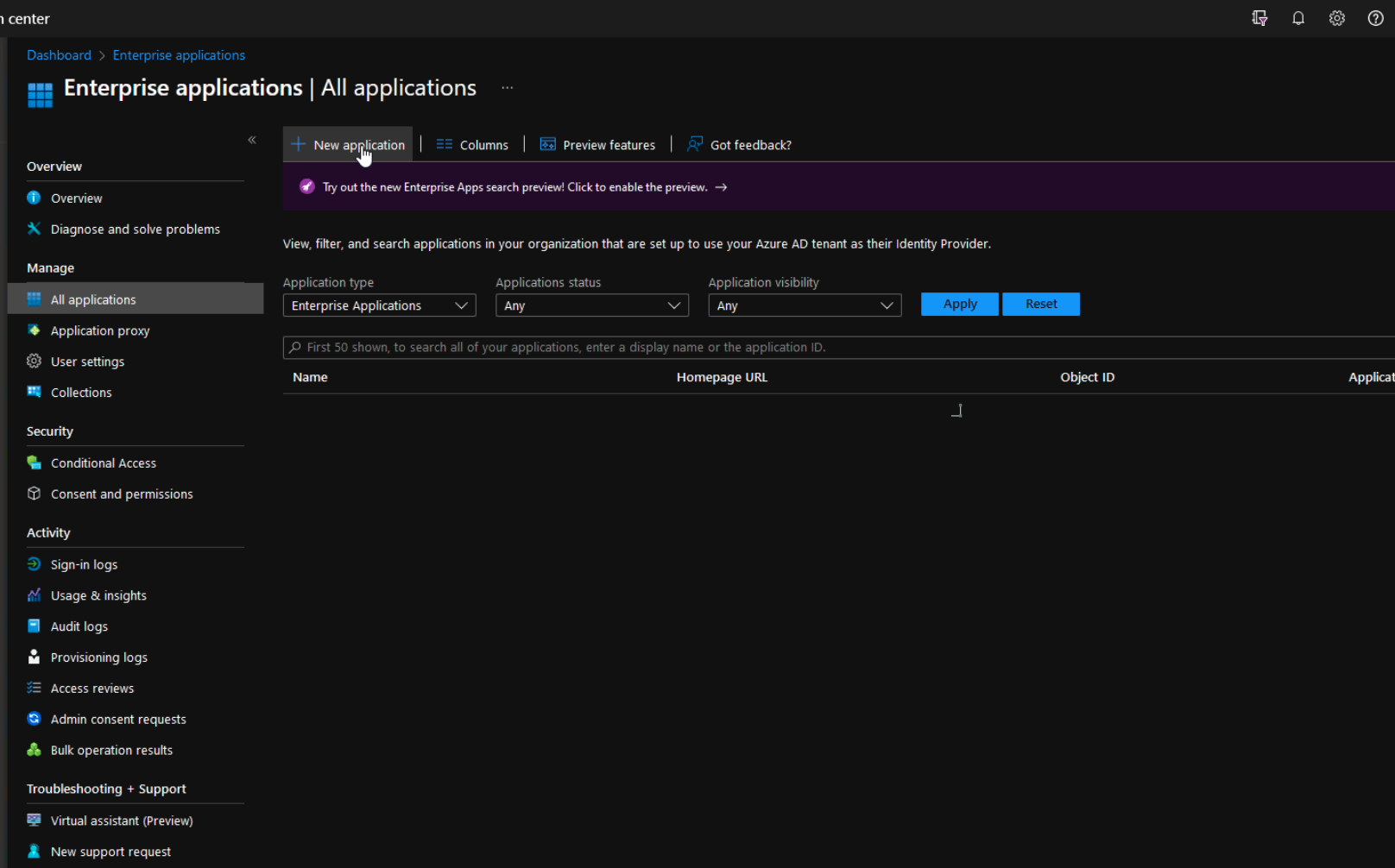
1.) Create a new application.
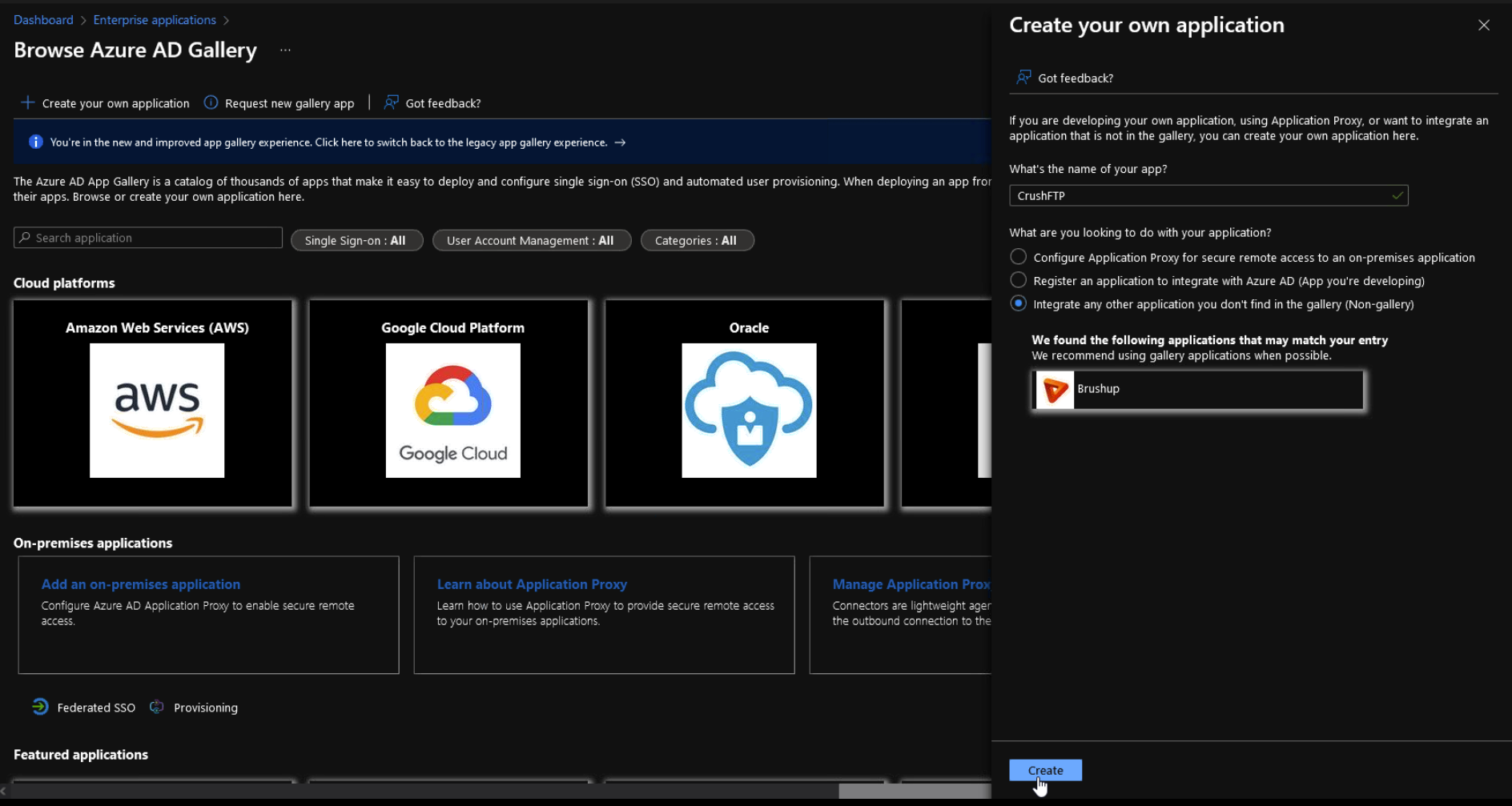
2.) Create your own, we don't have a template to choose from.
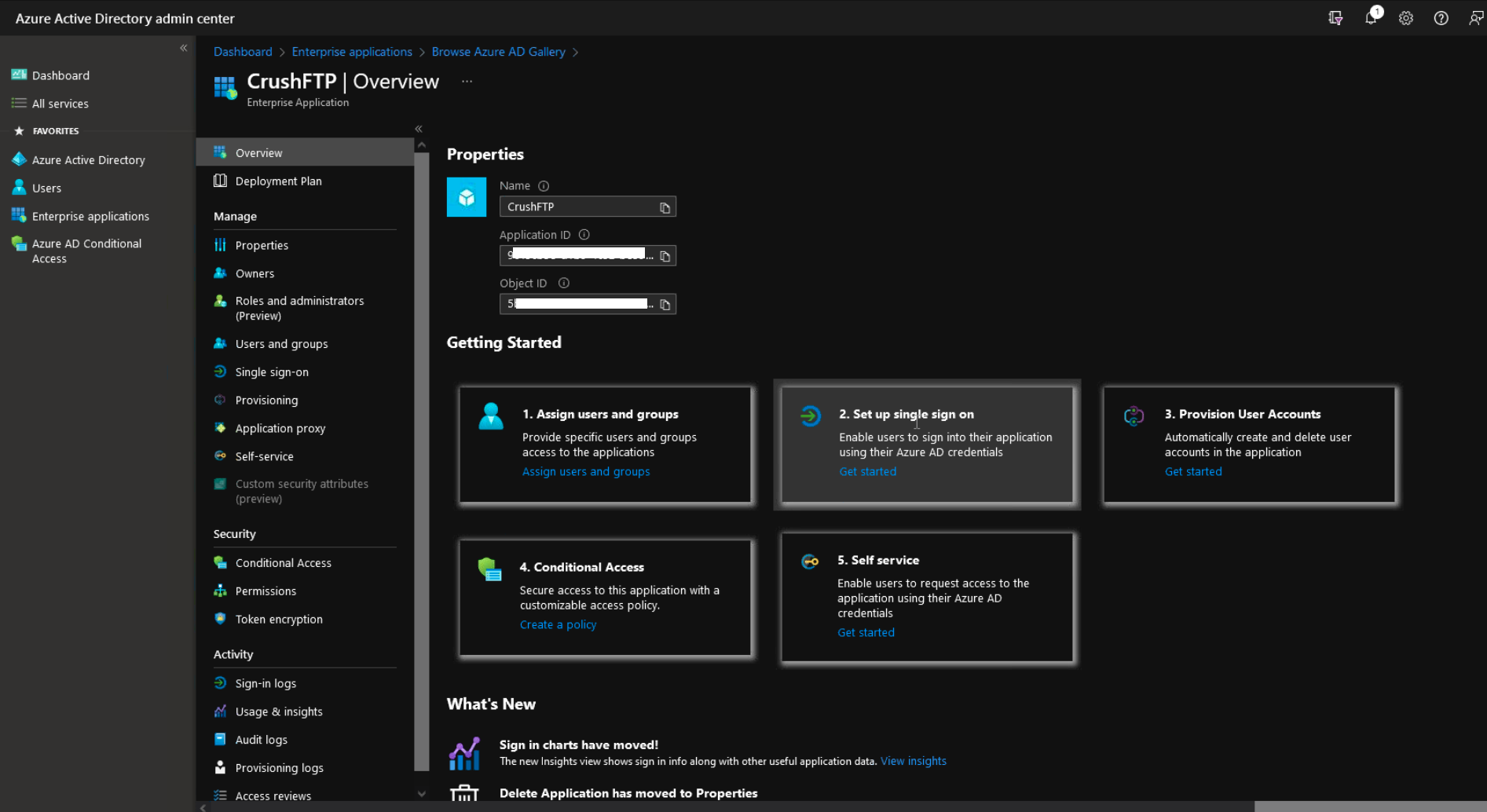
3.) On the left choose Single Sign On to configure the SSO part of the SAML.
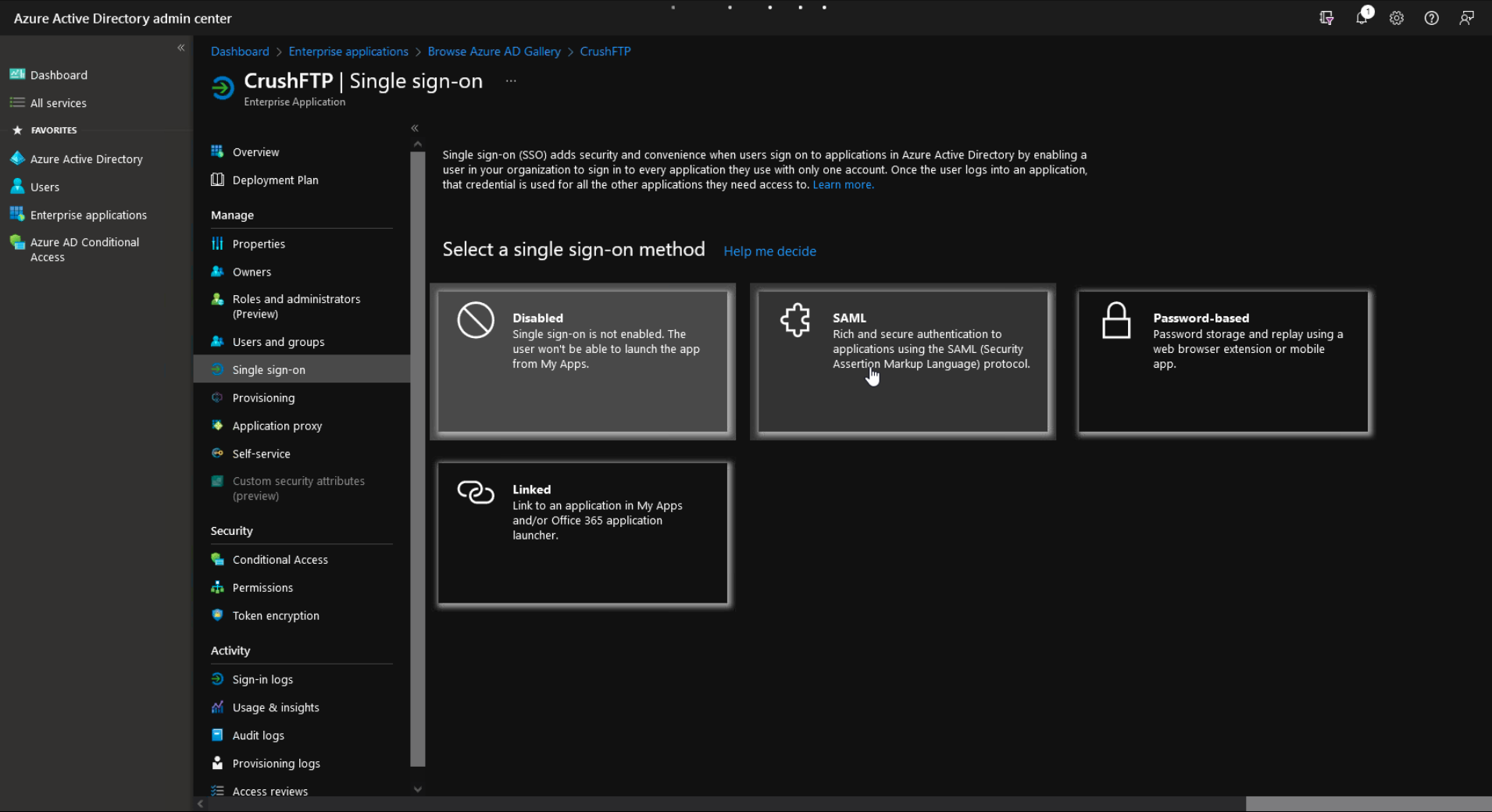
4.) Choose SAML.
5.) Edit.
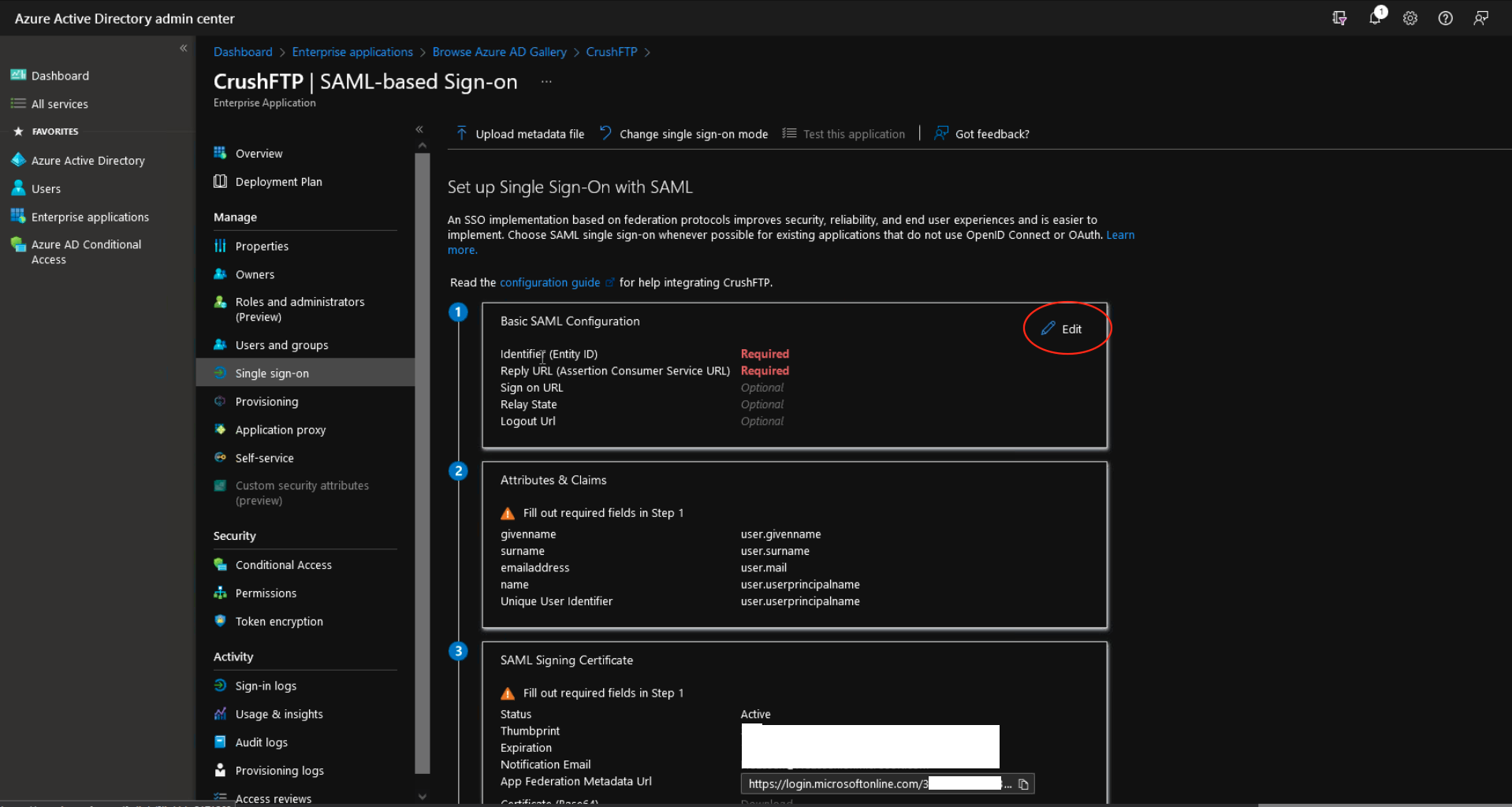
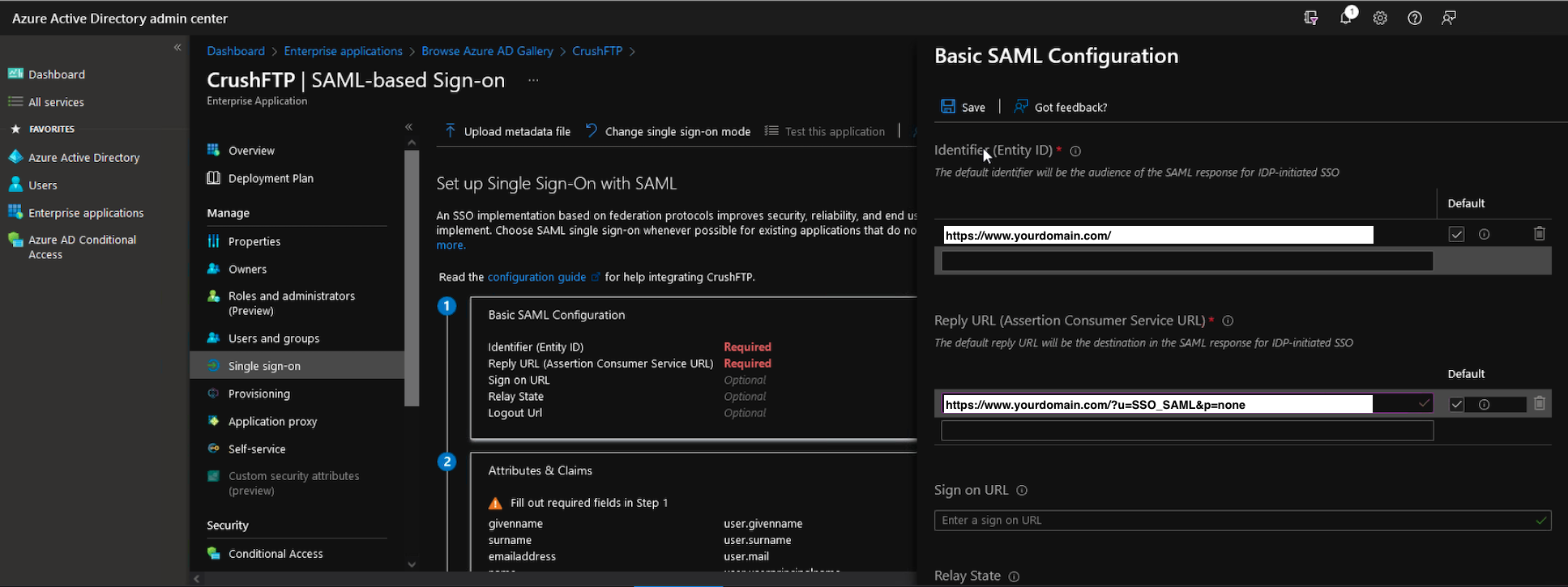
6.) Configure the URL's for your CrushFTP server. The top one will be the 'SAML Issuer' configuration on the SAMLSSO CrushFTP plugin config.
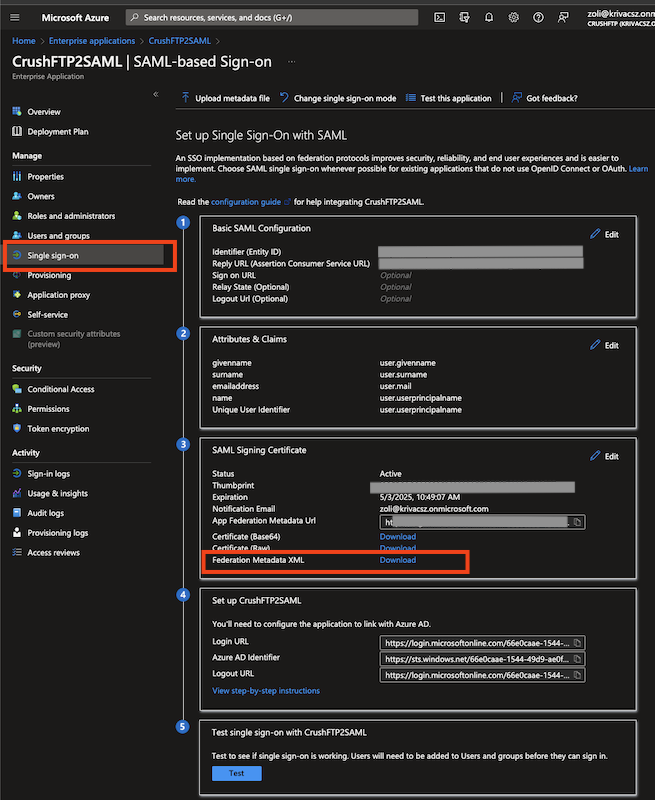
7.) Download the metadata XML from the site after saving in step 6. Edit with a text editor.
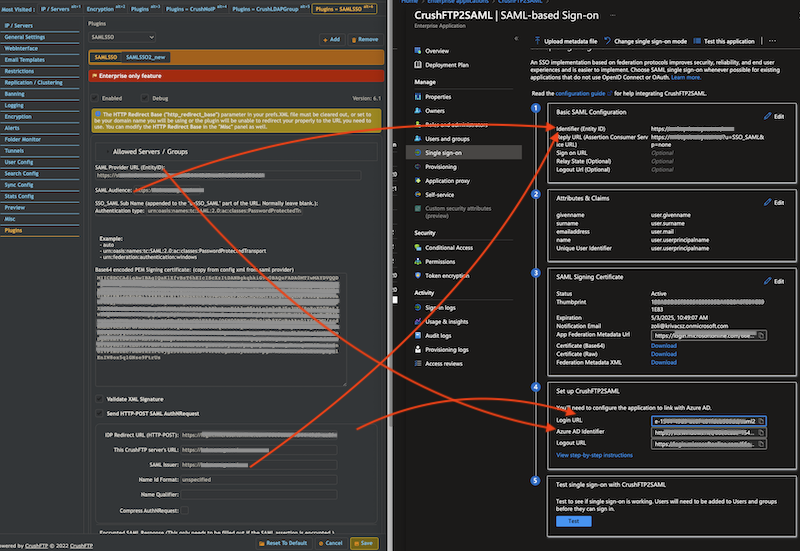
7.1.) Navigate to CrushFTP SAMLSSO plugin configure it based on Azure's Single sign-on (see screenshot too):
[CrushFTP settings]                                 [Azure Settings]
SAML Provider URL (EntityID)       ->             Azure AD Identifier
SAML Audience                      ->             Identifier (Entity ID)
IDP Redirect URL (HTTP-POST)       ->             Login URL
SAML Issuer                        ->             Identifier (Entity ID)
7.2.) On CrushFTP SAMLSSO plugin for "_Authentication type:_" set "urn:oasis:names:tc:SAML:2.0:ac:classes:PasswordProtectedTransport".
Authentication type:urn:oasis:names:tc:SAML:2.0:ac:classes:PasswordProtectedTransport
7.3.) For "This CrushFTP server's URL" -> put a slash in the end of the url:
This CrushFTP server's URL: https://your.domain.com/
7.4.) From the "Federation Metadata XML" -> Look in the middle of the XML for the X509 base64 encoded certificate info. Copy it and paste into the "BASE64 encoded PEM Signing certificate" in SAMLSSO plugin in CrushFTP.