ReverseEvents#
1. Reverse Event configurations#
This type of User Event allows triggering a specific event by multiple user accounts that share the same VFS folder. Takes two different user Event types, a sender and a recipient. The sender will trigger the Event(configured on the recipient account), in opposite to regular Events, that are triggered by the same user these are configured on.
First, need to enable reverse events on Preferences->General Settings page

Then in the User Manager, this takes two different types of events. You need an event to accept reverse notifications,
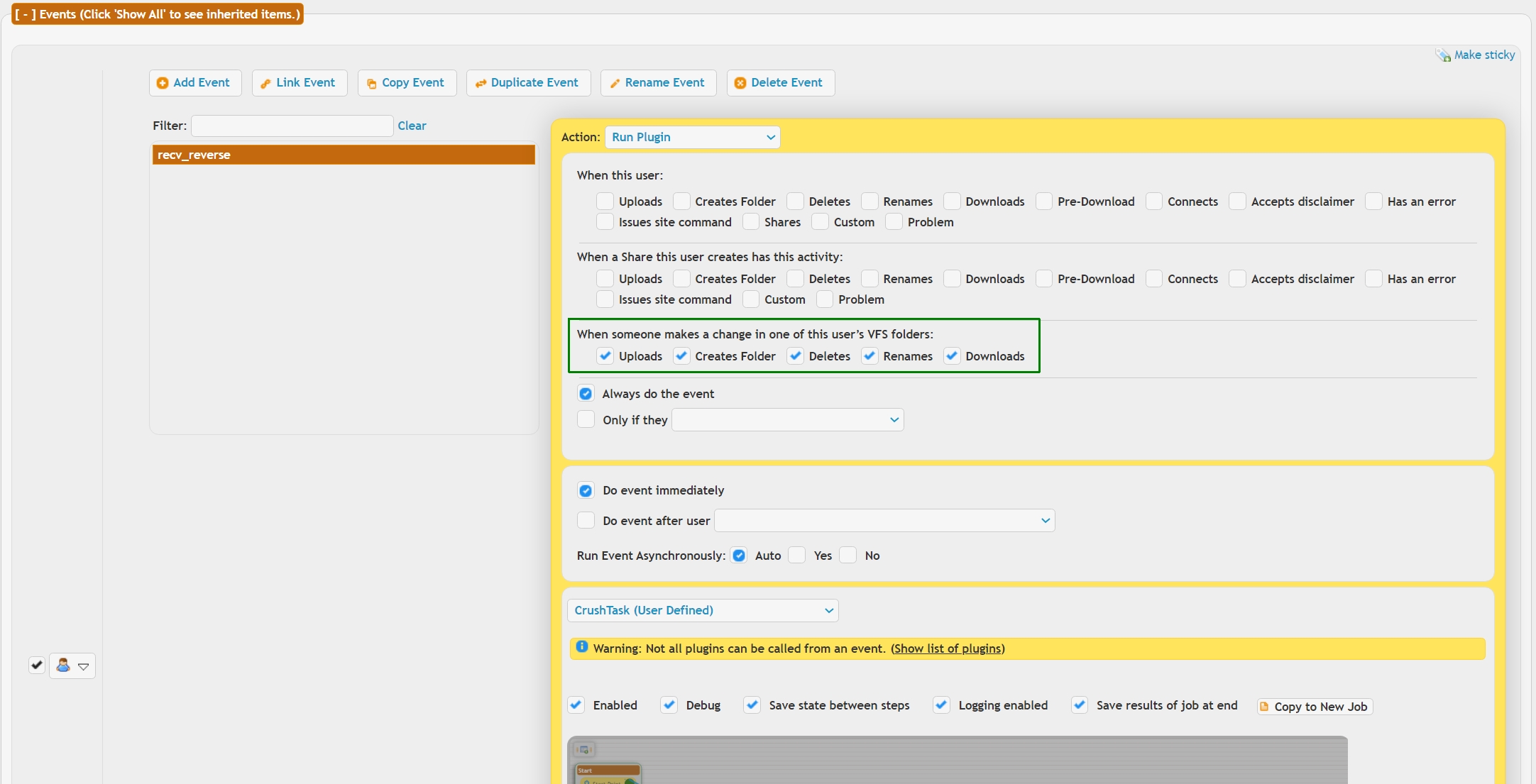
and you need an event to send out reverse notifications.
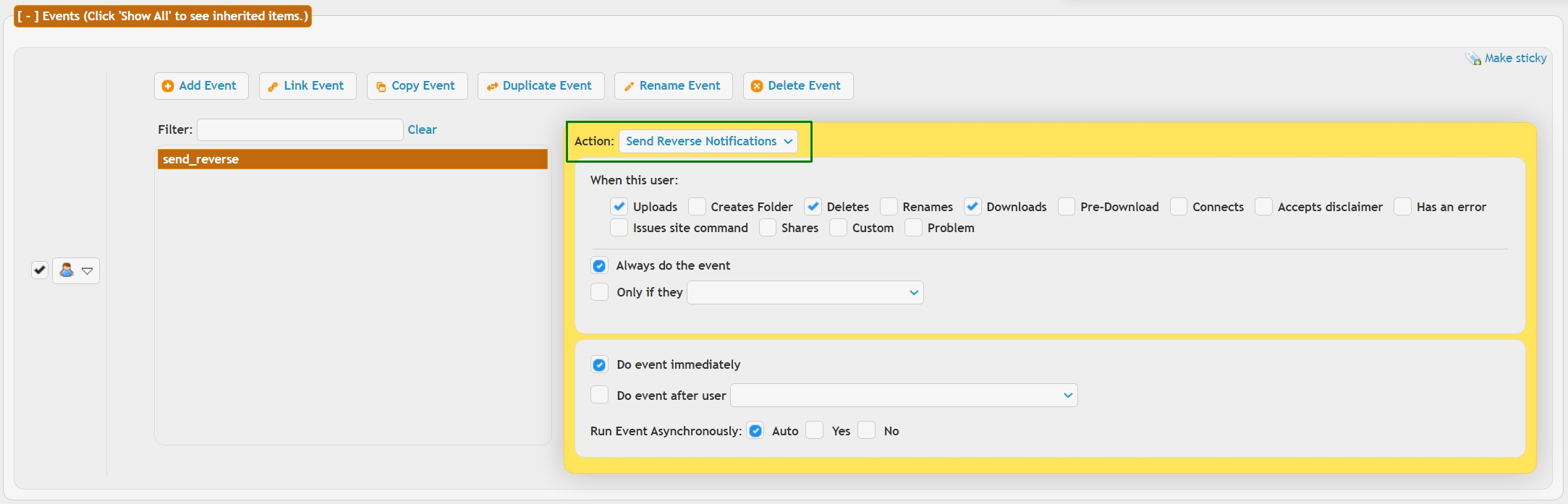
You can put both of these on your default user if you like and they then apply to everyone who has not overridden that config.
Otherwise, the send notifications have to go to all users who might cause a send to occur.... The reverse needs to be on all users who you want to accept reverse notifications.
Remember that reverse notifications take a bit more time and CPU power as all users have to be checked over to see if they have a VFS that matches. But if configured right, reverse notifications will then happen.
2. User subscribe for reverse notifications#
!!!Only for real users, it does not work for users authenticated through a plugin!!!
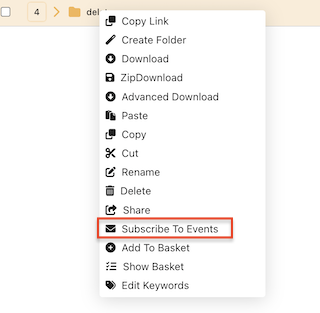
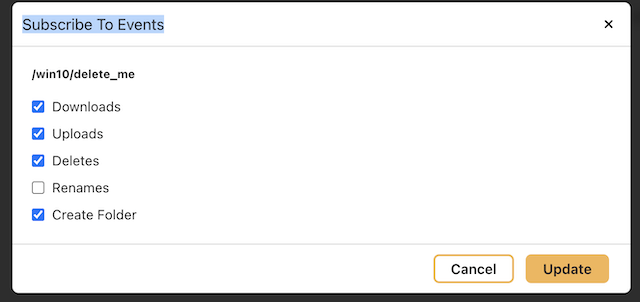
It allows the CrushFTP user to subscribe for reverse notifications through the web interface.
Required configurations:#
1. Enable reverse events on Preferences->General Settings page.
2. Create a "Send Reverse Notification" event type. Create an event in User Manage -> Selected User. Use the action: "Send Reverse Notifications."
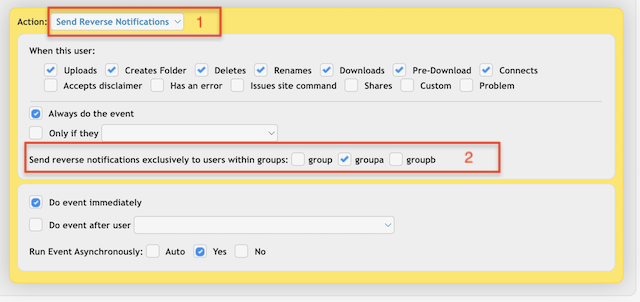
Version 11.2.1 Build 21+ allows you to send notifications exclusively to users within the groups selected.
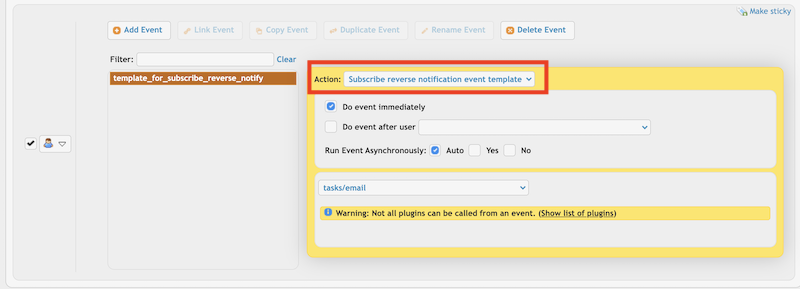
3. Create a template event for the subscription. Create an event in User Manage -> Selected User. Then select the action: "Subscribe reverse notification event template".
4. Add the "Subscribe To Events" WebInterface button. Ensure you enable the "Context Menu" as Manu Bar is not supported for this feature.
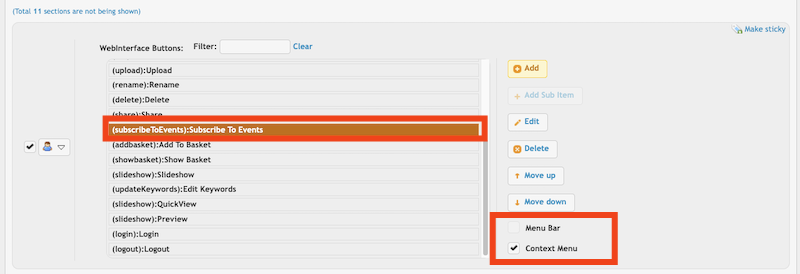
5. Enable the subscribe for the user:

Manage Subscribed Events related configurations:#
Version 11.2.1 Build 21+ allows CrushFTP user to manage subscribed events.
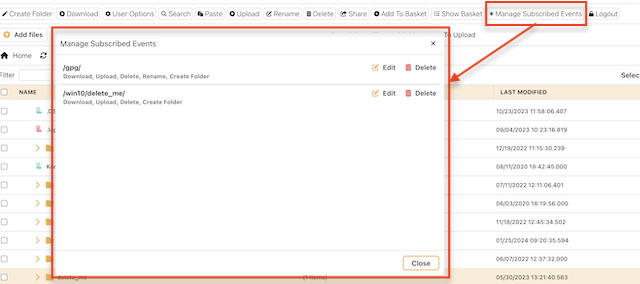
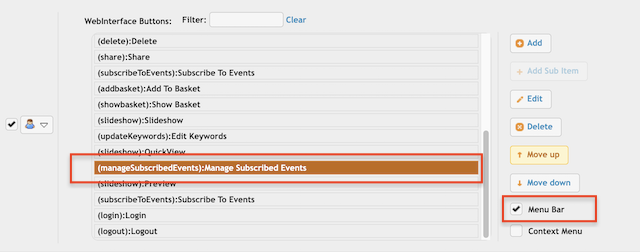
6. Add the "Manage Subscribed Events" WebInterface button. Ensure you enable the "Manu Bar" and not the "Context Menu".
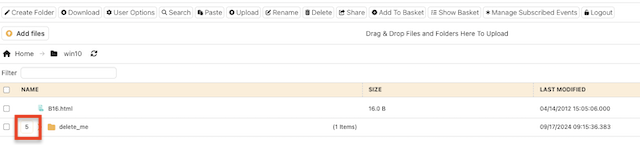
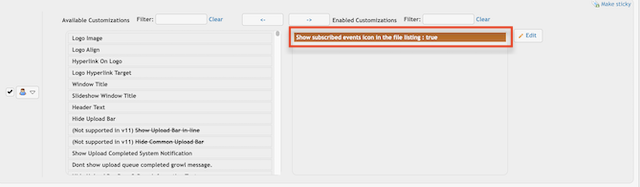
7. Enable the "Show subscribed events icon in the file listing" web interface customization to see the subscribed event numbers next to the folder icon.
8. Activate "reverse_events_skip_sender" config on "perfs.XML" file. When set to true, the reverse event will bypass the sender user(the individual who triggered the event)
Open the "prefs.XML" file (placed in the CrushFTP install folder) and change the "reverse_events_skip_sender" tag value to true.
<reverse_events_skip_sender>true</reverse_events_skip_sender>