CrushTaskExample3#
Expire users password and email password reset link.#
This is an example showing a way to activate a specific task configuration.
This example covers first time setup on a large number of users. Setting their password to be expired, then automating an email to everyone giving them the link to use to go reset their password over email.
Start in the Admin, User Manager tab by selecting the group and select the users in the list. Click the 'Show All' button, and scroll to the Expire Password section. Click the 'Expire Now' button and selected batch update.
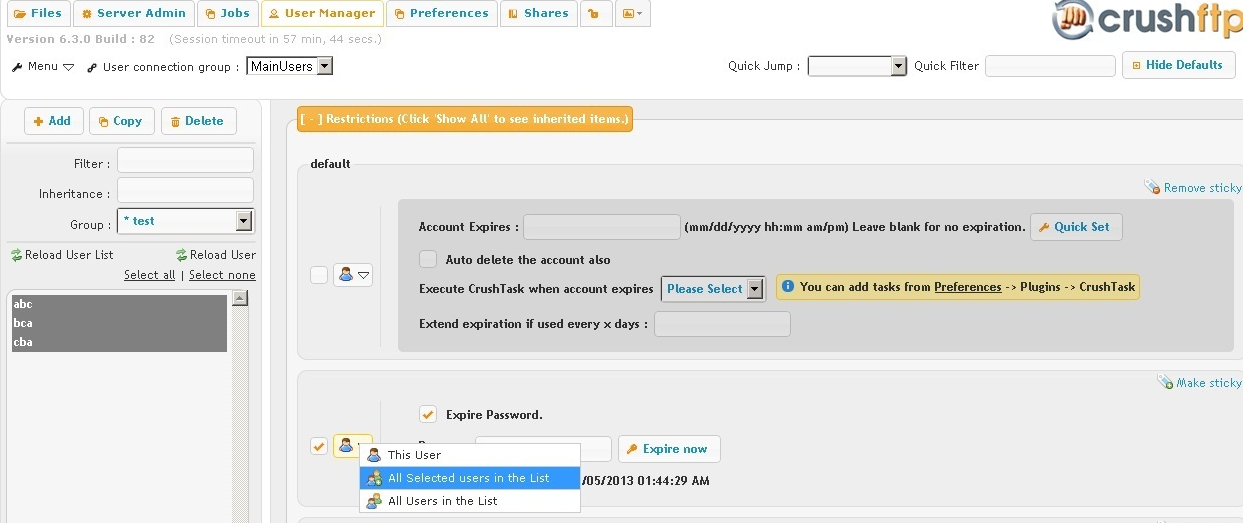
Now go to the Preferences, Plugins, CrushTask plugin. Configure as in these screenshots.
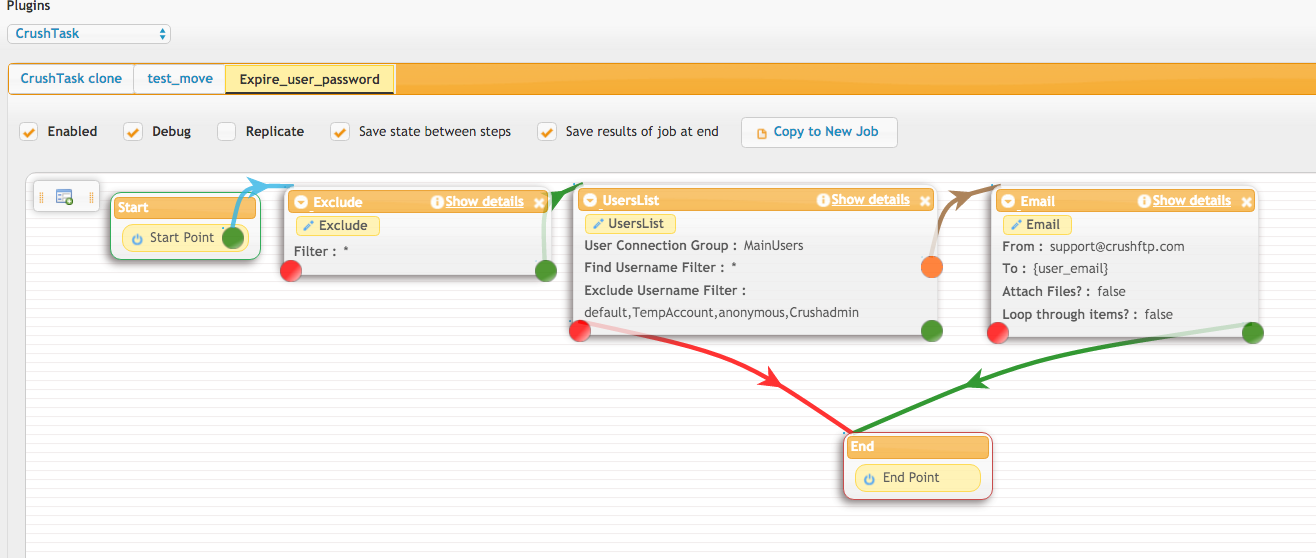
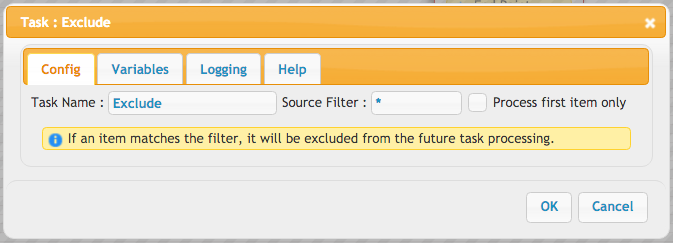
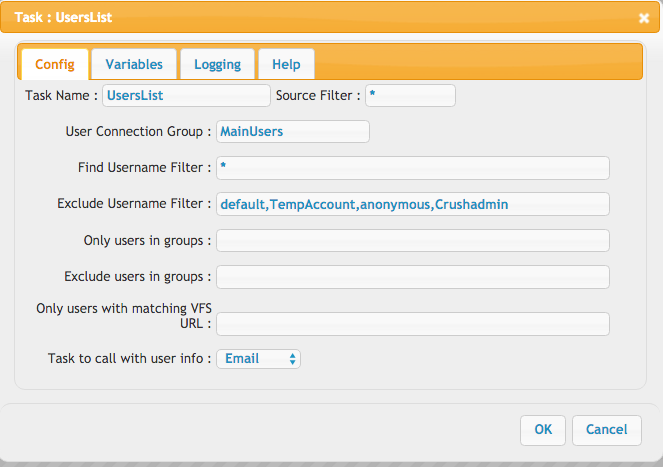
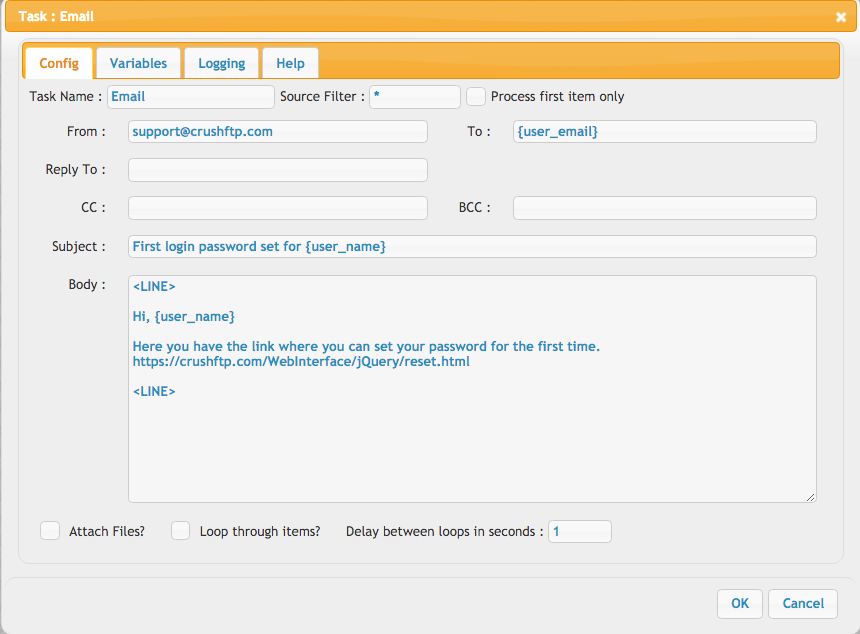
Finally, go to the User Manager tab, selected a user and set an event that will run the CrushTask plugin you just created. Configure it to run on connect, then login and wait for it to run. You will see log messages in the CrushFTP.log file from the task execution.
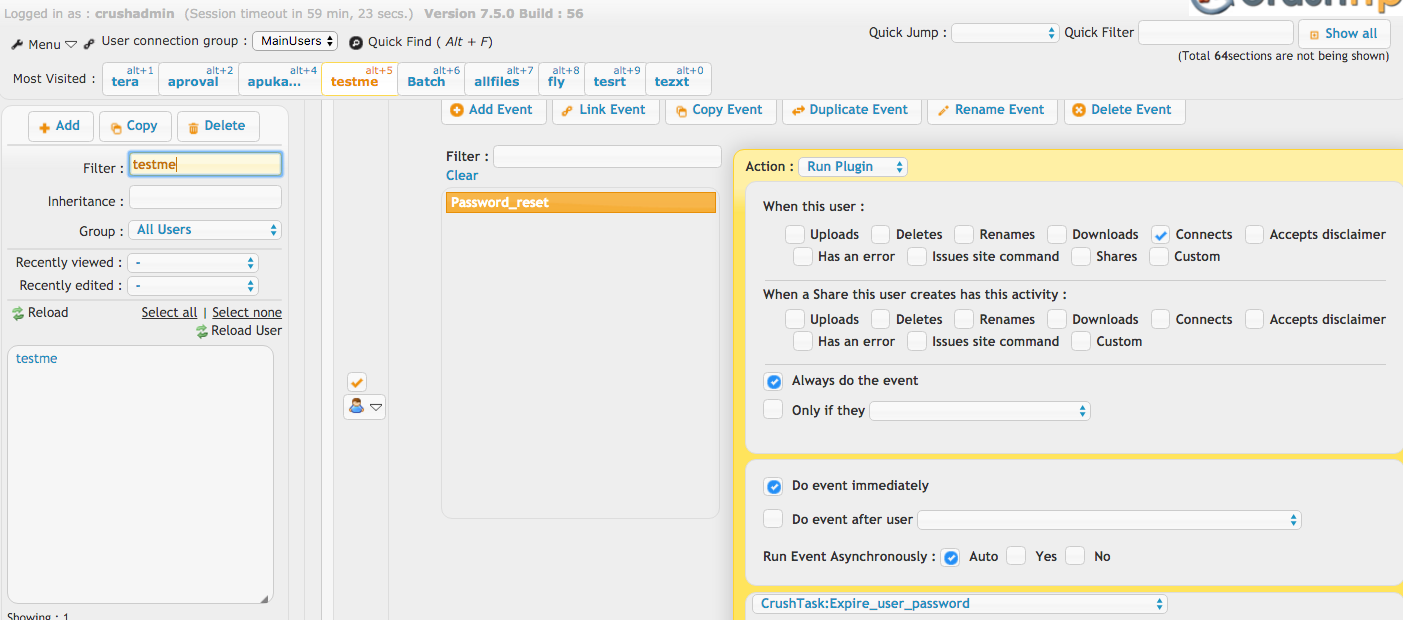
Don't forget to delete the account, or the event so you don't accidentally trigger it again in the future.