CrushTaskExample19#
Managing SharePoint Site Access for Applications Using Sites.Selected Permission#
The Sites.Selected permission allows an app to access only the specific SharePoint sites you explicitly authorize. This wiki page provides guidance on how to grant SharePoint write access (required for SharePoint/SharePoint2 protocol see SharePoint Integration) to an App Registration configured in the Azure Portal. Using Sites.Selected offers a much more secure alternative to granting full access across your entire tenant. See this: Granting access via Azure AD App-Only Link
1. Create an App Registration with permission Sites.FullControl.All#
⚠️ Important: This App Registration is not the working app that will access the SharePoint site. It is a helper/admin app, used only to configure and grant SharePoint write permissions to other apps (the real apps that will use Sites.Selected permission).
Open the Microsoft Entra Admin Center (formerly Azure AD) to manage your app registration: Microsoft Entra Admin Center Link
Navigation: Go to App registrations. Click on New registration.

The Redirect URI (optional) is not required, because it will has a Application Permission only.
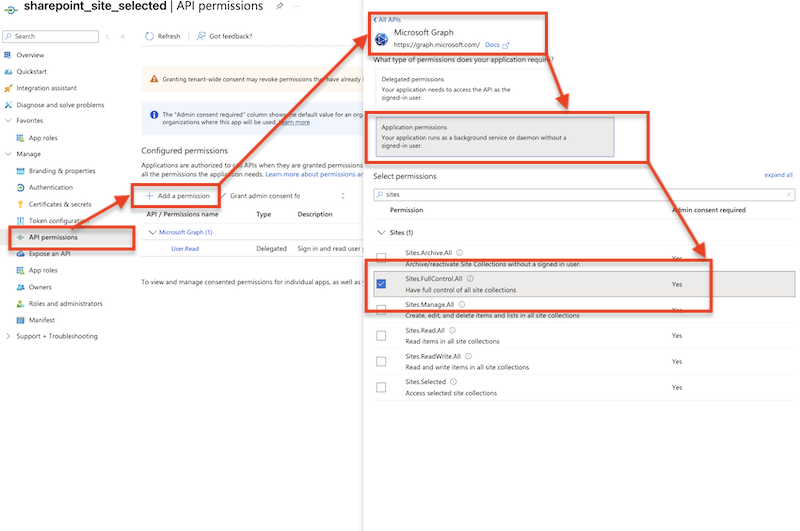
Configure API Permissions: Navigate to API Permissions. Click on Add a permission button. Select Microsoft Graph. Then select Application Permission. Search for Sites and check the flag Sites.FullControll.All.
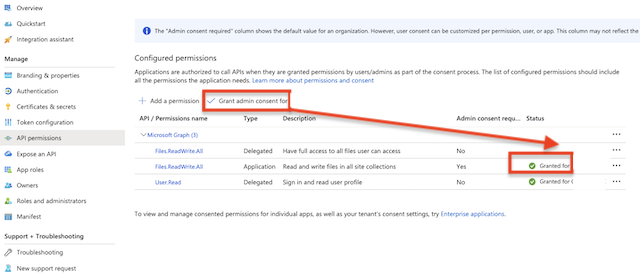
⚠️ Grant Admin consent for the newly added permission.
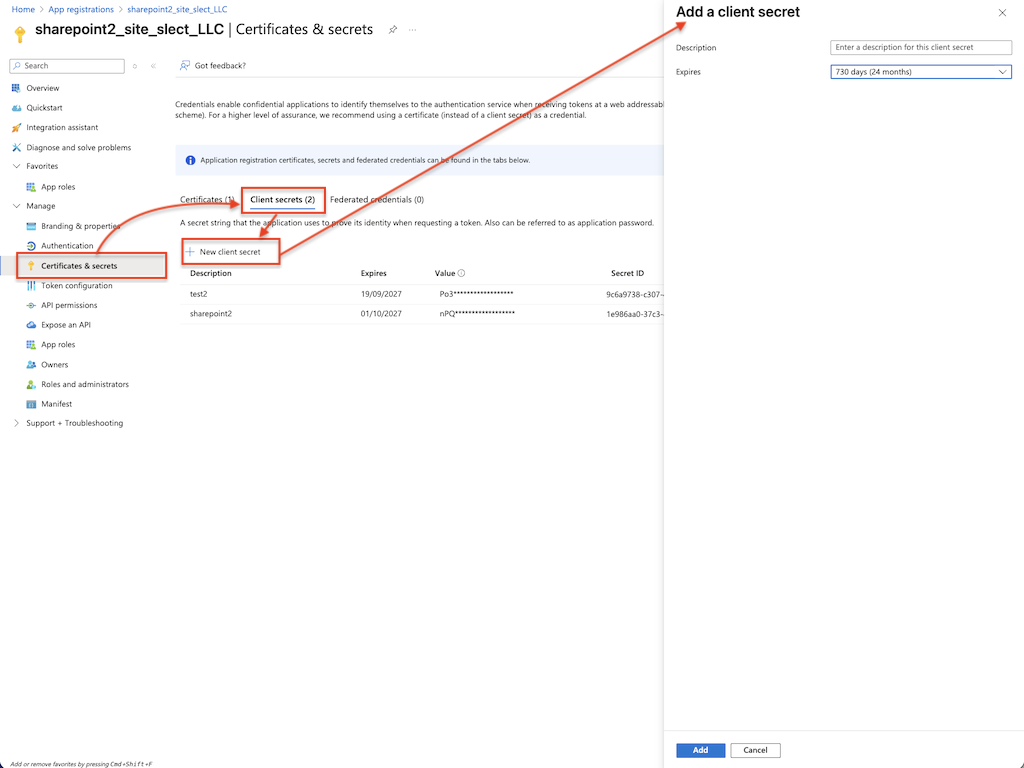
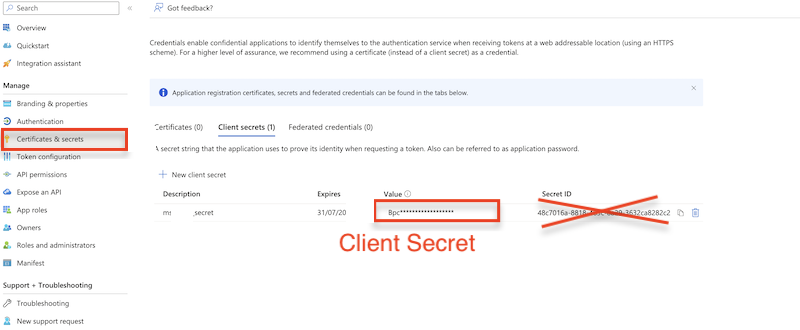
Secret key: A new client secret must be created. Go to Certificates & secrets, and generate a new client secret by clicking on New client secret. ⚠️ Ensure you copy over the value immediately!
2. Create an App Registration to Access Specific SharePoint Site Documents Using the Sites.Selected Permission#
Open the Microsoft Entra Admin Center (formerly Azure AD) to manage your app registration: Microsoft Entra Admin Center Link
Navigation: Go to App registrations. Click on New registration.
Application registration: Go to the App registrations and click on New registration. Select platform: Web and Configure redirect URL like:
    http://localhost:9090/register_microsoft_graph_api/
    or
    https://your.crushftp.domain.com/register_microsoft_graph_api/
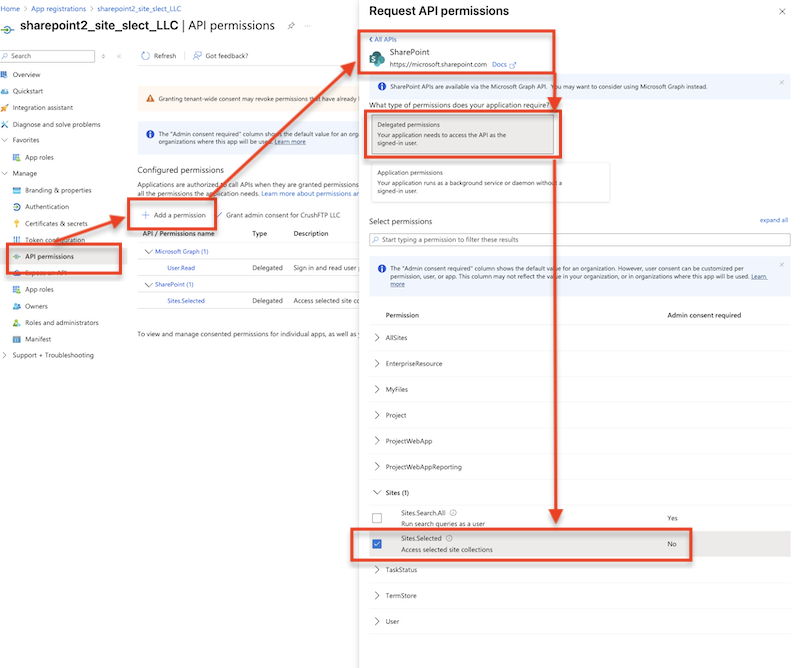
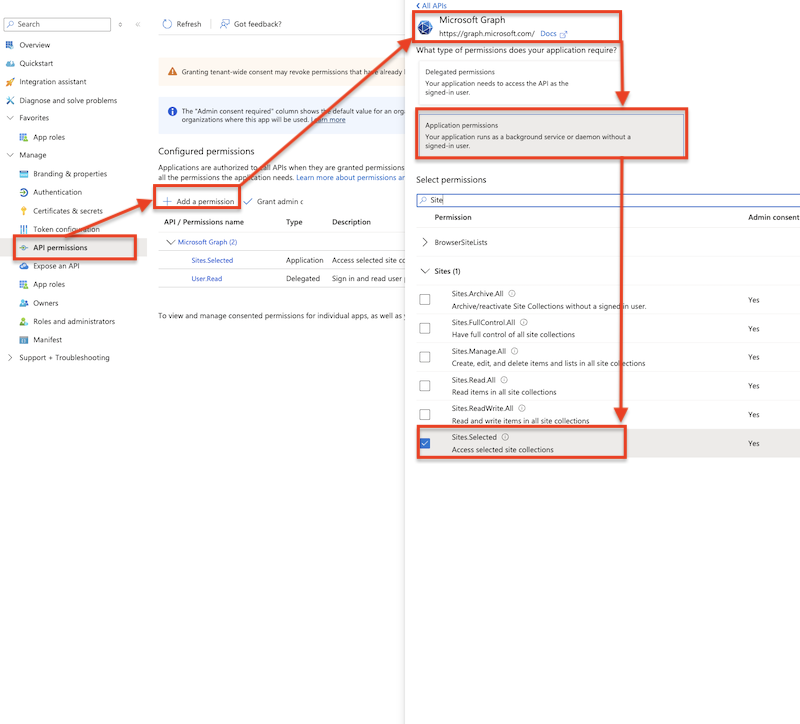
Navigate to API Permissions. Click on Add a permission button. Select SharePoint or Microsoft Graph. Then select Delegated/Application Permission. Search for Sites and check the flag Sites.Selected.
2.1 App Permissions for SharePoint REST API (See at: Link):
2.2 App Permissions for Microsoft Graph API (See at: Link):
⚠️ Grant Admin consent for the newly added permission.
Secret key: A new client secret must be created. Go to Certificates & secrets, and generate a new client secret by clicking on New client secret. ⚠️ Ensure you copy over the value immediately!
3. How to Grant SharePoint Site Access to an App Registration Using the Microsoft Graph API?#
This is done by calling the /permissions endpoint on the target SharePoint site. The request must include a valid Microsoft Graph access token with Sites.FullControl.All application permission, and specify the App Registration you want to grant access to using the application.id in the request body:
POST https://graph.microsoft.com/v1.0/sites/{tenant}.sharepoint.com:/sites/{site-name}:/permissions

BODY: {
    "roles": ["write"],
    "grantedToIdentities": [
      {
        "application": {
          "id": "11111111-2222-3333-4444-555555555555",
          "displayName": "My Azure App Registration"
        }
      }
    ]
    }
Curl example:
curl -X POST "https://login.microsoftonline.com/<<App Registration: Directory (tenant) ID>>/oauth2/v2.0/token" \
  -H "Content-Type: application/x-www-form-urlencoded" \
  -d "client_id=XXX-XXXX-XXX-XX&scope=https%3A%2F%2Fgraph.microsoft.com%2F.default&client_secret=XXX-XXXX-XXX-XX&grant_type=client_credentials"
curl -X POST "https://graph.microsoft.com/v1.0/sites/contoso.sharepoint.com:/sites/Your_Site:/permissions" \
  -H "Authorization: Bearer YOUR_ACCESS_TOKEN" \
  -H "Content-Type: application/json" \
  -d '{
    "roles": ["write"],
    "grantedToIdentities": [
      {
        "application": {
          "id": "11111111-2222-3333-4444-555555555555",
          "displayName": "My Azure App Registration"
        }
      }
    ]
  }'
PowerShell example:
$tenantId = "<<your-tenant-id>>"  # Directory (tenant) ID
$clientId = "XXX-XXXX-XXX-XX"     # App Registration (client ID)
$clientSecret = "XXX-XXXX-XXX-XX" # Client secret

$tokenEndpoint = "https://login.microsoftonline.com/$tenantId/oauth2/v2.0/token"

$body = @{
    client_id     = $clientId
    scope         = "https://graph.microsoft.com/.default"
    client_secret = $clientSecret
    grant_type    = "client_credentials"
}

$response = Invoke-RestMethod -Method POST -Uri $tokenEndpoint -Body $body -ContentType "application/x-www-form-urlencoded"

# Output access token
$accessToken = $response.access_token
Write-Host "Access Token:" $accessToken
$accessToken = "YOUR_ACCESS_TOKEN"
$sitePath = "contoso.sharepoint.com:/sites/Your_Site:"
$uri = "https://graph.microsoft.com/v1.0/sites/$sitePath/permissions"

$headers = @{
    "Authorization" = "Bearer $accessToken"
    "Content-Type"  = "application/json"
}

$body = @{
    roles = @("write")
    grantedToIdentities = @(
        @{
            application = @{
                id = "11111111-2222-3333-4444-555555555555"
                displayName = "My Azure App Registration"
            }
        }
    )
} | ConvertTo-Json -Depth 5

Invoke-RestMethod -Method POST -Uri $uri -Headers $headers -Body $body
4. Job Example:#
Sample job.XML can be downloaded here: CrushTaskExample19/job.XML
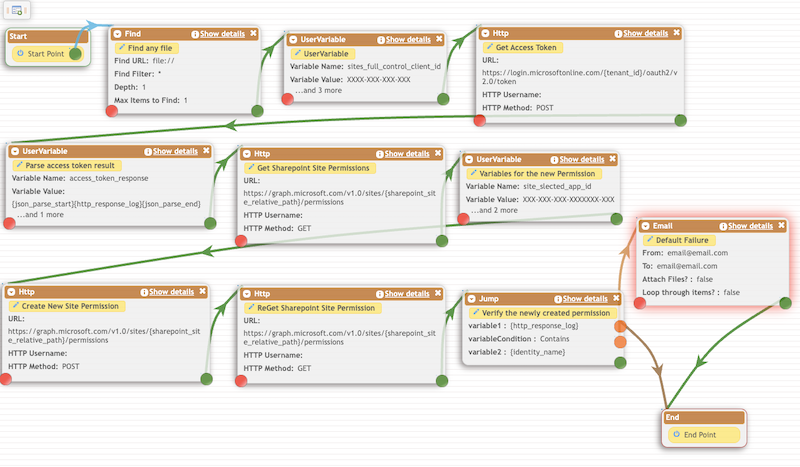
Tasks:
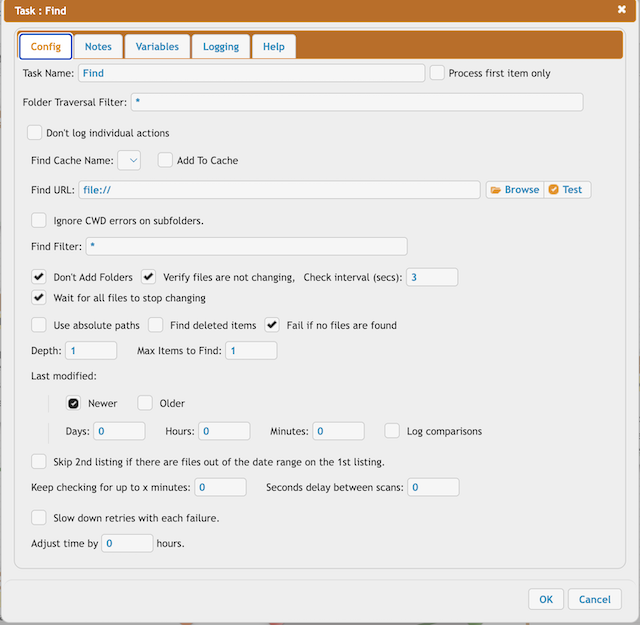
Find any local file on the server. Settings:
Don't Add Folders: true
Max Items to Find: 1
Depth: 1
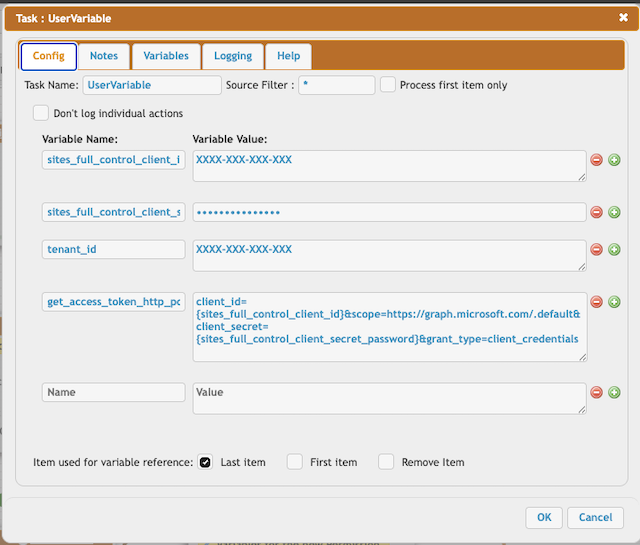
You need the following variables to obtain an access token:
sites_full_control_client_id = XXXX-XXX-XXX-XXX
(See at App Registration -> Overview -> Application (client) ID)

sites_full_control_client_secret_password = XXXX-XXX-XXX-XXX
(See at App Registration -> Manage -> Certificates & secrets)

tenant_id = XXXX-XXX-XXX-XXX
(See at App Registration -> Overview -> Directory (tenant) ID)

get_access_token_http_post_data = client_id={sites_full_control_client_id}&scope=https%3A%2F%2Fgraph.microsoft.com%2F.default&client_secret={sites_full_control_client_secret_password}&grant_type=client_credentials
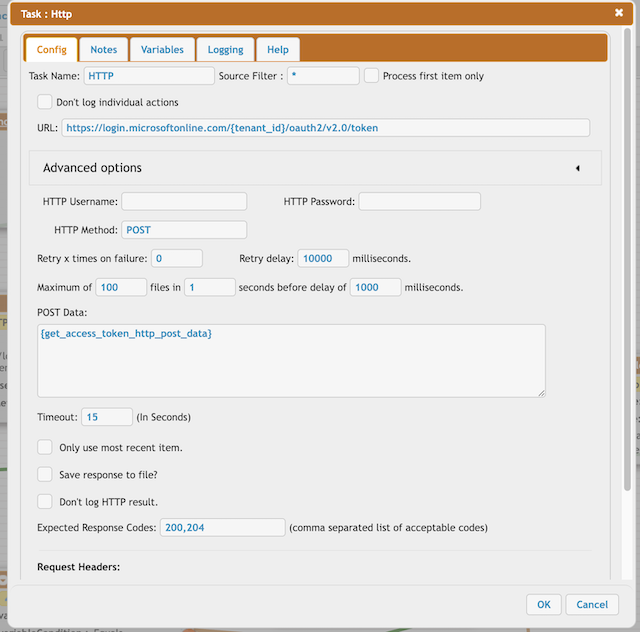
URL : https://login.microsoftonline.com/{tenant_id}/oauth2/v2.0/token

HTTP Method: POST

POST Data: {get_access_token_http_post_data}

Expected Response Codes: 200,204
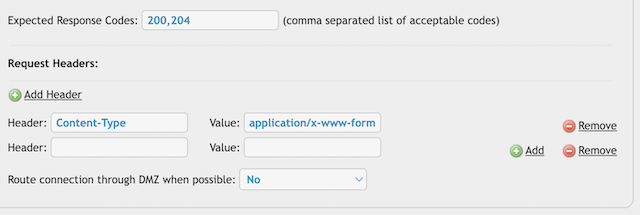
Header: Content-Type application/x-www-form-urlencoded
}}}
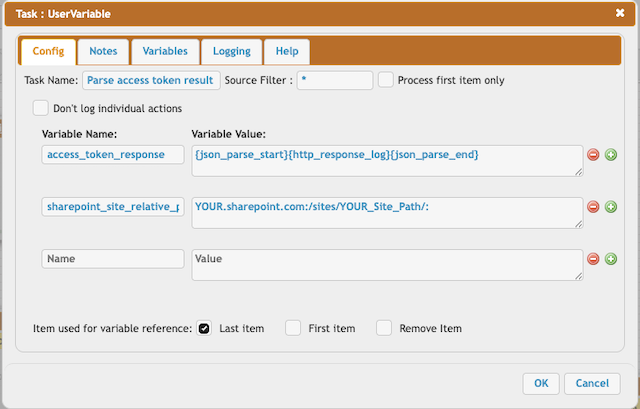
access_token_response = {json_parse_start}{http_response_log}{json_parse_end}

sharepoint_site_relative_path = YOUR.sharepoint.com:/sites/YOUR_Site_Path/:
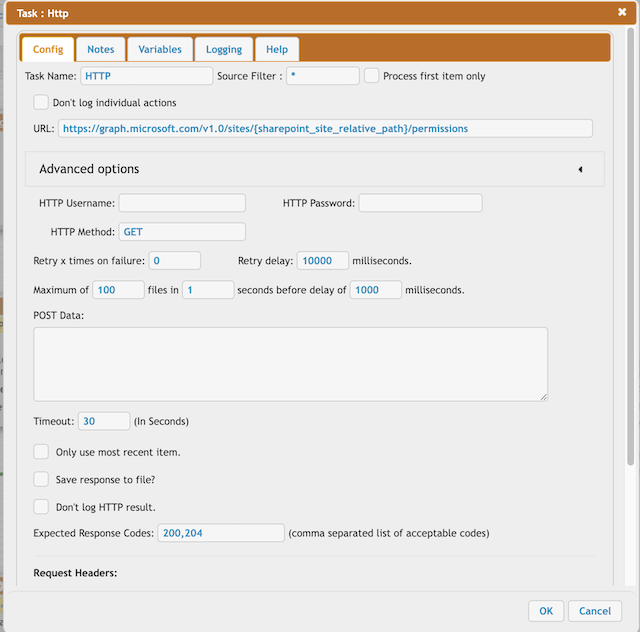
URL: https://graph.microsoft.com/v1.0/sites/{sharepoint_site_relative_path}/permissions

HTTP Method: GET

Expected Response Codes: 200,204
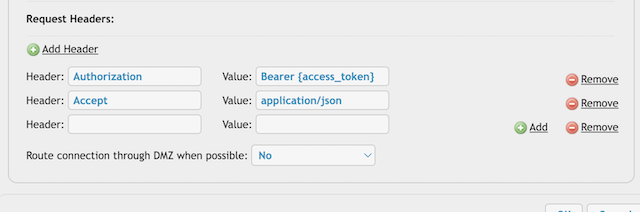
Header: Authorization Bearer {access_token}

Header: Accept application/json
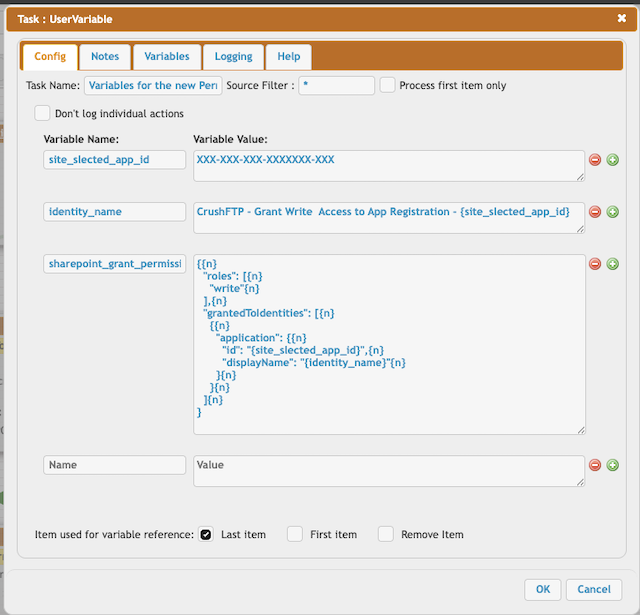
site_slected_app_id = XXXX-XXX-XXX-XXX
(See at App Registration -> Overview -> Application (client) ID)

identity_name = CrushFTP - Grant Write  Access to App Registration - {site_slected_app_id}

sharepoint_grant_permission_http_post_data = {n}
  "roles": [{n}
    "write"{n}
  ],{n}
  "grantedToIdentities": [{n}
    {{n}
      "application": {{n}
        "id": "{site_slected_app_id}",{n}
        "displayName": "{identity_name}"{n}
      }{n}
    }{n}
  ]{n}
}
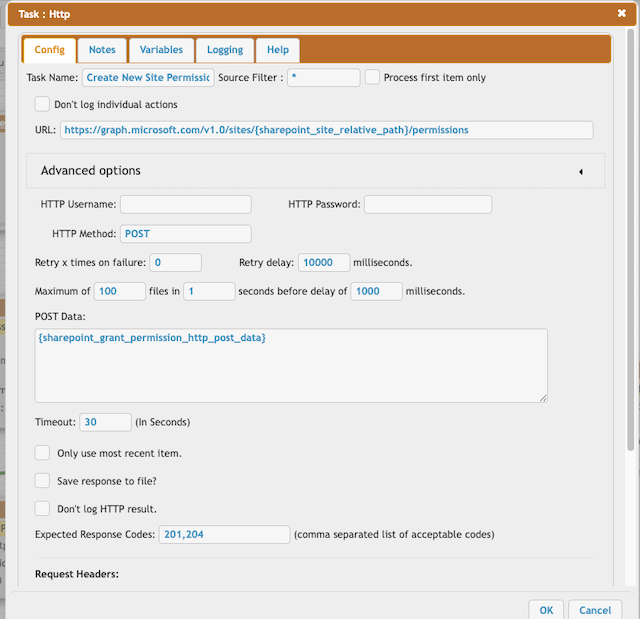
URL : https://graph.microsoft.com/v1.0/sites/{sharepoint_site_relative_path}/permissions

HTTP Method: POST

POST Data: {sharepoint_grant_permission_http_post_data}

Expected Response Codes: 201,204
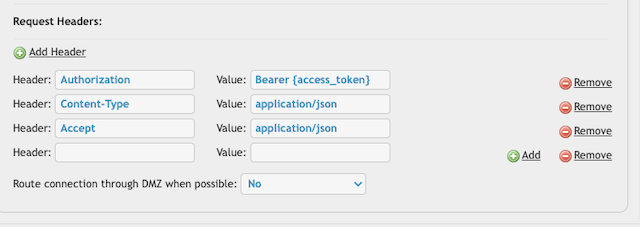
Header: Authorization Bearer {access_token}

Header: Content-Type application/json

Header: Accept application/json
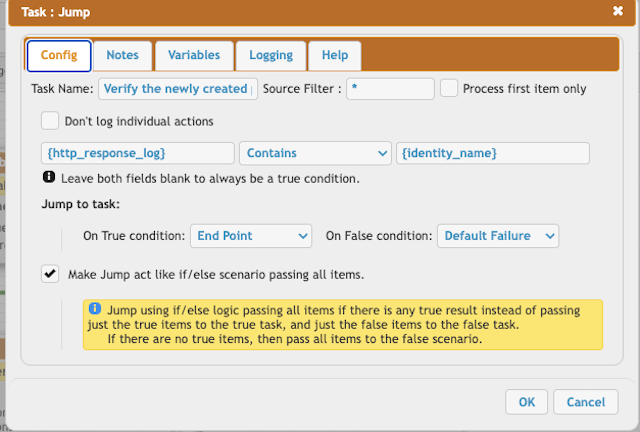
Reload the site permissions, including the newly created one.