Server setup#
Before anyone can sync, the administrator turns sync on for a folder on the CrushMFT server. This page shows CrushMFT 27. What is different on CrushFTP 11 is at the end.
CrushSync needs an Enterprise license on the server. It needs no database: the server keeps what it has to remember in files of its own (The journal on the server).
1. Turn sync on for a folder#
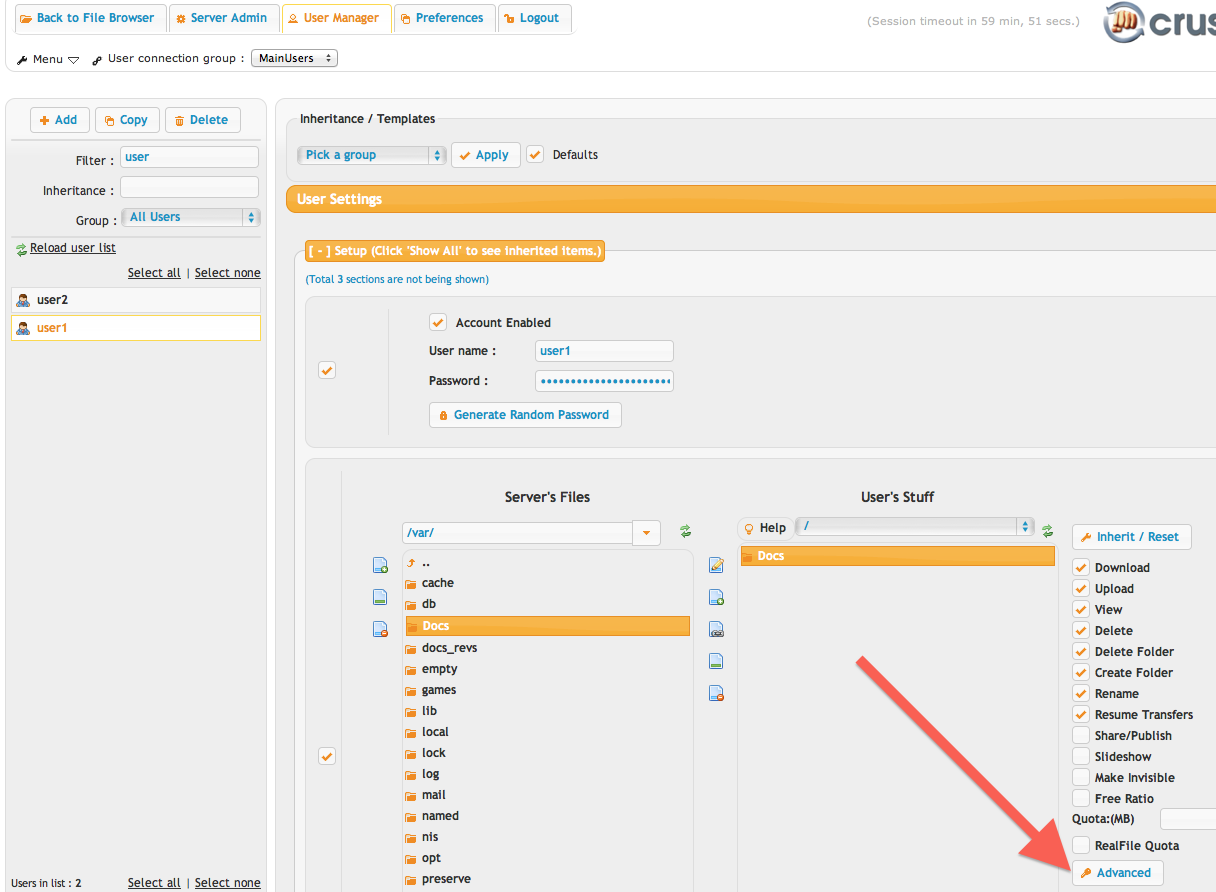
In the User Manager, select the user, or the group or template the users inherit from. Under Setup › VFS, select the folder in User's Stuff and give it every permission a synced folder needs: Download, Upload, View, Delete, Delete Folder, Create Folder, Rename and Resume Transfers.
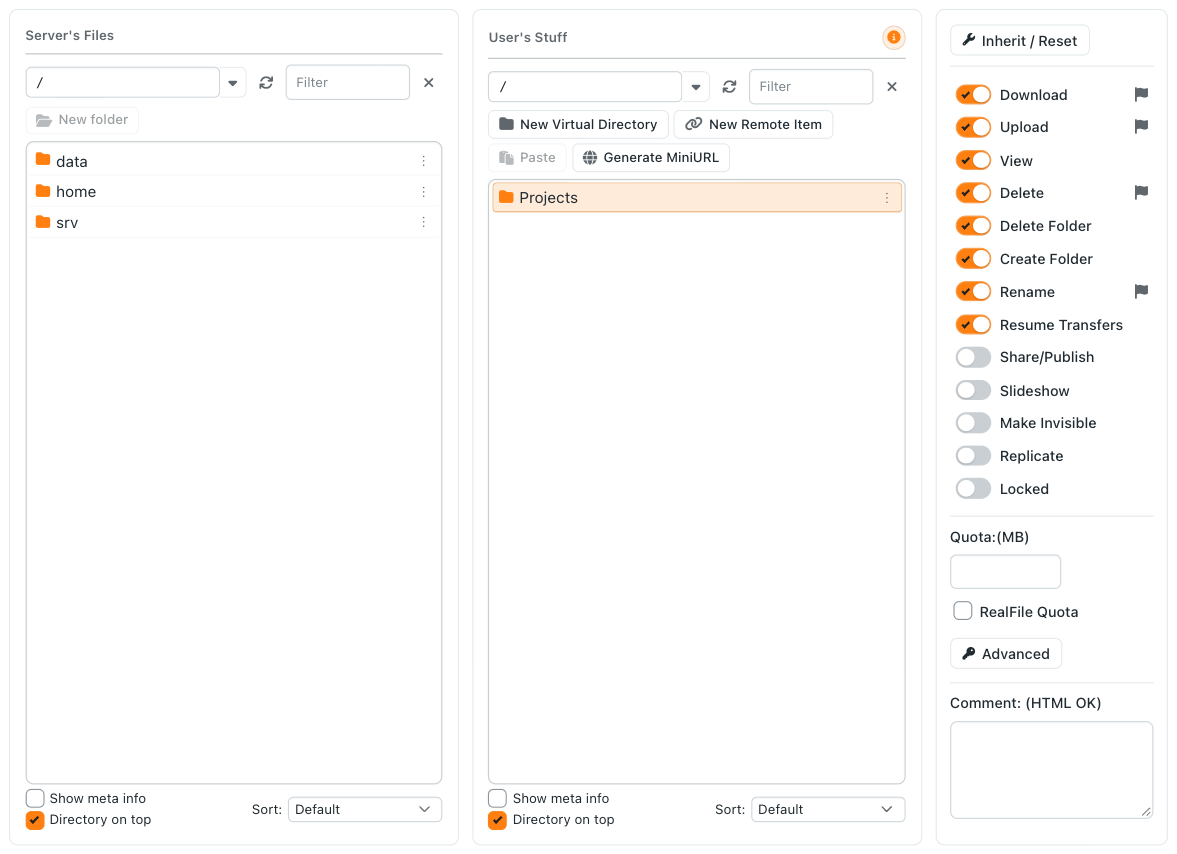
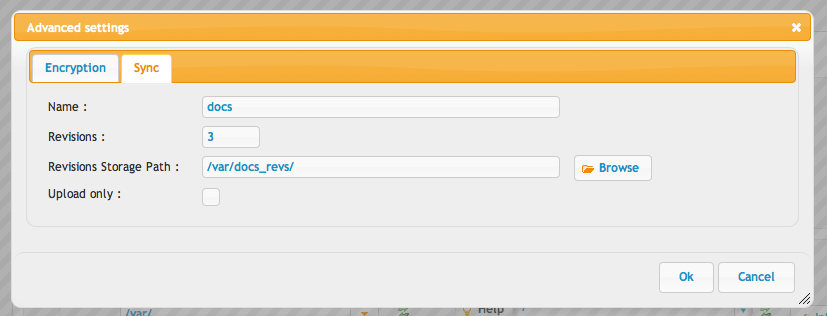
Click Advanced under the permissions, and there the Sync tab.
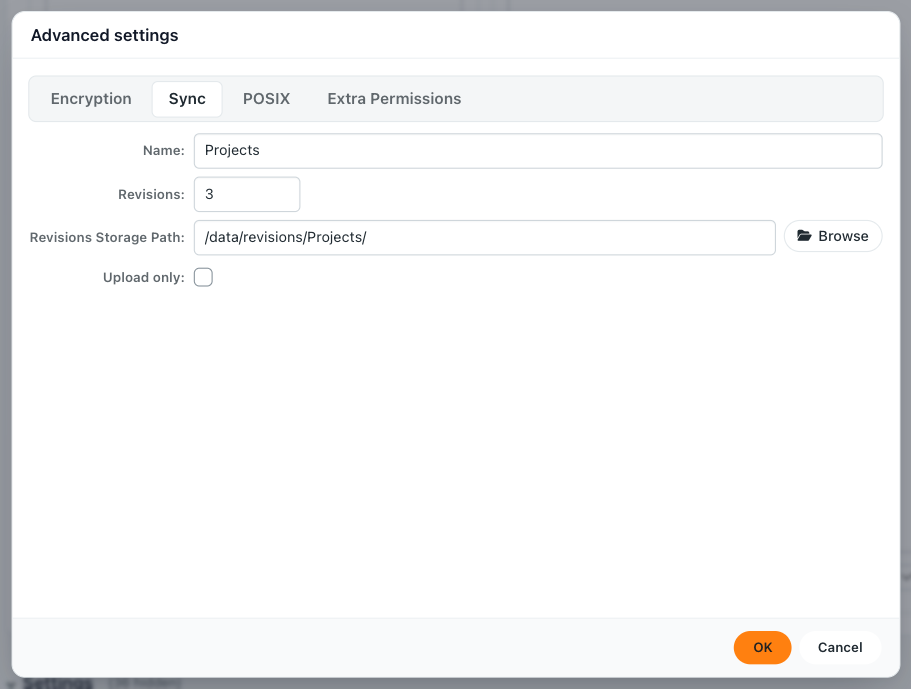
| Field | What it is |
|---|---|
| Name | The name of this sync. A folder is synced when it has a name here. The server keeps one journal of changes per name, so give every synced folder its own name. |
| Revisions | How many earlier versions of each file the server keeps. Keep at least 3: when two people change the same file, the earlier versions are what they sort it out with. With 0 none are kept. |
| Revisions Storage Path | A folder on the server's own disk for those earlier versions, outside the synced folder. Empty means no earlier versions are kept. |
| Upload only | The computers that sync this folder only send. The server passes them nobody else's changes. |
Press OK, then Save.
2. Use the same server path for everyone#
Everyone who syncs a folder together must reach it under the same path on the server. If user1 sees it as /myfiles/ and user2 as /mydocuments/, their syncs will not meet. Give both the same virtual path, most easily by letting them inherit the folder from one group or template.
3. How long a computer may stay away#
Preferences › Sync Config has one setting: how many days of the journal the server keeps.

That is the longest a computer can be offline and still be told everything that happened while it was away. The default is 30 days. See what happens after a longer absence.
4. More than one server#
Servers that work as a cluster must share the journal, or a computer only hears of the changes made through the server it happens to reach. They share it by sharing one folder: The journal on the server.
Earlier versions in the WebInterface#
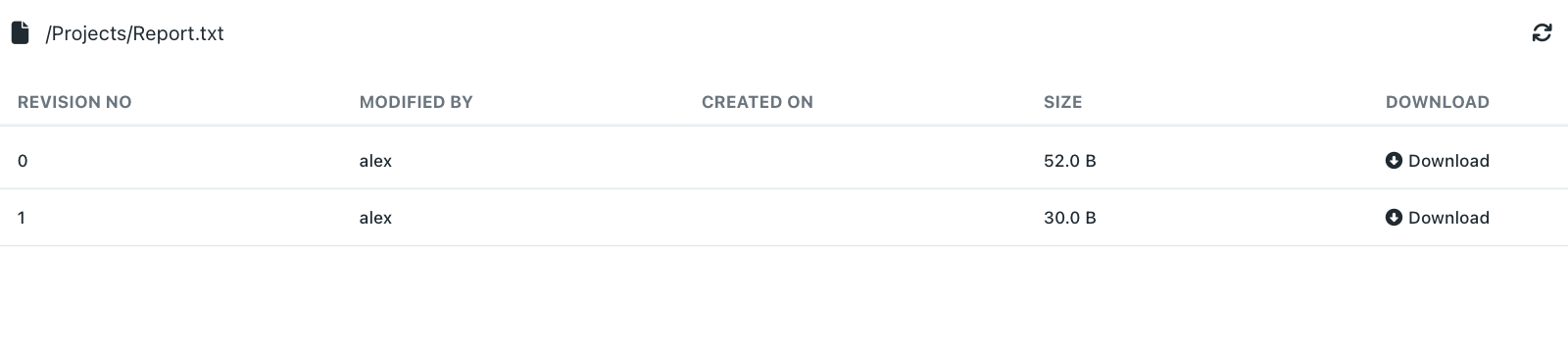
The WebInterface button Show History lists the earlier versions of the selected file, each with a download. Add it to the users' buttons in the User Manager (WebInterface tab) if they should be able to bring an earlier version back themselves.
The button Sync Manager opens the page where each user sets up what their computer syncs: Sync Manager.
Faster over long distances#
CrushSync can use the server's high speed tunnel, like the other apps. Set the tunnel up as described under CrushTunnel › Server setup and grant it to the users who sync.
On CrushFTP 11#
The steps are the same; the screens look different. See also Syncs and Virtual File System in the CrushFTP 11 documentation.
- CrushFTP 11 keeps the journal in a database. Preferences › Syncs has the days to keep and the database's settings (The journal on the server).
- Synced folders and files carry a sync icon in the WebInterface of CrushFTP 11.