Sync Manager#
The Sync Manager is where you decide what a computer syncs. It is a page of your CrushMFT server's WebInterface, at <your server>/WebInterface/sync/index.html. Open it from CrushSync (Sync Manager at the bottom of its window, or in the tray menu), or with the WebInterface's Sync Manager button.
The page talks to CrushSync through the server. It lists every computer on which CrushSync is running and signed in with your account, so a computer must have CrushSync running to be set up, but the browser can be anywhere.
This page shows CrushMFT 27. CrushFTP 11 has a Sync Manager too; it looks different.
The control password#
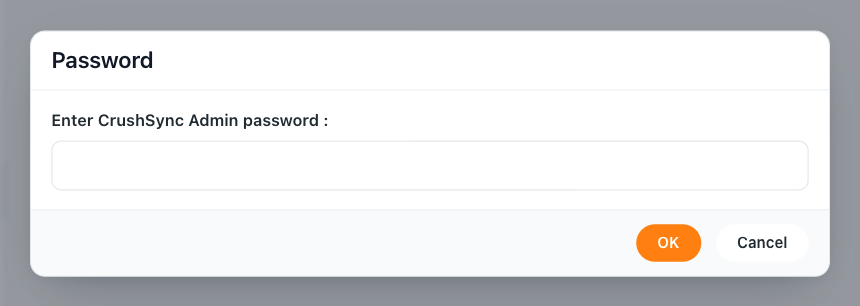
Before it shows anything, the page asks for the control password you set in CrushSync (First connection).
The page#
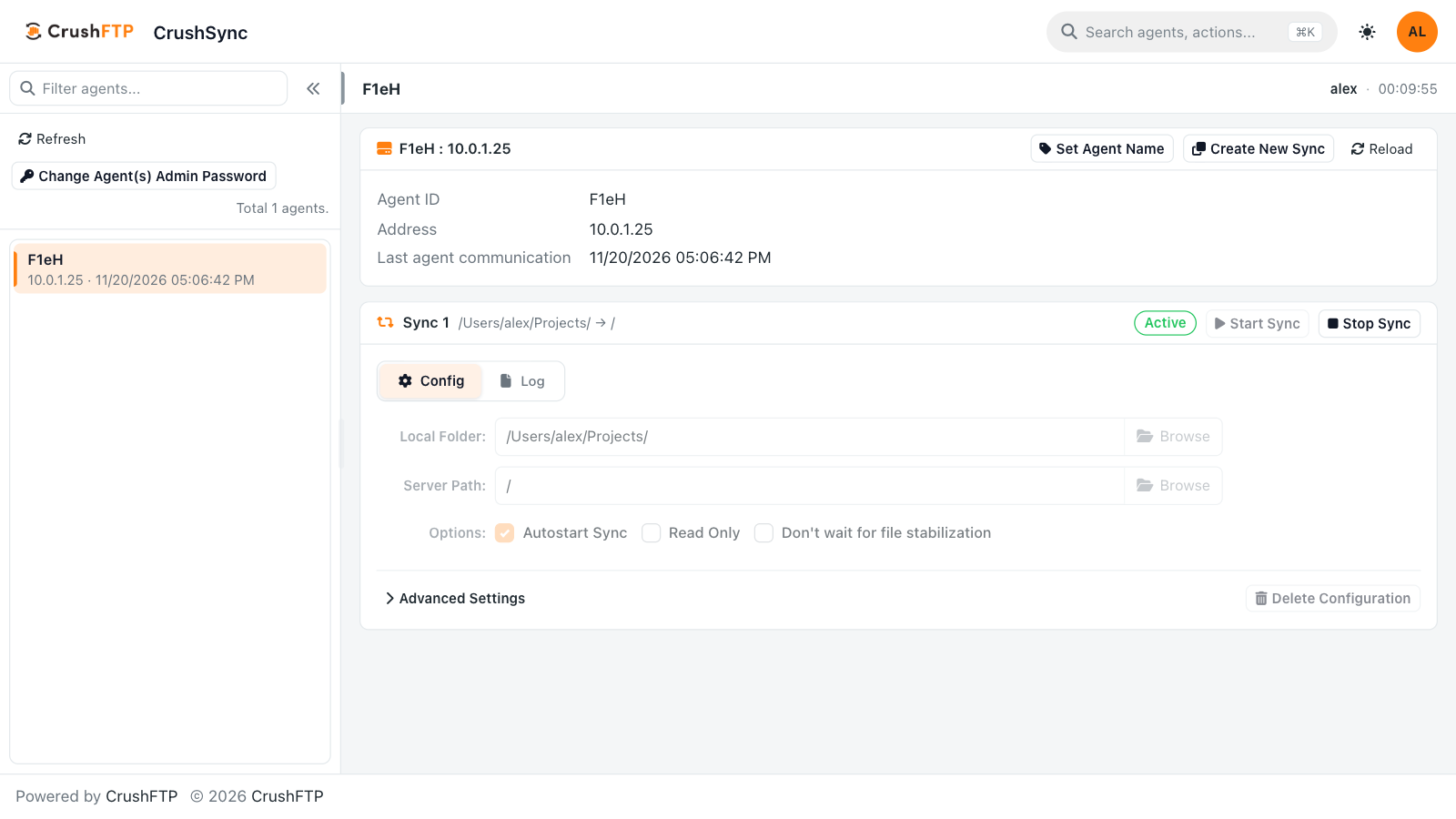
On the left are your computers ("agents"). Refresh reads the list again; Change Agent(s) Admin Password changes the control password of the computers in the list.
On the right is the computer you selected: its ID, its address and when CrushSync last talked to the server.
| Button | What it does |
|---|---|
| Set Agent Name | a name for the computer, in place of its ID |
| Create New Sync | adds a sync to this computer; its panel appears after a few seconds |
| Reload | reads this computer's syncs again |
Under it, each sync has a panel of its own, with its state (Active, Not running, or what it is doing), Start Sync and Stop Sync.
Setting up a sync#
Press Create New Sync, then fill in the sync's Config tab. A sync joins two folders:
| Setting | What it is |
|---|---|
| Local Folder | a folder on that computer; Browse shows that computer's folders |
| Server Path | the folder on the server. Usually just /, your home on the server, unless you only want one of its folders. |
| Autostart Sync | start this sync whenever CrushSync starts |
| Read Only | this computer only receives: changes made on it are not sent to the server |
| Don't wait for file stabilization | send a file as soon as it changes, without waiting until it has stopped changing |
Press Start Sync. CrushSync first compares the two folders, including anything that changed while the computer was away. When that is done the state is Active: the sync watches the folder and passes changes on as they happen.
The settings of a sync can only be changed while it is stopped. Press Stop Sync, change them, and start it again.
Advanced settings#
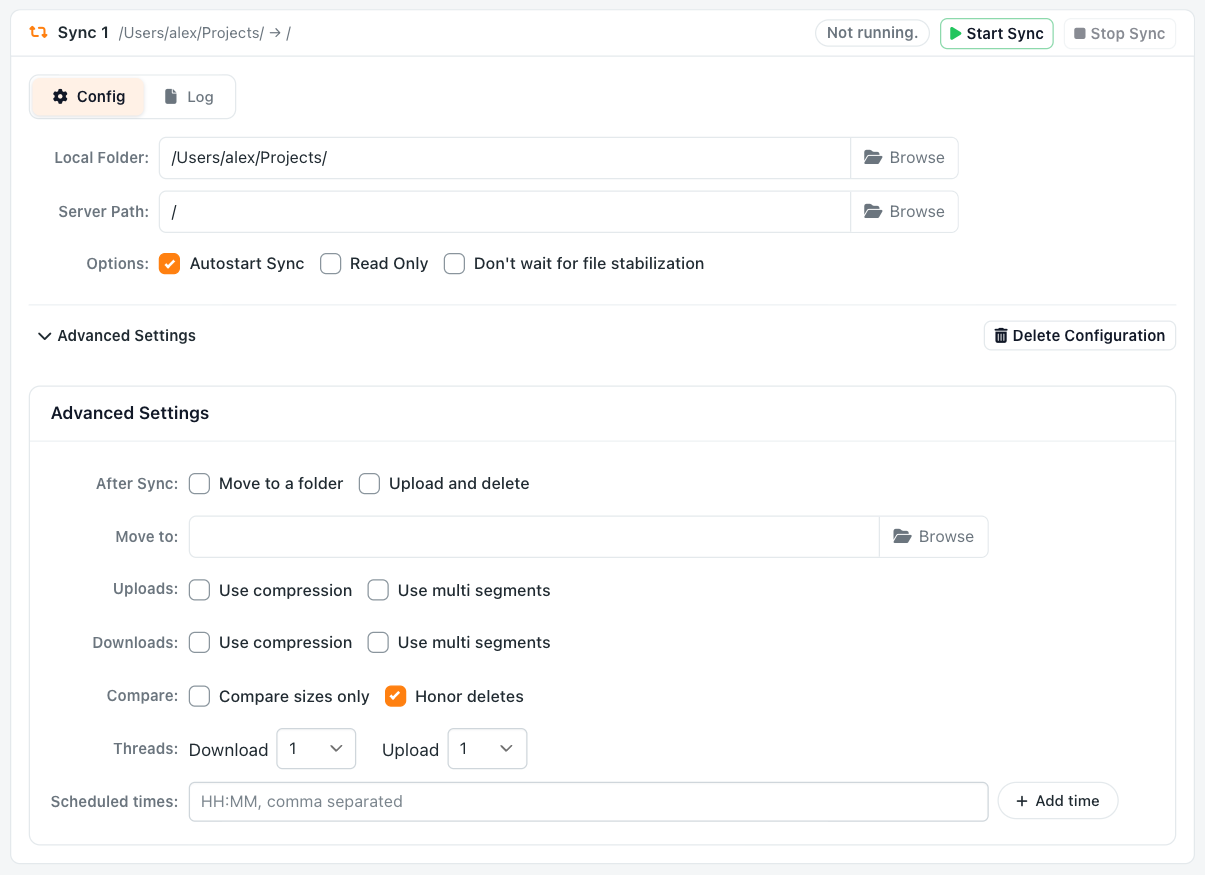
Advanced Settings opens the rest. It can only be opened while the sync is stopped.
| Setting | What it is |
|---|---|
| After Sync: Move to a folder, Move to | once a file is on the server, move it on this computer to the folder named under Move to |
| After Sync: Upload and delete | once a file is on the server, delete it from this computer |
| Uploads / Downloads: Use compression | compress the data on the way |
| Uploads / Downloads: Use multi segments | transfer a large file in several parts at the same time |
| Compare sizes only | take two files for the same when their sizes are the same, without comparing their contents |
| Honor deletes | delete on this computer what was deleted on the server. Switched off, deleted files stay on this computer. |
| Threads: Download, Upload | how many files are transferred at the same time, 1 to 10 |
| Scheduled times | times of day (HH:MM, separated by commas). With times, the sync does not run all the time: it compares and transfers at those times. |
The log#
The Log tab shows what the sync is doing on that computer.
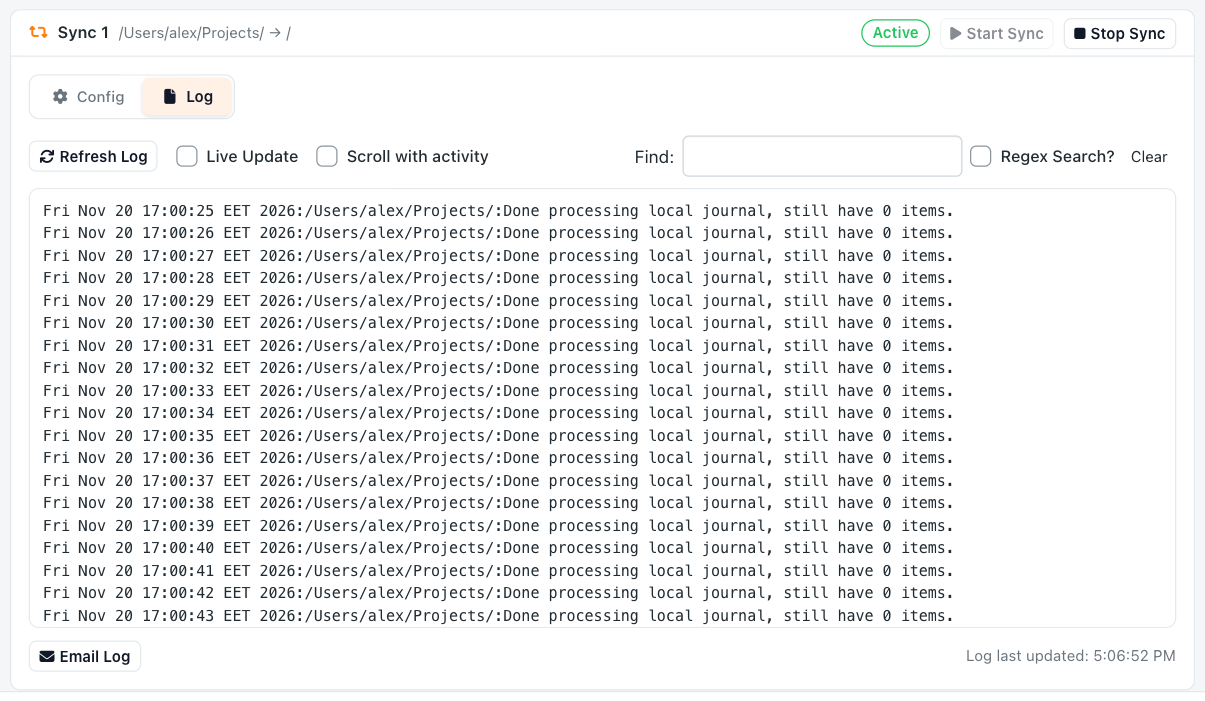
Refresh Log reads it again, Live Update keeps it up to date, Find searches it, and Email Log sends it to you.
One rule#
Everyone who syncs a folder together must use the same server path. If one person syncs to /myfiles/ and another to /mydocuments/, their syncs do not meet. The administrator arranges the path (Server setup).
Removing a sync#
Stop the sync, then Delete Configuration. The files on both sides stay as they are; they are only no longer kept the same.